
Don't Sleep for Windows: Download, Settings and Start Parameters
Don't Sleep is a free, portable 267 KB Windows app from SoftwareOK that blocks standby, hibernate, the screen saver, log off and shutdown while it runs, with a timer and CPU or network rules. Where to get the real one, what each option does, the command line for a batch file, and what it does not do for Slack or Teams.
Don't Sleep is a free Windows program from SoftwareOK that stops your PC from going to standby, hibernating, starting the screen saver, turning off the monitor, logging off or shutting down while it runs. It is portable: download the 267 KB zip from softwareok.com, unzip it, and run it, with no install. It does not change your Windows power plan, so closing it puts everything back. Version 10.22 came out on 20 June 2026 and runs on Windows 11, 10 and older, including Windows Server.
What it does not do is create keyboard or mouse input. The PC stays awake, but Microsoft Teams still shows you Away after about 5 minutes without input, and Slack after 10 minutes without input in its own window. If a green Slack dot is the goal, Slack Green keeps it active from our servers during the hours you set, with the PC asleep or off.
Where to download Don't Sleep
The developer's page is softwareok.com/?seite=Microsoft/DontSleep. The download is a zip with the program inside. Download sites such as Softonic, MajorGeeks and LO4D rank above the developer for "dont sleep download"; some wrap programs in their own installer, so take it from SoftwareOK when you can. Windows SmartScreen may warn that the app is not commonly downloaded. That is common for small freeware; check that the file came from softwareok.com before you allow it.
How Don't Sleep works
SoftwareOK's page says that, depending on the setting, Don't Sleep "reports to the operating system that it has very important tasks to do" when the screen saver or monitor-off would start, and takes the highest shutdown priority so it can intercept a shutdown before other programs close. This is the same request video players and presentation apps make, and you can see it working. With Don't Sleep running, open a Command Prompt and run:
powercfg /requestsThe list shows every program that is holding off sleep or display-off, under DISPLAY and SYSTEM. Run it with Don't Sleep blocking and again after you close it to see what Don't Sleep was holding.
What each option blocks
Never appear "away" on Slack again
Cloud-based. No downloads. Works 24/7 even when your laptop is off.
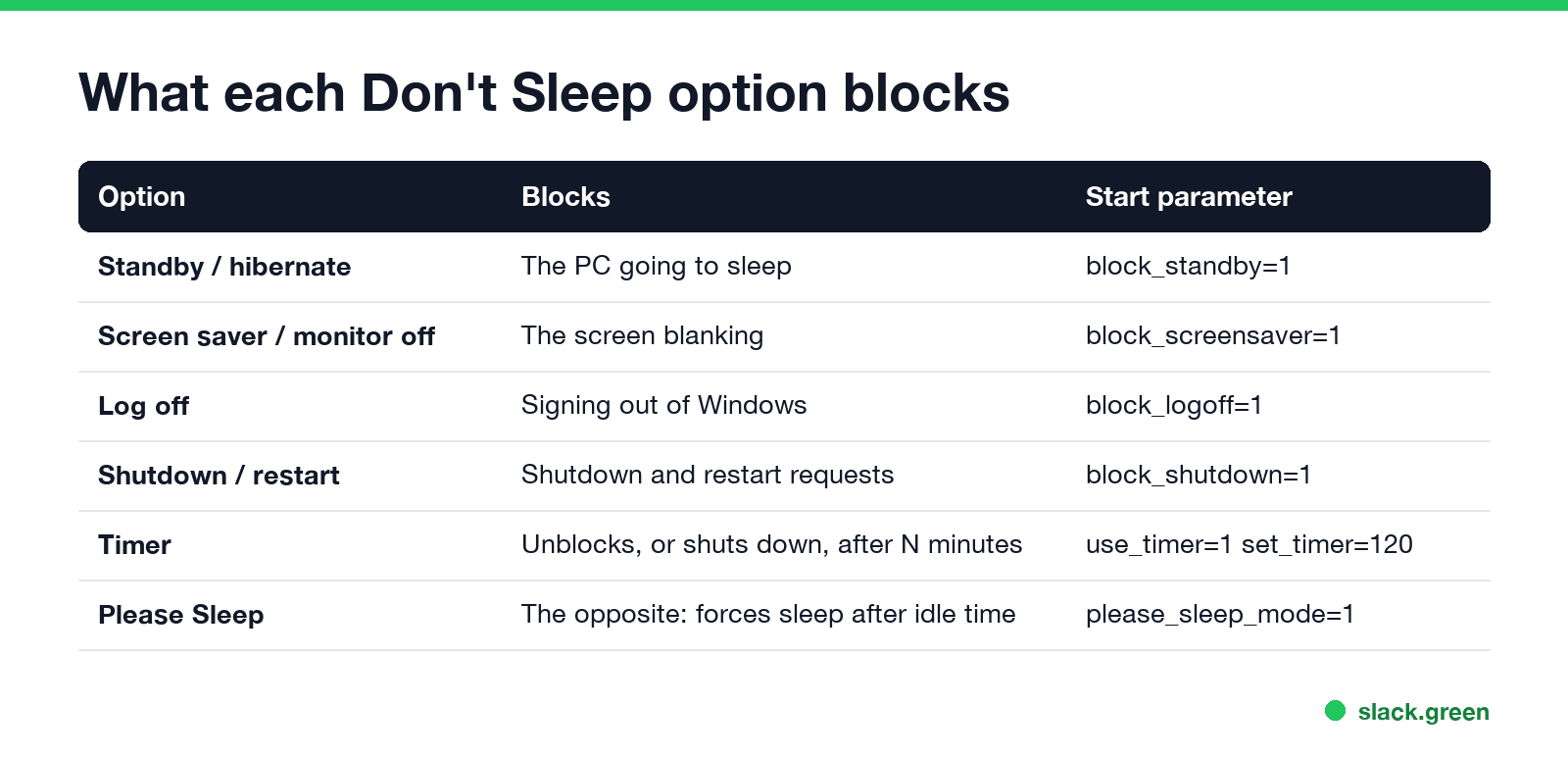
| Option | Blocks | Start parameter |
|---|---|---|
| Standby / hibernate | The PC going to sleep | block_standby=1 |
| Screen saver / monitor off | The screen blanking | block_screensaver=1 |
| Log off | Signing out of Windows | block_logoff=1 |
| Shutdown / restart | Shutdown and restart requests | block_shutdown=1 |
| Timer | Unblocks, or shuts the PC down, after a set time | use_timer=1 set_timer=120 |
| Please Sleep | The opposite: puts the monitor or PC to sleep after idle time | please_sleep_mode=1 |
The window also has rules based on network traffic and CPU load, so you can keep the PC awake while a download or render is busy and let it sleep once it goes quiet. For downloads specifically, see keep your computer awake while downloading.
Leave shutdown blocking off unless you need it. With it on, Don't Sleep intercepts restart requests too, which can hold up a restart you or IT asked for.
Start Don't Sleep from a batch file
SoftwareOK's FAQ lists the start parameters. This batch file starts Don't Sleep minimized in the tray, blocks standby and the screen saver with a 120-minute timer, and leaves log off and shutdown alone. What happens when the timer ends, unblock or shut down, is a choice in the timer section of the window. Use the file name from your download:
@echo off
:: keep the PC and screen awake, with a 120-minute timer
start "" "%USERPROFILE%\Tools\DontSleep\DontSleep.exe" -bg block_standby=1 block_screensaver=1 block_logoff=0 block_shutdown=0 use_timer=1 set_timer=120
To close a running copy from a script, run the program again with exit. -bg starts it minimized in the notification area.
Don't Sleep vs the other ways to keep Windows awake
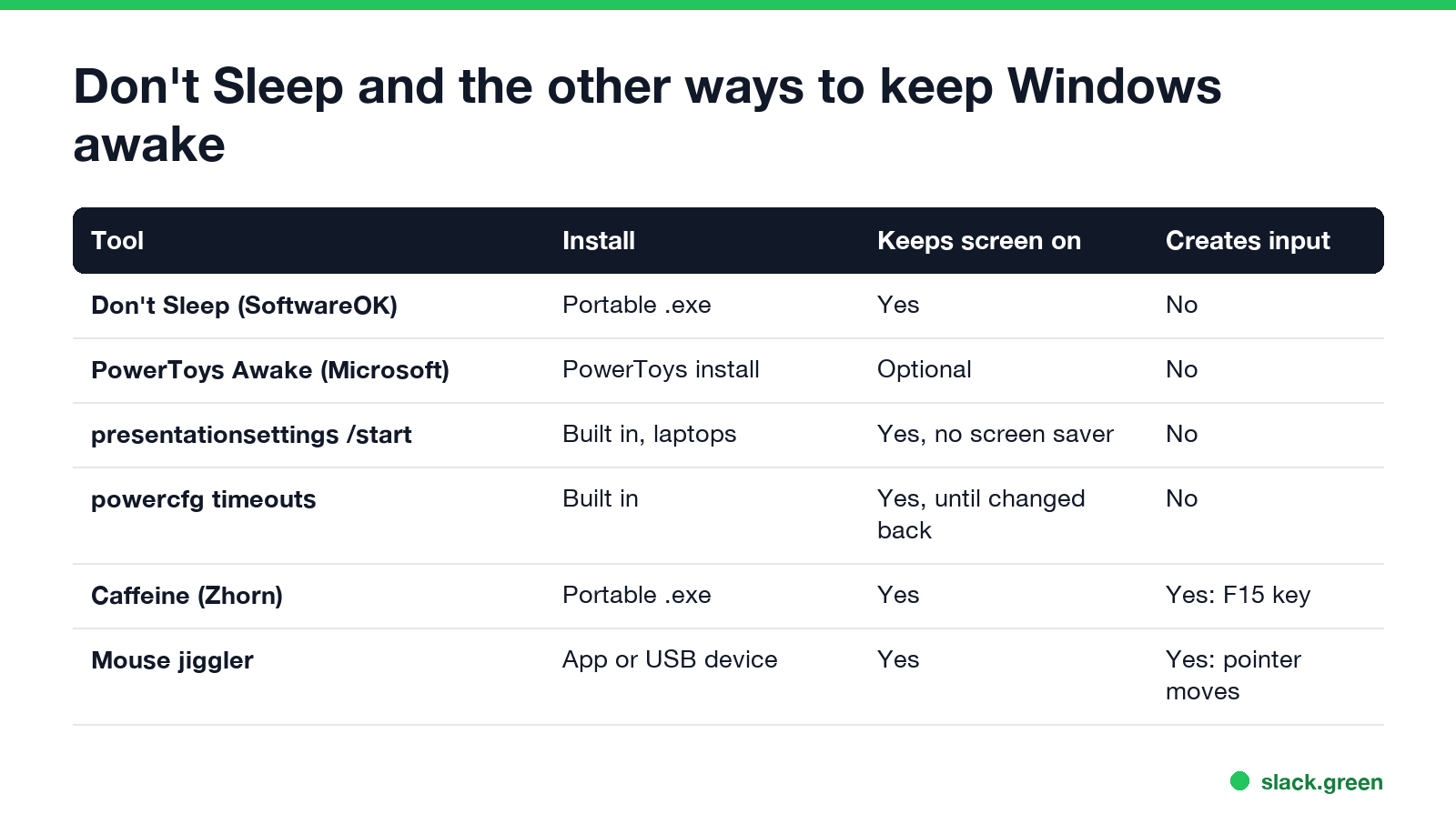
| Tool | Install | Keeps the screen on | Creates input |
|---|---|---|---|
| Don't Sleep (SoftwareOK) | Portable .exe | Yes | No |
| PowerToys Awake (Microsoft) | PowerToys install | Optional | No |
presentationsettings /start | Built in on laptops | Yes, and no screen saver | No |
powercfg timeouts | Built in | Yes, until you change them back | No |
| Caffeine (Zhorn Software) | Portable .exe | Yes | Yes, the F15 key |
| Mouse jiggler | App or USB device | Yes | Yes, pointer moves |
- • PowerToys Awake is Microsoft's own option, with a timer and an optional keep-screen-on switch; see PowerToys Awake and Slack.
- • Caffeine presses F15 every 59 seconds, so Teams stays Available as well; see Caffeine app for Windows.
- • Built-in settings need no app at all; see how to stop your computer from sleeping.
Pick Don't Sleep when you want a portable tool with timer, CPU and network rules, and shutdown blocking. Pick Caffeine or a jiggler only if you need a chat app to stay Available, and check your company's policy first.
FAQ
Never appear "away" on Slack again
Cloud-based. No downloads. Works 24/7 even when your laptop is off.
What is the Don't Sleep app? A free, portable Windows program from SoftwareOK that blocks standby, hibernate, the screen saver, log off and shutdown while it runs.
Is Don't Sleep safe? The copy from softwareok.com is the developer's own build, a small freeware tool. Avoid repackaged installers from download sites.
Does Don't Sleep keep Teams or Slack active? No. It keeps the PC awake but sends no input, so Teams goes Away after about 5 minutes and Slack after 10 minutes without input in its window.
Does Don't Sleep change my power settings? No. It blocks sleep only while it runs. Close it and Windows uses your normal power plan.
Does Don't Sleep need admin rights? No install is needed, so it usually runs without admin rights, unless your company blocks unknown apps.
Stop Jiggling Your Mouse.
Join hundreds of remote workers who never worry about their Slack status. Set it up once, stay green forever.
Related Articles
KeepingYouAwake vs Amphetamine: Which Mac Keep-Awake App to Use
KeepingYouAwake is a free, open-source menu bar switch that runs Apple's caffeinate for you. Amphetamine is a free App Store app with triggers, schedules and a closed-lid mode. Pick KeepingYouAwake for one click and Homebrew, Amphetamine for automation. Neither keeps Slack or Teams active.
Computer Locks After 15 Minutes? How to Tell If Group Policy Set It
A work laptop that locks after exactly 15 minutes, with screen settings greyed out, is almost always following a policy from IT: the Windows machine inactivity limit, a forced screen saver, or an Intune device lock. Security baselines and PCI DSS ask for 15 minutes. How to see which policy it is, and what you can and cannot change.
How to Keep a Citrix Session Active: Find Which Timeout Logs You Out
A Citrix session can end from four different timers: Windows locking inside the virtual desktop, the Citrix session idle timer, the Citrix Gateway session time-out, and the StoreFront web page timeout. Only input from your own device into the Citrix window resets them. How to tell which one hit you and what keeps each one quiet.