
Home Assistant Slack Integration: Notifications, Files and Status, Tested
Home Assistant's Slack integration sends notifications with a bot token through the notify.slack action, including Block Kit and file uploads. We set it up on Home Assistant 2026.11.0 on 8 November 2026, hit the missing-scope errors that stop file uploads, and set a Slack status from an automation.
To send Home Assistant notifications to Slack, create a Slack app with a bot token, add the Slack integration in Settings > Devices & services, and call the notify.slack action with a message. The integration needs more bot scopes than "chat:write" if you want file uploads: without groups:read, every file upload failed in our test. On 8 November 2026 we ran Home Assistant 2026.11.0 (the official container) against a test Slack workspace, sent text, Block Kit and a file, and set a Slack status from an automation. Below is the setup, the YAML, what arrived, and the errors from the log.
Step 1: make the Slack app
Create an app at api.slack.com/apps, install it to your workspace, and copy the Bot User OAuth Token (xoxb-...). These are the bot scopes each part of the integration used in our run:
| Scope | Needed for | What happened without it |
|---|---|---|
chat:write | Text and Block Kit messages | Nothing sends |
chat:write.customize | The username and icon set in the integration | Not tested; Slack requires it for a custom name |
files:write | File uploads | Not tested without it |
channels:read and groups:read | Turning a channel name into an ID before a file upload | missing_scope (needed groups:read), file not sent |
dnd:read | The integration's "Do not disturb until" sensor | missing_scope (needed dnd:read) at startup, no sensor |
Invite the bot to each channel you post to with /invite @your-app. Slack bot tokens explains how scopes are added; a new scope only applies after you reinstall the app.
Step 2: add the integration
In Home Assistant, go to Settings > Devices & services > Add integration > Slack. The form asks for four things: the API key (the bot token), a default channel, and an optional icon and username. We entered sg-1108-lab, :house: and Home Assistant.
A wrong token is caught here. With xoxb-not-a-real-token the form came back with the error invalid_auth, and no entry was made. With the real token, the entry was created and an action named notify.slack appeared.
Step 3: send a notification
This is the action call we made from Developer tools > Actions (the same YAML works in an automation):
action: notify.slack
data:
  message: "Washing machine finished :white_check_mark:"
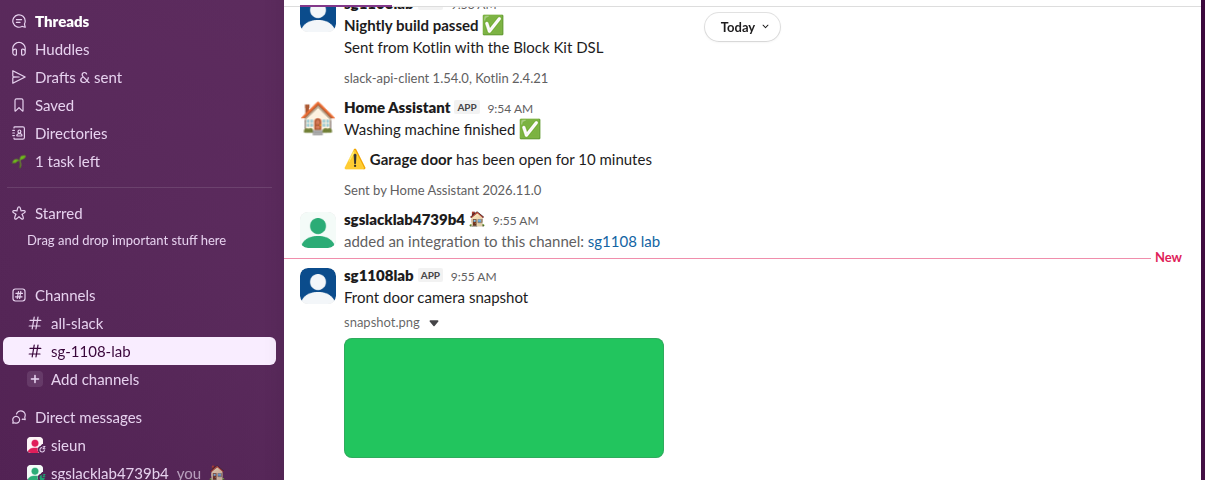
It posted at once under the name "Home Assistant" with the house icon from the setup form. To send to another channel, add target. To send a Block Kit layout, put the blocks under data:
action: notify.slack
data:
  message: "Garage door left open"
  data:
    blocks:
      - type: section
        text:
          type: mrkdwn
          text: ":warning: *Garage door* has been open for 10 minutes"
      - type: context
        elements:
          - type: mrkdwn
            text: "Sent by Home Assistant 2026.11.0"
With blocks, message becomes the notification text, and the blocks are what people see in the channel. Our Block Kit Builder guide helps you draft the layout first.
Never appear "away" on Slack again
Cloud-based. No downloads. Works 24/7 even when your laptop is off.
Step 4: send a file (and the scope trap)
The integration uploads a local file or a URL. Local files must be in a folder listed under allowlist_external_dirs:
homeassistant:
  allowlist_external_dirs:
    - /config/www
action: notify.slack
data:
message: "Front door camera snapshot"
title: "snapshot.png"
data:
file:
path: /config/www/snapshot.pngOur first try returned success (HTTP 200 from the action call), and nothing reached Slack. The log said:
2026-11-08 09:54:19.021+00:00 ERROR (MainThread) [homeassistant.components.slack.notify] Error getting channel ID: SlackApiError("The request to the Slack API failed. (url: https://slack.com/api/conversations.list, status: 200)\nThe server responded with: {'ok': False, 'error': 'missing_scope', 'needed': 'groups:read', 'provided': 'chat:write,chat:write.customize,channels:join,app_mentions:read,files:write,im:write,commands,channels:history,channels:read,files:read,im:history,users:read,incoming-webhook'}")
2026-11-08 09:54:19.024+00:00 ERROR (MainThread) [homeassistant.components.slack.notify] No valid channel IDs resolved for targets: ['sg-1108-lab']
For files, the integration looks up the channel ID by listing public and private channels, even when you give a plain channel name, so the token needs groups:read as well as channels:read. We added groups:read, reinstalled the app (the bot token stayed the same), and the same call uploaded the file, with "Successfully uploaded file to channel" in the log. The upload shows under the bot's own name, not "Home Assistant", because the file upload call does not take a custom username or icon.
When the bot is not in the channel
We sent a message with target: ["#all-slack"], a channel the bot had not joined. The action still returned success, and the log said:
2026-11-08 09:54:27.672+00:00 ERROR (MainThread) [homeassistant.components.slack.notify] There was a Slack API error while sending to all-slack: SlackApiError("The request to the Slack API failed. (url: https://slack.com/api/chat.postMessage, status: 200)\nThe server responded with: {'ok': False, 'error': 'not_in_channel'}")Home Assistant logs Slack errors and moves on, so an automation that relies on a Slack alert will not stop or retry. Check Settings > System > Logs for homeassistant.components.slack after you add a new target.
Set your Slack status from Home Assistant
The integration only posts as a bot; it cannot change your own status. A rest_command that calls Slack's users.profile.set with a user token (xoxp-, user scope users.profile:write) can. This is the configuration we ran:
input_boolean:
  at_home:
    name: At home

rest_command:
  slack_status_home:
    url: https://slack.com/api/users.profile.set
    method: POST
    headers:
      Authorization: !secret slack_user_token
    content_type: "application/json; charset=utf-8"
    payload: '{"profile": {"status_text": "Home", "status_emoji": ":house:", "status_expiration": 0}}'
  slack_status_clear:
    url: https://slack.com/api/users.profile.set
    method: POST
    headers:
      Authorization: !secret slack_user_token
    content_type: "application/json; charset=utf-8"
    payload: '{"profile": {"status_text": "", "status_emoji": ""}}'

automation:
  - alias: "Slack status follows At home"
    triggers:
      - trigger: state
        entity_id: input_boolean.at_home
    actions:
      - choose:
          - conditions: "{{ trigger.to_state.state == 'on' }}"
            sequence:
              - action: rest_command.slack_status_home
        default:
          - action: rest_command.slack_status_clear
In secrets.yaml, slack_user_token is the whole header value, "Bearer xoxp-...". When we turned input_boolean.at_home on, Slack answered ok: true and the member's status was "Home" with the house emoji 0.3 seconds later; you can see the house next to the name in the screenshot above. Turning it off cleared the status. Swap the input boolean for a person or zone entity to follow your phone's location. For a list of status texts, see our Slack status ideas tool.
FAQ
Can Home Assistant read Slack messages?
No. The integration posts messages and files and reads Do Not Disturb for its sensor. It has no trigger for incoming Slack messages. Tools like Node-RED's Slack nodes can receive mentions over Socket Mode and call Home Assistant from there.
Why do my messages show the app name and not "Home Assistant"?
Text messages used the username and icon from the setup form in our run, with chat:write.customize on the token. File uploads always showed the bot's name, because the integration's upload call sends no username or icon.
Stop Jiggling Your Mouse.
Join hundreds of remote workers who never worry about their Slack status. Set it up once, stay green forever.
Related Articles
ngrok for a Slack Bot: What It Needs, and Two Free Alternatives Tested
A Slack bot on localhost needs a public HTTPS URL for events and slash commands, or Socket Mode. We tried ngrok 3.39.13 with no account (ERR_NGROK_4018), a Cloudflare quick tunnel and Socket Mode on 8 November 2026, timed the replies, and broke the tunnel URL on purpose.
Slack Java SDK: Post, Read History and Run a Bolt App (Tested 1.54.0)
The Slack Java SDK is com.slack.api:slack-api-client for Web API calls and com.slack.api:bolt for apps. We ran version 1.54.0 with Gradle on 8 November 2026: chat.postMessage, conversations.history with a cursor, a Socket Mode Bolt app and a Kotlin Block Kit post, plus the silent failure in ctx.say.
Slack File Block: Post Remote and Uploaded Files in Block Kit
A Slack file block shows a file card inside a message. It takes source "remote" plus an external_id or file_id, and the file must exist first. We added remote files with files.remote.add, posted them in file blocks, and tried the mistakes, on 7 November 2026.