
How to Quote a Message in Slack: Block Quote, Link or Forward
Slack has no quote-reply button. To quote a message, type > and a space, then paste the text, or press Cmd+Shift+9. To quote the whole message with a link back to it, copy its link and paste it, or forward it. Steps for desktop, mobile, threads and bots.
To quote a message in Slack, type > and a space at the start of a line, then paste the words you want to quote. Slack puts a grey bar next to them, and you write your answer on the next line. You can also paste the text, select it, and press Cmd+Shift+9 on a Mac or Ctrl+Shift+9 on Windows, or click Block quote in the formatting toolbar. Slack has no quote-reply button, so to show the whole original message with a link back to it, copy the message link and paste it, or use Forward message.
The block quote steps are from Slack's help articles "Format your messages in Slack" and "Format your messages in Slack with markup", and the link and forward steps from "Forward messages in Slack", all checked on 27 September.
None of these touch your status. Slack sets you to away after about 10 minutes without input in the Slack window, even in the middle of a long thread. Slack Green keeps your dot green from a server during the hours you set.
Three ways to quote in Slack
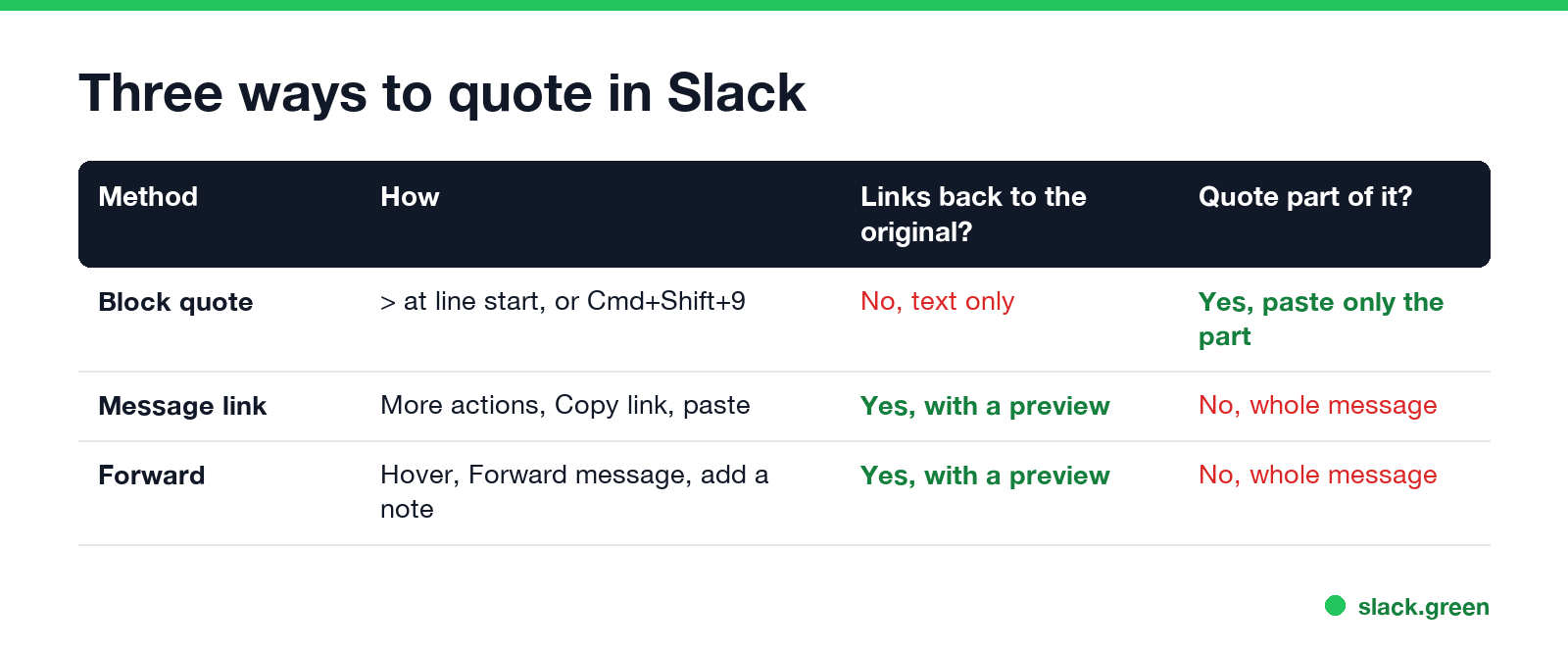
| Method | Best for | Links to the original | Quote part of it |
|---|---|---|---|
Block quote (>) | Answering one sentence | No | Yes |
| Message link | Pointing back to an old message | Yes, with a preview | No |
| Forward message | Sharing a message in another channel or DM | Yes, with a preview | No |
A block quote is text only: readers see the words but cannot jump to the original. A link or a forward shows a preview card that opens the original message.
How to block quote in Slack
- Copy the text you want to quote.
- Click in the message box where you want to answer. If you already typed something, press Shift+Enter to start a new line.
- Type
>and a space. The line turns into a quote. - Paste the text, press Shift+Enter for a new line, and press Cmd+Shift+9 (Ctrl+Shift+9) again to end the quote.
- Type your reply and send.
If you prefer shortcuts, paste first, select the pasted text, and press Cmd+Shift+9. The Block quote button in the formatting toolbar does the same.
Multi-line quotes. Paste all the lines, select them, and apply Block quote once: every selected line gets the bar. If you use Format messages with markup (Preferences, Advanced), Slack shows plain text as you type and applies formatting after you send, so put > at the start of each line you want quoted.
How to quote part of a message
Never appear "away" on Slack again
Cloud-based. No downloads. Works 24/7 even when your laptop is off.
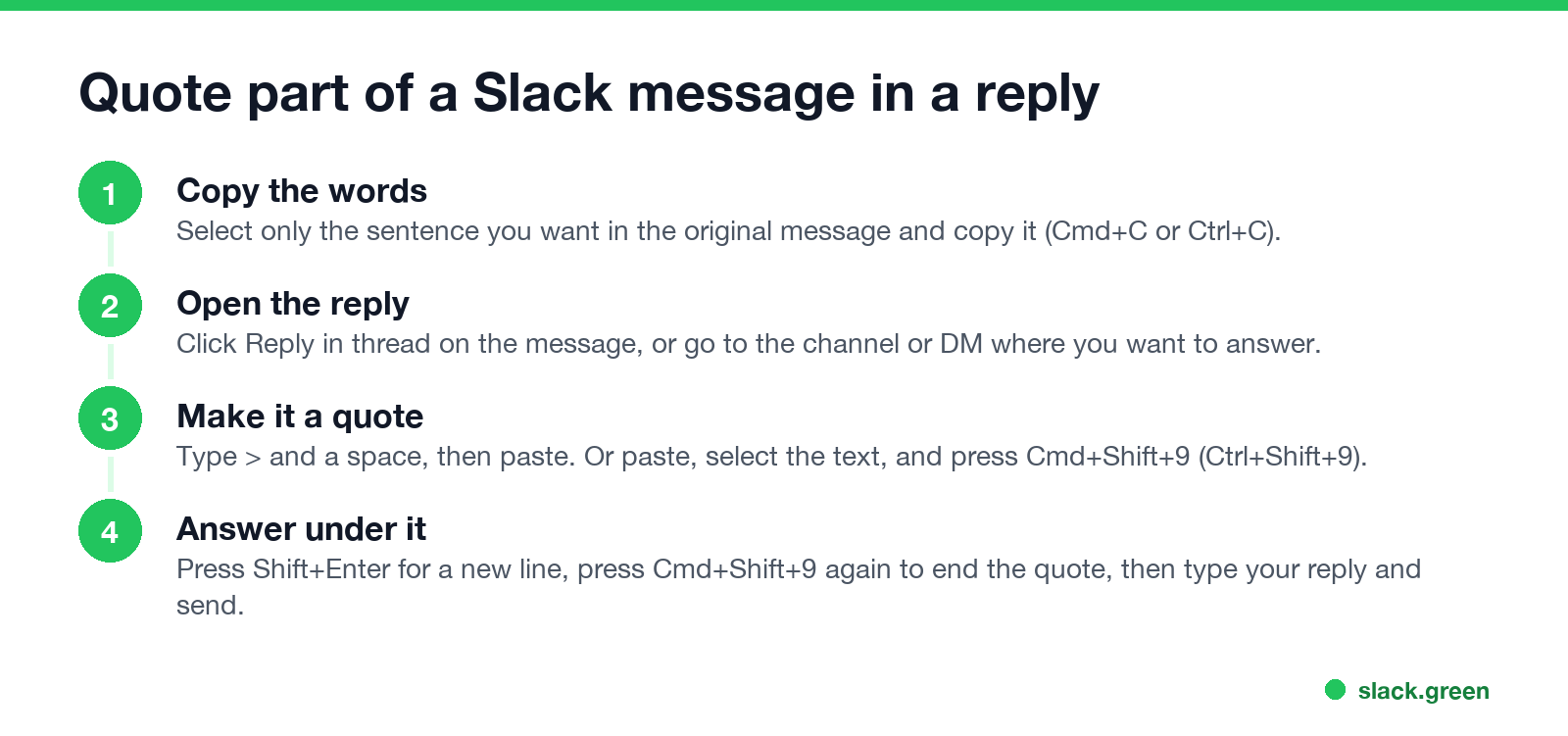
Slack cannot quote a selection with one click, so copy it:
> and a space, then paste.In a long thread with several questions, quoting each one above its answer makes the reply easy to follow. To make a thread reply visible in the channel as well, tick Also send to #channel under the reply box.
How to quote a whole message with a link
If the message is from a private channel or a DM, Slack asks whether to Show message or Only show link. People who cannot see the original conversation only get the link. On mobile, tap and hold the message and choose Copy Link to Message.
How to forward a message in Slack
On iPhone and Android, tap and hold the message and choose Forward message. Forwarding works on every Slack plan, for members and guests.
Block quotes in Slack bot and API messages
Never appear "away" on Slack again
Cloud-based. No downloads. Works 24/7 even when your laptop is off.
In mrkdwn text, start each quoted line with > and separate lines with \n. Slack's developer docs show this form. This Python example posts a two-line quote with a reply under it:
import os
import requests

text = ">We ship the beta on Thursday.\n>QA signs off Wednesday.\nConfirmed, I will post the notes."
resp = requests.post(
    "https://slack.com/api/chat.postMessage",
    headers={"Authorization": f"Bearer {os.environ['SLACK_BOT_TOKEN']}"},
    json={"channel": "C0123456789", "text": text},
    timeout=10,
)
print(resp.json()["ok"])
Lines without > show as normal text, so the reply after the quote is not quoted. To preview mrkdwn before a bot sends it, paste it into the Slack message formatter. Markdown quotes from ChatGPT or a README convert with the markdown to Slack converter, which flattens nested quotes to one level because Slack has only one.
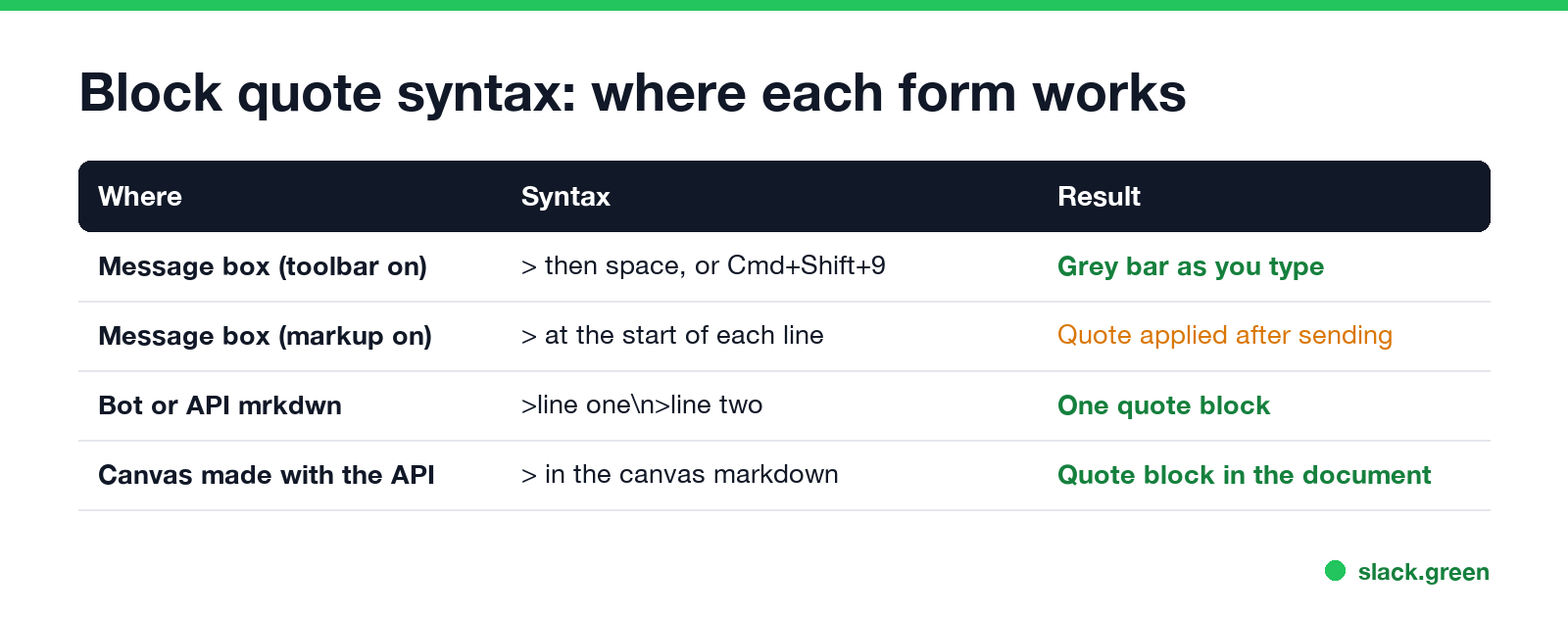
Other formatting you can use with a quote
Bold, italics, strikethrough, links and inline code work inside a quote; the markers are in how to bold text in Slack. For lists see how to make bullet points in Slack. Every formatting shortcut, including Cmd+Shift+9, is in Slack keyboard shortcuts.
FAQ
Is there a quote reply in Slack?
No. Slack has no button that quotes a message in your reply. Use a block quote with >, paste the message link, or forward the message.
What is the shortcut for a block quote in Slack?
Cmd+Shift+9 on a Mac, Ctrl+Shift+9 on Windows and Linux.
How do I quote multiple lines in Slack?
Paste the lines, select them all, and press Cmd+Shift+9 or click Block quote. In markup mode, put > at the start of every line.
How do I quote a message in a Slack thread?
Click Reply in thread, type > and a space, paste the text, then answer on a new line.
Can I quote a message from another channel?
Yes. Copy the message link and paste it, or forward the message. Readers who cannot see the original channel only see the link.
Stop Jiggling Your Mouse.
Join hundreds of remote workers who never worry about their Slack status. Set it up once, stay green forever.
Related Articles
Slack Emoji for Announcements, Updates and Reminders
The standard Slack emoji for an announcement is 📣 :mega: or 📢 :loudspeaker: at the start of the post. Use 🚨 :rotating_light: only for real emergencies, 🆕 :new: for updates, ⏰ :alarm_clock: for reminders, and ask readers to react with ✅ :white_check_mark: once they have read it. Templates and a custom emoji idea.
Slack Status for a Doctor Appointment: 24 Statuses and Emoji
A Slack status for a doctor appointment says you are out and when you are back, such as 🏥 'At an appointment, back at 2 PM.' You do not have to say what kind. 24 statuses for doctor, dentist and other appointments, the emoji codes, and how to schedule the status so it clears by itself.
Slack Status for Limited Availability: 30 Statuses to Copy
A Slack status for limited availability says you are around but slow, until when, and how to reach you if it is urgent, such as ⏳ 'Limited availability today, replies after 3 PM. Urgent: @mention me.' 30 statuses for busy days, slow replies and catching up, the emoji to use, and when to pause notifications too.