
LinkedIn Active Status: What the Green Dot Means and How to Hide It
On LinkedIn, a solid green dot on someone's photo means they are active on LinkedIn now. A hollow green circle means they are not, but the mobile app will notify them at once. Turn yours off under Settings & Privacy, Visibility, Manage active status; with No one, you also stop seeing other people's status.
LinkedIn active status is the green dot on a person's profile photo in LinkedIn Messaging. A solid green dot means they are active on LinkedIn right now and will be notified at once if you message them. A hollow green circle means they are not using LinkedIn now, but they have push notifications on in the LinkedIn mobile app, so your message still reaches their phone at once. No dot means they are not active, or they turned active status off. To hide your own, go to Settings & Privacy, Visibility, Manage active status, and choose No one. LinkedIn's help page adds the catch: with active status off, you also lose the ability to see when your connections are active.
LinkedIn's dot is one of several presence dots people read at work. Slack's works differently: it turns grey after 10 minutes without input in the Slack window. Slack Green keeps your Slack status active during the hours you set, from the cloud, without touching your LinkedIn or anything else.
What does the green dot mean on LinkedIn?
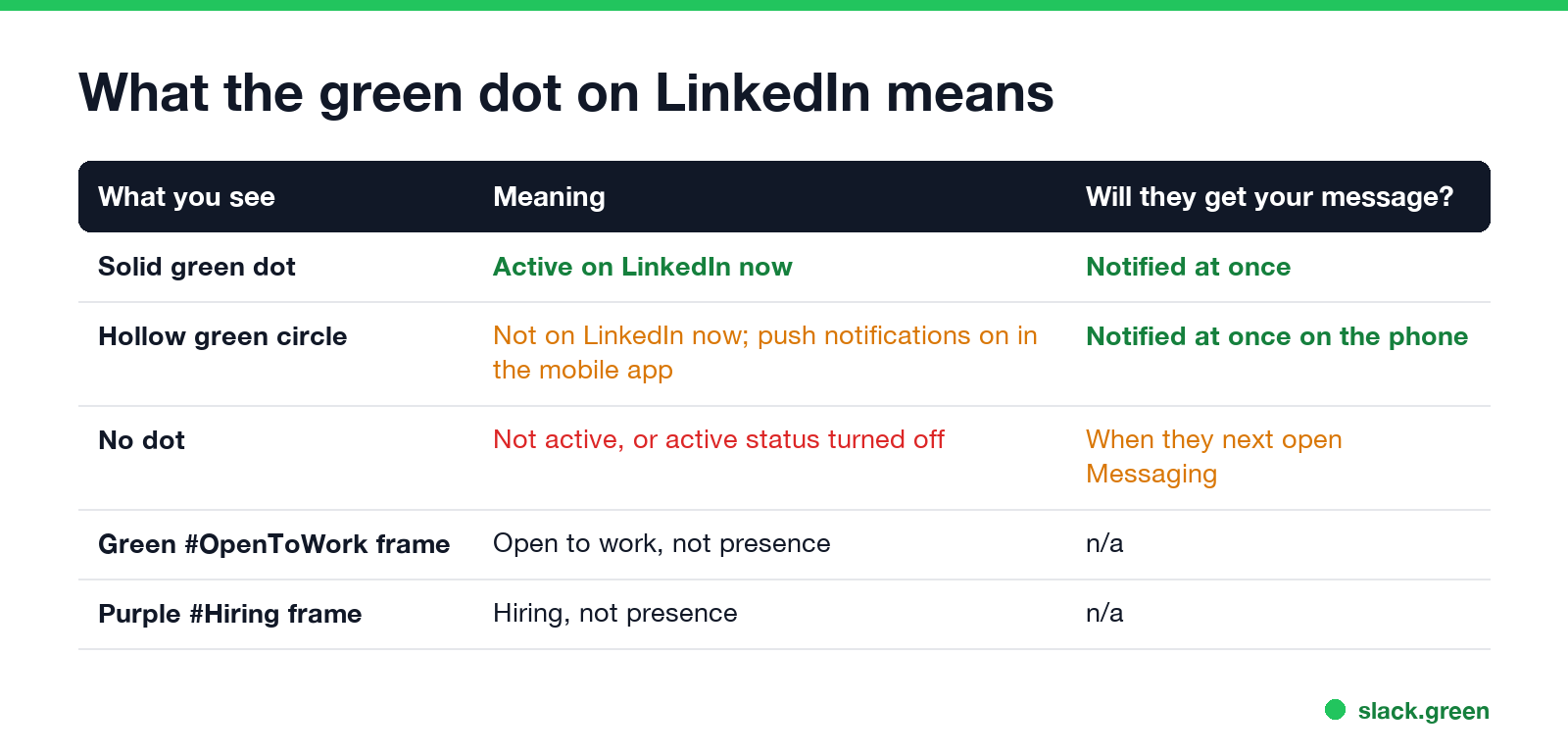
| What you see | What it means | When they get your message |
|---|---|---|
| Solid green dot | Active on LinkedIn now | At once |
| Hollow green circle (a white circle with a green outline) | Not on LinkedIn now; push notifications are on in the mobile app | At once, on their phone |
| No dot | Not active, or active status is off | When they next open Messaging |
These definitions come from LinkedIn's help page "Active status in LinkedIn Messaging". The dots show in Messaging, on the photos of your 1st-degree connections, and in the messaging panel at the bottom of the desktop site. In the LinkedIn mobile app, a timestamp next to a hollow-circle photo shows when the person was last active.
Two green things on LinkedIn are not active status:
- • The green #OpenToWork frame around a photo means the person is looking for a job. It has nothing to do with being online.
- • The purple #Hiring frame means the person is hiring.
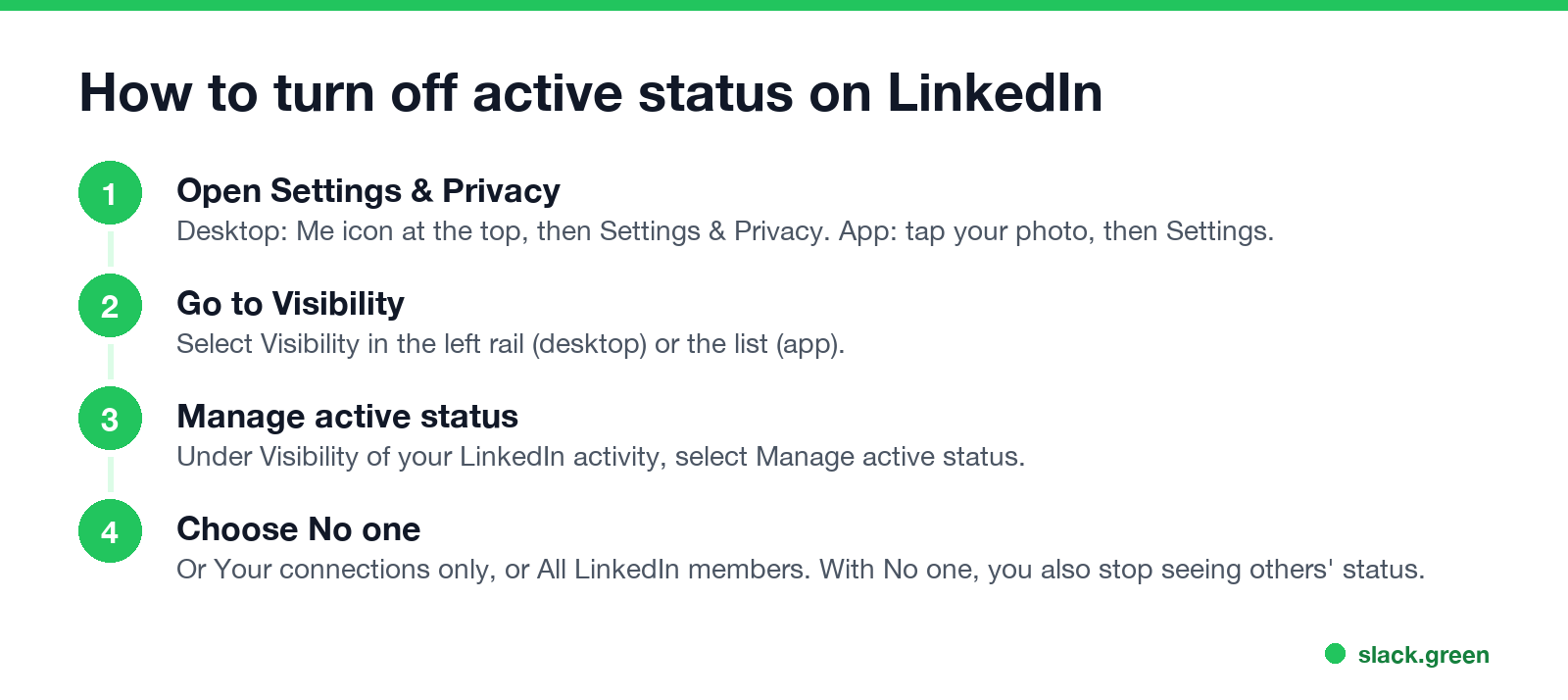
- Click the Me icon at the top of the LinkedIn homepage.
- Select Settings & Privacy.
- Click Visibility in the left rail.
- Under Visibility of your LinkedIn activity, click Manage active status.
- Choose who can see when you are active.
- • Your connections only: only 1st-degree connections see your dot.
- • All LinkedIn members: anyone on LinkedIn sees it.
- • No one: nobody sees it, and you stop seeing other people's dots.
LinkedIn does not publish how long the solid dot stays after someone closes LinkedIn, and a dot does not mean the person is reading your message. It means the LinkedIn app or site is open, or was used recently.
How to turn off active status on LinkedIn
On desktop:
In the mobile app, tap your profile photo, tap Settings, then Visibility, and Manage active status.
You get three choices:
LinkedIn sets active status to on for your connections by default. unanswered.io reports that a change can take up to 30 minutes to reach other people, so check from a second account before you rely on it.
Can someone tell I am online on LinkedIn without the dot?
Never appear "away" on Slack again
Cloud-based. No downloads. Works 24/7 even when your laptop is off.
Yes, in other ways. With active status off, people can still see:
LinkedIn active status vs Slack and Teams
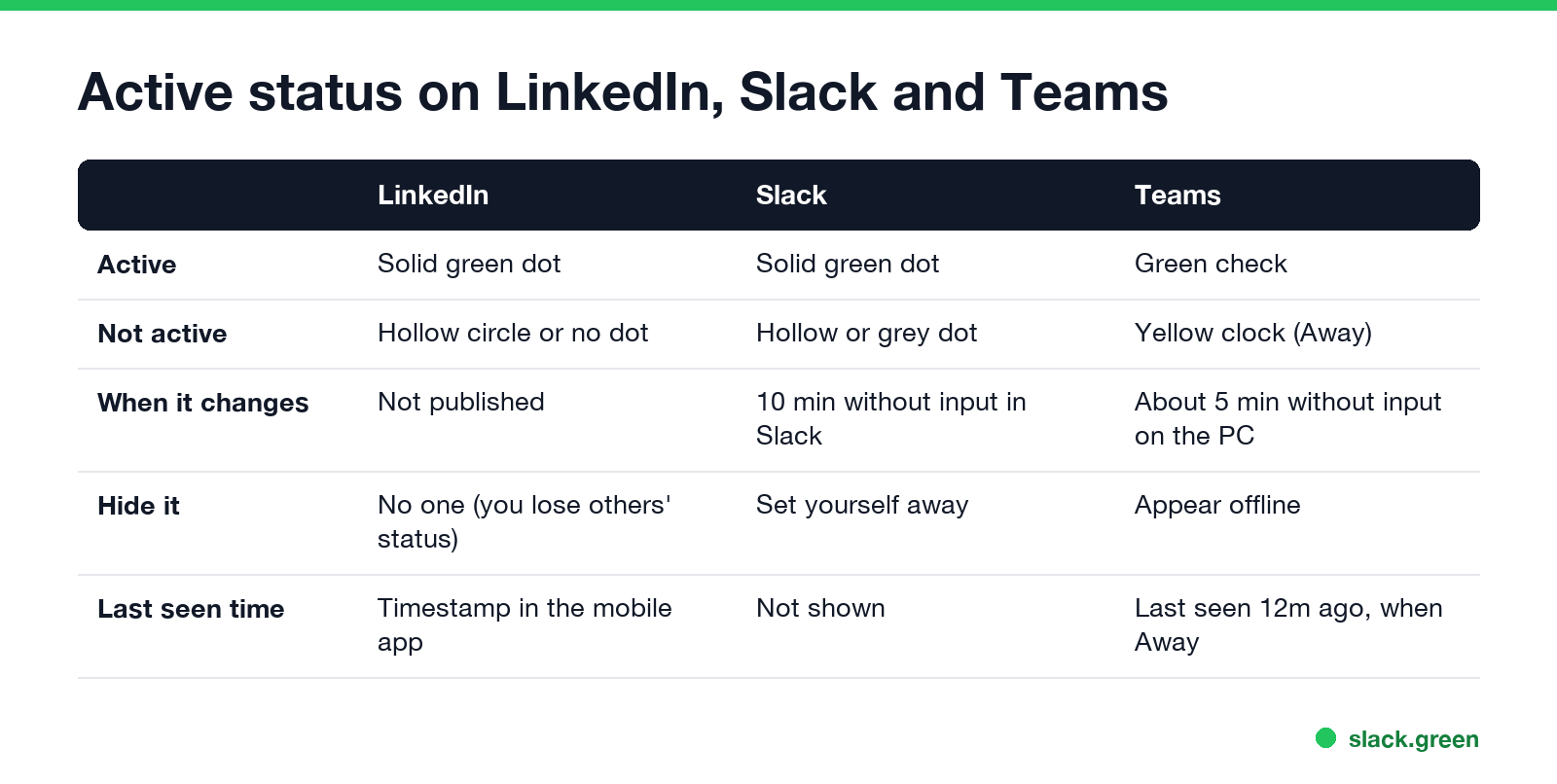
| Slack | Microsoft Teams | ||
|---|---|---|---|
| Active | Solid green dot | Solid green dot | Green check |
| Not active | Hollow circle or no dot | Hollow or grey dot | Yellow clock (Away) |
| When it changes | Not published | 10 minutes without input in the Slack window | About 5 minutes without input on the computer |
| Hide it | No one, and you lose others' status | Set yourself away | Appear offline |
| Last seen time | Timestamp in the mobile app | Not shown | "Last seen 12m ago" when Away or Offline |
Slack's dot is explained in Slack active status explained and its icons in Slack status icons meaning. Slack has no last seen line; see does Slack show last seen. For Teams, see Microsoft Teams status icons meaning and what does Last seen mean on Teams. To hide on Slack instead, see can you appear offline on Slack.
FAQ
What does the green dot mean on LinkedIn?
A solid green dot means the person is active on LinkedIn now. A hollow green circle means they are not, but the mobile app will notify them at once.
What does the hollow green circle on LinkedIn mean?
The person is not using LinkedIn right now but has push notifications on in the LinkedIn mobile app.
How do I appear offline on LinkedIn?
Settings & Privacy, Visibility, Manage active status, No one. You then cannot see anyone else's status either.
Does the green dot mean they read my message?
No. Read receipts show that. The dot only means LinkedIn is open or was used recently.
Can non-connections see my active status?
Only if you chose All LinkedIn members. The default is your connections only.
Stop Jiggling Your Mouse.
Join hundreds of remote workers who never worry about their Slack status. Set it up once, stay green forever.
Related Articles
How to Send a Slack Message From GitHub Actions
Add slackapi/slack-github-action@v4.0.0 as a step, give it a bot token or an incoming webhook URL from repository secrets, and write the message as YAML. Working workflows for failure alerts, threads and message updates, plus a curl version with no third-party action.
Slack Audit Logs: What They Record, Who Sees Them, and the API
Slack audit logs record actions across an Enterprise organization, such as sign-ins with IP address, file downloads, channel joins and app installs, not message text. Where admins view and export them, what the 785 action types cover, and how to pull them with the Audit Logs API.
Teams Status Light: Busy Lights That Follow Your Teams Status
A Teams status light is a USB or Bluetooth busy light that copies your Microsoft Teams presence: green when Available, red in a call or on Do not disturb. Luxafor, Kuando and Embrava sell them; PresenceLight and a short Graph API script do it free with a smart bulb. The light shows your status; it cannot change it.