
Move Mouse App: Download, Settings and Alternatives
Move Mouse is a free, open-source Windows app by Steve Williams that moves, clicks or scrolls on a timer so your PC does not lock or sleep. Get it from the Microsoft Store or GitHub, not from look-alike download sites. It keeps Microsoft Teams green, but it helps Slack only while the pointer sits over the Slack window. Settings, why it stops working, and alternatives for Mac.
Move Mouse is a free Windows app that simulates user activity. By default it moves your mouse pointer every 30 seconds, so Windows does not lock the session or go to sleep. It is open source under GPL-3.0, written by Steve Williams, and available from the Microsoft Store or the sw3103/movemouse project on GitHub. Besides moving the pointer, it can click, scroll, run PowerShell scripts, pause while you work, and follow a schedule. There is no Mac version.
Move Mouse keeps Microsoft Teams green, because Teams counts input anywhere on the computer. It does little for Slack. Slack counts only input inside its own window, so a pointer moving over other apps leaves your Slack dot grey after 10 minutes. We build Slack Green, which keeps your Slack status active from a server during the hours you set, with nothing installed on the PC.
Move Mouse app download
Get Move Mouse from one of two places:
- • Microsoft Store. Search for "Move Mouse" and check that the publisher is Steve Williams. Store apps install without admin rights on most PCs.
- • GitHub. The source and releases are at github.com/sw3103/movemouse. The developer's own domain, movemouse.co.uk, points there.
You can also install the Store version from a terminal with winget:
winget install --id 9NQ4QL59XLBF --source msstoreSeveral sites with "move mouse" in the domain name offer their own download buttons. They are not run by the developer. Avoid them, because a keep-awake app runs all day with access to your input.
On a company PC, the Store may be blocked or the install may be reported to IT. Check your policy first.
How the Move Mouse app works
Click the Move Mouse window to start it. Its outer ring turns green and a 30-second countdown begins. When the countdown ends, Move Mouse runs its Actions, which by default is a small pointer move, and starts the countdown again. Each action sends real input to Windows, which resets the session idle time. That is what stops the screen lock, the screensaver and sleep. Click the window again, or double-click the tray icon, to stop it.
The ring color tells you what it is doing. From the project wiki: blue is idle, green is running, red is performing actions, yellow is paused because it saw you working, purple is sleeping during a blackout window, and orange is paused on battery.
Move Mouse settings worth changing
Never appear "away" on Slack again
Cloud-based. No downloads. Works 24/7 even when your laptop is off.
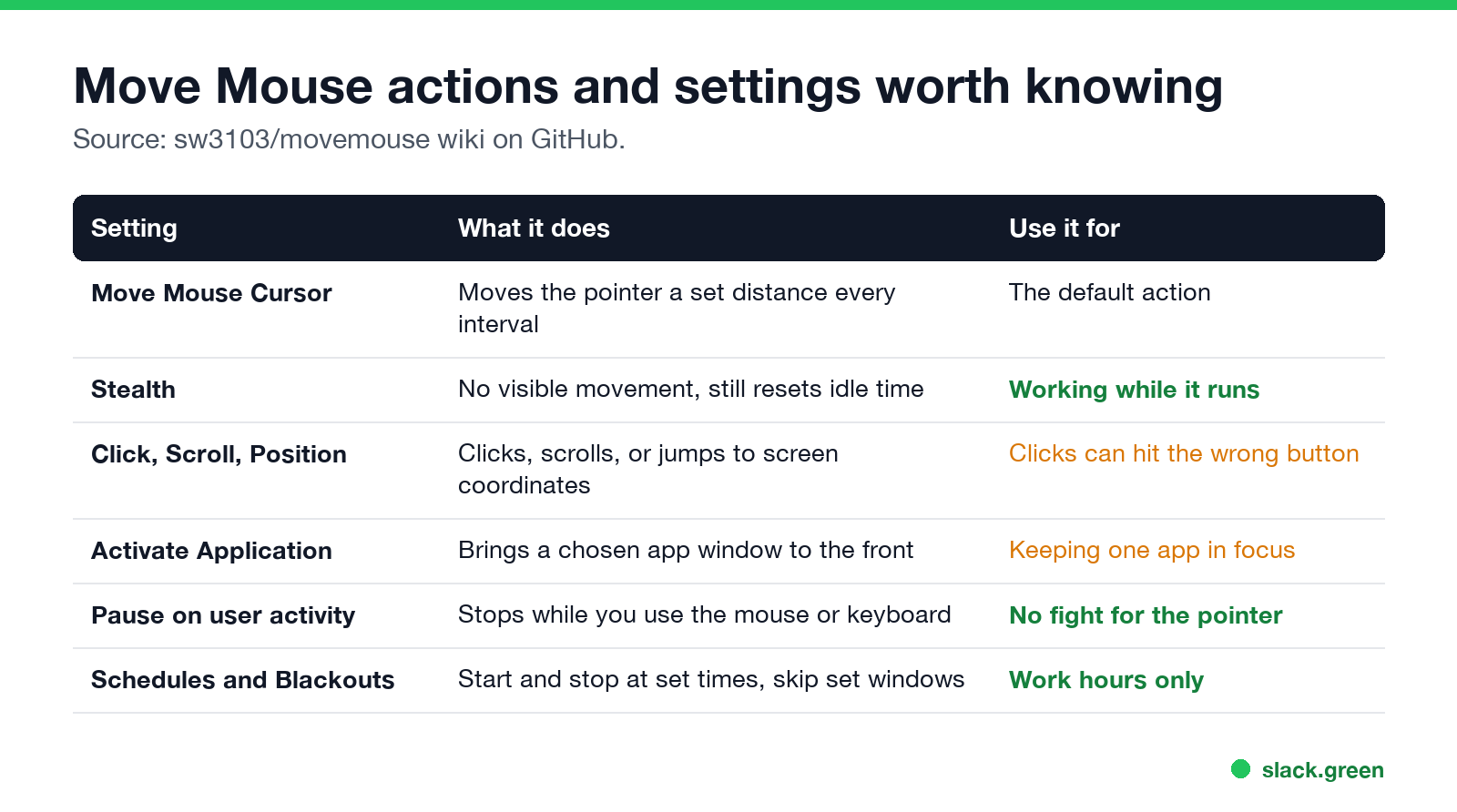
Open the settings with the gear icon, or right-click the window.
Does Move Mouse keep Teams and Slack active?
| App | What Move Mouse does for it | Why |
|---|---|---|
| Microsoft Teams | Keeps you Available while the PC is unlocked | Teams sets Away after about 5 minutes with no input anywhere on the PC |
| Slack | Keeps you active only with the pointer over Slack | Slack counts input inside its own window, and sets away 10 minutes after the last one |
| Zoom, Webex | Similar to Teams | They read system idle time |
Move Mouse cannot help once the screen is locked by a policy that ignores input, or when the lid is closed and the PC sleeps. Teams sets Away on lock and Offline on sleep. How Slack decides is in how Slack decides when you are away.
Move Mouse app not working
Can IT detect the Move Mouse app?
Never appear "away" on Slack again
Cloud-based. No downloads. Works 24/7 even when your laptop is off.
Yes, on a managed PC. Move Mouse is an installed app with its own process, so software inventory and endpoint tools can list it. Windows marks simulated input as injected, and monitoring tools such as Hubstaff keep lists of "time fraud" apps and flag input that looks automated. Details are in can a mouse jiggler be detected and can Hubstaff detect a mouse jiggler.
Move Mouse app alternatives, including Mac
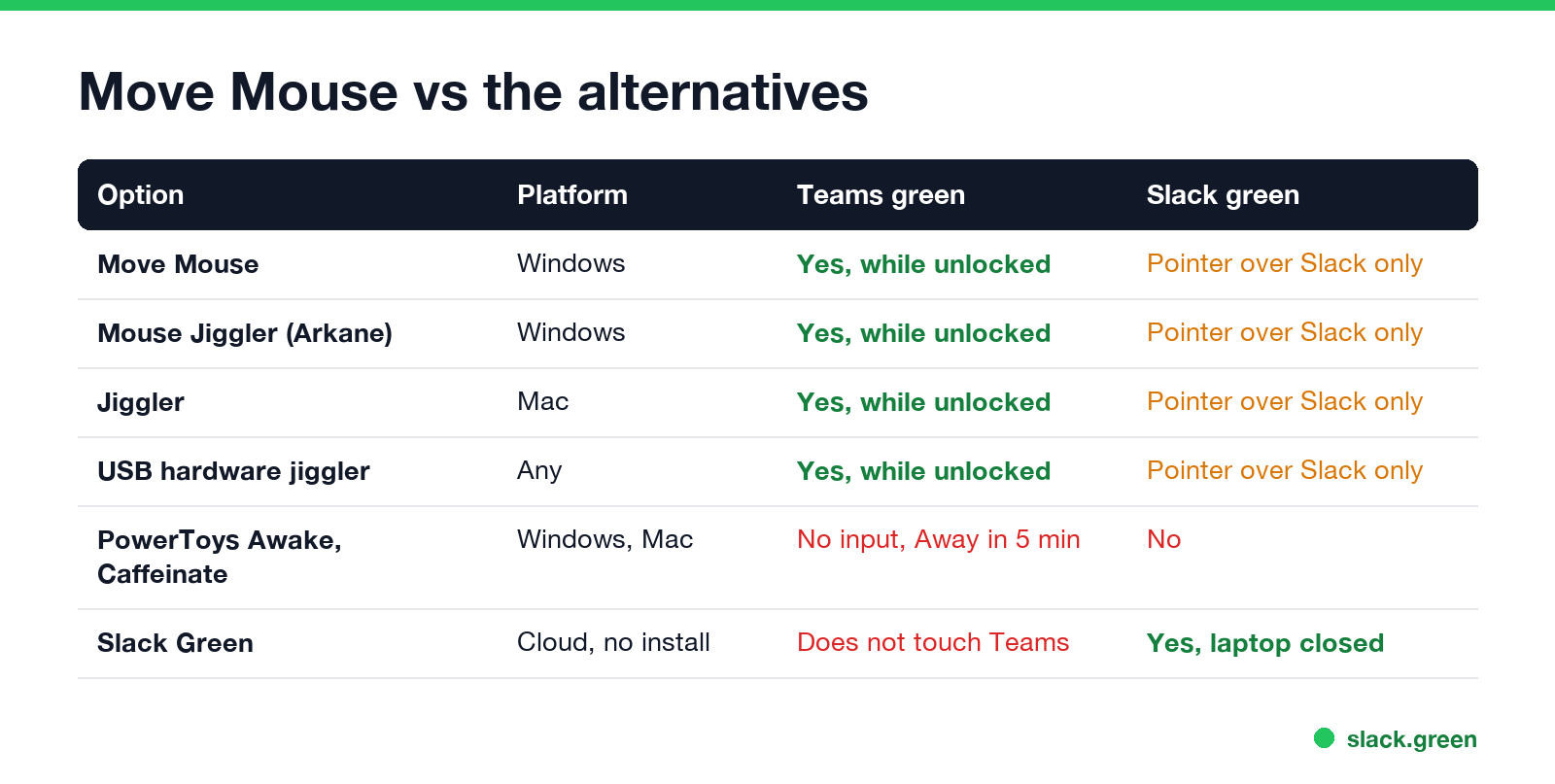
caffeinate on Mac stop sleep, but send no input, so Teams and Slack still go Away.FAQ
Is the Move Mouse app free?
Yes. It is free and open source under GPL-3.0, from the Microsoft Store or GitHub.
Is the Move Mouse app safe?
The Store and GitHub versions from Steve Williams are the original project. Avoid third-party download sites.
Is there a Move Mouse app for Mac?
No. Use Jiggler, a Mac App Store jiggler, or a USB jiggler.
How does the Move Mouse app work?
It moves, clicks or scrolls on a timer, 30 seconds by default. Windows counts that as input and does not lock or sleep.
Does Move Mouse keep Slack green?
Only while the pointer is over the Slack window. Slack ignores input in other apps.
Stop Jiggling Your Mouse.
Join hundreds of remote workers who never worry about their Slack status. Set it up once, stay green forever.
Related Articles
Can My Employer See My Browsing If I Use a VPN? It Depends Whose
A personal VPN hides the sites you visit from the office network, but not from monitoring software, a managed browser or IT on a work laptop. The company VPN shows your employer every site it carries. What each setup hides.
Teams Status on Multiple Devices: The Last Device You Used Wins
Signed in to Teams on a computer and a phone? Your status comes from the device you used most recently. That is why a quick look at your phone can turn you Away, and why a phone in your pocket shows Away instead of Offline at night.
Zoom Do Not Disturb: How to Turn It On, Schedule It, and What It Blocks
To turn on Do not disturb in Zoom, click your profile picture, point at your status and choose Do not disturb, then a time from 20 minutes to 24 hours, or Custom for a daily schedule. It blocks pop-up notifications for Zoom Team Chat and Zoom Phone calls. Busy, by contrast, mutes nothing. How the two differ, and how to keep a Zoom meeting free of pop-ups.