
PowerToys Awake Alternatives: 6 Ways to Keep Windows Awake
The best PowerToys Awake alternatives are Caffeine and Don't Sleep, both free, portable and a few hundred kilobytes. Windows also has three built-in options that need no download. Which ones also keep Teams green, which ones only block sleep, and what to use on a Mac.
The best PowerToys Awake alternatives are Caffeine from Zhorn Software and Don't Sleep from SoftwareOK. Both are free, portable, run without an installer and weigh a few hundred kilobytes, against a full PowerToys install. Windows also has three alternatives built in: presentationsettings /start on laptops, the screen and sleep timeouts in Settings or powercfg, and a short PowerShell script that does what Awake does. Pick by what you need. Awake, Don't Sleep and the built-ins only block sleep. Caffeine and Mouse Jiggler send input, so they also keep Microsoft Teams green.
None of them keeps Slack green, because Slack counts only input inside its own window. Slack Green keeps your Slack status active from a server during the hours you set, so Windows can sleep as usual.
PowerToys Awake alternatives compared
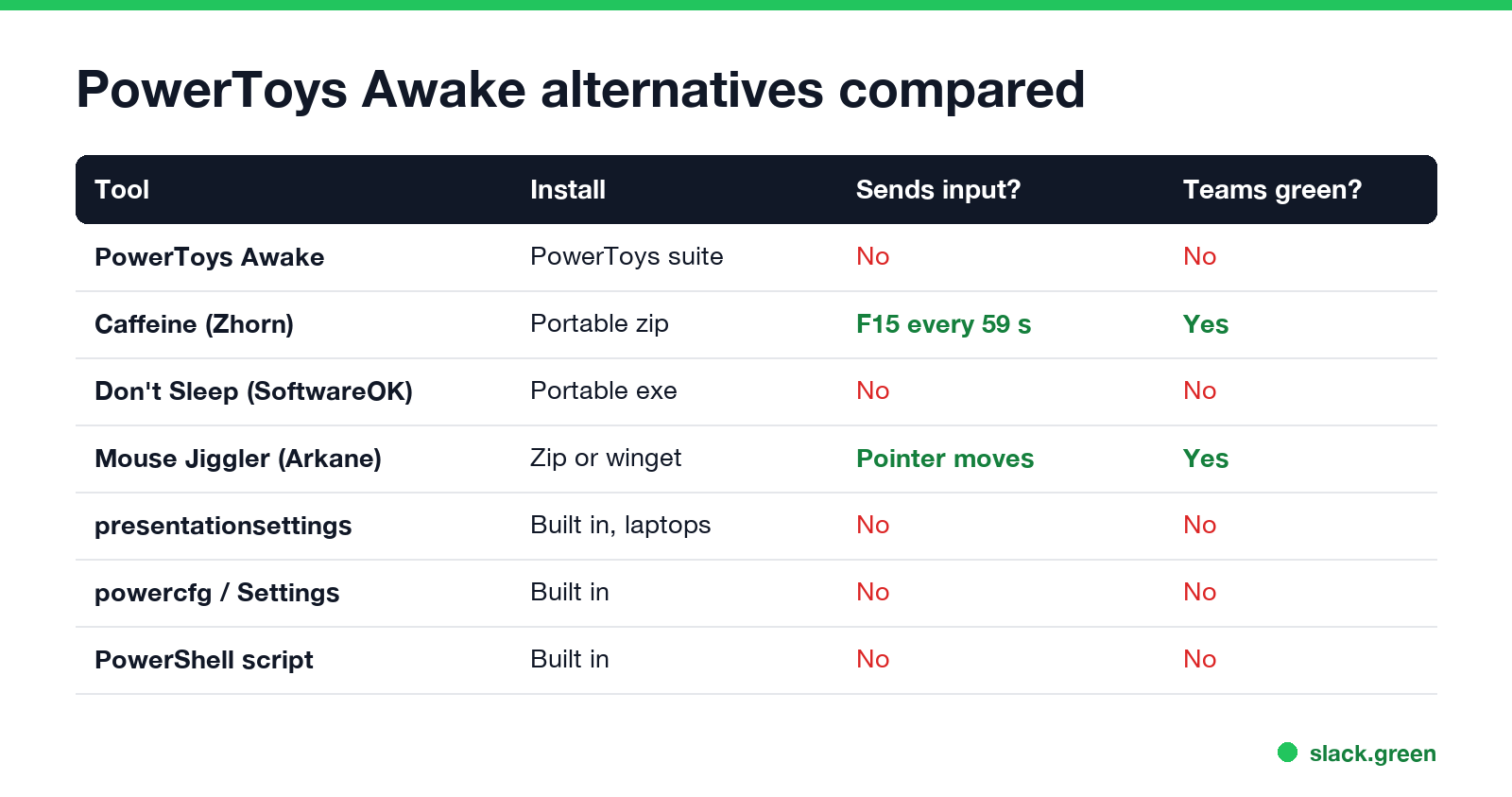
| Tool | Install | Sends input? | Keeps Teams green | Best for |
|---|---|---|---|---|
| PowerToys Awake | PowerToys suite | No | No | Already have PowerToys |
| Caffeine (Zhorn Software) | Portable zip | Yes, F15 every 59 s | Yes | Teams green, screen saver off |
| Don't Sleep (SoftwareOK) | Portable exe | No | No | Blocking sleep, shutdown and lock with a timer |
| Mouse Jiggler (Arkane Systems) | Portable zip or winget | Yes, pointer moves | Yes | Visible movement, Teams |
presentationsettings /start | Built in (laptops) | No | No | A talk or a demo |
powercfg or Settings | Built in | No | No | A permanent change |
| PowerShell script | Built in | No | No | No download allowed |
"Sends input" is the column that decides Teams. Teams goes Away after about 5 minutes with no keyboard or mouse input, whether or not the PC is awake. That is why Awake, which only asks Windows to stay on, still lets Teams go yellow; the details are in does PowerToys Awake keep Slack or Teams active.
Caffeine: the closest drop-in
Caffeine is a coffee pot in the system tray. It presses F15, a key your keyboard does not have, every 59 seconds, so Windows and Teams see activity and nothing on screen changes. Download caffeine.zip from zhornsoftware.co.uk, unzip it and run caffeine64.exe. Click the pot to pause it. Command-line switches such as -exitafter:90 stop it after 90 minutes. Setup and its options are in Caffeine app for Windows.
PowerToys Awake vs Caffeine. Awake blocks sleep through a Windows power request and sends nothing. Caffeine sends a keypress. So Awake is the cleaner choice when you only need the PC awake, for a download or a render, and Caffeine is the one that keeps Teams and screen savers from kicking in. On a work PC, a keypress every 59 seconds is also easier for monitoring tools to notice.
Don't Sleep: timers and shutdown blocking
Never appear "away" on Slack again
Cloud-based. No downloads. Works 24/7 even when your laptop is off.
Don't Sleep is a small portable app from SoftwareOK. Besides sleep and hibernate, it can block shutdown, restart, log off and the screen saver, and it has a timer that ends the block after a set time or at a set hour. It sends no input, so like Awake it keeps the PC on without keeping Teams Available. Use it when Windows Update or another app keeps restarting the PC during a long job.
Mouse Jiggler: movement you can see
Mouse Jiggler from Arkane Systems moves the pointer on an interval, or fakes movement in its Zen mode. It keeps Teams green and stops the idle lock. Install it with winget install ArkaneSystems.MouseJiggler or from GitHub; Mouse Jiggler for Windows covers its modes.
Three alternatives already in Windows
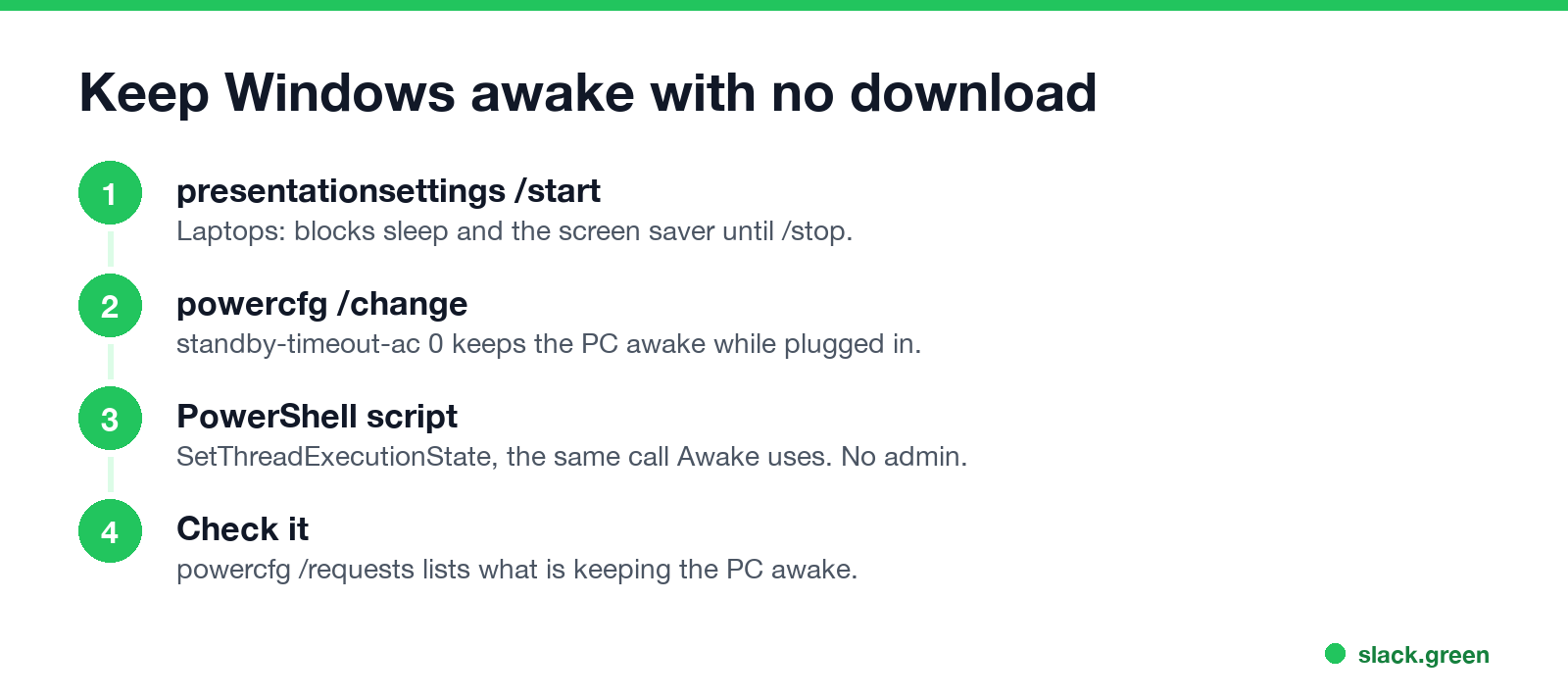
Presentation settings. On most laptops, Windows Mobility Center has a presentation mode that blocks sleep and turns off the screen saver until you stop it:
:: block sleep and the screen saver until you stop it
presentationsettings /start
presentationsettings /stop
Power timeouts. Change when the screen and the PC sleep, from Settings > System > Power & battery, or from a Command Prompt:
:: never sleep while plugged in (0 = never), screen off after 30 minutes
powercfg /change standby-timeout-ac 0
powercfg /change monitor-timeout-ac 30
A PowerShell script. This does what Awake does, with the same Windows call, SetThreadExecutionState, and needs no admin rights:
$sig = '[DllImport("kernel32.dll")] public static extern uint SetThreadExecutionState(uint esFlags);'
$api = Add-Type -MemberDefinition $sig -Name Power -Namespace Win32 -PassThru
# ES_CONTINUOUS | ES_SYSTEM_REQUIRED | ES_DISPLAY_REQUIRED
$api::SetThreadExecutionState([uint32]2147483651) | Out-Null
Read-Host "Keeping this PC and its screen awake. Press Enter to stop"
$api::SetThreadExecutionState([uint32]2147483648) | Out-Null
Run powercfg /requests in an admin Command Prompt while it runs, and PowerShell appears under SYSTEM and DISPLAY. The script ends the request when you press Enter or close the window. A version that also presses F15 is in keep computer awake with PowerShell.
Which alternative to pick
Never appear "away" on Slack again
Cloud-based. No downloads. Works 24/7 even when your laptop is off.
- • You only need the PC awake (a download, a backup, a render): the PowerShell script or Don't Sleep. Nothing sends input.
- • You want Teams to stay Available while you read: Caffeine.
- • You present from a laptop:
presentationsettings /start. - • You cannot install anything on a work PC: the built-ins, as shown in keep a work computer awake without admin rights.
- • You are on a Mac:
caffeinate -din Terminal, or Amphetamine and KeepingYouAwake; see the best app to keep a Mac awake. - • You want a green Slack dot: none of the above, because Slack watches only its own window.
FAQ
Is there a PowerToys Awake without the rest of PowerToys? Not as a separate download from Microsoft. The PowerShell script above uses the same Windows call and needs nothing installed.
Is Caffeine better than PowerToys Awake? For keeping Teams green, yes, because it sends a keypress. For only blocking sleep, Awake is cleaner because it sends no input.
Does any keep-awake app work when the laptop lid is closed? Only if Windows is set not to sleep when the lid closes, in Control Panel > Power Options > Choose what closing the lid does.
Stop Jiggling Your Mouse.
Join hundreds of remote workers who never worry about their Slack status. Set it up once, stay green forever.
Related Articles
KeepingYouAwake vs Amphetamine: Which Mac Keep-Awake App to Use
KeepingYouAwake is a free, open-source menu bar switch that runs Apple's caffeinate for you. Amphetamine is a free App Store app with triggers, schedules and a closed-lid mode. Pick KeepingYouAwake for one click and Homebrew, Amphetamine for automation. Neither keeps Slack or Teams active.
Computer Locks After 15 Minutes? How to Tell If Group Policy Set It
A work laptop that locks after exactly 15 minutes, with screen settings greyed out, is almost always following a policy from IT: the Windows machine inactivity limit, a forced screen saver, or an Intune device lock. Security baselines and PCI DSS ask for 15 minutes. How to see which policy it is, and what you can and cannot change.
How to Keep a Citrix Session Active: Find Which Timeout Logs You Out
A Citrix session can end from four different timers: Windows locking inside the virtual desktop, the Citrix session idle timer, the Citrix Gateway session time-out, and the StoreFront web page timeout. Only input from your own device into the Citrix window resets them. How to tell which one hit you and what keeps each one quiet.