
How Does Slack Active Status Work? What Changes the Green Dot, Tested
How Slack decides the green dot, with a test in the Slack web app on 30 September 2026: the four dot states, why posting does not undo a manual Away, and why status text never moves the dot.
Slack shows you as active, with a green dot, while Slack is open on your computer or phone and you have used it recently. On desktop, Slack's help center says you turn away after 10 minutes with no activity in Slack. On the phone, you turn away as soon as you leave the app. You can set yourself as away at any time, but no setting keeps you green.
The green dot is one of four signals next to your name, and people mix them up. We tested how they interact in the Slack web app on 30 September 2026. The screenshots below are from that test.
The dot has four states
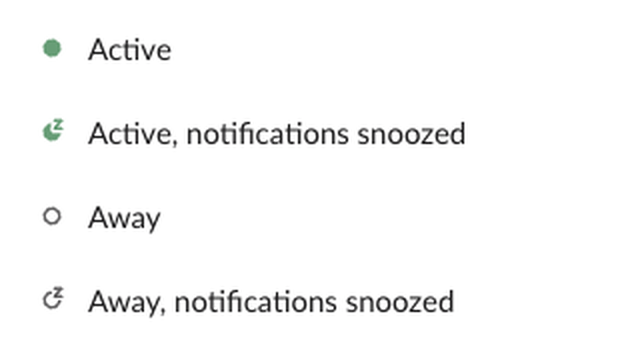
The fill is presence: a filled green dot is active, a hollow dot is away. The small Z is a separate signal that means notifications are paused; what the Z on a Slack dot means covers it. Slack's API reports the same two parts for presence: presence is either active or away, and manual_away says whether you chose away yourself.
How Slack decides you are active
Slack's help center puts it in two sentences: you are set to active when Slack is open on your desktop or mobile device, and you are set to away "after 10 minutes of desktop inactivity, or if you navigate away or close the app on your mobile device."
- • Input inside Slack counts. Typing, clicking, scrolling and switching channels make you green.
- • On the phone, the app must be on screen. Switch apps or lock the phone and you turn away. Push notifications do not keep you green.
- • Several devices combine. You are active if any one Slack client is active. You are away when every one of them is idle, closed or asleep.
- • A manual Away wins. Set yourself as away overrides everything else until you change it back.
Some older guides say 30 minutes. That number came from an old version of Slack's help page. The exact timings per platform are in how long does Slack stay active.
Posting a message does not undo a manual Away
We chose Set yourself as away, then typed and sent a message in a channel. Four seconds later Slack's API still returned presence: away and manual_away: true, and the profile still read "Away". The message went out with the hollow dot.
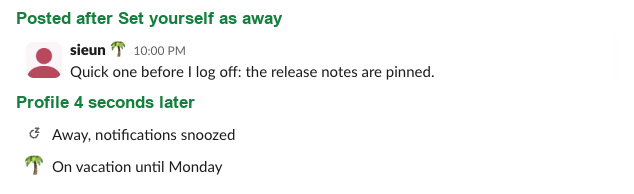
So once you set yourself away, typing does not bring you back. Only Set yourself as active does. This is how appearing offline on Slack works while you keep working.
Never appear "away" on Slack again
Cloud-based. No downloads. Works 24/7 even when your laptop is off.
Your status text never moves the dot
With a 🌴 "On vacation until Monday" status set, our profile still showed "Active". The status is text you choose; the dot comes from activity.

| Signal | Who sets it | Changes the dot? |
|---|---|---|
| The dot | Slack, from your activity, or you with Set yourself as away | It is the dot |
| The Z | You, your notification schedule, or your admin's default schedule | No |
| Status emoji and text | You, or a calendar app | No |
| Automatic statuses (In a huddle, In focus mode, After hours) | Slack, if ticked in Preferences under Availability | No |
Setting "At my desk" does not keep you green, and going away does not clear your status text. The steps for the text are in how to change your status on Slack, and every icon Slack draws next to a name is in the Slack status icons guide.
What your teammates can see
last_activity time only for your own account. When we asked for another member's presence as the workspace's primary owner on 29 September 2026, the reply held the presence and nothing else. More in does Slack show last seen.What you can control
You control your status text and emoji, the Set yourself as away switch, and when your notifications pause. Slack controls the idle timer and how devices combine. No setting changes the timer length, and Set yourself as active only clears a manual Away; after that the idle timer applies again.
Every way to keep the dot green works from outside Slack's settings: keep using Slack, keep the phone app on screen, or let a server hold your session. Slack Green does the last one, on a schedule you choose, so the dot stays green while your computer is off. How to keep Slack active compares all the methods.
FAQ
What does Slack consider active?
A Slack window or app that you are using. On desktop that means activity in Slack within the last 10 minutes. On the phone it means the app is open on screen.
Does a green dot mean they read my message?
No. It means they used Slack on at least one device in the last few minutes. Slack has no read receipts for messages; see does Slack have read receipts.
Is Slack's green dot the same as LinkedIn's?
The filled dot means the same thing, active now. LinkedIn's hollow green circle means the person is not on LinkedIn but will get a phone notification. See LinkedIn active status.
Stop Jiggling Your Mouse.
Join hundreds of remote workers who never worry about their Slack status. Set it up once, stay green forever.
Related Articles
Can You Put a Link in a Slack Status? We Tested 3 Ways
You can type a URL into a Slack status, but it shows as plain text that nobody can click. We tried a pasted URL, Markdown and Slack's own link syntax on 29 September 2026; none became a link.
How to Use Slack Block Kit Builder: Templates, Preview, Payload
Slack's Block Kit Builder at app.slack.com/block-kit-builder lets you pick a template, add blocks, preview the message on Desktop or Mobile, and copy the JSON payload for a webhook or chat.postMessage. A walk through the current builder, a working deploy message, and the steps to send it.
Wireless Mouse With a Jiggler: How the Built-in Mode Works
A wireless mouse with a jiggler is a normal mouse with a jiggle mode in its firmware: hold the DPI button for about 3 seconds and the cursor moves on its own. Two models in the top results, how they compare with a USB dongle and a mechanical mover, and what they do for Teams and Slack.