
Slackbot Custom Responses: Set Them Up and What Triggers a Reply (Tested)
Slackbot custom responses are now called Automated Messages, under Customize workspace. We sent 23 test messages on October 31, 2026 to see which ones get a reply, and where Slackbot stays quiet.
Slackbot custom responses still exist, but Slack now calls them Automated Messages. Slack's help gives the path: your workspace name, then Tools & settings, then Customize workspace, then the Automated Messages tab. You can also go straight to https://YOUR-WORKSPACE.slack.com/customize/automated-messages. Click Add Message, type the trigger words and the reply, and save. We set up two of them on a Free workspace on October 31, 2026 and sent 23 test messages to see exactly what makes Slackbot answer.
Add a custom response
The Add Message dialog has two boxes and nothing else:
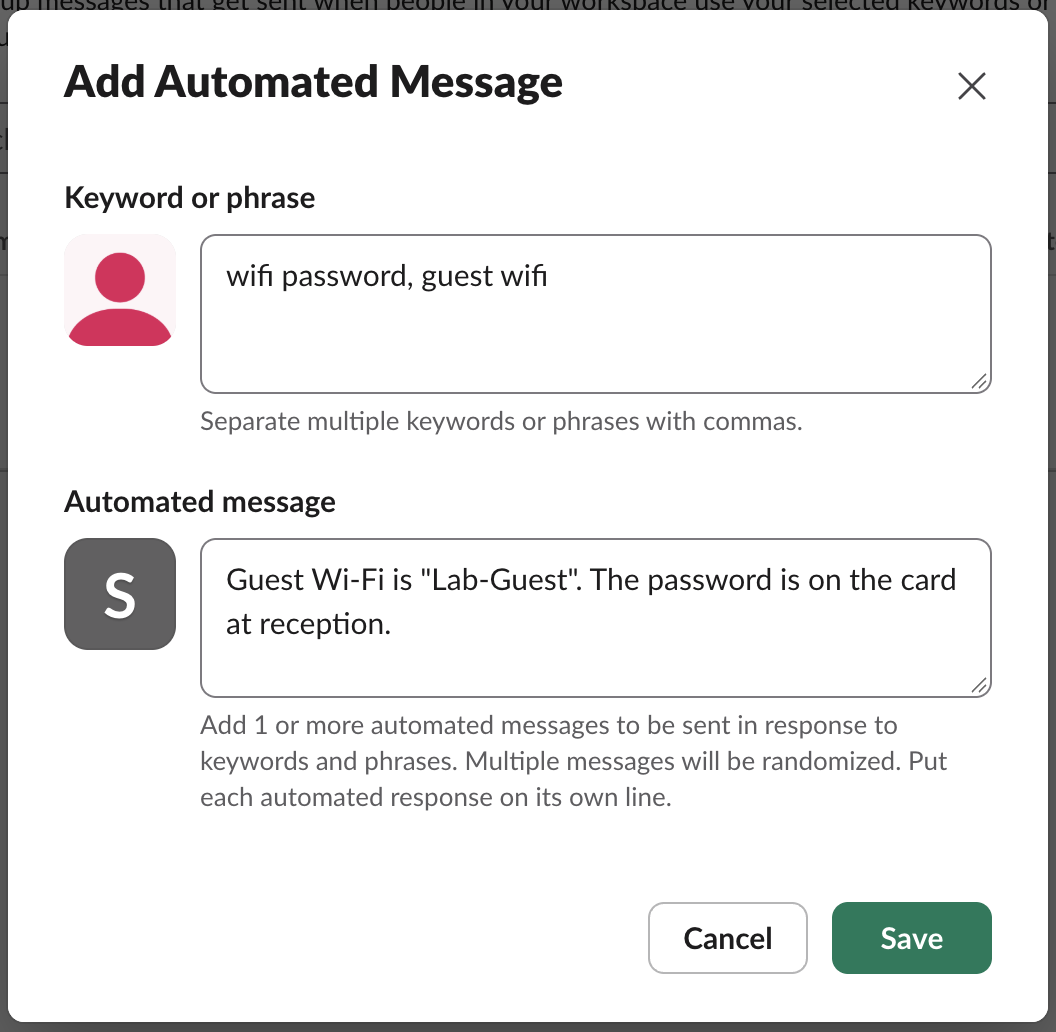
- • Keyword or phrase: separate several triggers with commas.
wifi password, guest wifimakes two triggers that share one reply. - • Automated message: one reply per line. With more than one line, Slack picks one at random. We gave
lunch menutwo lines and sent it six times: the first line came back twice and the second four times.
There is no channel field, no schedule and no on or off switch. A response works in every channel where it can fire, which answers the "slackbot custom responses per channel" question: there is no per-channel setting. To edit one, use the pencil on its row in the list; to turn it off, delete it with the X.
What triggers a reply: 23 test messages
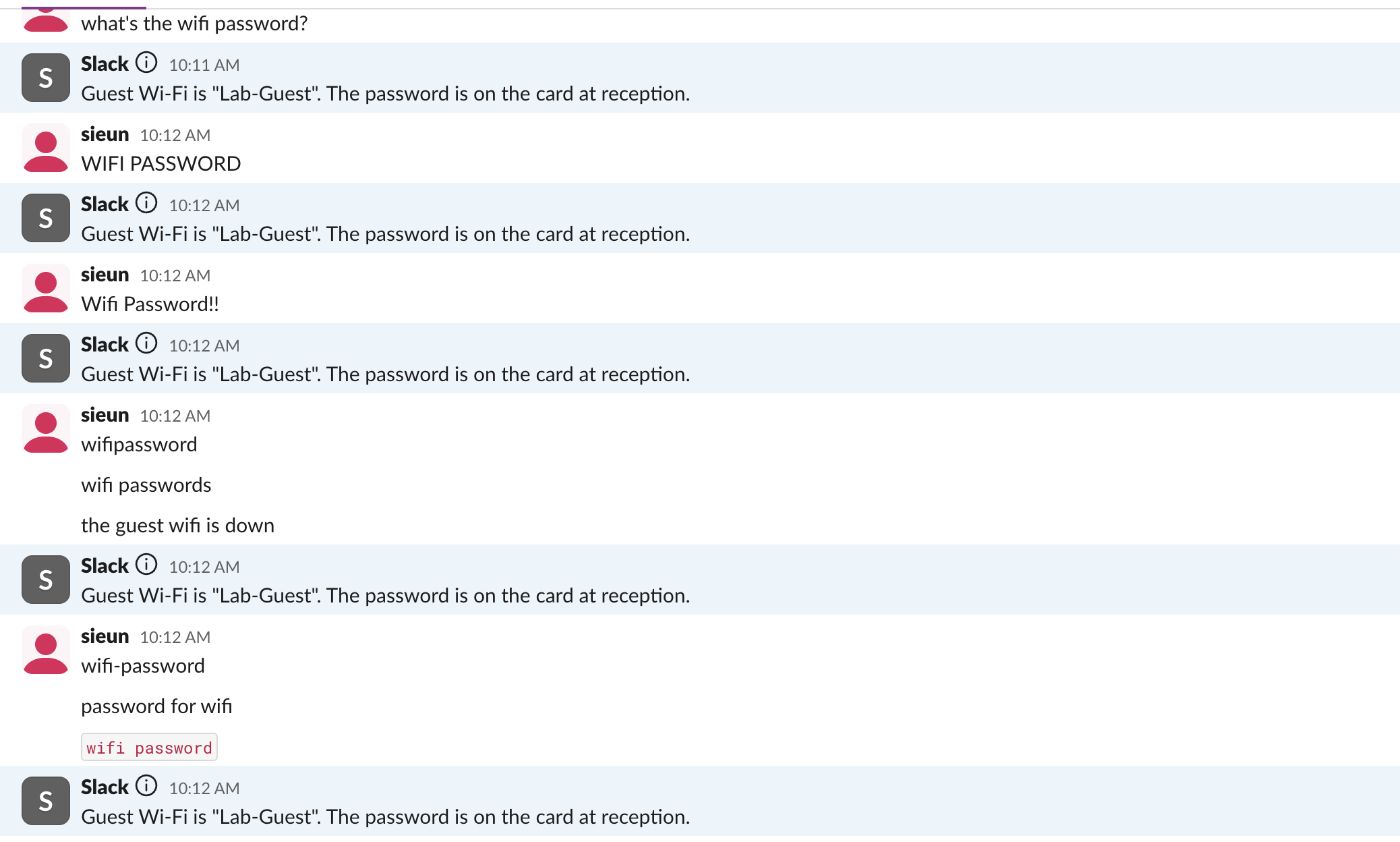
We posted each message as the workspace owner into a test channel and read the channel back a few seconds later. Each reply arrived 0.17 to 0.36 seconds after the message, posted as "Slack" with an info icon, and everyone in the channel can see it.
| Message we sent | Slackbot replied? |
|---|---|
wifi password | Yes |
what's the wifi password? | Yes |
WIFI PASSWORD | Yes |
Wifi Password!! | Yes |
wifi password in inline code | Yes |
the guest wifi is down | Yes, from the second trigger |
wifi passwords | No |
wifipassword | No |
wifi-password | No |
password for wifi | No |
need the wifi password and the lunch menu | Once, with the lunch reply only |
So the match ignores case and punctuation around the phrase, and the phrase can sit anywhere in a longer sentence. It must appear as whole words in the same order: a plural, a hyphen or a missing space breaks it. One message gets one reply even when it holds two triggers.
Where Slackbot answers and where it stays quiet
| Where the trigger was posted | Reply? |
|---|---|
| Public channel | Yes |
| Private channel | Yes |
| Thread reply | Yes, inside the thread |
| Your own DM with yourself | Yes |
| Your DM with Slackbot | No |
| A message posted by a bot or app | No |
| A message edited later to add the phrase | No |
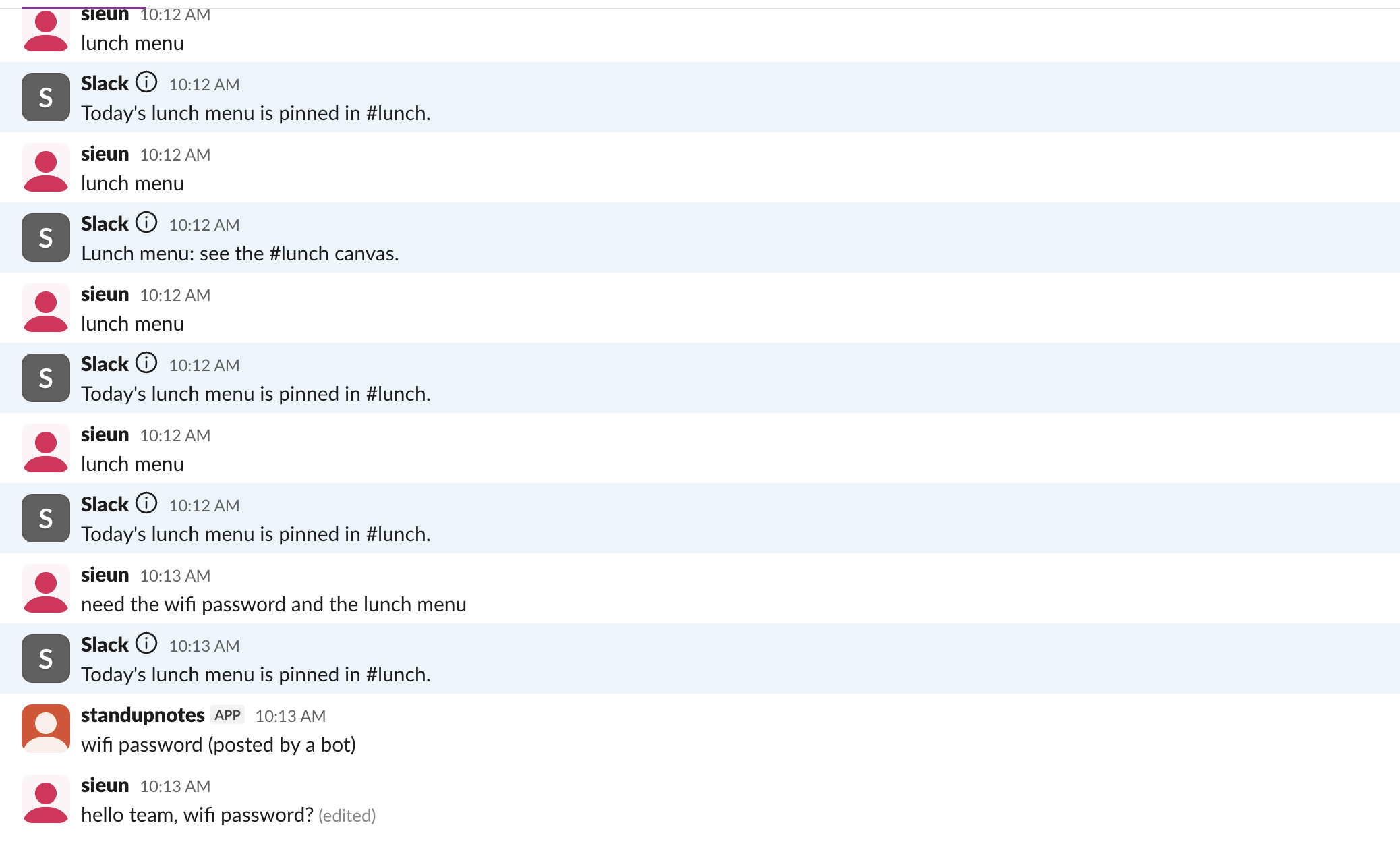
The last three are the ones people trip over. A reminder or integration that posts "wifi password" does not set Slackbot off, and fixing a typo after sending does not either:
Our workspace has one member, so we could not test a DM between two people. Reddit users report that responses do not fire there; treat DMs between people as unconfirmed.
Never appear "away" on Slack again
Cloud-based. No downloads. Works 24/7 even when your laptop is off.
Who can add or change them
On our workspace the Automated Messages tab sits on the same Customize page as custom emoji, and the page says "As an admin, you can prevent members from editing these on the Permissions page." Every row shows who last edited it. Roles are explained in Slack workspace owner vs admin.
When you need more than a keyword reply
Automated messages cannot run on a schedule, reply in one channel only or reply by DM. A scheduled post is a job for /remind (see Slack reminder bot), and an out-of-office reply needs a status or a different tool, covered in Slack out of office message. Workflow Builder can do more, but on our Free workspace the Workflows page showed "Free teams do not have access to workflow templates" and a Pro label on New Workflow. For full control, an app that listens to message events can match anything you like; our Slack bot token guide covers the token such an app needs.
FAQ
Do automated messages work on the Free plan?
Yes. Our test workspace is on Free, and both responses worked there.
Stop Jiggling Your Mouse.
Join hundreds of remote workers who never worry about their Slack status. Set it up once, stay green forever.
Related Articles
How to Resolve or Close a Slack Thread (and Who Can Lock One)
Slack has no Resolve or Close button for threads. We checked every thread menu as a member, found the admin-only lock in Slack's code, and tested the workarounds that do work: a checkmark, a to-do you mark complete, and muting replies.
How to Search for Images in Slack, Including Text Inside Them
To find an image in Slack, search, switch the results from Messages to Files and set File type to Images, or type type:images. We tested 6 images: Slack also found words written inside PNGs, but not inside JPGs.
Lock Icon Next to a Slack Channel? What the Lock and Grey Text Mean
A padlock next to a Slack channel means it is private. Grey text with a crossed-out bell means you muted it. We made a private, muted, archived and unread channel and screenshot each one in the sidebar.