
Slack Reminder Bot: /remind, a Workflow, or the Reminders API
Slack's own reminder bot is /remind, which also reminds whole channels. If you are building one, reminders.add still works with a user token, but one-time reminders it creates land in the Later tab where reminders.list cannot see them.
Every Slack workspace already has a reminder bot: /remind. Type /remind #team "Submit your timesheet" every Friday at 3pm, and Slackbot posts that text in the channel every Friday. You need a separate app only for things /remind cannot do, such as reminders every hour, reminders for one person in a DM, or a record of who finished the task. If you are writing that app yourself, the reminders API still answers, but on 29 September 2026 it behaved differently from what its reference page implies. We ran the calls below and show what came back.
Option 1: /remind, the bot you already have
/remind works for yourself (/remind me) and for any channel you are in (/remind #channel). It repeats by the day: every weekday, every Monday and Wednesday, every other Friday, every month on the 15th. It does not repeat by the hour, and it cannot remind another person directly.
The commands that work, and the ones it misreads, are in Slack /remind command examples and Slack reminder not working. The free /remind builder writes the command from menus, with the message quoted so Slack does not read a time out of it.
Option 2: a scheduled workflow
For a reminder that needs formatting, buttons, or a form, Slack's help center recommends Workflow Builder over /remind. A workflow with a scheduled trigger posts a message you design, in a channel or a DM, on a schedule you pick.
Never appear "away" on Slack again
Cloud-based. No downloads. Works 24/7 even when your laptop is off.
Option 3: your own bot with the Slack API
We called reminders.add, reminders.list and reminders.info with @slack/web-api's WebClient, in a one-person test workspace, signed in as its only member. This is the code, trimmed to the calls:
import { WebClient } from "@slack/web-api";
const slack = new WebClient(process.env.SLACK_USER_TOKEN);

const once = await slack.reminders.add({ text: "Post the stand-up notes", time: "in 2 minutes" });
const weekly = await slack.reminders.add({ text: "Weekly report", time: "every weekday at 9am" });

const list = await slack.reminders.list();
console.log(list.reminders.map((r) => r.text));

await slack.reminders.info({ reminder: once.reminder.id });
What came back, trimmed:
reminders.add (once)    ok  id Rm0C4YRNNK7V  recurring false  time 1790643946
reminders.add (weekly)  ok  id Rm0C5ZDE39SL  recurring true
                        recurrence { frequency: "weekly", weekdays: [monday ... friday] }
reminders.list          [ "Weekly report" ]
reminders.info (once)   Error: An API error occurred: not_found
The weekly reminder is in reminders.list. The one-time reminder is not, and reminders.info says it does not exist, seconds after reminders.add returned its id. reminders.delete and reminders.complete gave the same not_found for another one-time reminder we made the same way.
It had not vanished. It was in the Later tab, with the label "Reminder", and it fired on time two minutes later as a card in Activity:
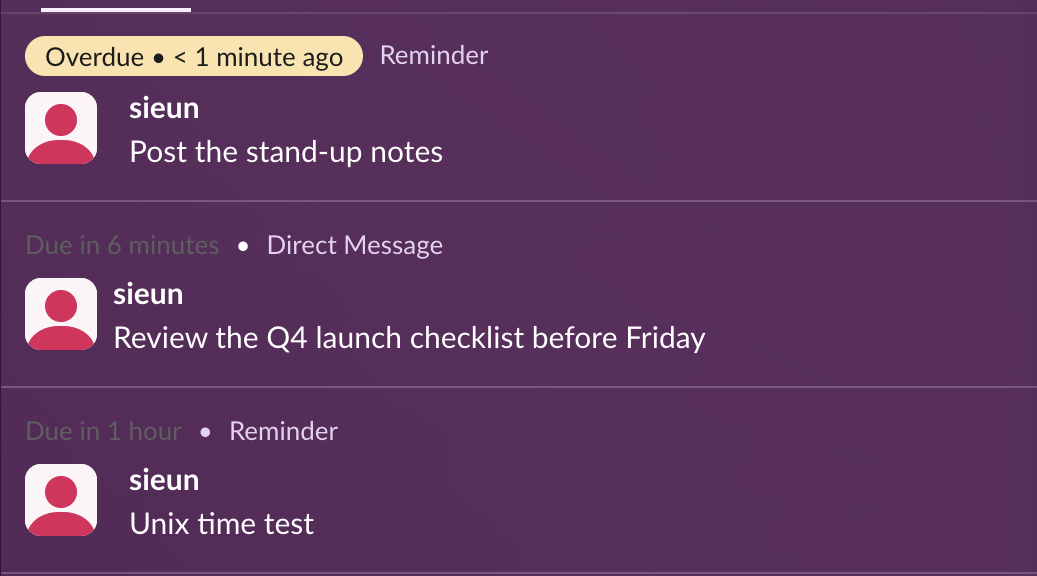
So a bot that creates one-time reminders through the API cannot list, complete or delete them afterwards with the reminders.* methods. Slack has been retiring those methods since March 2023, and its reference page for reminders.add says they "have become degraded or useless". Three more results from the same run:
- •
timeaccepted a Unix timestamp as a string. A timestamp one hour in the past returnedcannot_parseinstead of firing at once. - •
every hourandevery 15 minutesreturnedcannot_parse, the same rule as/remind. - •
user: "USLACKBOT"returnedcannot_add_slackbot. The reference page says reminders for other users now need a bot token; we did not test a bot token.
Which one to build on
For a bot that posts in a channel at a set time, the API method that fits is chat.scheduleMessage. Our test login could not call it (not_allowed_token_type), so this part is from Slack's reference: it takes a bot token, a channel and a post_at Unix time up to 120 days ahead, posts as your app, and returns an id that chat.scheduledMessages.list and chat.deleteScheduledMessage accept. It has no repeat option, so your code schedules each run itself.
Use reminders.add only for a personal nudge to the user whose token you hold, and store nothing that depends on reading it back.
FAQ
Is there a free Slack reminder bot?
Yes, /remind is on every plan, free included. Marketplace apps such as Reminder Bot add things /remind lacks, such as tracking who finished a task.
Can a Slack bot remind a specific person?
Not with /remind. A bot can send that person a scheduled DM with chat.scheduleMessage, or post in a channel with a mention.
Where do API reminders show up?
In our test, one-time ones went to Later and Activity, like reminders made with /remind. Nothing arrived in the Slackbot DM.
Stop Jiggling Your Mouse.
Join hundreds of remote workers who never worry about their Slack status. Set it up once, stay green forever.
Related Articles
Slack Headphones Icon: What It Means in Each Spot, and Huddling Alone
The headphones icon in Slack means huddles: the button that starts one, a live huddle next to a channel, the bar you are in. We started a huddle alone to show every spot, and checked whether you can huddle in your own DM.
Slack Canvas Formatting: Shortcuts That Work and Ones That Stay as Text
We typed every common markdown shortcut into a Slack canvas. Headings, lists, checklists, quotes and code convert as you type; a single *star* makes bold, not italic; links, dashes for a divider and ==highlight== stay as plain text.
Slack Huddle Background: Blur, Pictures, Uploads and Themes
A Slack huddle has two backgrounds: the one behind you on camera, and the theme behind the whole huddle window. Where each one is, what you can pick, and why many people see no upload button.