
Teams Busy vs In a Meeting: What Each Red Status Means
In Microsoft Teams, Busy is a status you set by hand, and it lasts one day unless you pick a duration. In a meeting comes from an Outlook event, and In a call comes from a live call, so both end on their own. All three show a red dot and still let notifications through. How they differ from Do not disturb and Away, and why Teams shows Busy when you are free.
In Microsoft Teams, Busy and In a meeting show the same red dot, but they come from different places. Busy is a status you pick by hand, and without a duration it lasts one day. In a meeting is set by Teams from an event on your Outlook calendar, and it ends when the event ends. In a call is set by a live Teams or phone call and ends when you hang up. None of the three mute your notifications. Do not disturb does: it hides banners and sends calls to voicemail.
We build Slack Green, which keeps your Slack status active from a server during the hours you set. It does not change Teams. Many of our users run Teams and Slack side by side, so we track how each app builds its status. This page covers the Teams red statuses and links to the Slack version at the end.
Teams red statuses side by side
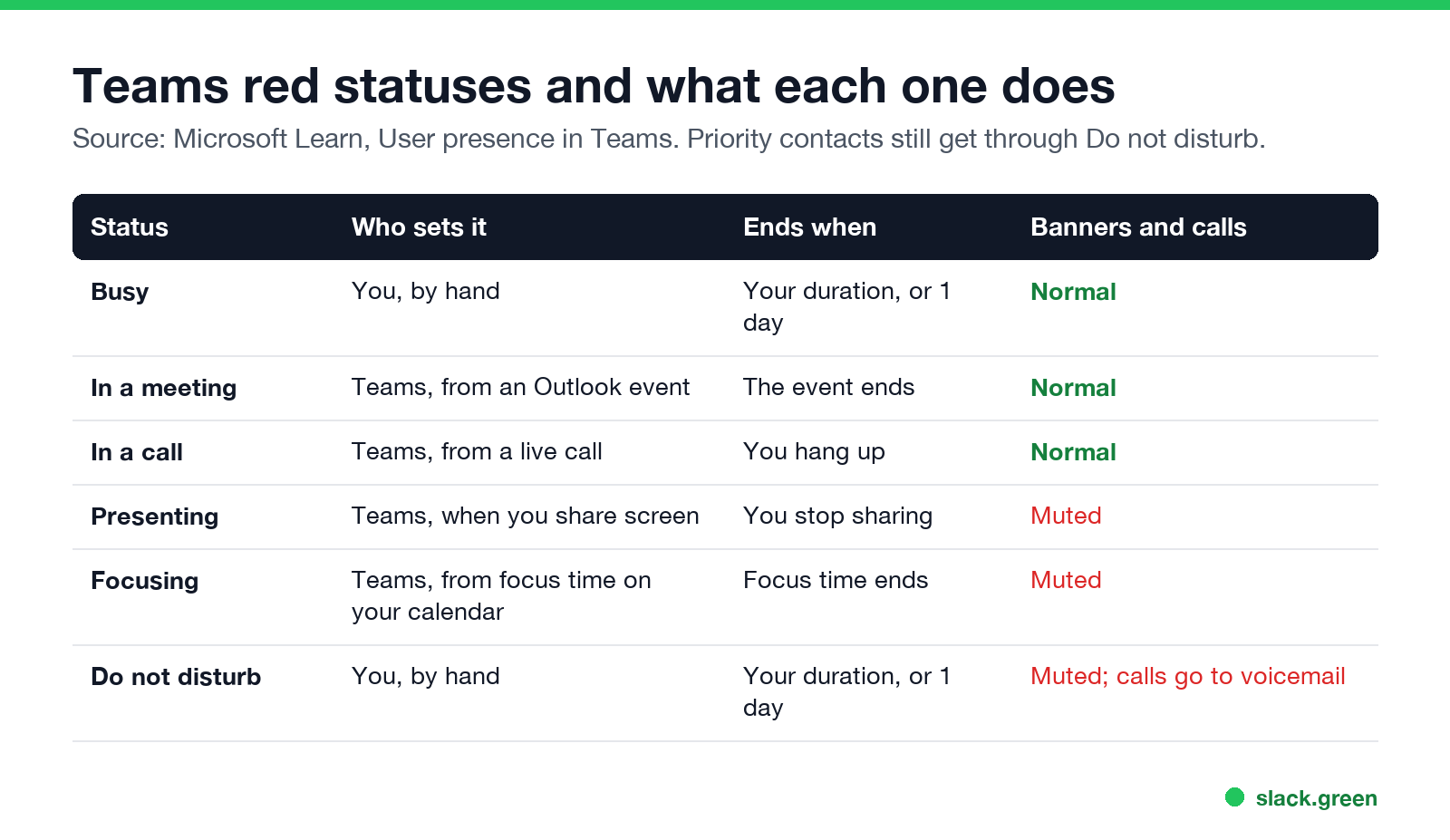
Microsoft's admin guide, "User presence in Teams", splits statuses into ones you set and ones Teams sets for you. For the red family:
| Status | Who sets it | Ends when | Notifications and calls |
|---|---|---|---|
| Busy | You, by hand | Your duration, or after 1 day | Normal |
| In a meeting | Teams, from an Outlook event | The event ends | Normal |
| In a call | Teams, from a live call | You hang up | Normal |
| Presenting | Teams, when you share your screen | You stop sharing | Banners muted |
| Focusing | Teams, from focus time on your calendar | The focus block ends | Banners muted |
| Do not disturb | You, by hand | Your duration, or after 1 day | Banners muted, calls go to voicemail |
Coworkers see the same red dot for Busy, In a meeting and In a call. The label under your name, or on hover, tells them which one it is. Do not disturb, Presenting and Focusing use the red dot with a white bar. Every Teams icon and color is in Microsoft Teams status icons meaning.
Teams Busy vs In a meeting
The difference is who decides.
- • Busy is your choice. You click your profile picture, open your status, and pick Busy. It stays until the duration you chose, or for 1 day if you chose none. It does not know about your calendar.
- • In a meeting is Teams reading Outlook. Any event on your calendar marked Show as: Busy sets In a meeting for its time, whether or not it has a Teams link. Events marked Free or Tentative do not. When the event ends, your status goes back to what Teams works out from your activity.
That second rule explains most "Teams shows In a meeting instead of Busy" questions. A block such as "Lunch" or "Deep work" marked Busy on your calendar shows as In a meeting. If you would rather show Busy, set the event to Free and set Busy by hand, or book the time as focus time, which shows Focusing.
Microsoft's order of statuses, from most to least available, is Available, Busy, In a meeting, In a call, Do not disturb, Be right back, Away, Offline. During a call or meeting you can pick any status for its length. Outside one, you can only pick a status that is less available than the one Teams calculated.
Teams Busy vs In a call
Never appear "away" on Slack again
Cloud-based. No downloads. Works 24/7 even when your laptop is off.
In a call means Teams or Teams Phone has a live call open on one of your devices. It starts when the call connects and ends when you hang up. Busy has nothing to do with calls. If you are in a call and set Busy by hand, the manual choice lasts only for that call.
People who get calls through a call queue should know that a queue can use your status. Microsoft says "call queues can use presence to route calls to agents", so In a call or Busy may skip you for the next call.
Teams Busy vs Do not disturb
Busy tells people you are working and leaves your notifications alone. Do not disturb stops banner notifications and sends incoming calls to voicemail. Messages still arrive in both cases; you see them when you open Teams.
If you want quiet but need a few people to reach you, use Do not disturb with a priority access list, under Settings, Privacy. Messages and calls from those people still come through. Steps for setting Busy so it looks deliberate are in how to look busy on Teams.
Why Teams shows Busy when you are not in a meeting
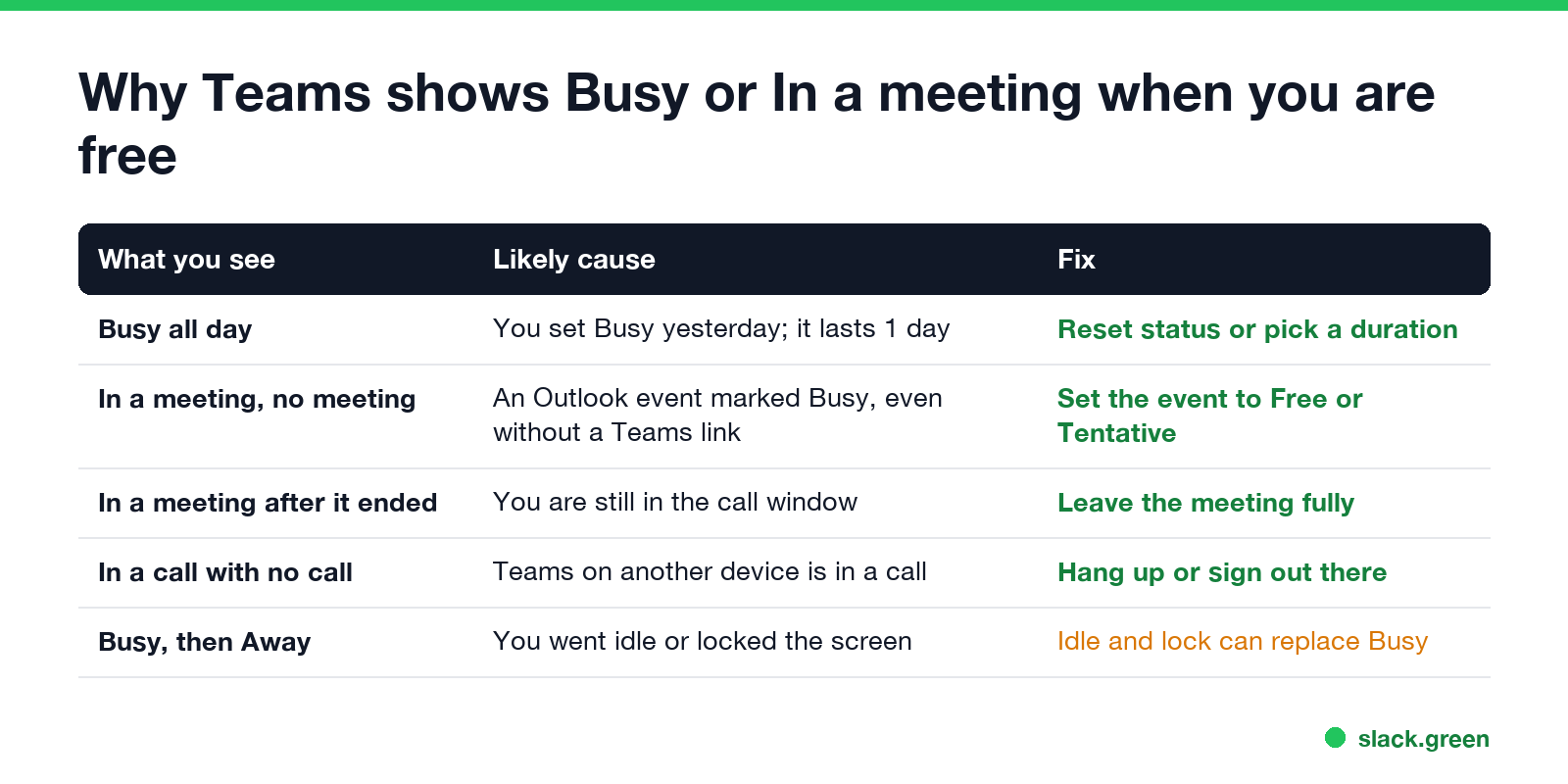
| What you see | Likely cause | Fix |
|---|---|---|
| Busy all day | You set Busy yesterday, and a manual Busy lasts 1 day | Choose Reset status, or set a duration next time |
| In a meeting with no meeting | An Outlook event marked Show as: Busy, with or without a Teams link | Set the event to Free or Tentative |
| In a meeting after it ended | The meeting window is still open or you did not leave the call | Leave the meeting fully and close its window |
| In a call with no call | Teams on another device is still in a call | Hang up or sign out on that device |
| Status lags behind your calendar | Your mailbox is on-premises | Microsoft expects delays of up to 1 hour |
Teams takes your status from the device you used most recently. A phone that is still in a call, or a second laptop, can hold a red status you do not see on your main computer.
Why Teams Busy changes to Away
Never appear "away" on Slack again
Cloud-based. No downloads. Works 24/7 even when your laptop is off.
A manual Busy does not stop Teams from calculating Away. Teams sets Away after about 5 minutes with no keyboard or mouse input on your computer, and at once when you lock it. It sets Offline when the computer sleeps. Microsoft moderators have said in the Q&A forum that idle time or a locked screen can replace a status set by hand.
So Busy vs Away is decided by your computer. If the red dot must stay, the computer has to stay awake, unlocked and in use. How long each timer runs is in how long before Teams shows Away, and fixes for a status that keeps turning yellow are in Teams status stuck on Away.
Slack has fewer statuses and a stricter timer
Slack has only two presence states, active and away, plus Do not disturb and a custom status with an emoji. A Slack calendar app can set an "In a meeting" status, but it does not change the presence dot. Slack sets you away 10 minutes after your last input inside the Slack window, and input in other apps does not count. How Slack builds that dot is in how Slack decides when you are away, and syncing your calendar to a Slack status is in Slack Outlook calendar integration.
FAQ
What is the difference between Busy and In a meeting in Teams?
Busy is a status you set by hand, and it lasts 1 day unless you pick a duration. In a meeting is set by Teams from an Outlook event marked Busy and ends with the event.
Why does Teams show Busy when I am not in a meeting?
Usually a manual Busy from earlier, which lasts 1 day, or a calendar event marked Busy. Another device still in a call can also hold a red status.
Is Busy the same as Do not disturb in Teams?
No. Busy leaves notifications and calls on. Do not disturb hides banners and sends calls to voicemail, except from people on your priority access list.
Does Busy stop Teams from showing Away?
No. Teams can still set Away after about 5 minutes without input or when you lock the computer.
Can people tell if I set Busy by hand?
The label shows Busy rather than In a meeting or In a call, so a Busy with no meeting on your shared calendar reads as a manual choice.
Stop Jiggling Your Mouse.
Join hundreds of remote workers who never worry about their Slack status. Set it up once, stay green forever.
Related Articles
Can My Employer See My Browsing If I Use a VPN? It Depends Whose
A personal VPN hides the sites you visit from the office network, but not from monitoring software, a managed browser or IT on a work laptop. The company VPN shows your employer every site it carries. What each setup hides.
Teams Status on Multiple Devices: The Last Device You Used Wins
Signed in to Teams on a computer and a phone? Your status comes from the device you used most recently. That is why a quick look at your phone can turn you Away, and why a phone in your pocket shows Away instead of Offline at night.
Zoom Do Not Disturb: How to Turn It On, Schedule It, and What It Blocks
To turn on Do not disturb in Zoom, click your profile picture, point at your status and choose Do not disturb, then a time from 20 minutes to 24 hours, or Custom for a daily schedule. It blocks pop-up notifications for Zoom Team Chat and Zoom Phone calls. Busy, by contrast, mutes nothing. How the two differ, and how to keep a Zoom meeting free of pop-ups.