
Why Is My Mac Not Going to Sleep? Find the Cause in One Command
Run pmset -g in Terminal. The sleep line names every app that is keeping your Mac awake right now, such as a browser tab playing audio, a Zoom call or Amphetamine. How to read it, the settings that keep a Mac awake on purpose, and how to find what wakes a sleeping Mac at night.
Your Mac is not going to sleep because an app or a system service is holding a sleep assertion, a request that tells macOS to stay awake. To see which one, open Terminal and run pmset -g. The sleep line ends with "sleep prevented by" and a list of process names. The usual ones are coreaudiod (something is playing audio, often a browser tab or a video call), a browser, Zoom or Teams during a call, sharingd (Handoff or AirDrop), Time Machine, and keep-awake apps such as Amphetamine or caffeinate. Close the app, stop the audio, or turn off the setting, and the Mac sleeps on its normal timer.
If you keep your Mac awake only so Slack stays green, you can let it sleep. Slack counts input only inside its own window, so an awake Mac still shows you away after 10 minutes. Slack Green keeps your Slack status green from a server during the hours you set, with the Mac asleep.
Find what is keeping your Mac awake
Run this in Terminal. It needs no admin password:
# the sleep line lists every process that is blocking sleep right now
pmset -g | grep -i sleep
This is real output from a MacBook that refused to sleep:
 sleep                1 (sleep prevented by powerd, coreaudiod, coreaudiod, sharingd, Amphetamine, Helium)
 displaysleep         10 (display sleep prevented by Amphetamine)
Two apps are playing audio (coreaudiod appears once per audio stream), Handoff is active (sharingd), Amphetamine is holding the Mac and the display awake, and a browser (Helium) holds its own assertion. powerd with "Prevent sleep while display is on" is normal and goes away when the display sleeps.
For details, list the assertions with their names and how long each has been held:
pmset -g assertionspid 404(coreaudiod): [...] 00:26:31 PreventUserIdleSystemSleep named: "com.apple.audio...preventuseridlesleep"
Created for PID: 87244.
pid 660(sharingd): [...] 00:09:22 PreventUserIdleSystemSleep named: "Handoff"
pid 847(Amphetamine): [...] 242:29:48 PreventUserIdleSystemSleep named: "Amphetamine (Single-Use - System)"
pid 42972(Helium): [...] 00:02:51 NoIdleSleepAssertion named: "Playing audio"The Created for PID line under coreaudiod names the app that owns the audio. Look it up with ps -p 87244 -o comm=. Without Terminal, open Activity Monitor, choose the Energy tab, and look at the Preventing Sleep column.
The usual causes, and the fix for each
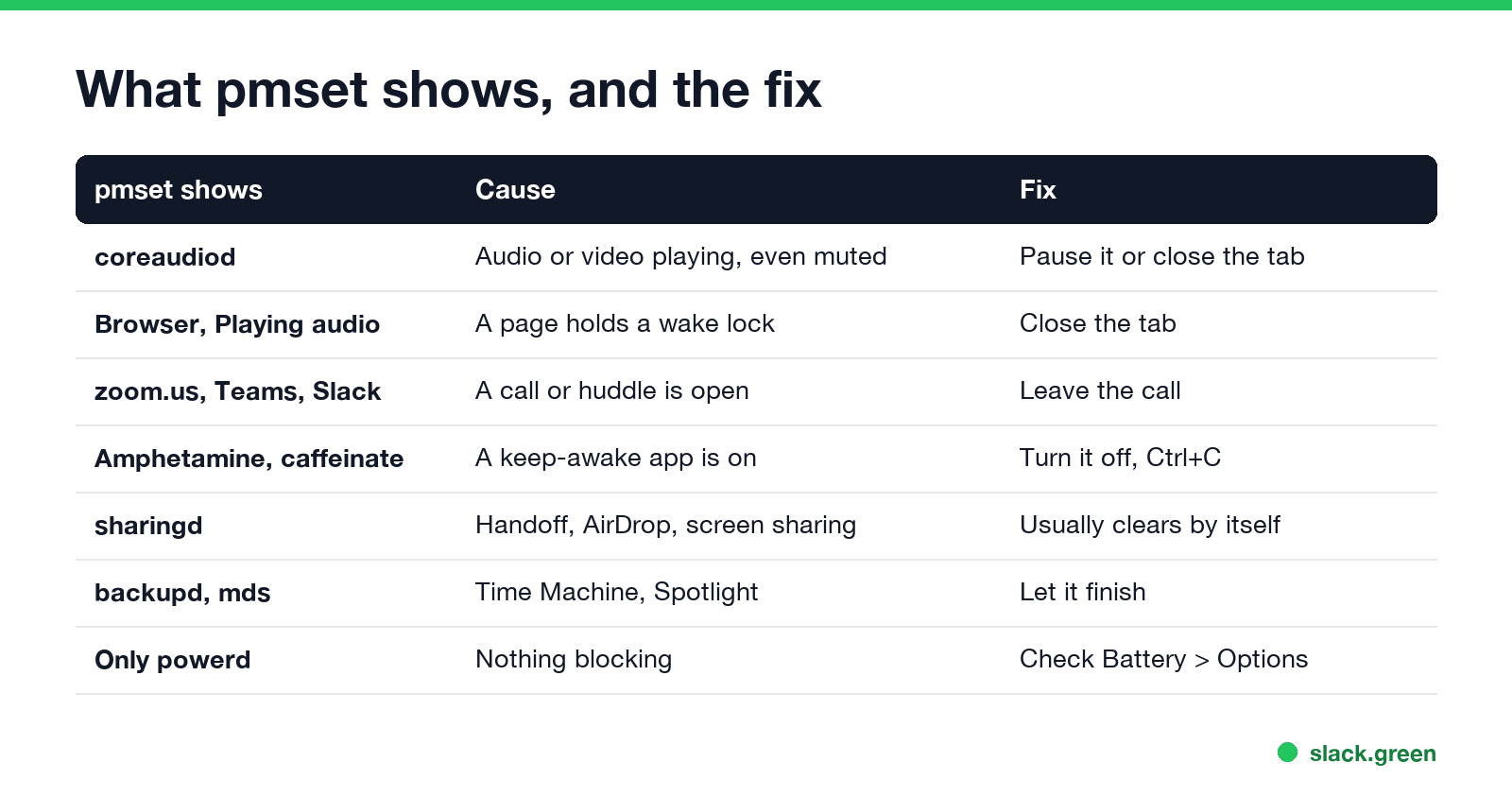
What pmset shows | Cause | Fix |
|---|---|---|
coreaudiod | Audio or video is playing, even muted, often a background tab | Pause the video or close the tab |
| Browser name, "Playing audio" | A page holds a wake lock | Close the tab |
zoom.us, Microsoft Teams, Slack | A call or huddle is open | Leave the call |
Amphetamine, caffeinate, KeepingYouAwake | A keep-awake app or command is on | Turn it off, or press Ctrl+C in Terminal |
sharingd | Handoff, AirDrop or screen sharing | Usually clears by itself; turn off Handoff in General > AirDrop & Handoff |
backupd | Time Machine is backing up | Let it finish |
mds, mds_stores | Spotlight is indexing | Let it finish, often after an update |
Only powerd | Nothing is blocking; check the settings below | See the next section |
A keep-awake command you forgot is easy to miss. caffeinate started in a Terminal tab keeps the Mac awake until that tab closes; caffeinate on Mac covers its flags. Menu bar apps such as Amphetamine, compared in the best apps to keep a Mac awake, can have triggers that turn them on by themselves, for example while a certain app runs or while on power.
Settings that keep a Mac awake on purpose
Never appear "away" on Slack again
Cloud-based. No downloads. Works 24/7 even when your laptop is off.
If pmset shows nothing unusual, check the settings. On a MacBook, open System Settings > Battery > Options; on a desktop Mac, System Settings > Energy:
- • Prevent automatic sleeping on power adapter when the display is off. When on, the Mac never sleeps while plugged in. Turn it off.
- • Wake for network access. Lets the Mac wake for file sharing, Find My and remote access. Set it to Only on power adapter or Never.
- • Enable Power Nap. Lets the Mac wake briefly for mail and backups while asleep.
Then check System Settings > Lock Screen: Turn display off when inactive controls when the display sleeps, and the Mac follows a few minutes later. On the Terminal side, pmset -g shows the same values: sleep 0 means system sleep is off, and displaysleep is the display timer in minutes.
A sleeping Mac keeps waking up
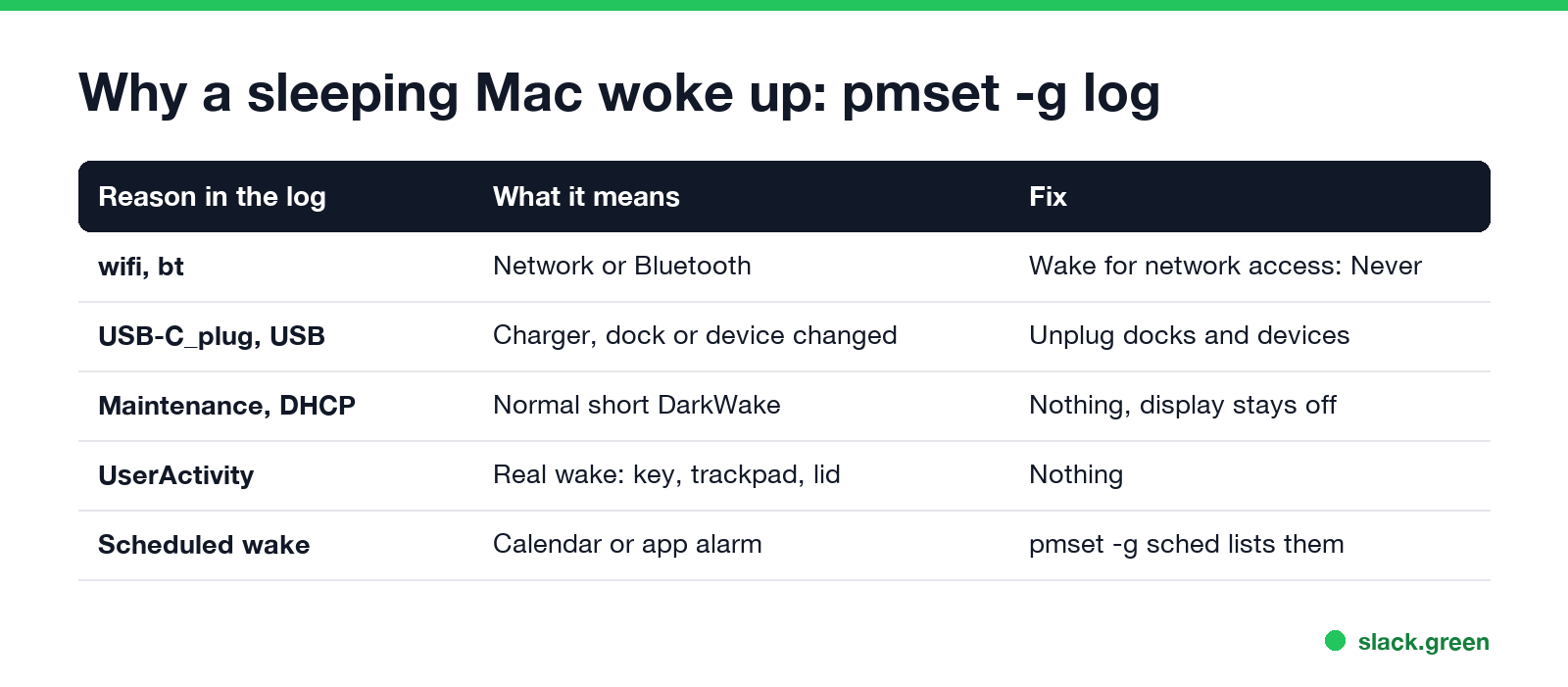
A Mac that goes to sleep and then wakes, often at night, logs every wake with a reason:
# the last 20 wakes, with what caused them
pmset -g log | grep -E "DarkWake from|Wake from|DarkWake to FullWake" | tail -20
A "DarkWake" is a short wake with the display off, for maintenance or network work. A real wake reads "DarkWake to FullWake ... due to UserActivity". Reasons you will see:
pmset -g sched lists scheduled wakes.Still not sleeping
For the opposite problem, keeping a Mac awake on purpose, see how to keep a Mac screen from locking.
FAQ
Never appear "away" on Slack again
Cloud-based. No downloads. Works 24/7 even when your laptop is off.
What is keeping my Mac awake? Run pmset -g in Terminal and read the "sleep prevented by" list, or check the Preventing Sleep column in Activity Monitor's Energy tab.
Why does my Mac not sleep when a video is paused? Some players and browser tabs keep the audio stream open while paused, so coreaudiod holds an assertion. Close the tab or quit the player.
Does a mouse jiggler stop my Mac from sleeping? Yes. Any input resets the idle timer, so a jiggler or a jiggler app keeps the Mac awake while it runs.
Stop Jiggling Your Mouse.
Join hundreds of remote workers who never worry about their Slack status. Set it up once, stay green forever.
Related Articles
KeepingYouAwake vs Amphetamine: Which Mac Keep-Awake App to Use
KeepingYouAwake is a free, open-source menu bar switch that runs Apple's caffeinate for you. Amphetamine is a free App Store app with triggers, schedules and a closed-lid mode. Pick KeepingYouAwake for one click and Homebrew, Amphetamine for automation. Neither keeps Slack or Teams active.
Computer Locks After 15 Minutes? How to Tell If Group Policy Set It
A work laptop that locks after exactly 15 minutes, with screen settings greyed out, is almost always following a policy from IT: the Windows machine inactivity limit, a forced screen saver, or an Intune device lock. Security baselines and PCI DSS ask for 15 minutes. How to see which policy it is, and what you can and cannot change.
How to Keep a Citrix Session Active: Find Which Timeout Logs You Out
A Citrix session can end from four different timers: Windows locking inside the virtual desktop, the Citrix session idle timer, the Citrix Gateway session time-out, and the StoreFront web page timeout. Only input from your own device into the Citrix window resets them. How to tell which one hit you and what keeps each one quiet.