
Claude Code Slack Notifications with Hooks: Tested Setup
Send a Slack message when Claude Code finishes or needs your approval, with a Stop hook, a Notification hook and an incoming webhook. We ran the setup on Claude Code 2.1.311 on 9 November 2026 and recorded what each hook sent, when, and the three things that broke.
To get a Slack message when Claude Code finishes or stops to ask you something, add two hooks to .claude/settings.json: a Stop hook, which runs when Claude ends its turn, and a Notification hook, which runs when Claude waits for your approval or your next prompt. Both hooks run one small script that pipes the event JSON through jq and posts it to a Slack incoming webhook with curl. We set this up on 9 November 2026 with Claude Code 2.1.311 on Linux, ran five sessions (headless and interactive), and posted every event to a test channel.
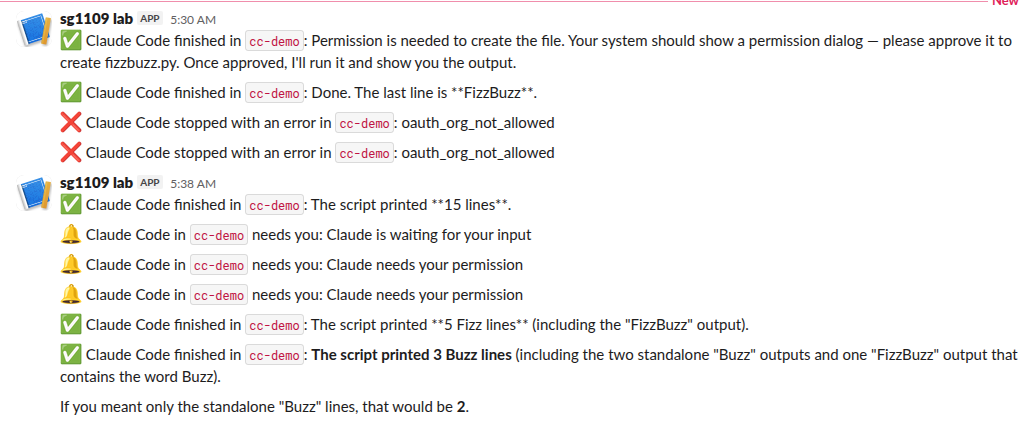
The screenshot shows every message from the test. Two of them still show **15 lines** with literal asterisks. That is a formatting bug in the first version of the script, and the fix is in step 2.
What each hook sent in our test
| Event | When it fired | Text Slack got |
|---|---|---|
Stop | Right after Claude's last reply, in headless and interactive runs | Claude's final message, from last_assistant_message |
Notification, permission_prompt | 7 s after we sent the prompt: Claude planned a Bash command and the approval dialog had waited about 6 s | Claude needs your permission |
Notification, idle_prompt | 71 s after the Stop message, with no typing | Claude is waiting for your input |
StopFailure | When the API refused the request (oauth_org_not_allowed) | The error type only. Stop did not run |
In headless mode (claude -p), no Notification hook ran, because there is no dialog to wait on. With the default permission mode, the run ended on a Stop whose message was Claude asking for a permission it could not get: "Permission is needed to create the file. Your system should show a permission dialog". If you run headless, allow the tools up front with --allowedTools (see step 4).
Step 1: Make an incoming webhook
Create a Slack app, turn on Incoming Webhooks, and add a webhook for the channel that should get the alerts. Our Slack webhook guide shows each screen. You get a URL like https://hooks.slack.com/services/T000/B000/XXXX. Keep it out of the repo. We export it in the shell that starts Claude Code:
export SLACK_WEBHOOK_URL='https://hooks.slack.com/services/T000/B000/XXXX'Hooks run as child processes of Claude Code, so they inherit that variable.
Step 2: The hook script
Save this as .claude/hooks/slack-notify.sh in your project and run chmod +x on it. Claude Code sends the event as JSON on stdin; the script picks the event name and builds one line of text.
#!/usr/bin/env bash
# Post a Claude Code hook event to Slack. Claude Code sends the event as JSON on stdin.
input=$(cat)
event=$(jq -r '.hook_event_name' <<<"$input")
project=$(basename "$(jq -r '.cwd' <<<"$input")")
case "$event" in
  Stop)
    summary=$(jq -r '.last_assistant_message // "" | .[0:300] | gsub("\\*\\*"; "*")' <<<"$input")
    text=":white_check_mark: Claude Code finished in \`$project\`: $summary" ;;
  StopFailure)
    text=":x: Claude Code stopped with an error in \`$project\`: $(jq -r '.error' <<<"$input")" ;;
  Notification)
    text=":bell: Claude Code in \`$project\` needs you: $(jq -r '.message' <<<"$input")" ;;
  *)
    text="Claude Code event $event in \`$project\`" ;;
esac
jq -n --arg t "$text" '{text: $t}' |
  curl -sS -m 10 -H 'Content-Type: application/json' --data @- "$SLACK_WEBHOOK_URL" -o /dev/null
exit 0
The gsub turns Claude's Markdown **bold** into Slack's *bold*. Our first version did not have it, so Slack showed the asterisks (the **15 lines** message in the screenshot). After the fix, the same kind of reply came out bold. A webhook's text field uses Slack's own markup, which our Markdown to Slack converter shows side by side with standard Markdown.
jq -n --arg builds the JSON, so quotes and new lines in Claude's reply cannot break the payload. The script cuts the summary at 300 characters, and exit 0 keeps a failed post from changing what Claude Code does.
Step 3: Register the hooks
Add this to .claude/settings.json in the project (or to ~/.claude/settings.json for every project):
{
  "hooks": {
    "Stop": [
      { "hooks": [ { "type": "command", "command": "\"$CLAUDE_PROJECT_DIR\"/.claude/hooks/slack-notify.sh", "timeout": 15 } ] }
    ],
    "StopFailure": [
      { "hooks": [ { "type": "command", "command": "\"$CLAUDE_PROJECT_DIR\"/.claude/hooks/slack-notify.sh", "timeout": 15 } ] }
    ],
    "Notification": [
      {
        "matcher": "permission_prompt|idle_prompt",
        "hooks": [ { "type": "command", "command": "\"$CLAUDE_PROJECT_DIR\"/.claude/hooks/slack-notify.sh", "timeout": 15 } ]
      }
    ]
  }
}
The matcher keeps the noise down. Notification has more types, such as auth_success and elicitation_dialog, and without a matcher every one of them posts to Slack.
Never appear "away" on Slack again
Cloud-based. No downloads. Works 24/7 even when your laptop is off.
Step 4: Run Claude Code
Start Claude Code in the same shell. For a headless run, allow the tools it needs, or it stops at the first command:
claude -p "Run python3 fizzbuzz.py and tell me, in bold, how many Buzz lines it printed." \
  --allowedTools "Bash(python3:*)"
That run took 13 s and posted one Stop message. In an interactive session, the permission_prompt message arrived while the approval dialog was still open in the terminal:
 Bash command
 python3 fizzbuzz.py
 This command requires approval
 Do you want to proceed?
 ❯ 1. Yes
   2. Yes, and don't ask again for: python3 *
   3. No
What the hook gets on stdin
This is the Stop event from one of our runs, with the session path shortened:
{
  "session_id": "cf71853c-ddc0-4c46-a158-c13adb874011",
  "transcript_path": "/home/sieun/.claude/projects/.../cf71853c-ddc0-4c46-a158-c13adb874011.jsonl",
  "cwd": "/home/sieun/scratch/writer-1109-1417/cc-demo",
  "permission_mode": "default",
  "hook_event_name": "Stop",
  "stop_hook_active": false,
  "last_assistant_message": "Done. The last line is **FizzBuzz**.",
  "background_tasks": [],
  "session_crons": []
}
The Notification event carries message and notification_type instead. For permission_prompt, the message was only "Claude needs your permission". It does not name the command. If you want the command in Slack, Claude Code also has a PermissionRequest event that gets the tool input; we did not test it here.
Three things that broke
An HTTP hook aimed straight at the webhook
Claude Code has "type": "http" hooks that POST the event JSON to a URL, so we pointed one at the webhook. Slack rejected it, because the event JSON has no text field. The debug log (claude --debug hooks) showed:
Hooks: HTTP hook response status 400, body length 7
Hook Stop (Stop) error: status code 400
Posting the same JSON with curl showed the 7-byte body: no_text. An HTTP hook works only with a relay of your own that turns the event into a Slack message, so the command hook above is less work.
API errors skip the Stop hook
When the account could not use its subscription, Claude Code ended with HTTP 403 and ran StopFailure with "error": "oauth_org_not_allowed". Our Stop hook never ran, so a setup with only Stop stays silent when a run fails. In headless mode, 1 of our 3 StopFailure messages never reached Slack: the CLI exits right after the error, so the hook's curl can be cut off before it finishes.
Headless runs have no Notification events
We covered this above: claude -p never waits on a dialog, so only Stop or StopFailure fire.
Sending to a DM instead of a channel
A webhook posts to one channel. To get a DM, use a bot token with chat:write and call chat.postMessage with your member ID as channel. Our Slack bot token guide covers the scopes. To ping someone from the webhook text, use <@U012ABCDEF> as shown in mentioning a user in a Slack webhook.
FAQ
Do these hooks work in the VS Code extension and the desktop app?
The hooks reference says Claude Code fires the same hook events in the terminal, the IDE extensions, the desktop app and cloud sessions. We tested only the terminal CLI.
Is this the same as Claude in Slack?
No. Hooks send one-way alerts from your machine. Anthropic's Slack integrations let people talk to Claude inside Slack, which is a different setup.
How do I stop the alerts for one project?
Remove the block from that project's .claude/settings.json, or run that session in a shell where SLACK_WEBHOOK_URL is not set. The script then posts nowhere (curl fails and the hook still exits 0).
Stop Jiggling Your Mouse.
Join hundreds of remote workers who never worry about their Slack status. Set it up once, stay green forever.
Related Articles
ngrok for a Slack Bot: What It Needs, and Two Free Alternatives Tested
A Slack bot on localhost needs a public HTTPS URL for events and slash commands, or Socket Mode. We tried ngrok 3.39.13 with no account (ERR_NGROK_4018), a Cloudflare quick tunnel and Socket Mode on 8 November 2026, timed the replies, and broke the tunnel URL on purpose.
Django Slack Bot: Bolt Adapter, Slash Command and Error Alerts, Tested
To build a Slack bot in Django, mount Bolt for Python's Django adapter on one URL and let it handle slash commands and events; for error alerts, add a logging handler that posts to an incoming webhook. We ran both on Django 6.1.3 on 8 November 2026 and checked which django-slack packages still work.
Slack Java SDK: Post, Read History and Run a Bolt App (Tested 1.54.0)
The Slack Java SDK is com.slack.api:slack-api-client for Web API calls and com.slack.api:bolt for apps. We ran version 1.54.0 with Gradle on 8 November 2026: chat.postMessage, conversations.history with a cursor, a Socket Mode Bolt app and a Kotlin Block Kit post, plus the silent failure in ctx.say.