
How to Show Your Discord Status on Steam Deck
Discord on Steam Deck does not show what you are playing by itself. Install Discord as a Flatpak, add it to Steam, then add the Discord Status plugin through Decky Loader. Keep Discord running and friends see 'Playing [game] on Steam Deck'. Setup, fixes, and the alternatives.
To show your Discord status on Steam Deck, with the game you are playing, you need the Discord Status plugin for Decky Loader. Discord on its own cannot see Steam Deck games, so your profile stays on plain Online. The setup: install Discord as a Flatpak in Desktop Mode, add it to Steam as a Non-Steam Game, install Decky Loader, then install Discord Status from the Decky store. After that, launch Discord first, go back to your library without closing it, and start your game. Friends see "Playing [game]", with "on Steam Deck" under it.
The plugin's README is clear on the one rule: Discord must be running for it to work.
We build Slack Green, a presence tool for Slack, and write about how chat apps show status. Changing the text next to your name, rather than the game, is covered in how to set a custom status on Discord.
Set up Discord status on Steam Deck
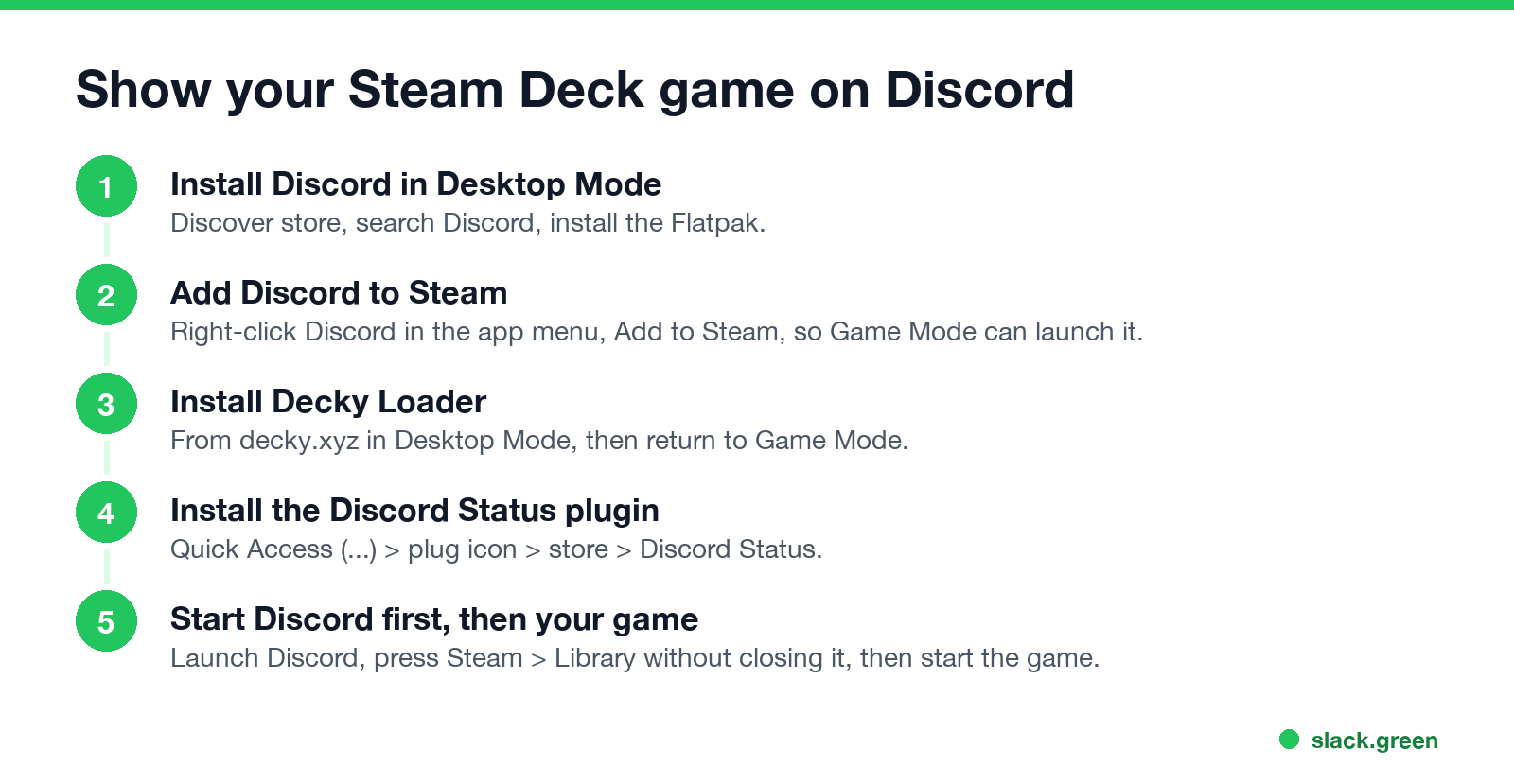
- Install Discord in Desktop Mode. Press the Steam button, Power, Switch to Desktop. Open the Discover store, search for Discord and install it. Discover installs the Flatpak version, which is the one the plugin expects.
- Add Discord to Steam. Find Discord in the application menu, right-click it and choose Add to Steam. Now Game Mode can launch it from your library under Non-Steam.
- Install Decky Loader. In Desktop Mode, open decky.xyz in the browser, download the installer and run it. It asks for a sudo password; set one first with
passwdin Konsole if you never have. Then switch back to Game Mode. - Install the plugin. Press the Quick Access button (the ... button), open the plug icon for Decky, open the store, search for Discord Status and install it.
- Start Discord, then your game. Launch Discord from your library and sign in. Press the Steam button and go to Library without closing Discord. Start any game.
Your profile now shows the game. The plugin panel in Quick Access has a Device Name field if you want the line to read something other than "on Steam Deck", for example on a Legion Go running SteamOS.
How it works
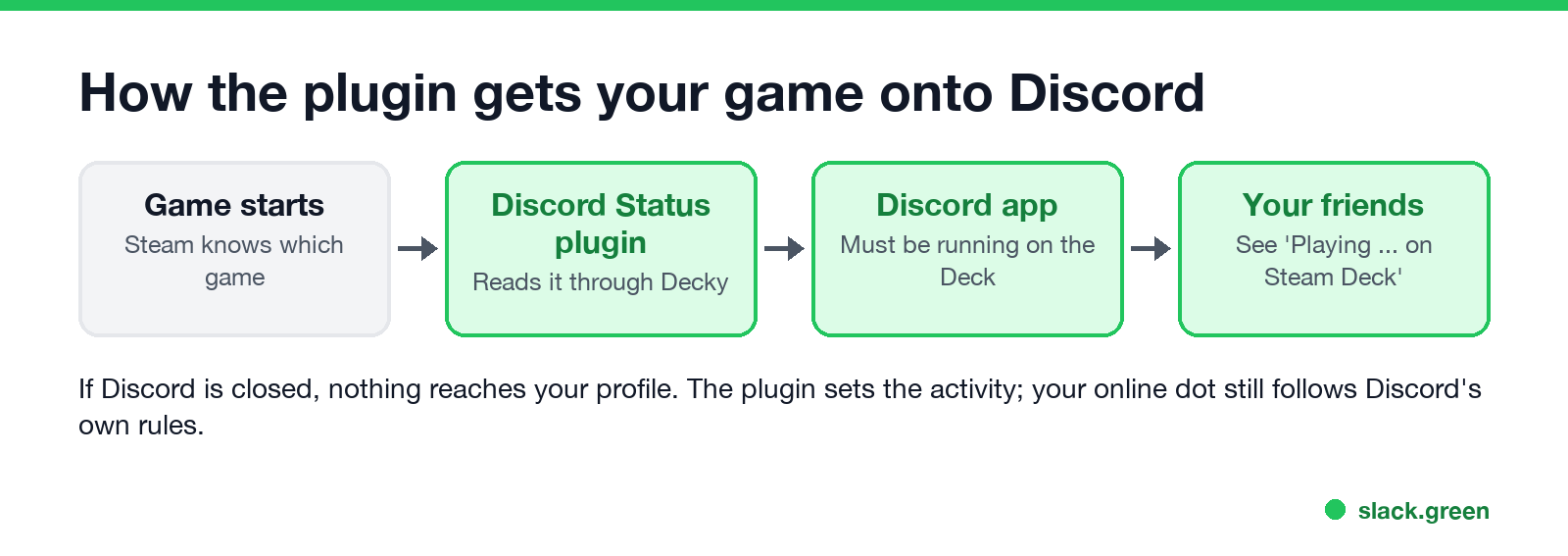
Steam knows which game is running. The Discord Status plugin reads that through Decky and sends it to the Discord app as Rich Presence, the same channel games use on a PC. If Discord is not running, there is nothing to send it to. For games Discord does not recognise, the plugin shows a generic activity; its advanced settings let you enter your own Discord application ID to change that line.
The plugin changes your activity, not your online dot. Discord still decides online, idle and offline the usual way. What each color means is in Discord status icons meaning, and why you may look idle during a game is in what does idle mean on Discord.
Discord status not showing on Steam Deck
Never appear "away" on Slack again
Cloud-based. No downloads. Works 24/7 even when your laptop is off.
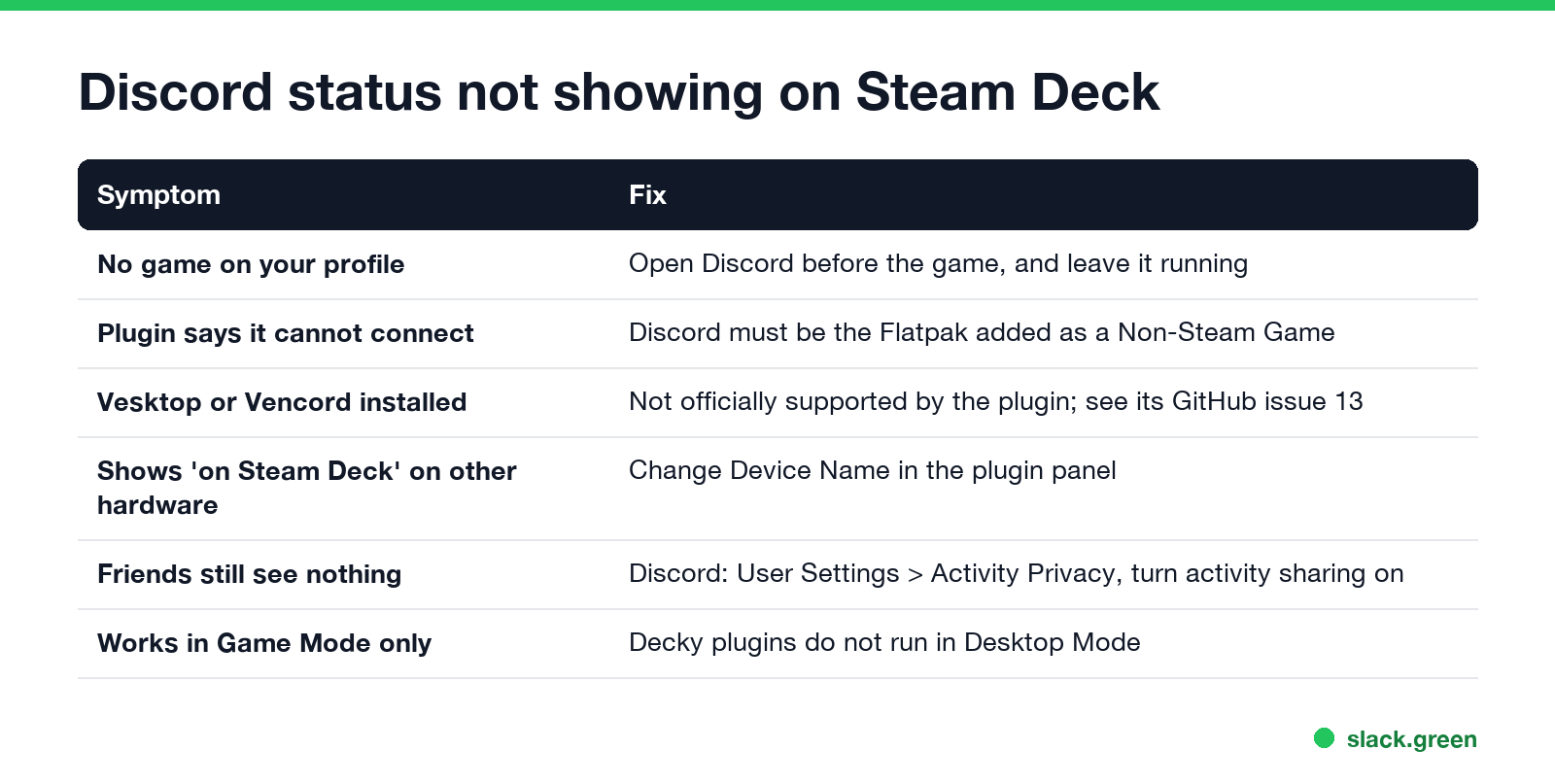
| Symptom | Fix |
|---|---|
| No game on your profile | Open Discord before the game, and leave it running |
| The plugin cannot find Discord | Use the Flatpak from Discover, added to Steam as a Non-Steam Game |
| You use Vesktop or Vencord | The plugin does not officially support them; its GitHub issue 13 has a workaround |
| Friends still see nothing | In Discord, open User Settings, Activity Privacy, and turn activity sharing on |
| It stops in Desktop Mode | Decky plugins run in Game Mode only |
| It worked, then stopped after an update | SteamOS updates can remove Decky; run the installer again |
A Reddit thread on r/SteamDeck with the same problem ended with the order in step 5: Discord first, back to the library, then the game.
Without Decky Loader
FAQ
Can Discord show what I play on Steam Deck? Yes, with the Discord Status plugin for Decky Loader and Discord running on the Deck.
Why is my Discord status not showing on Steam Deck? Discord was not running when the game started, or it is not the Flatpak added to Steam.
Does the Discord Status plugin work in Desktop Mode? No. Decky plugins run in Game Mode.
Can I change "on Steam Deck" to another device name? Yes. Use the Device Name field in the plugin panel.
Do I need Discord Nitro for this? No. Rich Presence works on free accounts.
Stop Jiggling Your Mouse.
Join hundreds of remote workers who never worry about their Slack status. Set it up once, stay green forever.
Related Articles
Discord Status Copy and Paste: 40 Aesthetic, Funny and Gaming Lines
40 Discord statuses you can copy and paste: aesthetic lines with stars and moons, funny ones, gaming ones, kaomoji and fill-in templates. Every line is under Discord's 128-character limit, and a short script checks your own before you paste it.
Slack Markdown File Preview: How to Read .md Files in Slack
Slack shows an uploaded .md file as raw text, with the # and ** characters visible. To read it formatted, paste the rendered text into a canvas, create the canvas from markdown with the API, or send it in a markdown block. HTML files and Mermaid diagrams do not render either; the workarounds are below.
8x8 Status Icons Meaning: Every Color and Symbol
In 8x8 Work, a green check means Available, solid red means Busy, red with a phone means On Call, red with a bar means Do Not Disturb, an amber clock means Away, and a grey X means Offline or Invisible. What each status does to your calls, which ones change by themselves, and the Contact Center agent statuses.