
Discord Status Icons Meaning: Every Color and Symbol
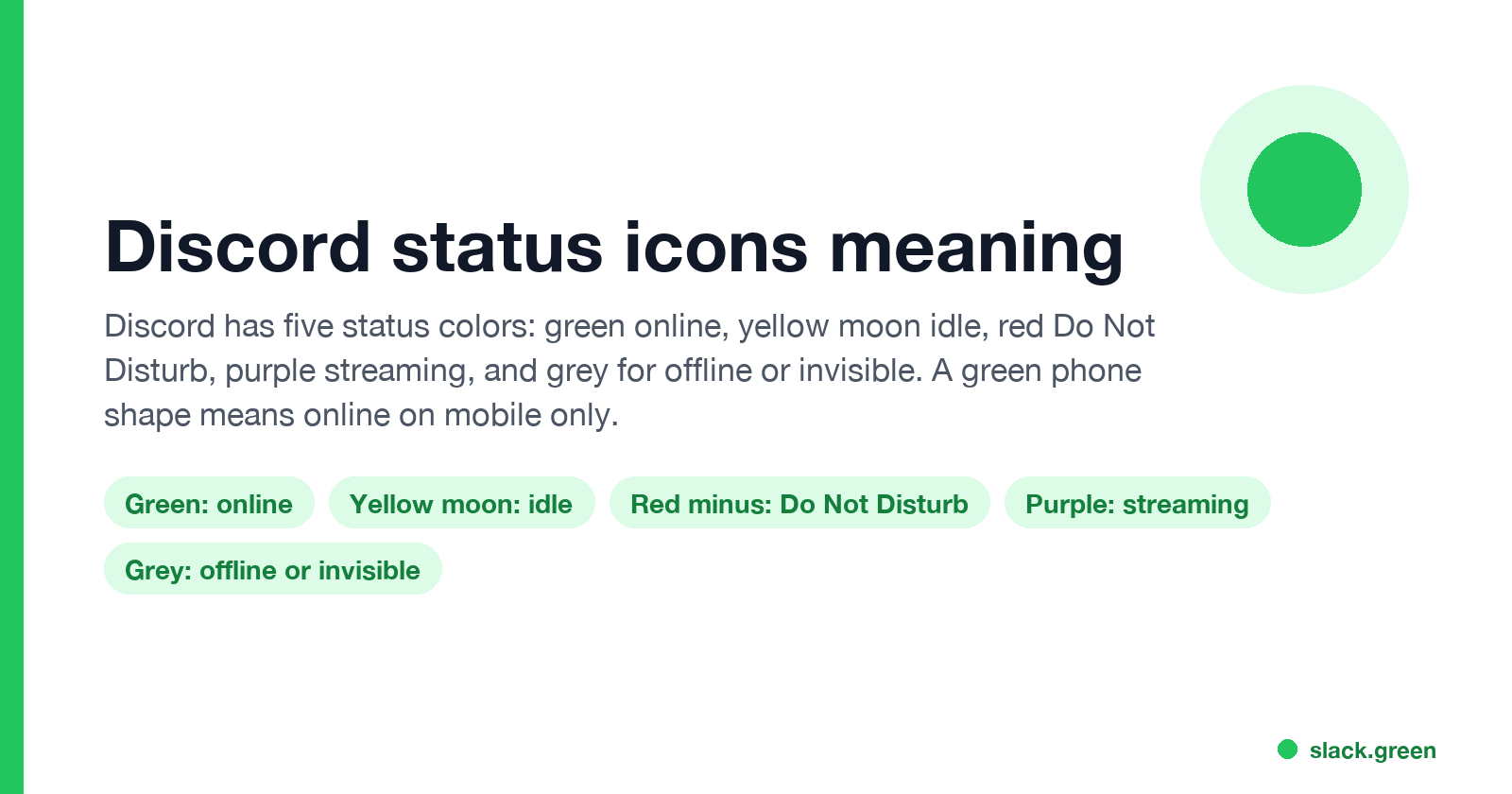
Discord has five status colors. Green means online, a yellow crescent moon means idle, a red circle with a line means Do Not Disturb, purple means streaming, and grey means offline or invisible. A green phone shape means the person is online on mobile only. What each icon means, plus the mute, deafen, LIVE, crown and gem icons next to names.
Discord has five status colors. A green dot means online. A yellow crescent moon means idle. A red circle with a line through it means Do Not Disturb. Purple means the person is streaming on Twitch or YouTube. Grey, or no dot at all, means offline or invisible, and Discord shows both the same way. A green phone shape instead of a dot means the person is online, but only in the Discord mobile app.
We build Slack Green, which keeps your Slack status active during the hours you set, so we write about how chat apps show who is around. Discord's icons are below, with the Slack and Teams versions linked at the end.
Discord status icons list
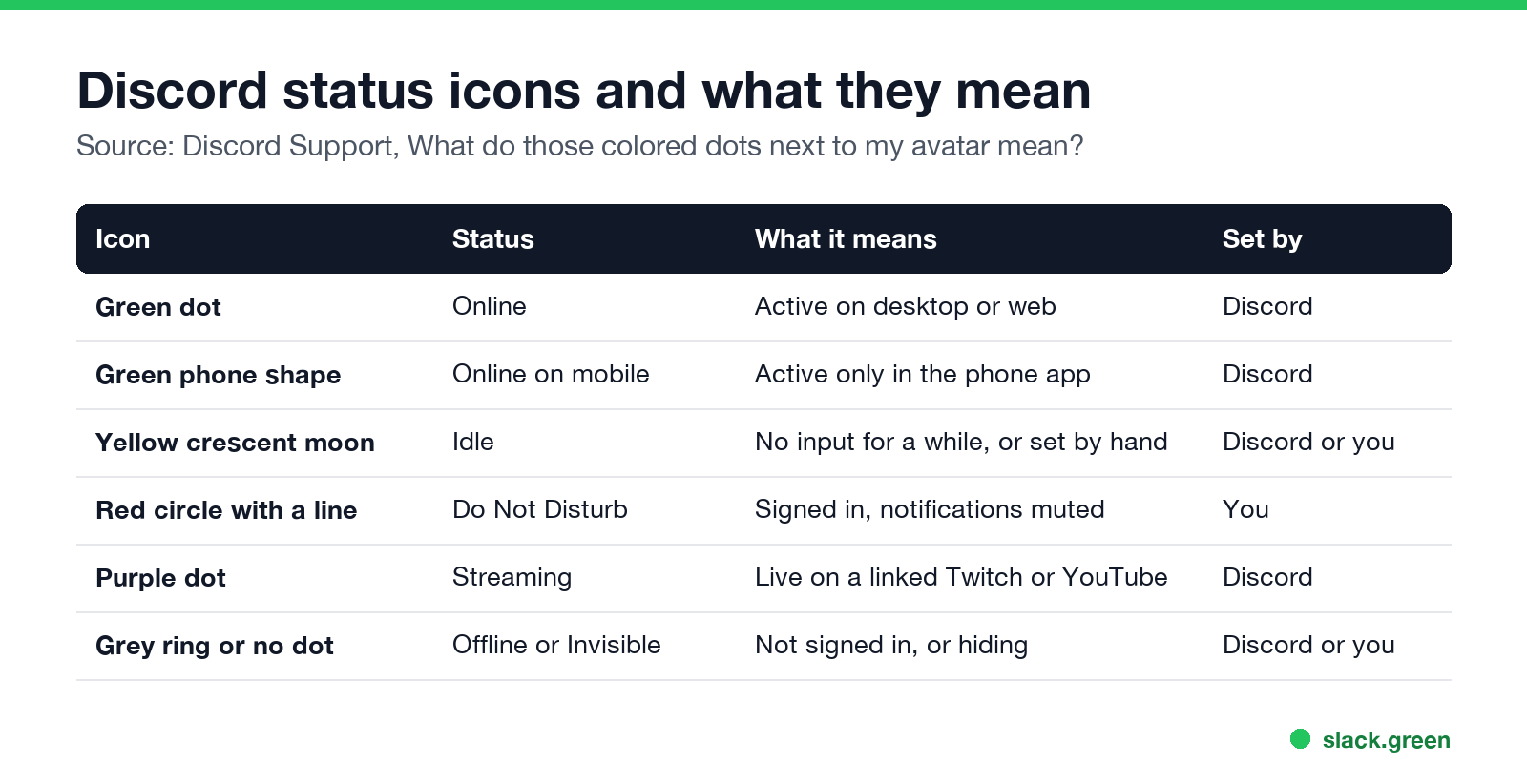
Discord Support's article "What do those colored dots next to my avatar mean?" lists five: "Green = Online, Yellow = Idle, Red = Do Not Disturb, Purple = Streaming, Gray = Invisible/Offline". In the app they look like this:
| Icon | Status | What it means | Set by |
|---|---|---|---|
| Green dot | Online | Active on the desktop app or web | Discord |
| Green phone shape | Online on mobile | Active only in the phone app | Discord |
| Yellow crescent moon | Idle | No input for a while, or chosen by hand | Discord or you |
| Red circle with a line | Do Not Disturb | Signed in, notifications muted | You |
| Purple dot | Streaming | Live on a linked Twitch or YouTube account | Discord |
| Grey ring, or name greyed out | Offline or Invisible | Not signed in, or hiding | Discord or you |
Discord adds that "while Offline doesn't have a dot, you'll see the user's name and avatar grayed out".
What the yellow moon means on Discord
The yellow crescent moon is Idle. On a computer, Discord sets it after about 10 minutes with no keyboard or mouse input anywhere on the machine. On a phone, it can show soon after the app goes to the background. You can also pick Idle by hand, and then it stays until you change it.
Idle people are still signed in and still get messages and notifications. The moon only says they have not touched the computer or app for a while. Timers and causes are in what does idle mean on Discord, and the phone case is in does Discord show idle on mobile.
What the red circle means on Discord
Never appear "away" on Slack again
Cloud-based. No downloads. Works 24/7 even when your laptop is off.
The red circle with a horizontal line is Do Not Disturb. Only the user can set it. It mutes desktop notifications, so the person may not see your message until they open Discord. Messages are not blocked. Discord does not change Do Not Disturb to idle while it is on.
A red dot without the line is not a status. If you see a red number badge on a server or DM icon, that is unread mentions or messages.
What the phone icon means on Discord
A small green phone shape in place of the dot means the person is online and their only active session is the mobile app. If they are also active on a computer, the plain green dot shows. When the phone app goes to the background, the icon can turn into the idle moon. Invisible hides the phone icon along with the dot.
What purple means on Discord
Purple means Streaming. It appears when someone has linked a Twitch or YouTube account under Connections and is live there. Sharing your screen in a Discord voice channel with Go Live does not turn your dot purple. It shows a red LIVE badge next to your name in the voice channel instead.
Grey on Discord: offline or invisible
Never appear "away" on Slack again
Cloud-based. No downloads. Works 24/7 even when your laptop is off.
A grey ring or a greyed-out name means Discord shows the person as offline. That is either Offline, not signed in on any device, or Invisible, signed in and hiding. Other people cannot tell the two apart from the icon. Invisible also hides the person's custom status and game activity. How to spot an invisible user from what they do is in Discord Invisible vs offline.
Other icons next to names on Discord
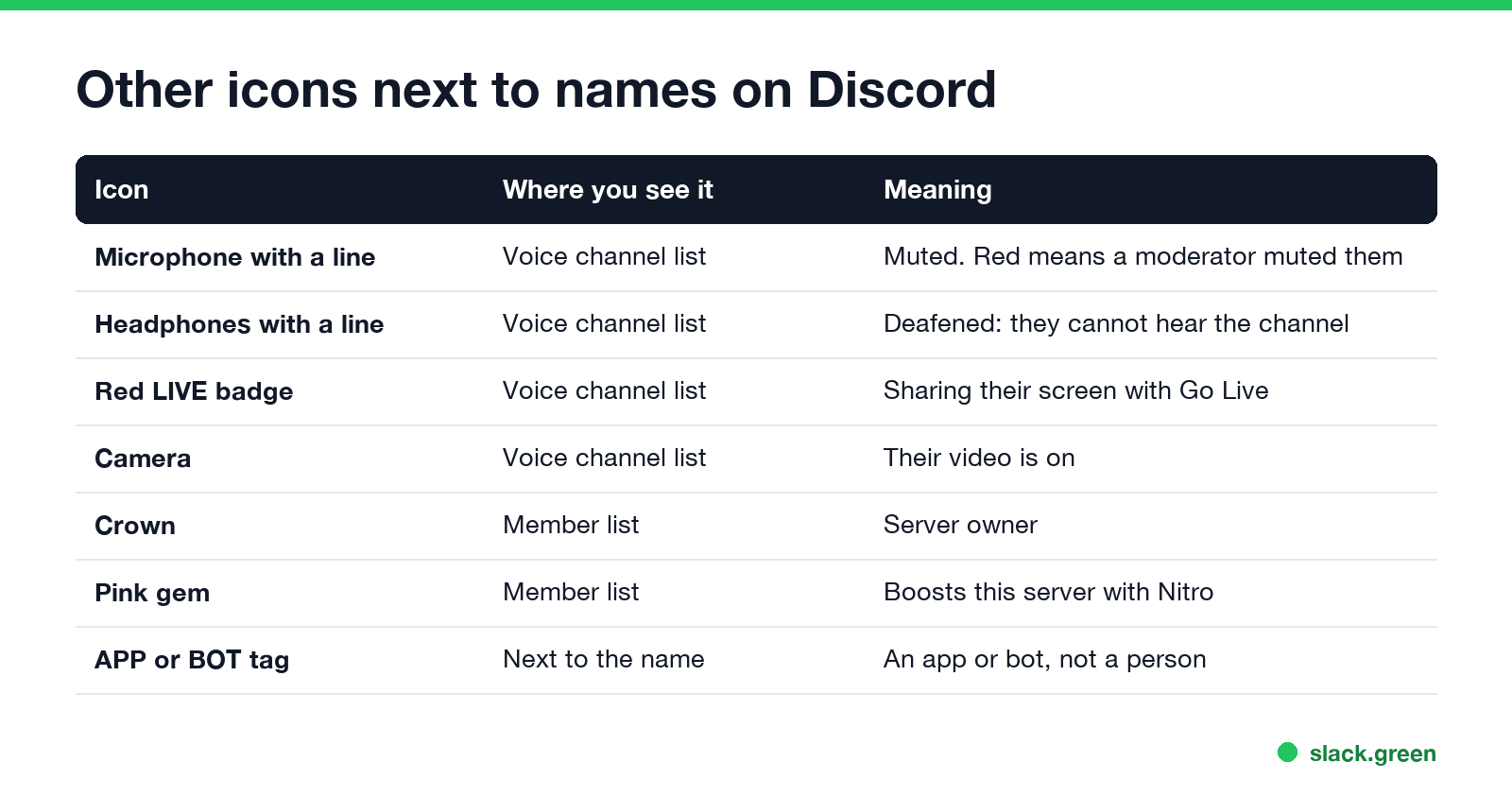
Not every icon next to a name is a status. The common ones:
- • Microphone with a line through it, in a voice channel: the person is muted. A red icon usually means a moderator server-muted them.
- • Headphones with a line through it: the person is deafened and cannot hear the channel.
- • Red LIVE badge: the person is sharing their screen with Go Live. You can click it to watch.
- • Camera: their video is on.
- • Crown, in the member list: the server owner.
- • Pink gem: the person boosts this server with Nitro.
- • APP or BOT tag: the account is an app or a bot, not a person.
- • Emoji and text under the name: a custom status the person wrote. How to set one is in how to set a custom status on Discord.
How to change your status on Discord
On desktop or in the browser, click your profile icon in the lower-left corner and choose Online, Idle, Do Not Disturb or Invisible. You can set a duration, such as 1 hour or until tomorrow, for Idle, Do Not Disturb and Invisible. On mobile, tap your profile icon in the lower-right corner, then your status. The choice applies on every device you are signed in on.
Discord icons vs Slack and Teams icons
Never appear "away" on Slack again
Cloud-based. No downloads. Works 24/7 even when your laptop is off.
| Meaning | Discord | Slack | Microsoft Teams |
|---|---|---|---|
| Active | Green dot | Green dot | Green dot with a check |
| Away or idle | Yellow moon | Hollow circle | Yellow clock |
| Do not disturb | Red circle with a line | Small "z" on the dot | Red dot with a white bar |
| Offline or hidden | Grey ring | Hollow circle | Grey circle with an x |
The rules behind the icons differ too. Slack turns you away 10 minutes after your last input inside the Slack window. Discord and Teams count input anywhere on the computer. The Slack side is in Slack status icons meaning and the Teams side in Microsoft Teams status icons meaning.
FAQ
What do the colors mean on Discord?
Green is online, yellow is idle, red is Do Not Disturb, purple is streaming, and grey is offline or invisible.
What does the moon mean on Discord?
The yellow crescent moon means Idle. The person has not used their computer for a while, has Discord in the background on their phone, or chose Idle.
What does the red circle mean on Discord?
Do Not Disturb. The person is signed in but has muted notifications.
What does the phone icon next to a name mean?
The person is online only in the Discord mobile app.
Why is someone's Discord status purple?
They are live on a Twitch or YouTube account linked to Discord.
Can you tell if someone is invisible on Discord?
Not from the icon. Invisible and offline look the same. You can tell only from activity, such as a quick reply or joining a voice channel.
Stop Jiggling Your Mouse.
Join hundreds of remote workers who never worry about their Slack status. Set it up once, stay green forever.
Related Articles
Can My Employer See My Browsing If I Use a VPN? It Depends Whose
A personal VPN hides the sites you visit from the office network, but not from monitoring software, a managed browser or IT on a work laptop. The company VPN shows your employer every site it carries. What each setup hides.
Teams Status on Multiple Devices: The Last Device You Used Wins
Signed in to Teams on a computer and a phone? Your status comes from the device you used most recently. That is why a quick look at your phone can turn you Away, and why a phone in your pocket shows Away instead of Offline at night.
Zoom Do Not Disturb: How to Turn It On, Schedule It, and What It Blocks
To turn on Do not disturb in Zoom, click your profile picture, point at your status and choose Do not disturb, then a time from 20 minutes to 24 hours, or Custom for a daily schedule. It blocks pop-up notifications for Zoom Team Chat and Zoom Phone calls. Busy, by contrast, mutes nothing. How the two differ, and how to keep a Zoom meeting free of pop-ups.