
Does Teams Show Your Location? Work Location, Wi-Fi and Privacy
Teams does not show coworkers a map of where you are. It shows a work location, In the office, a building name or Remote, when you set one or when your company turns on workplace check-in, which reads the office Wi-Fi. Your profile card shows your local time, and admins see sign-in IP addresses. What each feature shares and how to turn it off.
Teams does not show your coworkers a map pin or your address. What it can show is a work location: In the office, a building name, or Remote. You can set that yourself, or your company can turn on workplace check-in, which updates it when your laptop joins the office Wi-Fi or you plug into a mapped desk monitor. Microsoft says check-in is "always off by default", only works in the Teams desktop app, and is cleared at the end of your working hours. Your profile card also shows your local time. Admins see the IP address and rough location of each sign-in, like any Microsoft 365 app.
Teams is one of several apps that report where and whether you are working. Slack shows only a green or grey dot, and it turns grey after 10 minutes without input in the Slack window. Slack Green keeps your Slack status active during the hours you set, from the cloud, and it does not report any location.
What Teams shows about your location, feature by feature
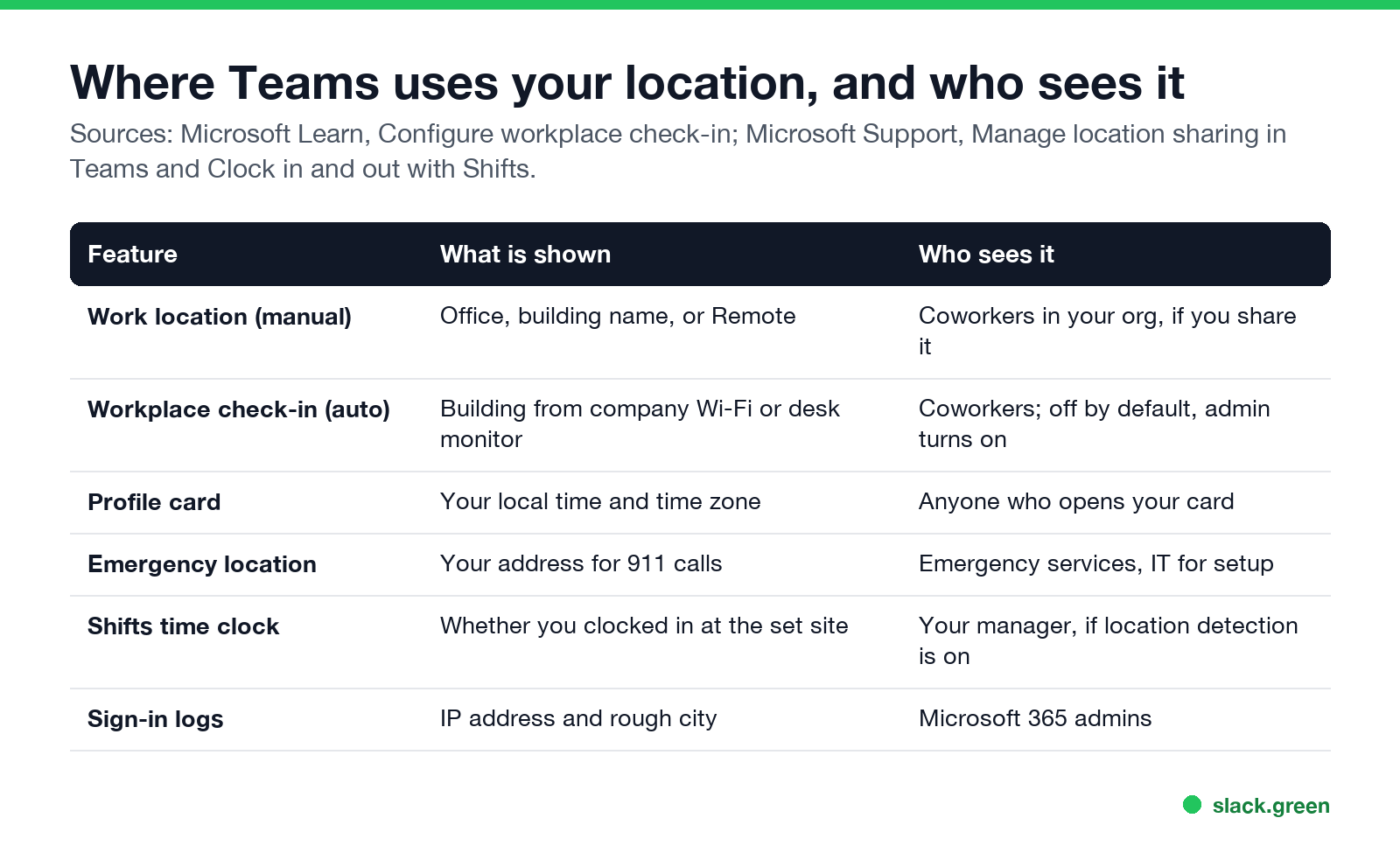
| Feature | What is shown | Who sees it |
|---|---|---|
| Work location you set | In the office, a building, or Remote | Coworkers in your organization |
| Workplace check-in | The building, from company Wi-Fi or a desk monitor | Coworkers; off unless an admin enables it |
| Profile card | Your local time and time zone | Anyone who opens your card |
| Emergency location | Your street address for emergency calls | Emergency services; used by Teams Phone |
| Shifts time clock | Whether you clocked in at the work site | Your manager, if location detection is on |
| Sign-in logs | IP address and approximate city | Microsoft 365 admins |
Microsoft's page on work location says it "can only be shared inside users' organization and is not visible to Microsoft". People outside your company, such as guests in a chat, do not see it.
Workplace check-in: how Teams sets your office from Wi-Fi
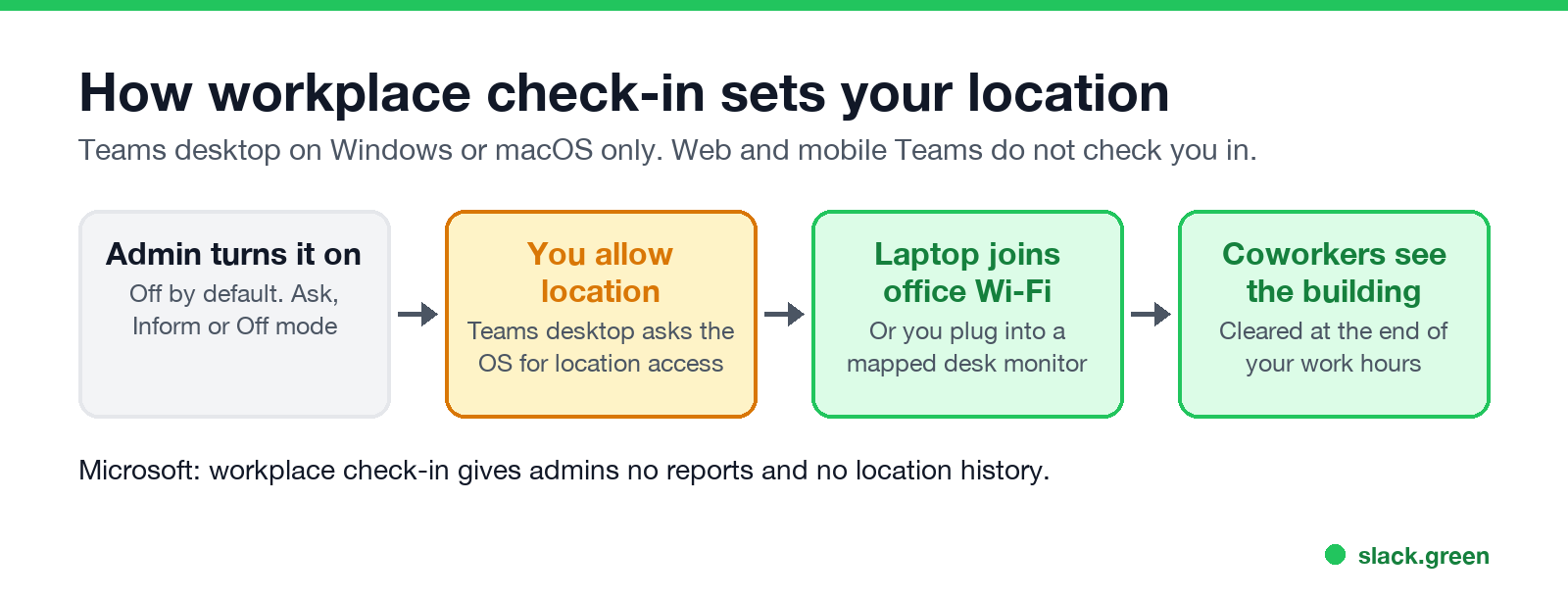
This is the feature behind most "does Teams track my location" worries. From Microsoft Learn, Configure workplace check-in:
- • It is off by default. An admin enables it with a Teams policy for the whole company or for chosen groups.
- • It needs the Teams desktop app on Windows or macOS. Teams on the web and on phones does not check you in.
- • It reads two signals: the office Wi-Fi network your laptop connects to, and desk peripherals such as a monitor at a bookable desk.
- • With only the Wi-Fi name configured, you show as In the office. With the access-point list mapped to buildings, you show the building name.
- • It updates only during your working hours and clears at the end of them. Microsoft says there is no location history.
- • It "doesn't provide admins with monitoring or reporting views". Microsoft calls it "not a tracking tool".
Admins choose one of three modes. In Ask mode you see a banner and nothing is shared until you opt in. In Inform mode your location is shared until you opt out. In Off mode the feature is disabled. In Ask and Inform modes you can switch it on or off in Teams Settings at any time.
It still tells coworkers something: that you are at the office, or that you are not. If you work from home on a day you said you would be in, a blank or Remote location shows it.
Does the Teams app track your location on your laptop or phone?
Never appear "away" on Slack again
Cloud-based. No downloads. Works 24/7 even when your laptop is off.
The Teams desktop app asks the operating system for location access when you first sign in. Microsoft's support page Manage location sharing in Microsoft Teams says Teams uses it for emergency calls and "IT Admin insights" such as network troubleshooting. You pick Allow all or Keep emergency only. On company-managed devices, these settings are on by default and only IT can turn them off.
To change it yourself: Settings and more, Settings, Privacy, Location. On Windows 11 you can also turn off Let apps access your location for Microsoft Teams in Windows Privacy & security, Location.
On a phone, Teams asks for location only for features that use it, such as emergency calling or clocking in with Shifts. You can deny it in the phone's app settings.
Shifts: clock-in location for frontline workers
If your team uses Shifts with the time clock, a manager can turn on location detection. Microsoft Support says that when it is on and you allow Teams access to your location, "your location is documented when you clock in and out". Only the clock-in and clock-out points are recorded, and the time report shows whether you were at the set site. It is not tracked between those points.
Time zone, IP address and what admins can see
For the full picture of what a company can see on a work laptop, read how employers monitor remote workers. Slack's version of this question is answered in does Slack track location.
FAQ
Never appear "away" on Slack again
Cloud-based. No downloads. Works 24/7 even when your laptop is off.
Can my boss see my location on Teams?
Only the work location you or workplace check-in set: office, building or remote. Admins also see sign-in IP addresses. Teams has no live map of employees.
Does Teams show if I am working from home?
If work location is in use, coworkers see Remote or no office location. Without it, Teams shows only your status and local time.
Can I turn off location in Teams?
Yes. Choose Keep emergency only in Settings, Privacy, Location, and opt out of workplace check-in in Settings if your company uses Ask or Inform mode. A managed device may lock these.
Does Teams show your time zone?
Yes. Your profile card shows your local time.
Does Teams on my phone track my location?
Workplace check-in does not run on mobile. The phone app uses location only for features you use, such as Shifts clock-in with location detection.
Stop Jiggling Your Mouse.
Join hundreds of remote workers who never worry about their Slack status. Set it up once, stay green forever.
Related Articles
How to Keep Skype Status Active: Skype for Business Idle Timers
To keep your Skype for Business status active, open Options, Status, and raise both idle timers, Inactive and then Away, from 5 minutes to as much as 360 minutes each. Consumer Skype shut down on May 5, 2025 and Skype for Business Online in 2021, so for most people the real question is now Teams. What still works, status icons, Outlook, and status not updating.
Is It Legal for My Employer to Monitor Me? US, EU and UK Rules
In the US it is mostly legal for an employer to monitor company devices, accounts and premises, often without asking. The limits are state notice laws in New York, Connecticut and Delaware, consent rules for audio recording and biometrics, bans on cameras in restrooms, and your personal devices. The EU, UK and parts of Canada and Australia add notice and proportionality rules.
Can My Employer See My Personal Email on My Work Computer?
Your employer cannot sign in to your Gmail, and doing so without permission can break the Stored Communications Act. But on a work computer, screenshot and keystroke monitoring, browser history, HTTPS inspection and Outlook's local cache can all expose personal email. Work email is fully visible, deleted messages included. Case by case, with what to do.