
Slack GIF Creator: Make an Animated Slack Emoji for Free
A Slack GIF creator turns an image or a few words into an animated GIF that Slack accepts: square, 128 by 128 pixels, under 128 KB and 50 frames for an emoji. Use our free emoji maker in the browser, or Anthropic's slack-gif-creator skill for Claude, which we ran and measured.
A Slack GIF creator is a tool that turns an image, a GIF or a few words into an animated GIF that Slack accepts. For a custom emoji that means a square GIF, about 128 by 128 pixels, under 128 KB and no more than 50 frames. Our free Slack emoji maker does this in your browser: drop in a picture or type text, pick an effect such as intensifies, spin or party, and download a GIF that is already under the limits. If you use Claude, Anthropic also publishes a slack-gif-creator skill that writes the animation in Python. We ran it, and one check it skips is below.
We build Slack Green, which keeps your Slack status green during the hours you set, and a set of free Slack tools. The emoji maker is one of them.
Make a Slack GIF emoji in the browser
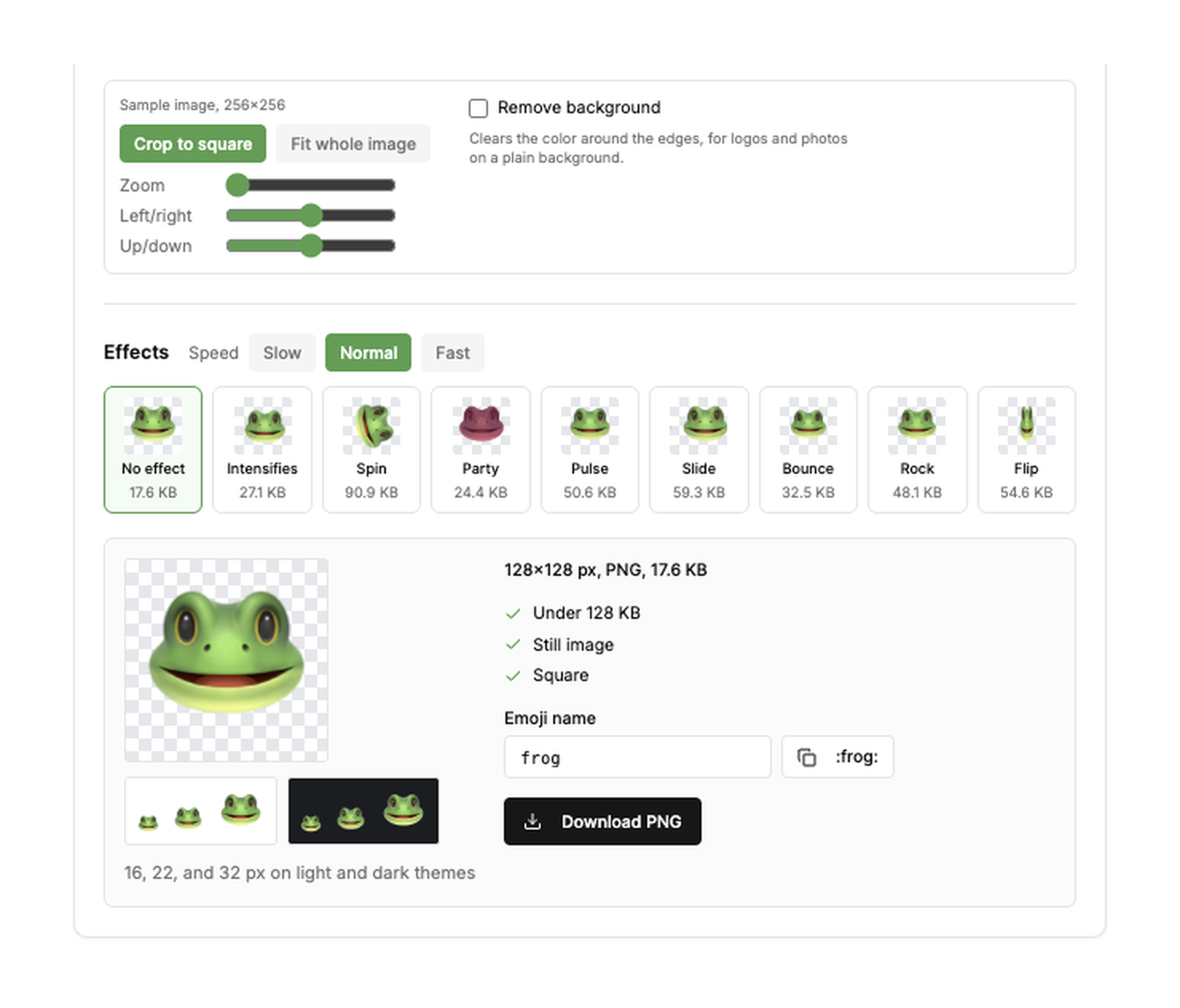
- Open the Slack emoji maker and pick Image to emoji or Text to emoji.
- Drop, choose or paste a PNG, JPG, GIF or WebP. Crop it to a square with the zoom and position sliders. Tick Remove background if the picture sits on a plain color.
- Pick an effect: intensifies, spin, party, pulse, slide, bounce, rock or flip. Each thumbnail shows the real size of that GIF.
- Check the preview at 16, 22 and 32 pixels on light and dark themes. That is how big an emoji shows in Slack.
- Download the GIF, then in Slack open your workspace name, Customize workspace, Add custom emoji, and upload it.
With the built-in frog sample, the effects came out between 24.4 KB (party) and 90.9 KB (spin), so every one fits under 128 KB. The file never leaves your computer.
Already have a GIF that Slack rejects? The Slack emoji resizer shrinks it under 128 KB and keeps the animation. Upload steps and permissions are in how to add custom emoji to Slack.
Slack GIF size rules for emoji and messages
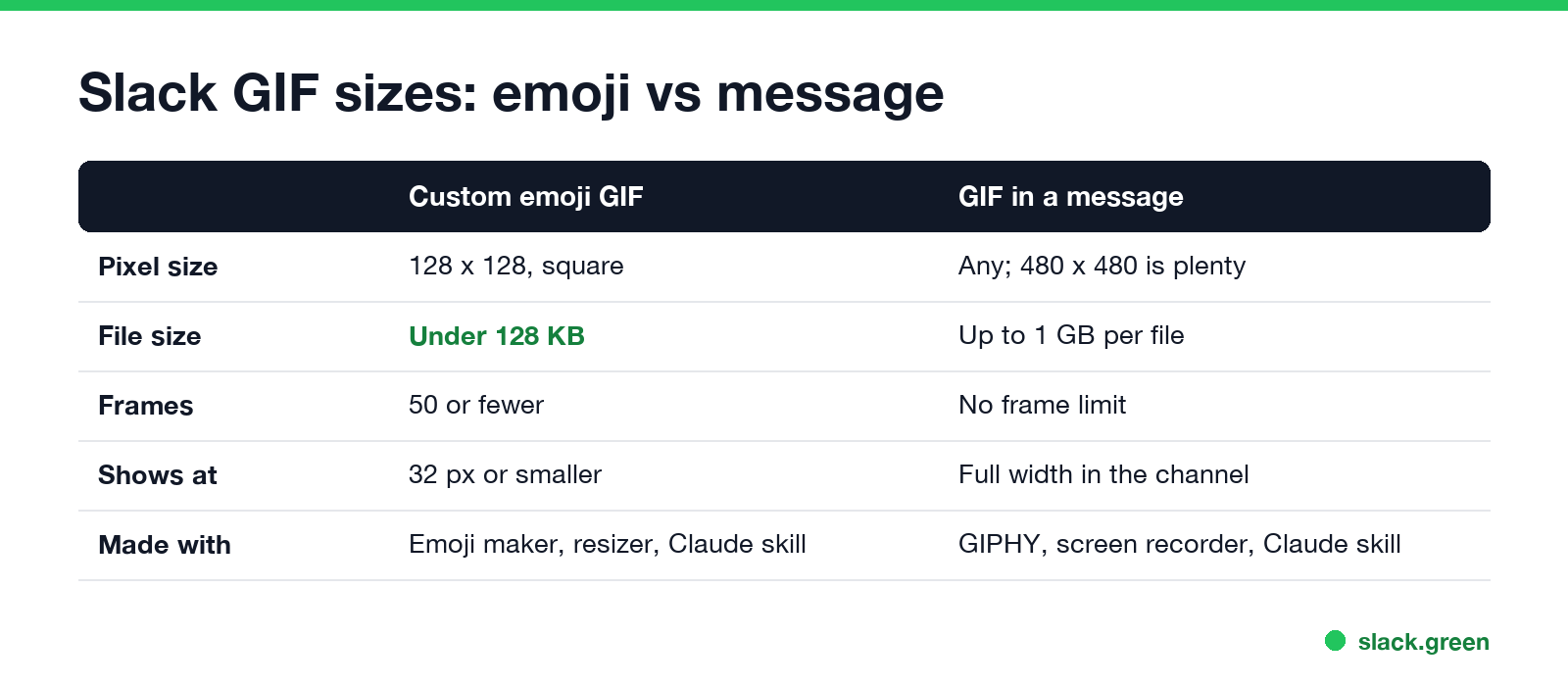
A GIF has two jobs in Slack, and the limits differ a lot:
| Custom emoji GIF | GIF in a message | |
|---|---|---|
| Pixel size | Square, 128 by 128 is the usual size | Any size; 480 by 480 is plenty |
| File size | Under 128 KB works best (Slack help center) | Up to 1 GB per file |
| Frames | Up to 50 | No frame limit |
| How big it shows | 32 pixels or smaller | Full width in the channel |
An emoji never shows bigger than 32 pixels in a message, so a 512 pixel emoji GIF only adds bytes. Every number, and what to do when Slack says a GIF is too big, is in Slack GIF size limit. For posting a GIF in a message with the GIPHY picker or your own file, see how to add a GIF in Slack.
The Claude slack-gif-creator skill
Never appear "away" on Slack again
Cloud-based. No downloads. Works 24/7 even when your laptop is off.
Anthropic's public skills repository on GitHub has a skill named slack-gif-creator. It gives Claude Slack's GIF sizes, a GIFBuilder class that assembles frames, easing functions for motion, and a validate_gif check. Claude draws each frame with Pillow shapes, so you describe the animation in words ("a green dot that pulses") or upload an image to animate.
In Claude Code, add the repository as a plugin marketplace and install the example skills, which include this one:
/plugin marketplace add anthropics/skills
/plugin install example-skills@anthropic-agent-skills
According to the repository README, paid Claude.ai plans already include the example skills. The skill's own settings are 128 by 128 pixels for emoji, 480 by 480 for message GIFs, 10 to 30 frames per second, 48 to 128 colors, and under 3 seconds for an emoji.
This is the core of what Claude writes, taken from the skill and trimmed. We ran it with Pillow, imageio and numpy installed:
import math
from PIL import Image, ImageDraw
from core.gif_builder import GIFBuilder
from core.validators import validate_gif

builder = GIFBuilder(width=128, height=128, fps=10)
for i in range(12):
    frame = Image.new("RGB", (128, 128), (255, 255, 255))
    draw = ImageDraw.Draw(frame)
    r = 45 * (0.8 + 0.2 * math.sin(i / 11 * 2 * math.pi))  # pulse
    draw.ellipse([64 - r, 64 - r, 64 + r, 64 + r], fill=(34, 197, 94))
    builder.add_frame(frame)

builder.save("emoji.gif", num_colors=48, optimize_for_emoji=True)
print(validate_gif("emoji.gif", is_emoji=True))
Our pulsing dot came out at 6.1 KB with 12 frames. A 480 by 480 message version with 29 frames and 128 colors was 64.3 KB.
Check the file size before you upload
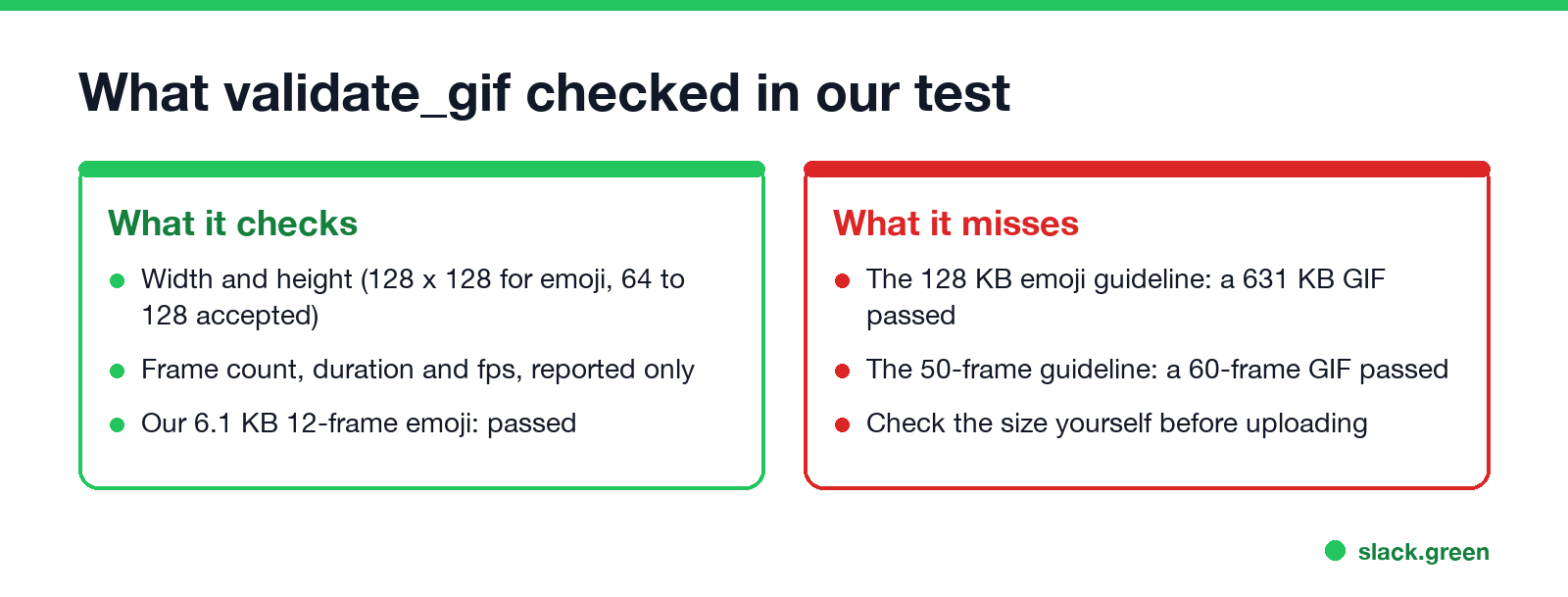
The skill's validate_gif passes an emoji on its width and height alone. In our test it returned True for a 128 by 128 GIF of 60 noisy frames that weighed 631 KB. That is five times Slack's 128 KB guideline and 10 frames over the 50-frame cap. So check the file yourself before you upload:
ls -lh emoji.gif           # size: stay under 128K
python3 -c "from PIL import Image; im = Image.open('emoji.gif'); print(im.size, im.n_frames)"
If it is too big, ask Claude for fewer frames, fewer colors (48 instead of 128) or a shorter loop, or run the GIF through the emoji resizer. The skill lists the same fixes under its optimization notes.
Which Slack GIF creator to use
| You want | Use |
|---|---|
| An emoji from a photo, logo or screenshot | Slack emoji maker, Image to emoji; steps in make a Slack emoji from a picture |
| A text emoji like "ship it" or "lgtm" | Slack emoji maker, Text to emoji |
| An "intensifies" or party parrot style effect | Slack emoji maker effects |
| A GIF that Slack says is too big | Slack emoji resizer |
| A custom animation drawn from a description | Claude with the slack-gif-creator skill |
| A reaction GIF in a message | The GIPHY picker, see how to add a GIF in Slack |
If a finished GIF emoji shows a white box on dark mode, the background was not transparent. The fix is in how to make an emoji background transparent for Slack. If it uploads but does not move, see Slack GIF not playing.
FAQ
Never appear "away" on Slack again
Cloud-based. No downloads. Works 24/7 even when your laptop is off.
Is there a free Slack GIF generator? Yes. The Slack emoji maker is free, has no watermark or account, and runs in your browser.
What size should a Slack GIF emoji be? Square, 128 by 128 pixels, under 128 KB, and 50 frames or fewer.
Can Claude make Slack GIFs? Yes, with Anthropic's slack-gif-creator skill. It writes Python that draws the frames and saves the GIF. Check the file size yourself, because its validator only checks dimensions.
How do I make a GIF from a picture for Slack? Upload the picture to the emoji maker, crop it to a square, pick an effect, and download the GIF. Then add it under Customize workspace, Add custom emoji.
Stop Jiggling Your Mouse.
Join hundreds of remote workers who never worry about their Slack status. Set it up once, stay green forever.
Related Articles
How to Make an Emoji From a Video (Slack and Discord)
To make an emoji from a video, cut 1 to 2 seconds, crop it to a square, scale it to 128 x 128 and save it as a GIF under 128 KB for Slack or 256 KB for Discord. One tested ffmpeg command, the frame rate and color settings that decide the file size, and a free browser tool that shrinks the GIF for you.
How to Make a Custom Emoji for Discord (From Any Image)
To make a custom Discord emoji, crop an image to a square, keep it under 256 KB, name it with letters, numbers and underscores, and upload it with Add Emoji in the emoji picker or Server Settings, Emoji. How to make one from a photo, a GIF or text for free, add animation, and use it in other servers.
How to Use Slack Block Kit Builder: Templates, Preview, Payload
Slack's Block Kit Builder at app.slack.com/block-kit-builder lets you pick a template, add blocks, preview the message on Desktop or Mobile, and copy the JSON payload for a webhook or chat.postMessage. A walk through the current builder, a working deploy message, and the steps to send it.