
Slack Status for Sick Days: Examples to Copy and How to Set Them
The simplest sick status is Slack's own Out sick with the thermometer emoji, set to clear Today. Copyable statuses for sick, sick but working, appointments, vacation, and leave, and the settings that go with each.
For a sick day, use Slack's built-in Out sick status with the thermometer emoji (:face_with_thermometer:) and set it to clear Today. If you are fully off, also tick Pause notifications, so work pings wait until you are back. If you are sick but still working, keep notifications on and say replies will be slow.
Below are 12 statuses you can copy for sick days, appointments, vacation, and leave, the four clicks to set one, and one thing a sick status does not change: your green dot.
We build Slack Green, which manages the other half of what coworkers see, your green or grey presence dot. We also run a free Slack status ideas generator if none of the examples below fits.
Slack statuses for sick days
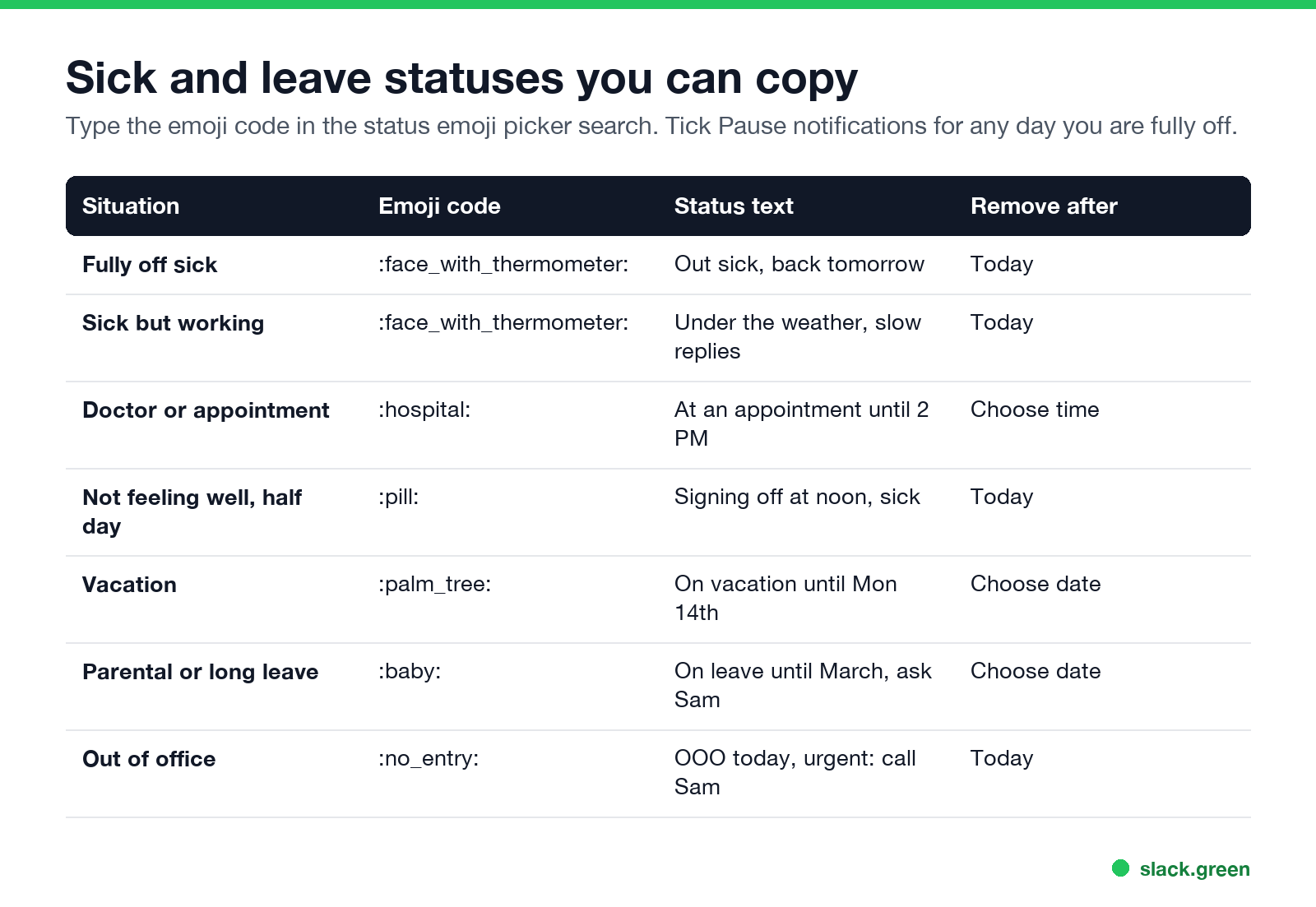
Type the emoji code into the emoji search in the status box. The status text has a 100-character limit.
Fully off sick
- •
:face_with_thermometer:Out sick today, back tomorrow - •
:face_with_thermometer:Out sick. For anything urgent, ask Sam - •
:sneezing_face:Off sick, not checking Slack - •
:face_with_thermometer:Under the weather, replies will be slow - •
:tea:Working from bed today, async only - •
:mute:Sick, no calls today, messages OK - •
:hospital:At a doctor's appointment until 2 PM - •
:pill:Signing off at noon, not feeling well - •
:palm_tree:On vacation until Monday the 14th - •
:baby:On parental leave until March, ask Sam - •
:no_entry:Out of office today, urgent: text me - •
:airplane:Travelling, back online Thursday - Click your profile photo in the sidebar.
- Click Update your status.
- Choose the suggested Out sick status, or type your own text and pick an emoji.
- Under Remove status after, choose Today.
- Tick Pause notifications if you are fully off, then click Save.
Sick but working
Appointments and half days
Vacation, leave, and out of office
Name a backup person when you can. It is the line coworkers need most and the one most statuses skip. For longer absences, a Slack out of office message is covered in how to set up an out of office message on Slack.
How to set a sick status on Slack
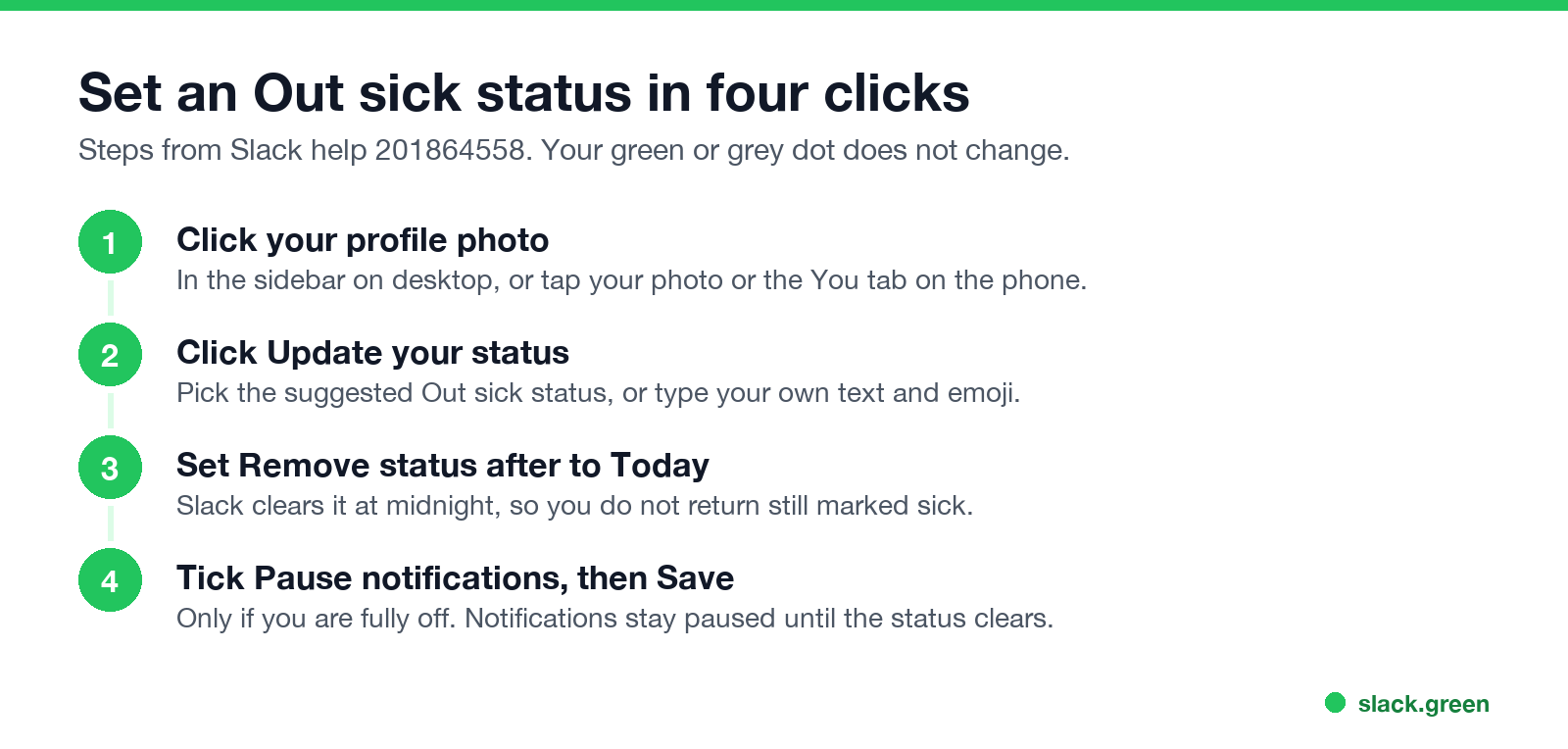
On desktop:
On the phone, tap your profile photo or the You tab, then Update your status. The options are the same.
Setting the clear time matters. If you leave it at "Don't clear", you come back the next day still showing as sick. More on every status option is in how to change your status on Slack.
Sick but working: what to set
Never appear "away" on Slack again
Cloud-based. No downloads. Works 24/7 even when your laptop is off.
If you are working while unwell, three settings tell people what to expect:
Your status text does not keep your dot green. Slack still turns you grey after 10 minutes with no input in Slack, even if your status says you are working. If people read the grey dot as "gone", how Slack active status works explains why it happens.
Plan leave ahead with a scheduled status
For vacation or a planned procedure, schedule the status in advance. Slack lets you set a start and end time, and you can queue up to five scheduled statuses:
The status turns on and off by itself. The full steps, plus ways to link it to your calendar, are in how to schedule a Slack status.
What a sick status changes, and what it does not
| Setting | What coworkers see | What it changes |
|---|---|---|
| Status emoji and text | The emoji next to your name, the text on hover and in your profile | Nothing else |
| Pause notifications | A snooze Z on your dot | No alerts until the pause ends |
| Set yourself as away | A hollow grey dot | Only the dot, until you set yourself active |
| Nothing | Green while you use Slack, grey after 10 minutes without input | Nothing |
If you want to look offline for the day while still reading messages, set yourself as away. The steps are in how to appear offline on Slack. If the opposite is the problem and you want to stay green on days you work from bed, Slack Green keeps your dot green on a schedule without you touching Slack. How to keep Slack active compares all the options.
FAQ
Never appear "away" on Slack again
Cloud-based. No downloads. Works 24/7 even when your laptop is off.
What is a good Slack status for being sick?
:face_with_thermometer: Out sick today, back tomorrow. Set it to clear Today and tick Pause notifications.
What should my Slack status say if I am sick but working?
Say how you will work: "Under the weather, replies will be slow" or "Sick, no calls today, messages OK". Keep notifications on.
Does a sick status stop Slack notifications?
Only if you tick Pause notifications when you set it. Then notifications stay paused until the status clears.
Can I set a sick status on my phone?
Yes. Tap your profile photo or the You tab, then Update your status. The emoji, clear time, and Pause notifications options are the same as on desktop.
Does a Slack status keep me active?
No. The status text and the green dot are separate. Your dot follows your activity in Slack.
Stop Jiggling Your Mouse.
Join hundreds of remote workers who never worry about their Slack status. Set it up once, stay green forever.
Related Articles
Slack Lunch Status: Set It, Automate It, and Lines to Copy
To set a Slack lunch status, click your profile picture, Update your status, pick an emoji such as the fork and knife, type "Lunch, back at 1:30", and set Remove status after to when you are back. How to schedule it, the ways to automate a daily lunch status, and what happens to your green dot.
Set a Slack Status With the API: users.profile.set, With Code
To set a Slack status through the API, call users.profile.set with a user token that has users.profile:write and a profile containing status_text, status_emoji and status_expiration. Curl and Python examples, how to read and clear a status, and why a bot token cannot set yours.
Slack Status Clear After: How to Make a Status Remove Itself
When you set a Slack status, Remove status after (Clear after on mobile) decides when it disappears: don't clear, 30 minutes, 1 hour, 4 hours, today, this week, or a date and time you choose. How to set it on desktop and mobile, schedule ahead, and what clearing does not change.