
How to Stop the Screen Turning Off During a Presentation
PowerPoint and Keynote hold the screen on in slide show mode. A PDF, a browser deck or a window shared in Teams or Zoom does not, so the screen dims mid-talk. How to keep it on for the length of the talk on Windows and Mac, without changing your settings for good.
To stop the screen turning off during a presentation, start the deck in full-screen slide show and block display sleep for the length of the talk. PowerPoint in Slide Show (F5) and Keynote while playing normally hold the screen on by themselves. The screen goes dark when you present from anything else: PowerPoint's edit view, a PDF, Google Slides or Canva in a browser, or a window you share in Teams or Zoom while you talk. For those, turn on Windows Presentation Settings, PowerToys Awake with Keep screen on, or caffeinate -d on a Mac, then turn it off after.
A long presentation also leaves your chat status behind. Slack shows you away after 10 minutes with no input in the Slack window, even while you present on the same laptop. Slack Green keeps your Slack status green from a server during the hours you set.
Why the screen turns off mid-presentation
Windows and macOS turn the display off after a set time with no keyboard or mouse input: on Windows 11 the default is often 5 or 10 minutes on battery, and a Mac on battery can dim after 2 minutes. When you talk for 10 minutes without touching the laptop, the timer runs out. An app can hold the display on by asking the system to, and slide show modes do. Most other ways of showing slides do not.
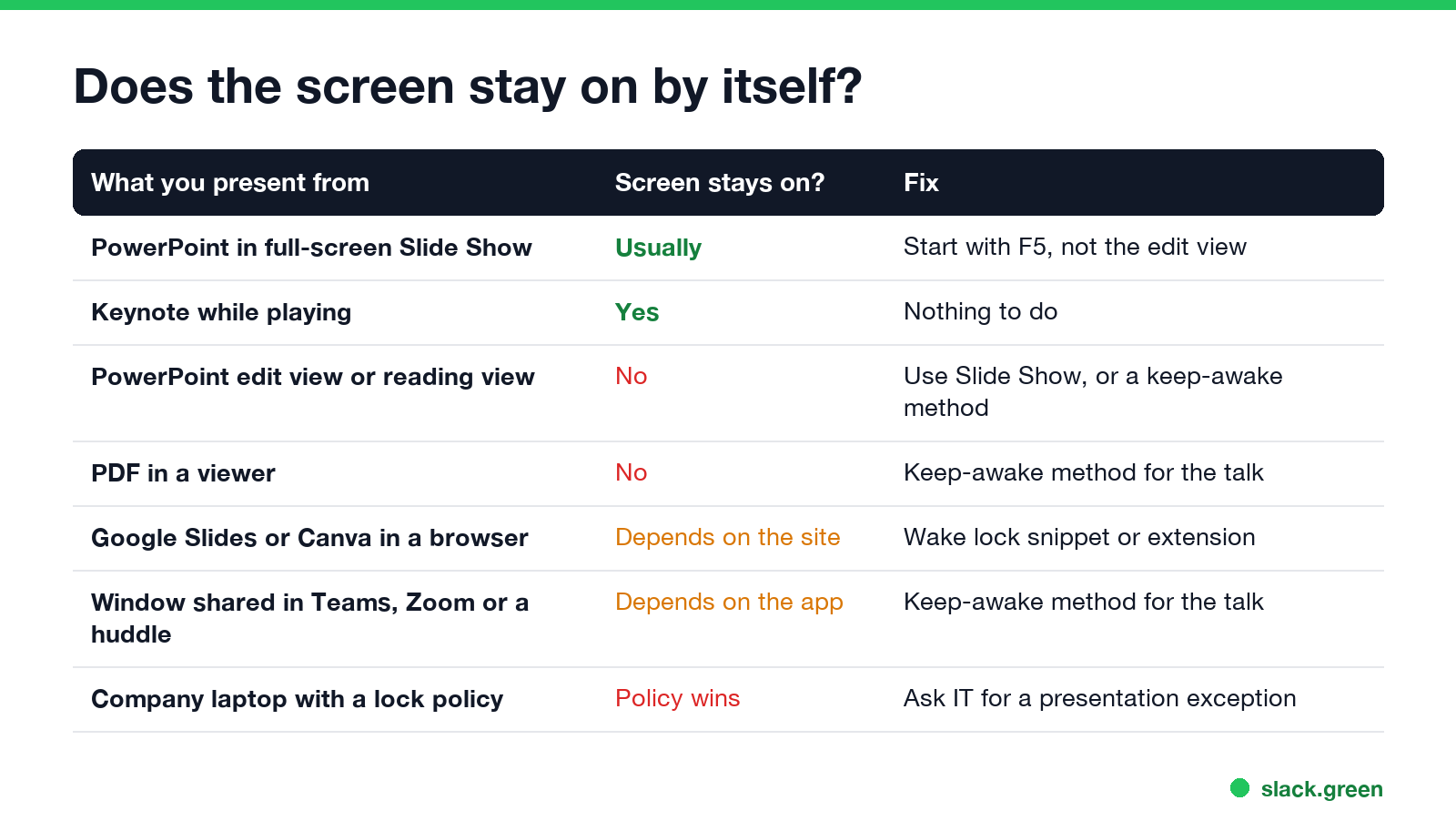
| What you present from | Screen stays on by itself? |
|---|---|
| PowerPoint in full-screen Slide Show | Usually |
| Keynote while playing | Yes |
| PowerPoint edit view or reading view | No |
| PDF in a viewer | No |
| Google Slides or Canva in a browser | Depends on the site |
| A window shared in Teams, Zoom or a Slack huddle | Depends on the app |
| A company laptop with a lock policy | The policy wins |
Two more things turn the screen off that are not sleep. A screen saver starts on its own timer, and on a Mac the lock screen can ask for your password as soon as it starts. And many company laptops lock after a set idle time that IT controls, which no app on this page can override.
Windows: turn on presentation settings
Windows laptops have a built-in presentation mode that keeps the computer awake and turns the screen saver off until you stop it. Run it from the Start menu or a Command Prompt:
:: start presentation mode: no sleep, no screen saver
presentationsettings /start

:: after the talk
presentationsettings /stop
Running presentationsettings with no switch opens its window, where you can also mute the speakers and set a background. It is part of Windows Mobility Center and appears on laptops, not on most desktop PCs. If your build does not have it, use the next two options.
PowerToys Awake with Keep screen on
Microsoft's free PowerToys includes Awake. Pick Keep awake for a time interval, set it to the length of the talk plus 15 minutes, and turn on Keep screen on. When the timer ends, Windows goes back to its normal plan, so you cannot forget to undo it. What Awake changes and what it leaves alone is in PowerToys Awake and Slack.
Change the screen timeout for the day
The settings route: Settings > System > Power & battery > Screen, sleep & hibernate timeouts, then set When plugged in, turn off my screen after to 30 minutes or Never. From a Command Prompt:
:: keep the screen on while plugged in, then restore 10 minutes after the talk
powercfg /change monitor-timeout-ac 0
powercfg /change monitor-timeout-ac 10
Plug in the charger before you present. The battery timeout is shorter on most laptops, and changing only the plugged-in value does nothing on battery. The full walk-through is in how to change the screen timeout on Windows 11, and the lock screen side is in how to stop Windows 11 from locking.
Mac: keep the display on during a presentation
Never appear "away" on Slack again
Cloud-based. No downloads. Works 24/7 even when your laptop is off.
Keynote holds the display on while a presentation plays. For PowerPoint outside Slide Show, a PDF in Preview, or a browser deck, run this in Terminal before you start:
# keep the display on for 90 minutes (5400 seconds), then stop by itself
caffeinate -d -t 5400
Press Ctrl+C to stop it early. -d blocks display sleep; add -i to block system sleep too. The other flags are in caffeinate on Mac.
Without Terminal, open System Settings > Lock Screen and set Turn display off on power adapter when inactive to a longer time, and check Start Screen Saver when inactive there too. Apps that do the same with one click, such as Amphetamine and KeepingYouAwake, are compared in the best app to keep a Mac awake. If the Mac locks rather than dims, see how to keep a Mac screen from locking.
Browser decks: Google Slides, Canva, web PDFs
Chrome, Edge and other Chromium browsers support the Screen Wake Lock API, which lets a web page ask the system to keep the display on while the tab is visible. You can ask for it yourself from the browser console on the tab with your deck (View > Developer > JavaScript Console, or F12):
// keep the screen on while this tab stays visible
const lock = await navigator.wakeLock.request("screen");
// after the talk
await lock.release();
We ran this in a Chromium browser on macOS 26. While the lock was held, pmset -g assertions listed a NoDisplaySleepAssertion named "Blink Wake Lock"; after lock.release() it was gone. The lock drops when you switch tabs or minimize the window, so run it again if you leave the tab. Extensions that do the same without the console are covered in keep-awake Chrome extensions.
Checklist before you present
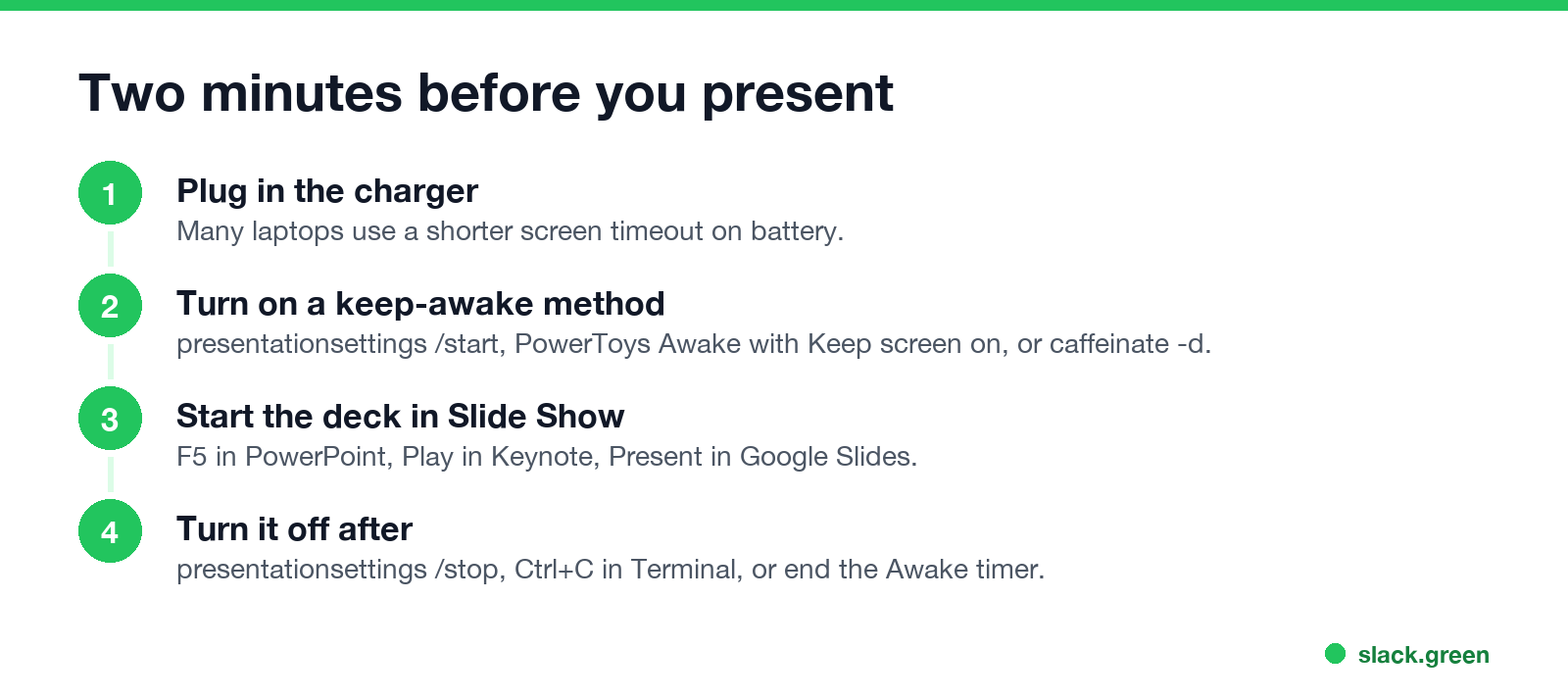
- Plug in the charger.
- Turn on one keep-awake method:
presentationsettings /start, PowerToys Awake with Keep screen on, orcaffeinate -d. - Start the deck in slide show: F5 in PowerPoint, Play in Keynote, Present in Google Slides.
- Turn the keep-awake method off after the talk.
If you present in a Teams meeting, your status shows as Presenting while you share, and it changes back after. What each Teams status means is in what does Presenting mean in Teams.
FAQ
Never appear "away" on Slack again
Cloud-based. No downloads. Works 24/7 even when your laptop is off.
Why does my screen go to sleep during a PowerPoint presentation? You are likely presenting from the edit or reading view, which does not hold the screen on. Start Slide Show with F5, or turn on a keep-awake method.
Why does Windows 11 sleep during PowerPoint? The screen timeout on battery is short, often 5 minutes. Plug in, start Slide Show, or run presentationsettings /start.
How do I keep my laptop screen on during a presentation? On Windows run presentationsettings /start or PowerToys Awake with Keep screen on. On a Mac run caffeinate -d in Terminal.
Does Zoom or Teams screen sharing keep the screen on? Not always. Whether the screen stays on depends on the app, so turn on a keep-awake method for the meeting.
Can I keep the screen on if IT locks my laptop? No app overrides a company lock policy. Ask IT for a presentation exception.
Stop Jiggling Your Mouse.
Join hundreds of remote workers who never worry about their Slack status. Set it up once, stay green forever.
Related Articles
How to Keep Your Computer Awake While Downloading
A download stops when the computer sleeps, not when the screen turns off. Block sleep for the length of the download on Windows or Mac, let the display go dark, and the file finishes. Settings, commands and a script that stops by itself.
Can My Employer See My Browsing If I Use a VPN? It Depends Whose
A personal VPN hides the sites you visit from the office network, but not from monitoring software, a managed browser or IT on a work laptop. The company VPN shows your employer every site it carries. What each setup hides.
Teams Status on Multiple Devices: The Last Device You Used Wins
Signed in to Teams on a computer and a phone? Your status comes from the device you used most recently. That is why a quick look at your phone can turn you Away, and why a phone in your pocket shows Away instead of Offline at night.