
Auto Clicker vs Mouse Jiggler: Which Keeps You Active, and the Risks
A mouse jiggler moves the pointer; an auto clicker clicks wherever the pointer sits. Both keep Teams and the screen awake, but an auto clicker can click the wrong thing, and fixed-interval clicks are exactly what monitoring tools flag.
A mouse jiggler moves your pointer a few pixels every few seconds. An auto clicker clicks the mouse button at a fixed interval wherever the pointer is. For staying active, both do the same job: the computer sees input, so the screen does not lock, the computer does not sleep, and Microsoft Teams stays Available. The difference is risk. A jiggler's movement does nothing on screen, while every auto click lands on whatever sits under the pointer, which can send a message, close a window or accept a meeting. So for keeping a status green, a jiggler is the safer of the two, and an auto clicker is built for games and repetitive forms.
For Slack, neither one works unless the pointer sits over the Slack window, because Slack counts only input inside its own window. Slack Green keeps your Slack status active from a server during the hours you set, with no clicks, no pointer movement and nothing installed.
Auto clicker vs mouse jiggler, side by side
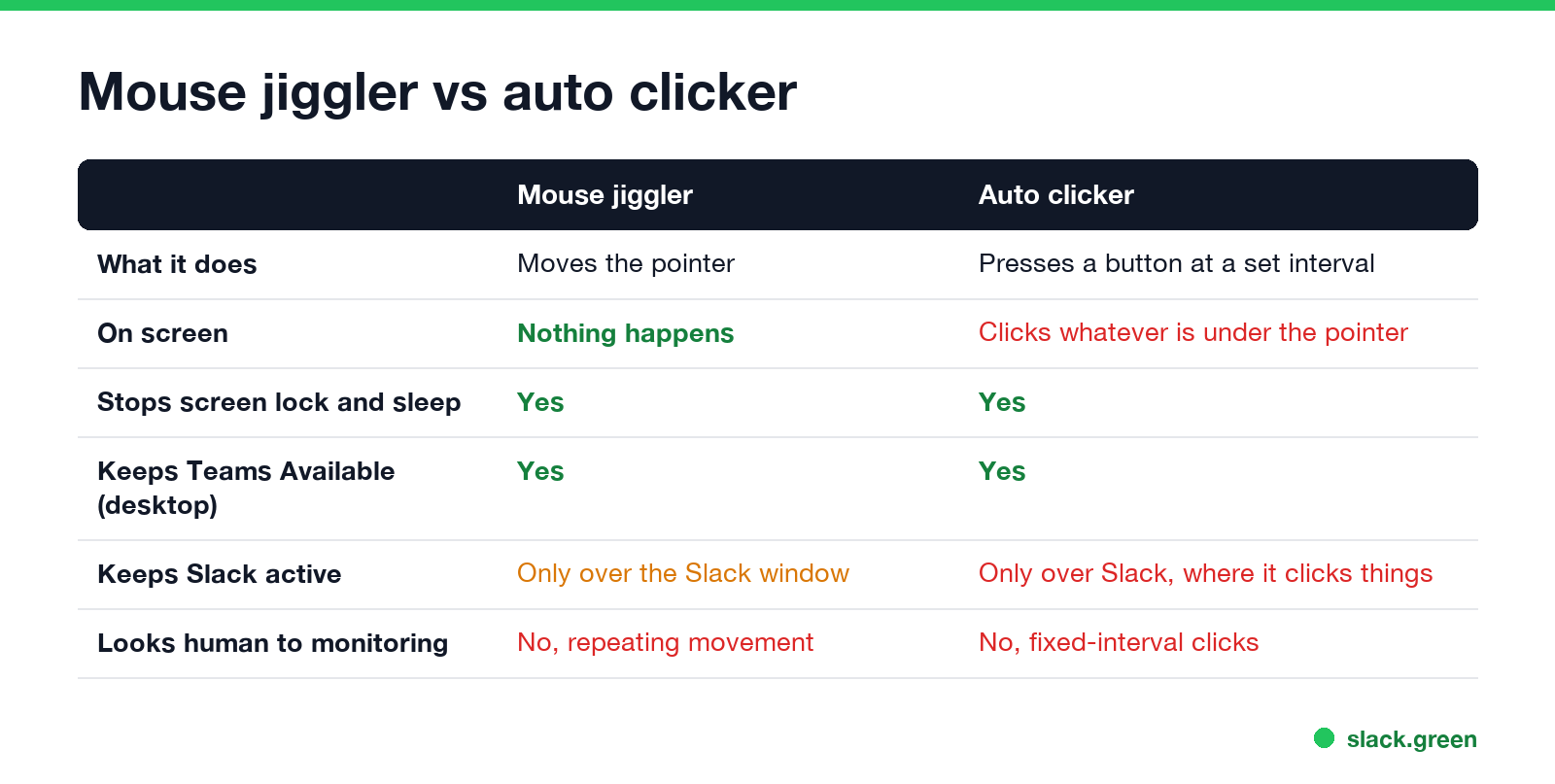
| Mouse jiggler | Auto clicker | |
|---|---|---|
| What it does | Moves the pointer, or tells the system it moved | Presses a mouse button at a set interval |
| What happens on screen | Nothing | A click on whatever is under the pointer |
| Built for | Keeping a computer awake and active | Games, clicker games, repetitive clicking in forms |
| Stops screen lock and sleep | Yes | Yes |
| Keeps Teams Available on desktop | Yes | Yes |
| Keeps Slack active | Only with the pointer over the Slack window | Only with the pointer over the Slack window, and every click lands in Slack |
| Can do damage | No | Yes: sends, closes, accepts, drags |
| Looks human to monitoring tools | No, a repeating movement | No, clicks at fixed intervals |
Why both keep Teams active
Microsoft Teams on a computer goes Away after a few minutes with no keyboard or mouse input anywhere on the machine. Windows and macOS count a mouse move and a mouse click the same way: both reset the system's last-input time. So a jiggler and an auto clicker both keep Teams green while the computer is awake and unlocked. Neither helps the Teams phone app, which shows Away whenever it is in the background. The platform-by-platform details are in does a mouse jiggler work for Teams.
Why neither keeps Slack active by itself
Never appear "away" on Slack again
Cloud-based. No downloads. Works 24/7 even when your laptop is off.
Slack counts only input inside its own window and sets you away after 10 minutes without it. A jiggler or an auto clicker working over another app keeps the computer awake and your Slack dot grey. Parking the pointer over the Slack window fixes that, and that is where an auto clicker becomes a problem.
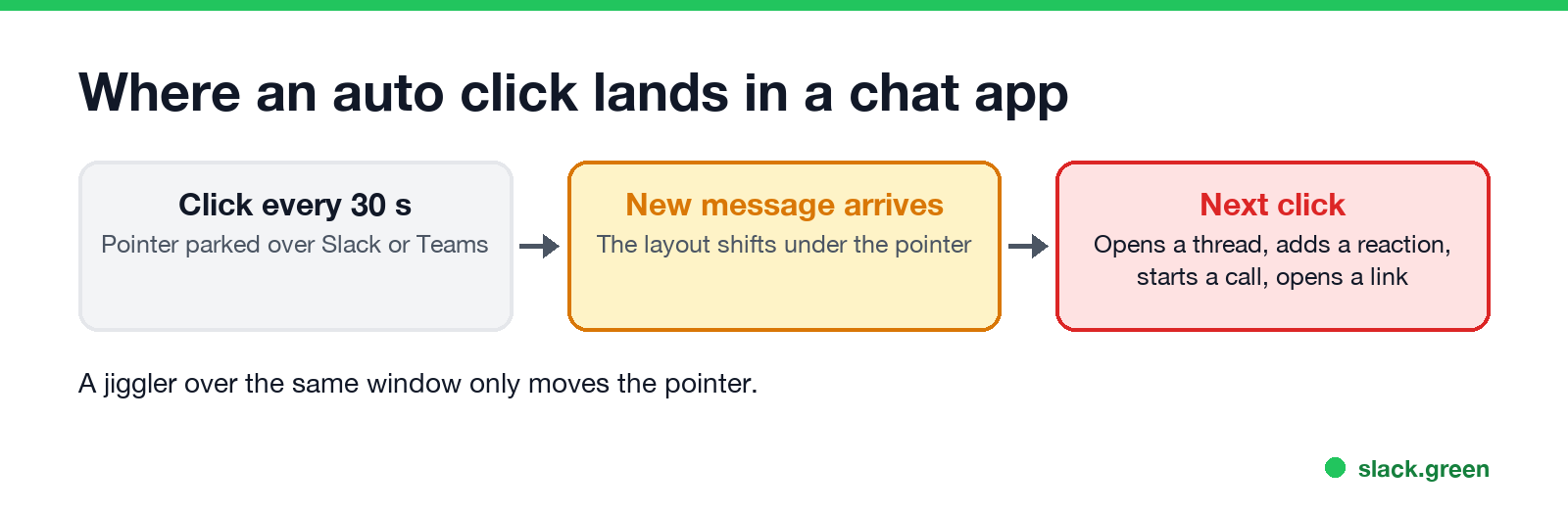
In Slack, a click every 30 seconds over the message list can open a thread, add a reaction, start a huddle or open a link. When a new message arrives, the layout moves and the next click lands on something else. A jiggler over the same window only moves the pointer, which is why Slack Green vs mouse jiggler compares jigglers, not clickers.
If you use an auto clicker anyway, point it at a blank part of a window that nothing can change, such as an empty area of a text editor, and never at a chat app.
Mouse jiggler with auto clicker: the combined devices
Some USB jigglers and some jiggler apps add a click mode. Before you buy one to stay active, check two things:
- • Can you turn the click off? A click mode is useful for games, not for a status dot. For status, movement alone is enough.
- • Is the timing random? Fixed-interval input is the pattern monitoring software looks for.
For hardware and software jigglers compared by type and price, see the best mouse jiggler.
Which one monitoring software catches
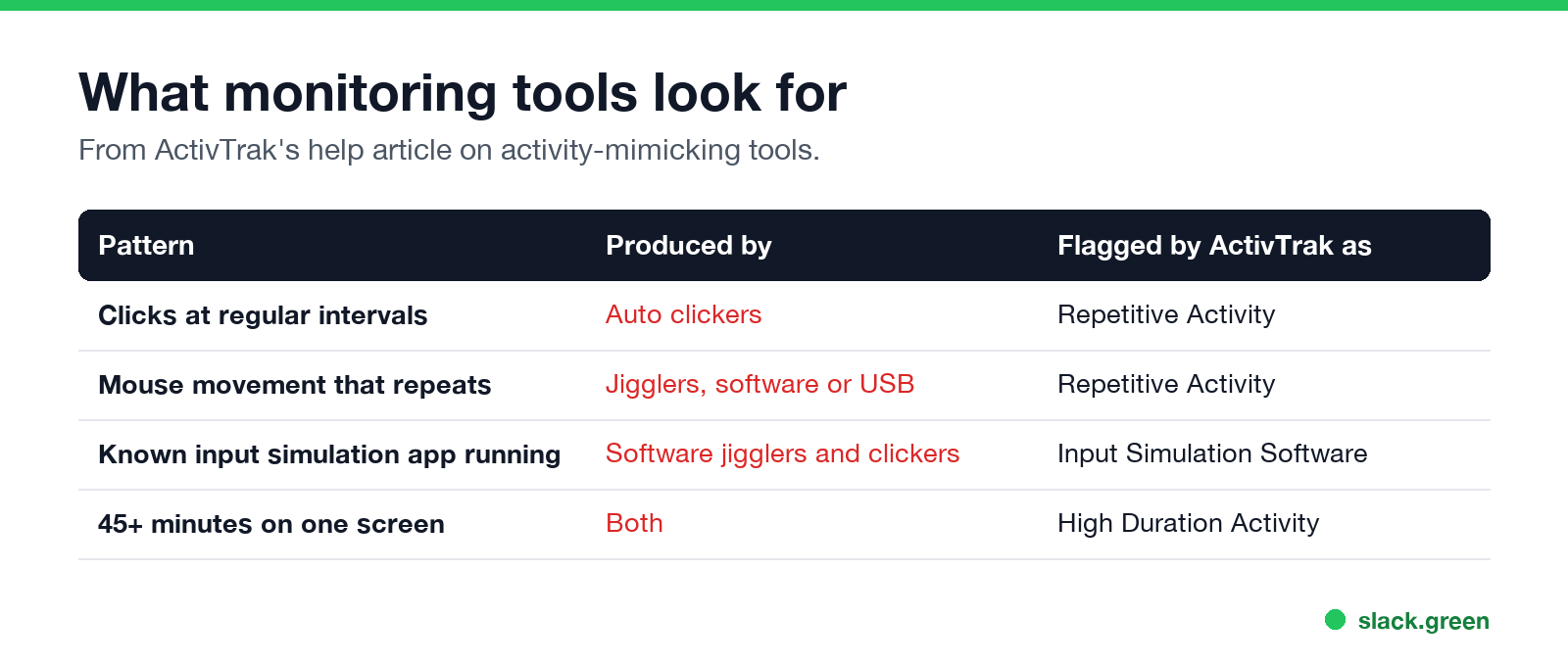
Both, and an auto clicker more directly. ActivTrak's help article on activity-mimicking tools describes its Repetitive Activity check as looking for "keys being held down, clicks occurring at regular intervals, or mouse movements that repeat in a consistent pattern." A basic auto clicker set to one click every 10 seconds is the first example on that list. ActivTrak also flags known input simulation apps running on the computer, and anyone who stays on one screen for more than 45 minutes.
On a company laptop, the app itself is also visible to IT through device management, and a USB device shows up in device logs. The details are in can a mouse jiggler be detected and can ActivTrak detect a mouse jiggler.
Which one to use
Never appear "away" on Slack again
Cloud-based. No downloads. Works 24/7 even when your laptop is off.
FAQ
What is the difference between an auto clicker and a mouse jiggler? A jiggler moves the pointer. An auto clicker presses the mouse button at a set interval where the pointer is.
Does an auto clicker keep Teams active? Yes, on a Windows or Mac computer, because Teams counts clicks as input. It does not help the Teams phone app.
Does an auto clicker keep Slack active? Only if it clicks inside the Slack window, where every click can open, react to or send something.
Is an auto clicker safer than a mouse jiggler? No. It has the same detection risk and can click things by accident.
Can monitoring software detect an auto clicker? Yes. ActivTrak names clicks at regular intervals as a pattern it flags, and it detects known input simulation apps.
Do USB mouse jigglers click? Most only move the pointer. Some add a click mode; turn it off if you only want to stay active.
Stop Jiggling Your Mouse.
Join hundreds of remote workers who never worry about their Slack status. Set it up once, stay green forever.
Related Articles
Can My Employer See My Browsing If I Use a VPN? It Depends Whose
A personal VPN hides the sites you visit from the office network, but not from monitoring software, a managed browser or IT on a work laptop. The company VPN shows your employer every site it carries. What each setup hides.
Teams Status on Multiple Devices: The Last Device You Used Wins
Signed in to Teams on a computer and a phone? Your status comes from the device you used most recently. That is why a quick look at your phone can turn you Away, and why a phone in your pocket shows Away instead of Offline at night.
Can My Employer Monitor My Personal Computer? Only Through What You Install
Your employer can monitor your personal computer only through something work puts on it: device management, a monitoring agent, the company VPN, or work apps and browser profiles. Each one sees a different slice. How to check which ones you have.