
How to Make a Slack Emoji From a Picture (Free, 2 Minutes)
To make a Slack emoji from a picture, crop the photo to a square around one subject, scale it to 128 by 128 pixels, remove the background if you can, and save it under 128 KB. Then add it in Slack with Add Emoji. A free browser tool does all of it, and we measured a real photo through each step.
To make a Slack emoji from a picture, crop the photo to a square around one subject, scale it to 128 by 128 pixels, remove the background if it is a plain color, and save it as a PNG under 128 KB. Then in Slack click the smiley face in the message field, Add Emoji, Upload Image, give it a name, and save. Our free Slack emoji maker does the crop, scaling and background removal in your browser, and can animate the result. A 417 KB photo we ran through these steps came out at 32 KB.
We build Slack Green, which keeps your Slack status green during your work hours, and a set of free Slack tools, including the emoji maker.
Make a Slack emoji from a picture in the browser
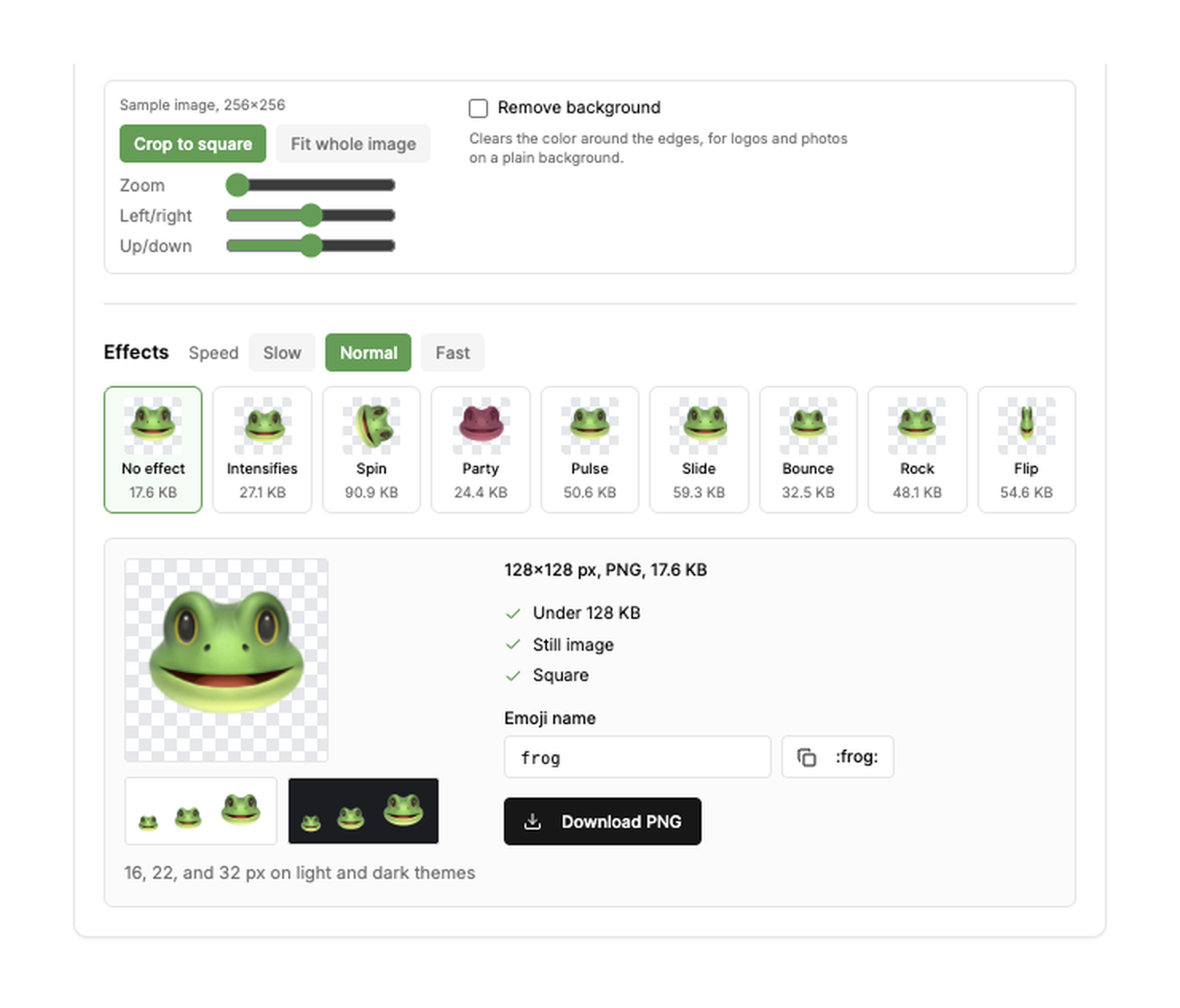
- Open the Slack emoji maker and keep Image to emoji selected.
- Drop the picture in, click to choose it, or paste it. PNG, JPG, GIF and WebP work, and a screenshot on your clipboard pastes straight in.
- Leave Crop to a square on and use Zoom, Left/right and Up/down to frame one face, logo or object. Fit whole image keeps everything but adds empty space.
- Tick Remove background if the subject sits on a plain color. It clears the color around the edges.
- Check the previews at 16, 22 and 32 pixels on light and dark themes. If the subject is hard to see at 22 pixels, zoom in more.
- Optional: pick an effect such as intensifies, party or spin to make it an animated GIF.
- Click Download PNG (or GIF). The tool suggests an emoji name from the file.
The picture never leaves your computer. Every output is 128 by 128 pixels and under Slack's 128 KB guideline.
Crop, size and file rules for a picture emoji
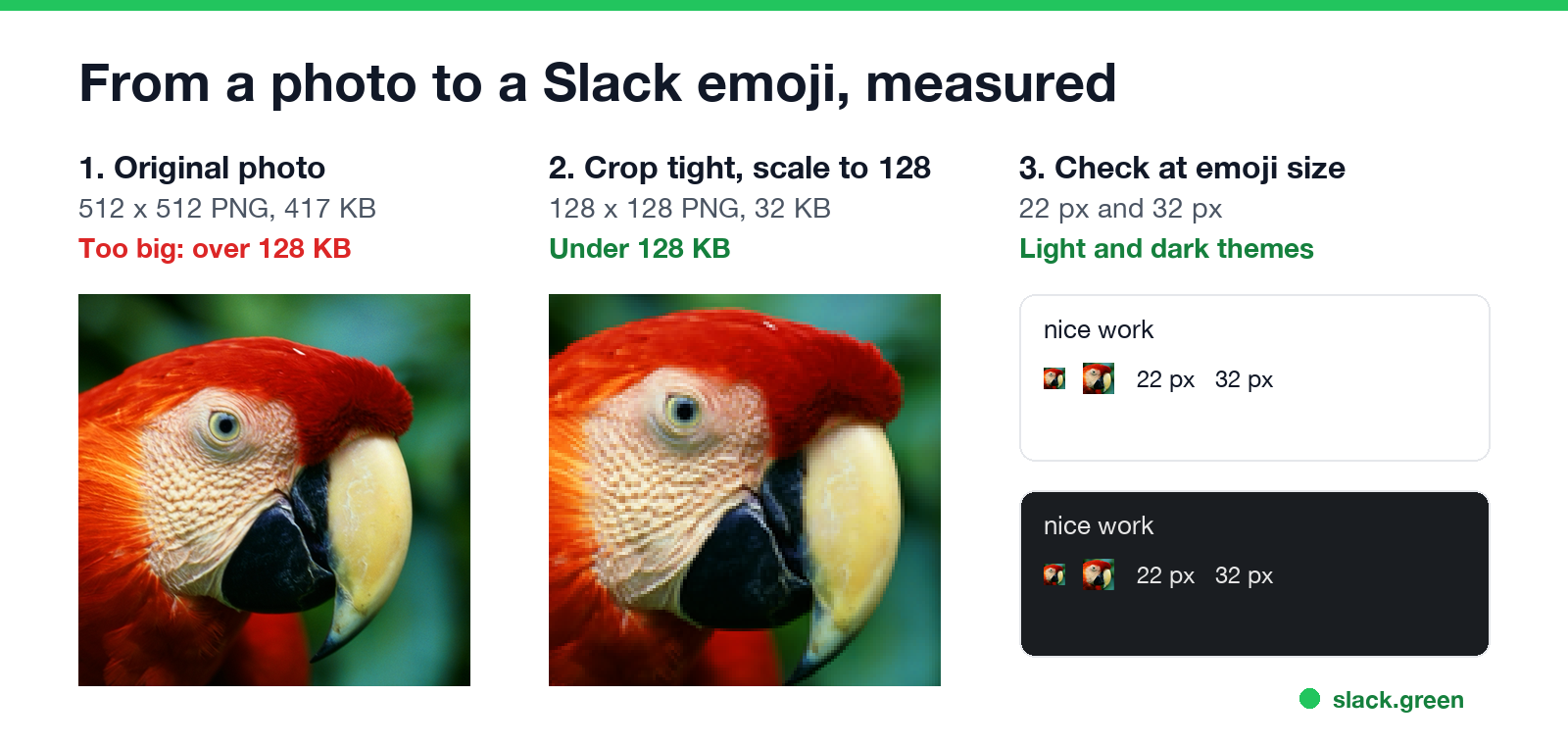
Slack's help center asks for a square JPG, PNG or GIF, under 128 KB, ideally with a transparent background. An emoji shows at about 22 pixels in a message and 32 pixels when it is posted alone, so the picture has to read at that size.
We took a 512 by 512 pixel photo of a parrot, 417 KB as a PNG, which Slack would not take as an emoji. Cropping tight around the head and scaling to 128 by 128 brought it to 32 KB. At 22 pixels the red head and yellow beak still read; the eye does not. That is the usual trade: color and shape survive, detail does not.
If you prefer the command line, ImageMagick does the crop and scale in one line:
# Fill a 128x128 square from the center, drop metadata
magick photo.jpg -resize 128x128^ -gravity center -extent 128x128 -strip emoji.png

# Check the size is under 128 KB
ls -l emoji.png
On a Mac without ImageMagick, the built-in sips works too:
sips -c 440 440 photo.png --out crop.png   # center crop to a square
sips -z 128 128 crop.png --out emoji.png   # scale to 128 x 128
Our parrot came out at 30.5 KB with ImageMagick and 35.3 KB with sips.
Tips by picture type
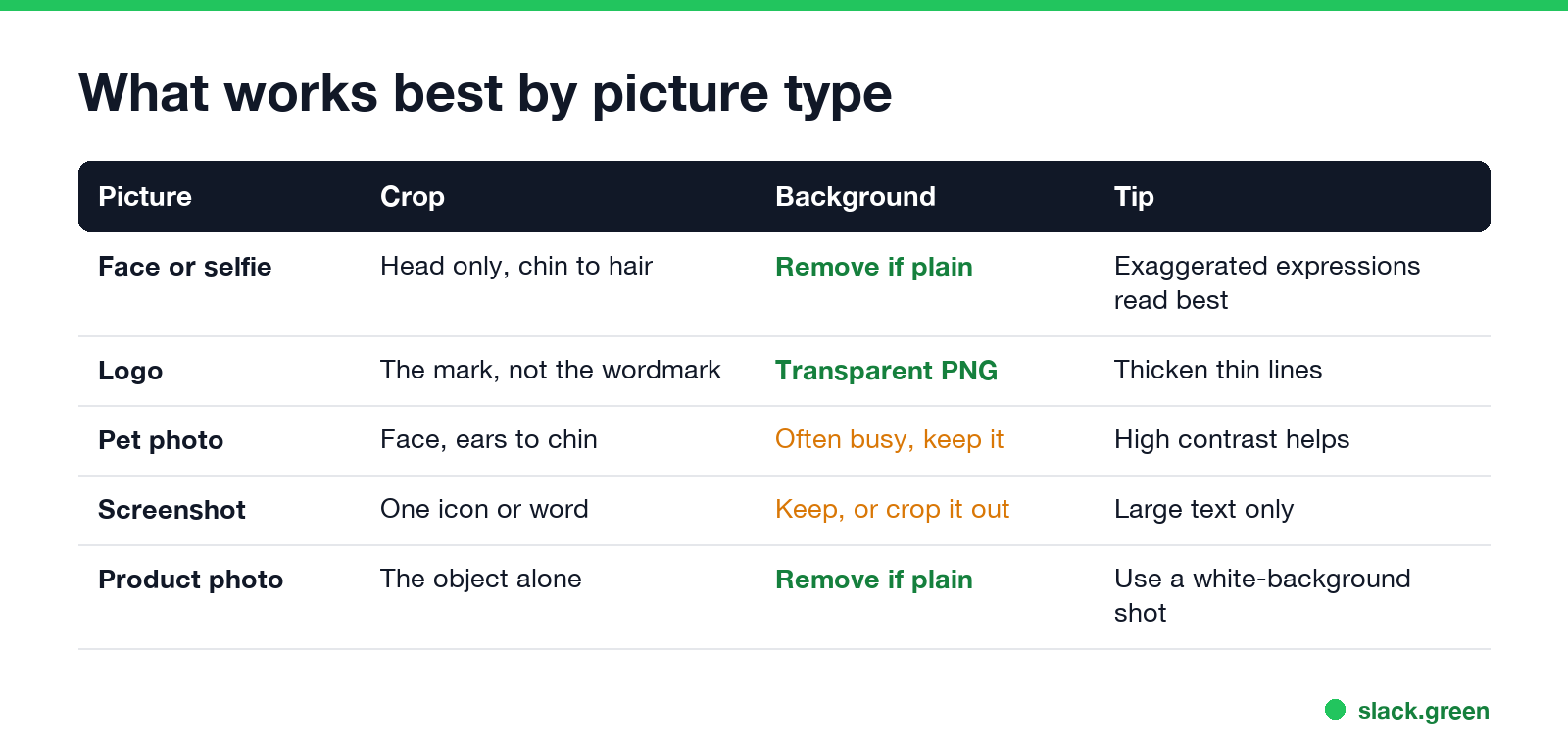
| Picture | How to crop | Background | Tip |
|---|---|---|---|
| Face or selfie | Head only, chin to hair | Remove it if it is plain | A big expression reads better than a neutral one |
| Logo | The symbol, not the full wordmark | Use a transparent PNG | Thin lines vanish at 22 px, so thicken them |
| Pet photo | Face, ears to chin | Often busy; keep it | High contrast against the fur helps |
| Screenshot | One icon, word or number | Keep it, or crop it out | Only large text survives |
| Product photo | The object alone | Remove it if the shot is on white | Use a photo taken on a plain background |
A picture with a white background shows a white square on dark mode. Remove it in the emoji maker, or see how to make an emoji background transparent for Slack. A picture of a coworker needs their OK first; everyone in the workspace can use a custom emoji once it is added.
Never appear "away" on Slack again
Cloud-based. No downloads. Works 24/7 even when your laptop is off.
Add the picture emoji to Slack
parrot-wow. People will type :parrot-wow: to use it.You can add emoji from the desktop app, the browser, and the iPhone or iPad app, but not from Android. Some workspaces let only admins add emoji. The full steps and the permission rules are in how to add custom emoji to Slack.
If Slack says the file is too big, the Slack emoji resizer shrinks it under 128 KB. If the picture looks tiny in messages, see how to make Slack emoji bigger.
Other ways to make an emoji from an image
FAQ
Can I turn any picture into a Slack emoji? Yes, if it is a JPG, PNG or GIF. Crop it to a square and keep it under 128 KB so Slack accepts it.
What size should a Slack emoji be? 128 by 128 pixels, square, under 128 KB. Bigger images do not show bigger.
How do I make an emoji of my face for Slack? Take a photo against a plain wall, crop to your head in the emoji maker, tick Remove background, and upload the PNG.
Is the Slack emoji maker free? Yes. No account, no watermark, and your picture stays on your computer.
Stop Jiggling Your Mouse.
Join hundreds of remote workers who never worry about their Slack status. Set it up once, stay green forever.
Related Articles
How to Make an Emoji From a Video (Slack and Discord)
To make an emoji from a video, cut 1 to 2 seconds, crop it to a square, scale it to 128 x 128 and save it as a GIF under 128 KB for Slack or 256 KB for Discord. One tested ffmpeg command, the frame rate and color settings that decide the file size, and a free browser tool that shrinks the GIF for you.
How to Make a Custom Emoji for Discord (From Any Image)
To make a custom Discord emoji, crop an image to a square, keep it under 256 KB, name it with letters, numbers and underscores, and upload it with Add Emoji in the emoji picker or Server Settings, Emoji. How to make one from a photo, a GIF or text for free, add animation, and use it in other servers.
How to Use Slack Block Kit Builder: Templates, Preview, Payload
Slack's Block Kit Builder at app.slack.com/block-kit-builder lets you pick a template, add blocks, preview the message on Desktop or Mobile, and copy the JSON payload for a webhook or chat.postMessage. A walk through the current builder, a working deploy message, and the steps to send it.