
Slack Analytics on the Free Plan: What Owners Can See and Export
On a Free workspace, Admin > Analytics shows one overview page and an Export button with daily message counts. Channel, file and member analytics need a paid plan. We opened every tab and read the CSV.
On the Slack Free plan, owners and admins get one analytics page, the Overview, plus an Export button that downloads 28 days of daily counts as a CSV. The Channels tab shows only an upgrade message, the files chart is locked, and there are no per-member stats at all. Open it from Admin > Analytics in the left rail. On October 26, 2026 we opened every analytics tab in our Free test workspace as its Primary Owner and read the exported file line by line.
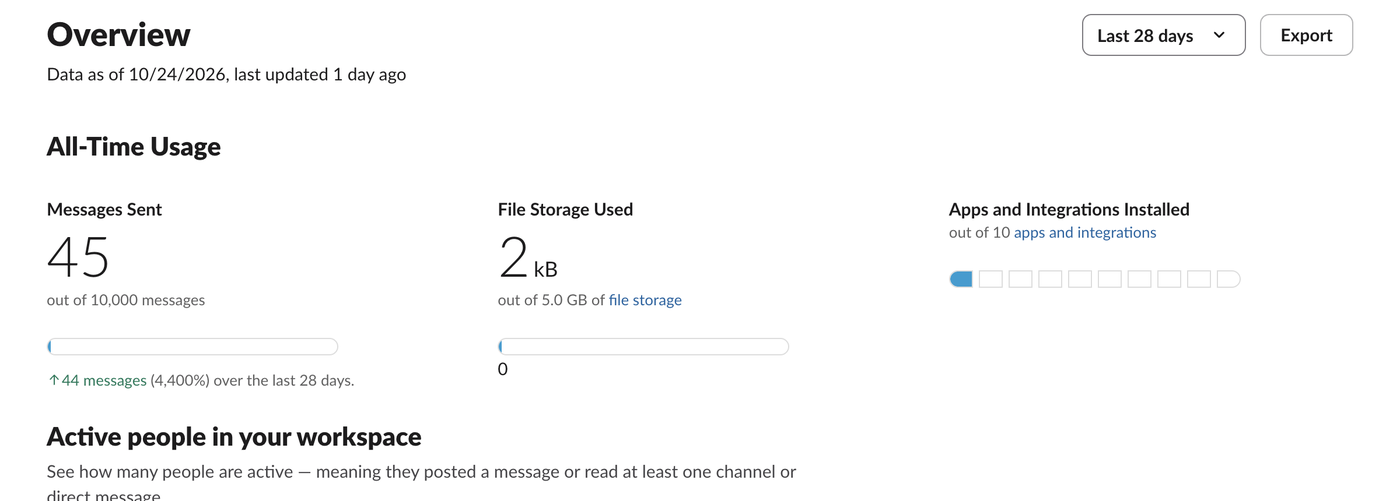
What the Free overview shows
- • All-Time Usage: messages sent against a 10,000-message bar, file storage against 5.0 GB, and apps against the 10-app limit. The message and storage bars come from Slack's older Free limits; today's Free plan limits history to 90 days instead, as Slack free plan limits explains.
- • Active people in your workspace: a monthly, weekly or daily chart of people who posted a message or read at least one channel or DM.
- • Where conversations happen: the share of reading and of posting in public channels, private channels and DMs. Ours showed 48% public, 3% private and 48% DMs for reading.
The page is not live. On October 26 it said "Data as of 10/24/2026, last updated 1 day ago", so expect numbers about two days behind.
What needs a paid plan
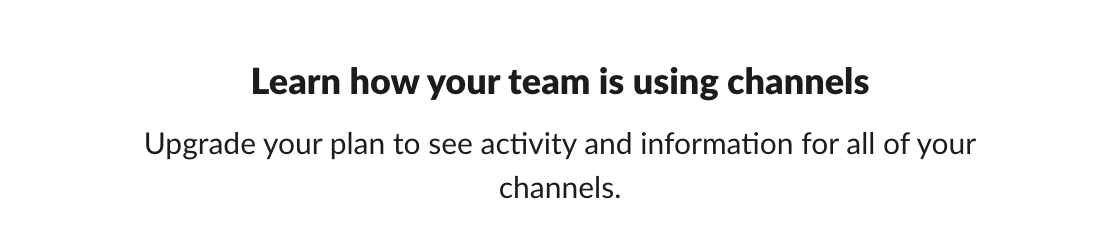
The Channels tab showed only this on Free:
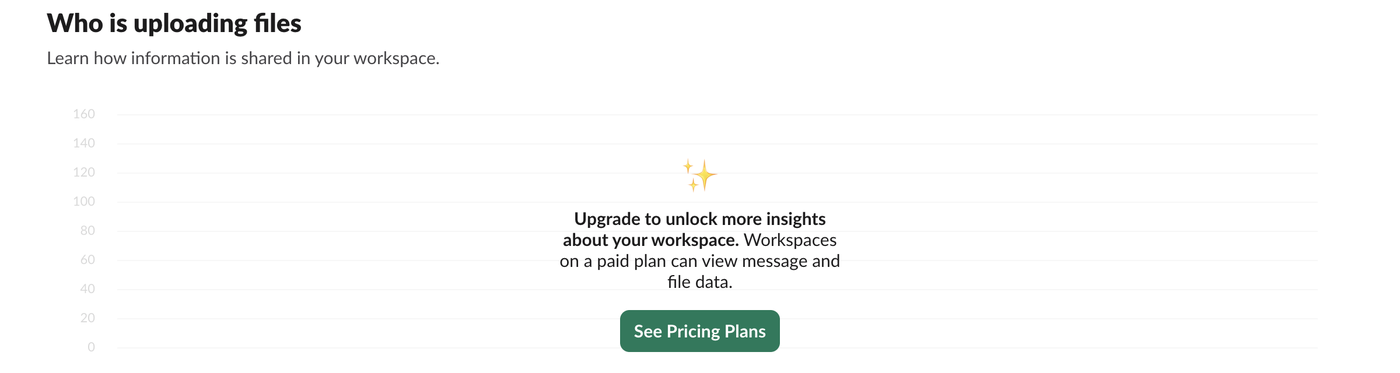
The Who is uploading files chart at the bottom of the overview is greyed out with "Upgrade to unlock more insights about your workspace. Workspaces on a paid plan can view message and file data.":
There is no Members tab on Free. When we opened the members analytics address (app.slack.com/manage/<team ID>/analytics/members) directly, Slack sent us to Manage members instead. Per-person numbers such as messages posted or the last active date are paid-only; how to find inactive users in Slack shows the paid Members table and what a Free owner can use instead.
Never appear "away" on Slack again
Cloud-based. No downloads. Works 24/7 even when your laptop is off.
The Export button works on Free
Export at the top right of the overview downloaded a file named _Analytics Prior 28 Days - Oct 26 2026.csv (2,854 bytes) with one row per day and 28 columns:
Date,Total Enabled Membership,Enabled Full Members,Enabled Guests,Daily active people,Daily people posting messages,Weekly active people,Weekly people posting messages,Messages in public channels,Messages in private channels,Messages in shared channels,Messages in DMs,Percent of messages, public channels,Percent of messages, private channels,Percent of messages, DMs,Percent of views, public channels,Percent of views, private channels,Percent of views, DMs,Total Full Members,Total Guests,Total Members,Total Claimed Full Members,Total Claimed Guests,Total Claimed Members,Public channels, single-workspace,Messages posted,Monthly active people,Monthly people posting messagesSo a Free owner does get daily message counts by place (public channels, private channels, DMs), daily and weekly active people, and member totals. These rows from our file show what the numbers did:
| Date | Daily active people | Messages in public channels | Messages in DMs | Messages posted |
|---|---|---|---|---|
| 2026-10-01 | 1 | 34 | 2 | 829 |
| 2026-10-06 | 1 | 12 | 105 | 129 |
| 2026-10-09 | 1 | 4 | 139 | 49 |
| 2026-10-11 | 0 | 0 | 0 | 40 |
| 2026-10-22 | 1 | 7 | 0 | 76 |
| 2026-10-23 | 1 | 4 | 0 | 81 |
| 2026-10-24 | 0 | 0 | 0 | 45 |
Two things to know before you chart this file:
Who can see Slack analytics
Our test account was the Primary Owner, and the analytics pages sit under Admin next to Manage members and the security settings. Does Slack show last seen covers what a regular member can see about other people.
FAQ
Can I see how many messages each person sent on the Free plan? No. The Free overview and export count messages per day and per type of conversation, not per person.
Does Slack analytics show who read a message? No. The overview reports the share of reading in public channels, private channels and DMs as percentages, with no names.
Stop Jiggling Your Mouse.
Join hundreds of remote workers who never worry about their Slack status. Set it up once, stay green forever.
Related Articles
Slack Export Viewer: Open a Slack Export ZIP in Your Browser (2 Free Tools Tested)
A Slack export is a ZIP of JSON files. We exported our Free workspace, looked inside the ZIP, and opened it with slack-export-viewer and slackdump view to compare how each shows threads, reactions and apps.
How to Make a Poll in Slack: Emoji Polls, Poll Apps and What We Found
Slack has no poll button. Post the question with one emoji per option and let people react, or install a poll app. We ran an emoji poll, counted it with Slack's API, and tried to install Simple Poll on a Free workspace.
Slack Sign In on Mobile With a QR Code: Where It Is and What the Code Holds
Click your workspace name in Slack on a computer and choose Sign in on mobile to get a QR code for the phone app. We decoded the code to see what it holds and opened it three times to see whether it changes.