
AI Slack Emoji Generator: Prompts, Tools and the 128 KB Rule
Any AI image tool can draw a Slack emoji. The part that fails is Slack's limit: square, under 128 KB, a clear background. Prompts that read at 22 pixels, the AI emoji generators in the top results, and how to make the file Slack accepts.
An AI Slack emoji generator is any AI image tool plus one extra step: make the picture square, clear its background, and shrink it under 128 KB, then upload it with Add Emoji in Slack's emoji menu. The AI part takes seconds in ChatGPT, Gemini or a dedicated emoji site. Most AI emoji fail at the Slack part, because the tools return large images on a white background that look like a smudge at 22 pixels.
We make the free Slack emoji maker, which takes the image your AI tool made, clears the background, crops it square and saves a file Slack accepts. It runs in your browser and does not upload the picture.
How to make a Slack emoji with AI
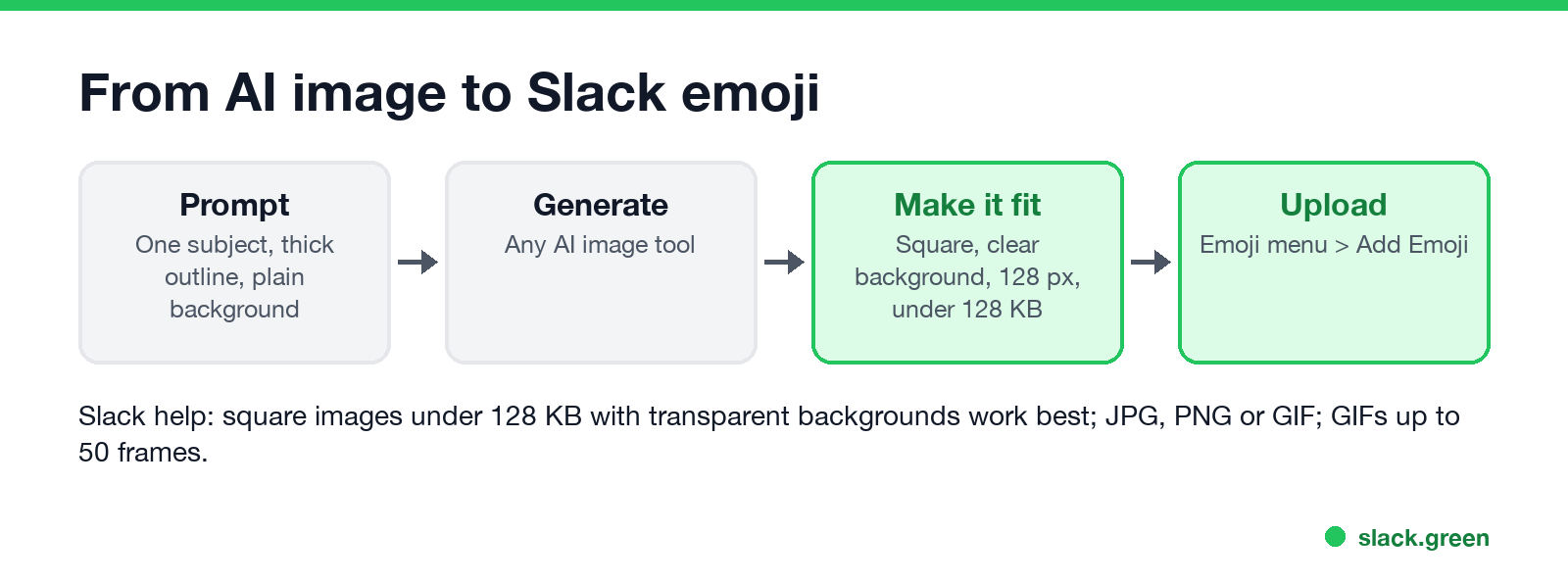
- Write a prompt for a tiny picture. One subject, a thick outline, flat colors and a plain background. The prompts below are a starting point.
- Generate it. Any AI image tool works: ChatGPT, Gemini, or one of the emoji sites in the next section. Ask for a square image.
- Make it fit Slack. Slack's help article "Add custom emoji and aliases to your workspace" says square images under 128 KB with transparent backgrounds work best, in JPG, PNG or GIF, and GIFs can have up to 50 frames. Drop the image into the Slack emoji maker, tick Remove background, and download the 128 x 128 PNG. If you only need to shrink a file, the Slack emoji resizer does that.
- Upload it. On desktop, click the smiley face in the message field, click Add Emoji, then Upload Image, give it a name and click Save. The full steps, with admin permissions, are in how to add custom emoji to Slack.
AI emoji generators that rank for Slack
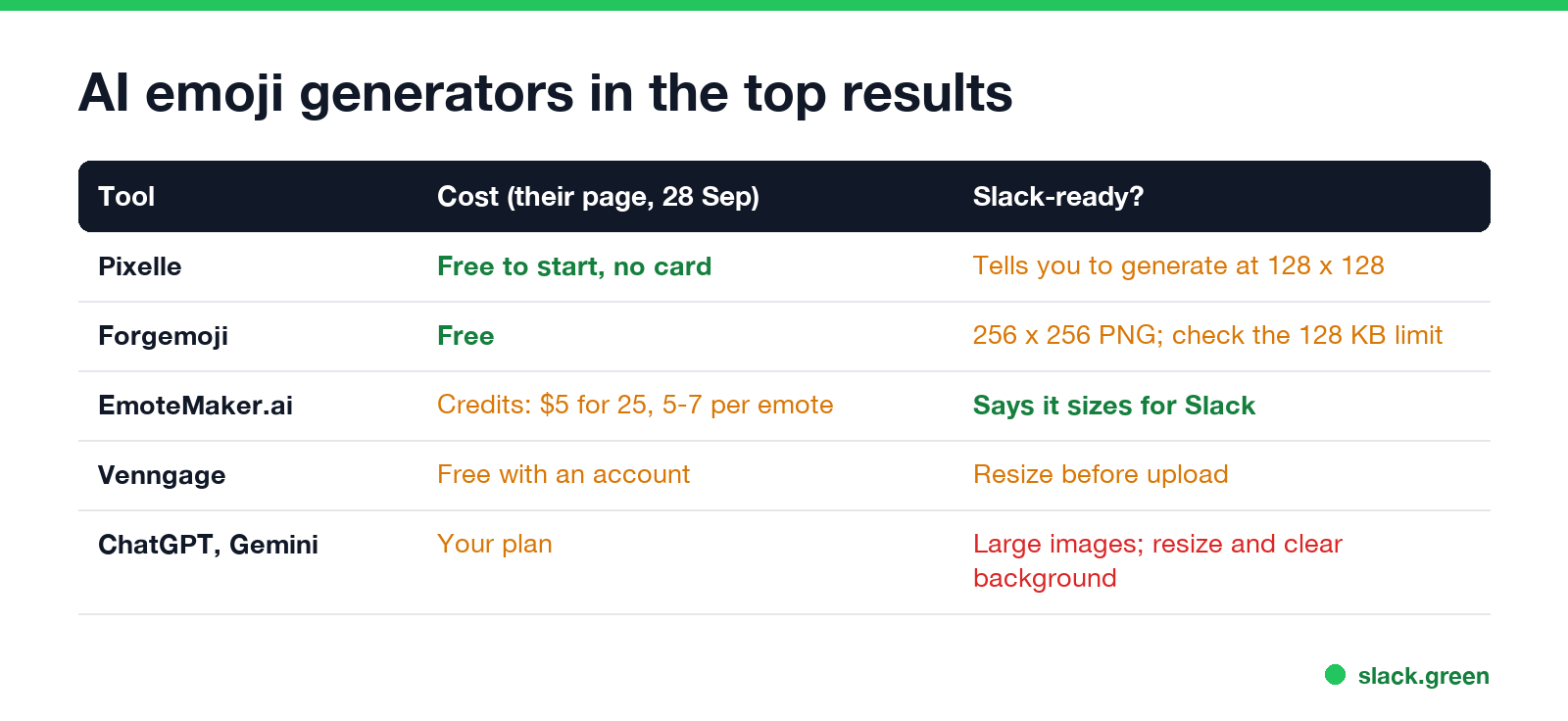
We checked the sites in the top search results for "ai slack emoji generator" on 28 September. Prices are what each site's page said that day.
| Tool | Cost | What to check before upload |
|---|---|---|
| Pixelle (pixelle.io) | Free to start, no card | It tells you to generate at 128 x 128; check the file size |
| Forgemoji | Free | Outputs a 256 x 256 transparent PNG; its page lists a 1 MB limit, Slack's help says under 128 KB |
| EmoteMaker.ai | Credits: $5 for 25, a static emote costs 5 to 7 | Says it sizes emotes for Slack |
| Venngage | Free, with an account | Resize and clear the background |
| ChatGPT, Gemini | Your plan | Large images, often on white: resize and clear the background |
A dedicated emoji site saves you the resize step. A general AI image tool gives you more control over the drawing. Either way, look at the result at 22 pixels before you upload it: that is about the size of a reaction in a busy channel.
Prompts for AI Slack emoji
Emoji are read at 16 to 32 pixels, so a prompt has to ask for less than you think. These are ours; copy them and change the subject.
A single [subject] emoji, flat vector style, thick dark outline,
2-3 bright colors, centered, fills the frame, plain white background,
no text, no shadow, readable at 32 pixels, square image
A cute [animal] face emoji giving a thumbs up, kawaii style,
thick outline, solid flat colors, plain white background, squarePixel art [object] emoji, 32x32 pixel grid, bold outline,
limited palette, plain white background, squareIf you need ideas for what to make, see Slack emoji ideas and Slack emoji packs.
Never appear "away" on Slack again
Cloud-based. No downloads. Works 24/7 even when your laptop is off.
Make the AI image Slack-ready in the browser
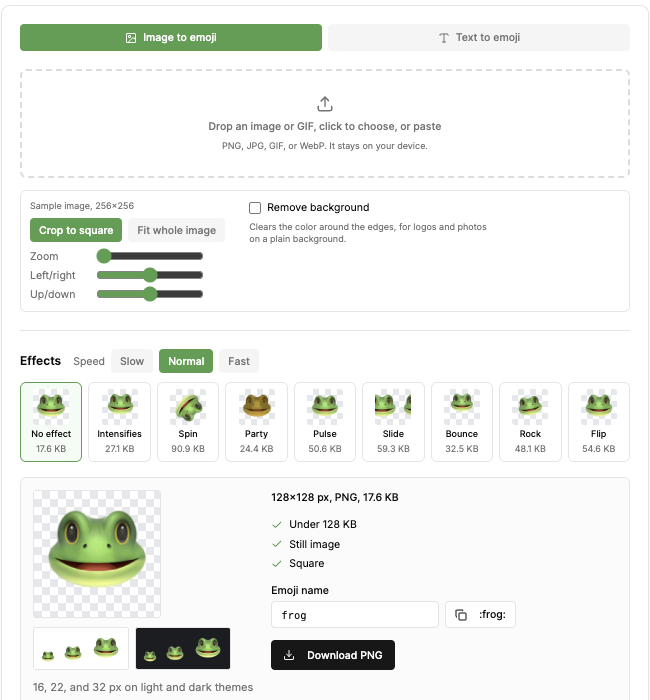
The screenshot is the Slack emoji maker with its sample image. After you drop in the AI image it shows the output size, checks Under 128 KB and Square, and previews the emoji at 16, 22 and 32 pixels on light and dark themes. Remove background clears the color around the edges, which suits the plain backgrounds AI tools draw. You can also add an animated effect such as party or intensifies; the tool shows the file size of each one before you pick it. Starting from a real photo instead of an AI drawing? See how to make a Slack emoji from a picture.
For more on transparent backgrounds, see how to make an emoji background transparent for Slack.
Make it Slack-ready with a script
If you make many AI emoji, a short Python script with Pillow does the same job. It makes near-white pixels transparent, crops to the drawing, pads to a square and saves a 128 x 128 PNG:
from PIL import Image, ImageChops
import os, sys

def slack_ready(src, dst, size=128, white_cutoff=245):
    """Turn a large AI image on a white background into a Slack emoji PNG."""
    img = Image.open(src).convert("RGBA")
    # Make near-white pixels transparent: most AI emoji come on white.
    keep = img.convert("L").point(lambda v: 0 if v >= white_cutoff else 255)
    img.putalpha(ImageChops.multiply(img.getchannel("A"), keep))
    # Crop to the drawing, then pad to a square so nothing is stretched.
    img = img.crop(img.getbbox())
    side = max(img.size)
    square = Image.new("RGBA", (side, side), (0, 0, 0, 0))
    square.paste(img, ((side - img.width) // 2, (side - img.height) // 2))
    square.resize((size, size), Image.LANCZOS).save(dst, optimize=True)
    kb = os.path.getsize(dst) / 1024
    print(f"{size}x{size} px, {kb:.1f} KB, under 128 KB: {kb < 128}")

slack_ready(sys.argv[1], sys.argv[2])
Run it with python slack_ready.py ai-output.png emoji.png. On a 1024 x 1024 test image of a green face on white, it printed 128x128 px, 7.7 KB, under 128 KB: True. One catch we hit: white areas inside the drawing, like the whites of the eyes, turn transparent too. Ask the AI for a background color that is not in the drawing, or use the emoji maker, which clears only the color touching the edges.
Why an AI emoji does not upload or looks wrong
FAQ
Is there an AI emoji generator built into Slack?
We found none. Slack's help on custom emoji covers uploading an image only, as of 28 September. Make the image with an AI tool, then upload it with Add Emoji.
What size should an AI emoji be for Slack?
Square, under 128 KB, with a transparent background. 128 x 128 pixels is the usual size.
Can I make an animated AI emoji for Slack?
Yes. Slack takes GIFs with up to 50 frames. Generate a still image, then add an effect such as party or intensifies in the Slack emoji maker, which keeps the file under 128 KB.
Can I use ChatGPT to make a Slack emoji?
Yes. Ask for one subject, a thick outline and a plain background in a square image, then resize it and clear the background before you upload it.
Stop Jiggling Your Mouse.
Join hundreds of remote workers who never worry about their Slack status. Set it up once, stay green forever.
Related Articles
Webex Status Ideas: 35 Custom Statuses Under 75 Characters
35 Webex status ideas you can paste into Set a status: funny ones, meetings, focus time, lunch, out of office and time zones, each under Webex's 75-character limit. How to set a custom status, save five for reuse, and make it clear on its own.
How to Make an Emoji From a Video (Slack and Discord)
To make an emoji from a video, cut 1 to 2 seconds, crop it to a square, scale it to 128 x 128 and save it as a GIF under 128 KB for Slack or 256 KB for Discord. One tested ffmpeg command, the frame rate and color settings that decide the file size, and a free browser tool that shrinks the GIF for you.
How to Make a Custom Emoji for Discord (From Any Image)
To make a custom Discord emoji, crop an image to a square, keep it under 256 KB, name it with letters, numbers and underscores, and upload it with Add Emoji in the emoji picker or Server Settings, Emoji. How to make one from a photo, a GIF or text for free, add animation, and use it in other servers.