
Does a Mouse Jiggler Work When the Computer Is Locked?
No. A mouse jiggler cannot unlock a computer or keep you active behind the lock screen, and Teams shows you Away the moment you lock. It works only if it runs before the lock kicks in, because the movement stops the idle timer that would lock the screen. What still works, what does not, and the locks a jiggler never stops.
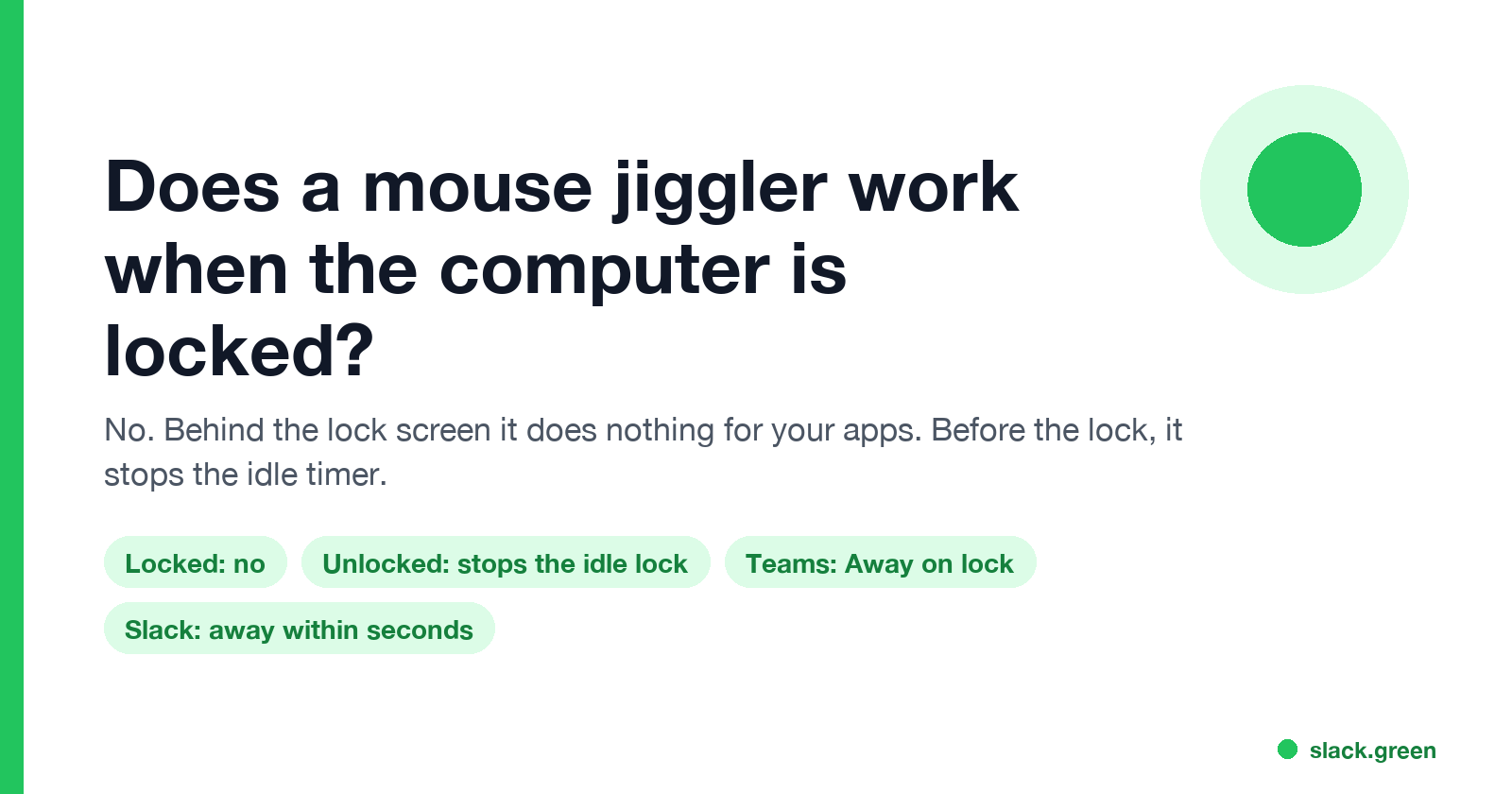
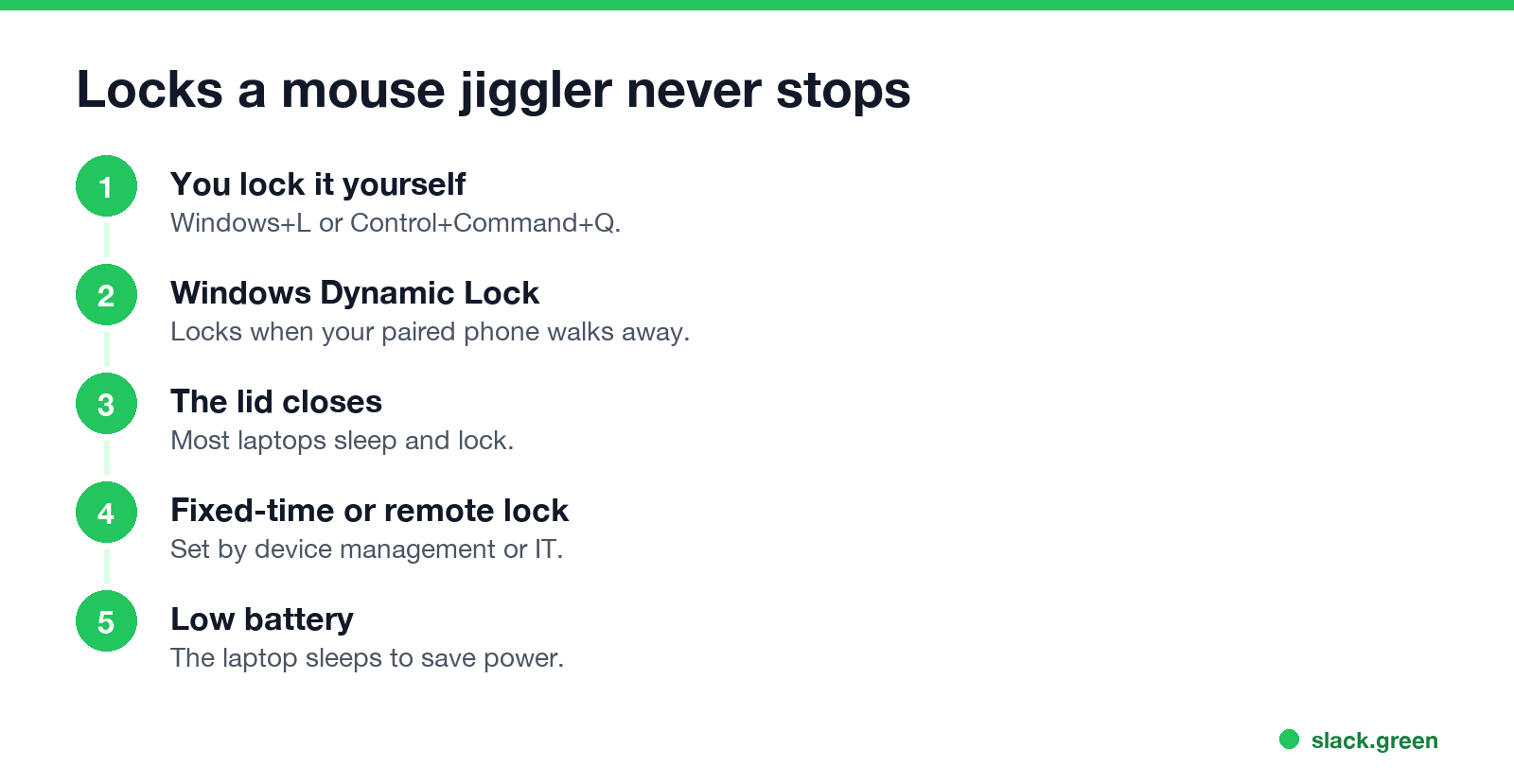
No. A mouse jiggler does not work once the computer is locked. The lock screen takes no input into your session, so a software jiggler stops moving anything, a USB jiggler only wakes the lock screen display, and Microsoft Teams shows you Away as soon as you lock. What a jiggler can do is stop the lock from happening: if it runs before your idle timer runs out, the movement resets the timer and the screen never locks. That covers the lock after inactivity. It does not cover a lock you trigger yourself with Windows+L or Control+Command+Q, Dynamic Lock, closing the lid, or a policy that locks at a fixed time.
Slack sets you away within seconds of a lock. Unlocked, it counts only input inside its own window and marks you away after 10 minutes without it. Slack Green keeps your Slack status green from a server during the hours you set, whether your computer is locked, asleep or off.
What a jiggler does before and after the lock
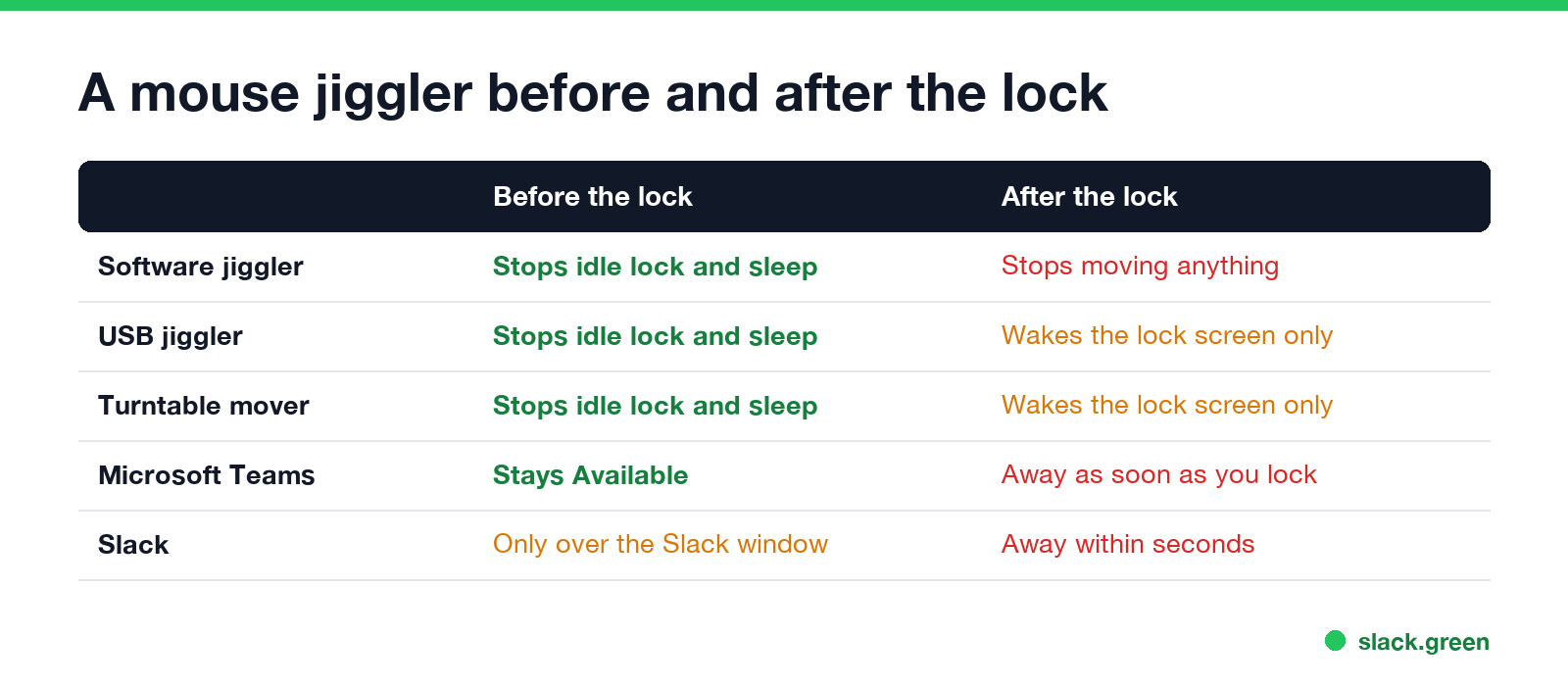
| Before the lock (screen unlocked) | After the lock (lock screen showing) | |
|---|---|---|
| Software jiggler app | Stops the idle lock and sleep | Stops moving anything |
| USB jiggler | Stops the idle lock and sleep | Wakes the lock screen display, does not unlock |
| Turntable mouse mover | Stops the idle lock and sleep | Same as a USB jiggler |
| Microsoft Teams | Stays Available | Away as soon as you lock |
| Slack | Away after 10 minutes unless the pointer is over Slack | Away within seconds |
| Unlocking | Not needed | Only your password, PIN or fingerprint |
The lock screen is a separate secure desktop on Windows and a separate login window on a Mac. Apps in your session cannot type or click into it, which is the point of a lock screen. A hardware jiggler moves a real pointer, so the system sees input and may keep the lock screen display lit, but that input goes to the lock screen, not to your apps.
How a jiggler prevents the screen from locking
Most automatic locks are idle timers: the screen locks after a set time with no keyboard or mouse input.
- • Windows: the screen turns off after the time in Settings > System > Power & battery, and Settings > Accounts > Sign-in options decides whether you sign in again when it wakes. Company laptops often add a policy (Machine inactivity limit) that locks after 5 to 15 minutes idle.
- • Mac: System Settings > Lock Screen sets when the display turns off and whether a password is needed after that.
- Start the jiggler while you are still at the computer, before you step away.
- Set its interval under the shortest timer. A 60-second interval clears every common timer.
- Keep the lid open. Closing the lid sleeps most laptops, and a sleeping laptop locks.
A jiggler that moves every 60 seconds resets these timers each time, so they never reach the lock. For that to work:
If you are allowed to change the settings, you need no jiggler for this: longer timeouts do the same job. The steps are in how to keep a Mac screen from locking and how to stop Windows 11 from locking.
Locks a mouse jiggler never stops
Never appear "away" on Slack again
Cloud-based. No downloads. Works 24/7 even when your laptop is off.
Does a mouse jiggler keep Teams active when the computer is locked?
No. Teams reads the lock itself. Lock a Windows PC and Teams switches you to Away right away, jiggler or not, and a Mac lock does the same within a few minutes. To stay Available in Teams with a jiggler, the computer has to stay unlocked, which means the jiggler has to start before the lock. Does a mouse jiggler work for Teams covers the rest of the Teams side, including the phone app.
Slack is stricter. It sets you away within seconds of the lock, and without a lock it still goes away 10 minutes after the last input in its own window.
Leaving a computer unlocked at work
An unlocked, unattended work laptop is the thing lock policies exist to stop. Anyone passing can read your messages or send one as you. Company rules often treat a jiggler used to beat a lock policy as a security issue, not only a productivity one, and IT can see the signs; can a mouse jiggler be detected lists them. If the goal is a green status rather than an unlocked screen, a status tool that runs on a server lets you lock the computer as usual.
FAQ
Never appear "away" on Slack again
Cloud-based. No downloads. Works 24/7 even when your laptop is off.
Can a mouse jiggler unlock my computer? No. Only your password, PIN, fingerprint or face unlocks it.
Does a USB mouse jiggler work on the lock screen? It keeps the lock screen display awake on some computers. It does not unlock the screen or make you active in any app.
Will a mouse jiggler stop my screen from locking? Yes, for locks that come from being idle, if it runs before the timer ends and the lid stays open.
Stop Jiggling Your Mouse.
Join hundreds of remote workers who never worry about their Slack status. Set it up once, stay green forever.
Related Articles
KeepingYouAwake vs Amphetamine: Which Mac Keep-Awake App to Use
KeepingYouAwake is a free, open-source menu bar switch that runs Apple's caffeinate for you. Amphetamine is a free App Store app with triggers, schedules and a closed-lid mode. Pick KeepingYouAwake for one click and Homebrew, Amphetamine for automation. Neither keeps Slack or Teams active.
Computer Locks After 15 Minutes? How to Tell If Group Policy Set It
A work laptop that locks after exactly 15 minutes, with screen settings greyed out, is almost always following a policy from IT: the Windows machine inactivity limit, a forced screen saver, or an Intune device lock. Security baselines and PCI DSS ask for 15 minutes. How to see which policy it is, and what you can and cannot change.
How to Keep a Citrix Session Active: Find Which Timeout Logs You Out
A Citrix session can end from four different timers: Windows locking inside the virtual desktop, the Citrix session idle timer, the Citrix Gateway session time-out, and the StoreFront web page timeout. Only input from your own device into the Citrix window resets them. How to tell which one hit you and what keeps each one quiet.