
How to Paste ChatGPT Into Slack Without Losing the Formatting
ChatGPT answers are written in standard markdown, and Slack uses its own markup, so double asterisks, # headings and tables show up as characters. Paste the answer and press Cmd+Shift+F to apply formatting, run it through a Markdown to Slack converter, or ask ChatGPT to write in Slack format. Also for Claude, Gemini and Notion.
To paste a ChatGPT answer into Slack with the formatting, convert it before you paste. ChatGPT writes standard markdown, and Slack uses its own markup, so double asterisks, # headings, bracket links and tables show up in Slack as raw characters. Three ways fix it:
- Paste the answer, then press Cmd+Shift+F on a Mac or Ctrl+Shift+F on Windows. Slack's shortcut list calls this Apply markdown formatting.
- Paste the answer into our free Markdown to Slack converter, click Copy for Slack, and paste the result into Slack. Headings become bold lines and tables become aligned code blocks.
- Ask ChatGPT to write the answer in Slack format from the start.
- Copy the answer in ChatGPT with the copy button under it.
- Paste it into the Slack message field.
- Press Cmd+Shift+F (Mac) or Ctrl+Shift+F (Windows and Linux).
- Check the result. If it went wrong, press Cmd+Z or Ctrl+Z, which Slack lists as Undo formatting.
The same steps work for text from Claude, Gemini, Copilot, Notion and GitHub READMEs.
We build Slack Green, which keeps your Slack status green from our servers during the hours you set. We built the Markdown to Slack converter because we paste AI drafts into Slack every day. It runs in your browser, and the text never leaves your device.
Why ChatGPT formatting breaks in Slack
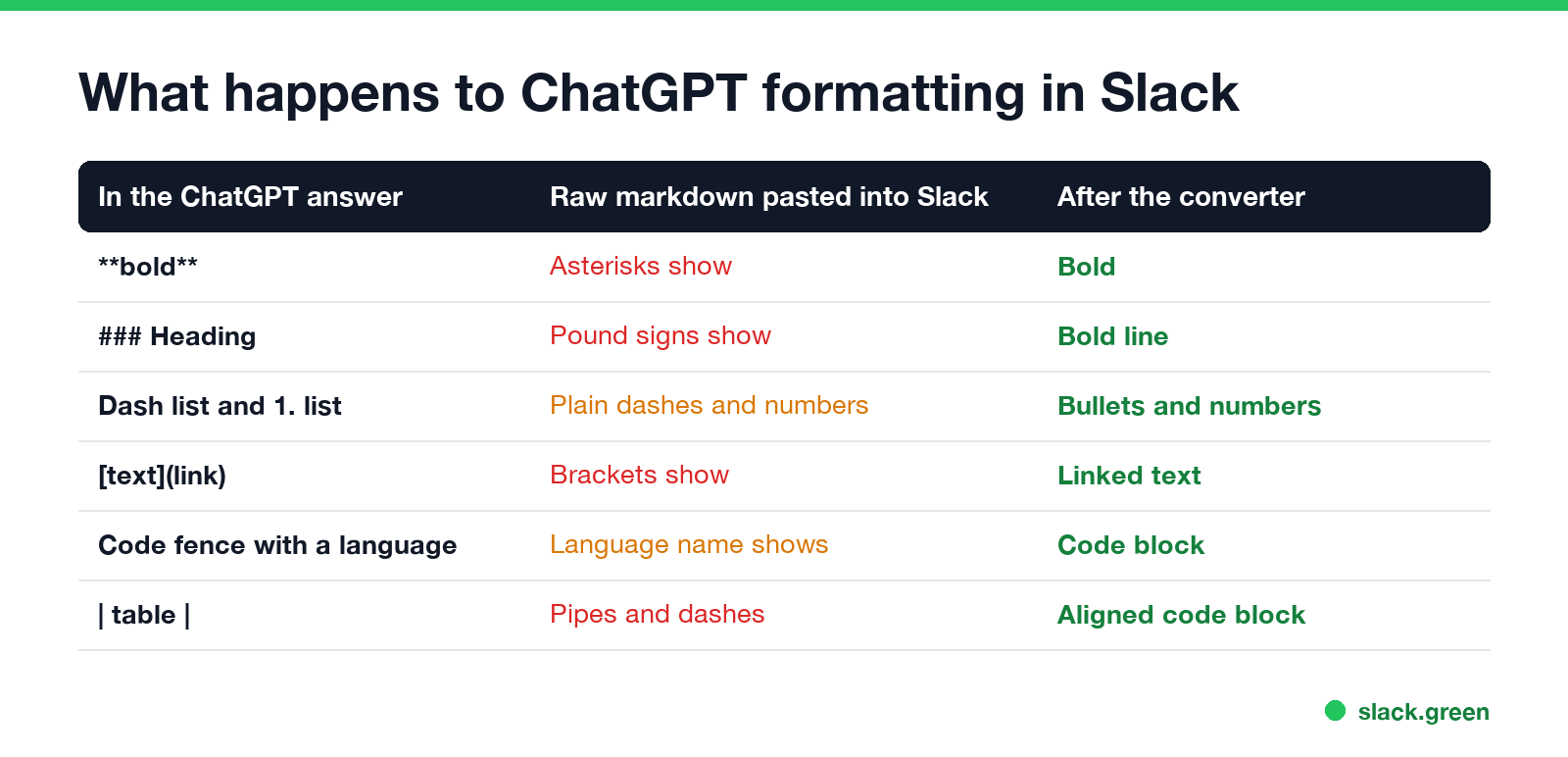
ChatGPT formats answers in markdown: two asterisks for bold, pound signs for headings, square brackets for links, and pipes for tables. Slack's own markup is different. It uses one asterisk on each side for bold, underscores for italics and one tilde for strikethrough, and it has no headings and no tables in messages. When the raw markdown lands in the Slack message field, the parts Slack does not understand stay as typed characters.
| In the ChatGPT answer | Pasted into Slack as is | After converting |
|---|---|---|
| Bold with two asterisks | Asterisks show around the words | Bold |
| A heading with pound signs | Pound signs show | A bold line |
| Dash and numbered lists | Plain dashes and numbers | Bullets and numbers |
| A link in brackets | Brackets and the URL show | Linked text |
| A code fence with a language name | The language name shows as a line | A code block |
| A table | Pipes and dashes | An aligned code block |
Slack's full markup rules are in Slack markdown not working.
Method 1: paste, then Apply markdown formatting
This is the fastest way for short answers with bold, lists and code. It formats what Slack's markup supports. It cannot turn a table into a table, because Slack messages have none, so check tables and headings before you send.
Method 2: convert with the Markdown to Slack converter
Never appear "away" on Slack again
Cloud-based. No downloads. Works 24/7 even when your laptop is off.
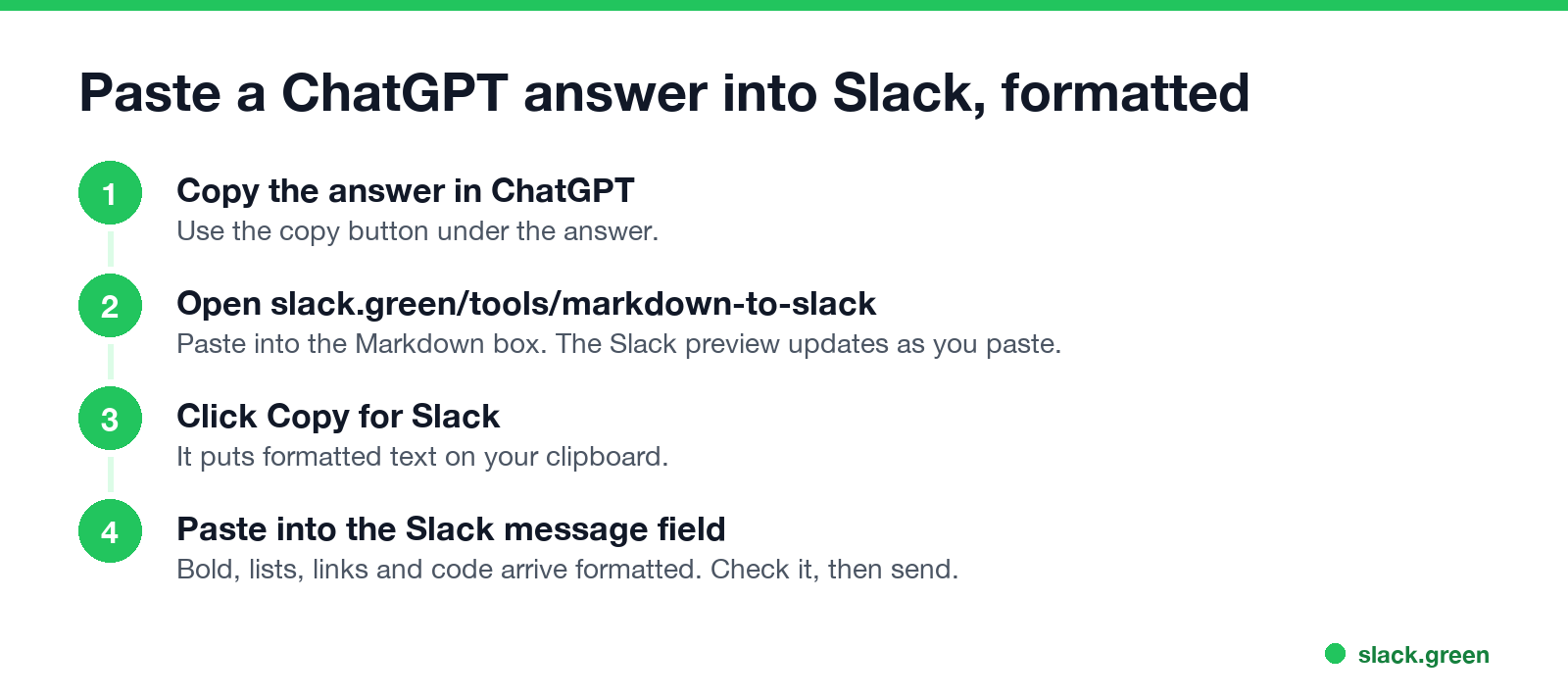
The converter also shows the Slack markup version, which you can copy for a bot, a webhook or a workflow message. Tables come out as an aligned code block, which is the closest Slack messages get to a table. For a real table, use a canvas; see how to make a table in Slack.
Method 3: ask ChatGPT to write in Slack format
Add this to your prompt, or put it in ChatGPT's custom instructions if you often write for Slack:
Format the answer for a Slack message:
- bold with one asterisk on each side, like *this*
- italics with underscores, like _this_
- no # headings; use a bold line instead
- no tables; use a short list
- bullets with the character •
- links as plain URLs
- code in triple backticks, with no language name
Keep it under 150 words.
Then copy the answer and paste it straight into Slack. ChatGPT does not always follow formatting rules, so glance at it before you send. For long answers, Method 2 is more reliable.
Paste as plain text instead
To drop all formatting and paste only the words, use Cmd+Shift+V on a Mac or Ctrl+Shift+V on Windows and Linux. That pastes plain text in Slack and most other apps. It is the right choice when you want to rewrite the answer in your own words, which reads better in a chat than a pasted essay.
Text from Claude, Gemini, Notion and Google Docs
Never appear "away" on Slack again
Cloud-based. No downloads. Works 24/7 even when your laptop is off.
Can you use ChatGPT inside Slack?
Yes. OpenAI has a ChatGPT app for Slack, listed in the Slack Marketplace, and OpenAI's help center has a page on using ChatGPT in Slack. With an app, you ask inside Slack and do not copy and paste. Your workspace admin may have to approve the app first.
Before you paste work content into ChatGPT, check your company's AI policy. What your employer can see is covered in can my employer see my ChatGPT history.
FAQ
How do I copy a ChatGPT response into Slack with formatting? Paste it and press Cmd+Shift+F (Ctrl+Shift+F), or convert it first with the Markdown to Slack converter.
Why does ChatGPT text show asterisks in Slack? ChatGPT uses two asterisks for bold. Slack uses one, so the extra characters stay visible.
Can Slack show ChatGPT tables? Not as tables in a message. Convert them to an aligned code block, or put the table in a canvas.
How do I paste ChatGPT text into Slack without formatting? Press Cmd+Shift+V or Ctrl+Shift+V to paste plain text.
Stop Jiggling Your Mouse.
Join hundreds of remote workers who never worry about their Slack status. Set it up once, stay green forever.
Related Articles
Slack Emoji for Announcements, Updates and Reminders
The standard Slack emoji for an announcement is 📣 :mega: or 📢 :loudspeaker: at the start of the post. Use 🚨 :rotating_light: only for real emergencies, 🆕 :new: for updates, ⏰ :alarm_clock: for reminders, and ask readers to react with ✅ :white_check_mark: once they have read it. Templates and a custom emoji idea.
Slack Status for a Doctor Appointment: 24 Statuses and Emoji
A Slack status for a doctor appointment says you are out and when you are back, such as 🏥 'At an appointment, back at 2 PM.' You do not have to say what kind. 24 statuses for doctor, dentist and other appointments, the emoji codes, and how to schedule the status so it clears by itself.
Slack Status for Limited Availability: 30 Statuses to Copy
A Slack status for limited availability says you are around but slow, until when, and how to reach you if it is urgent, such as ⏳ 'Limited availability today, replies after 3 PM. Urgent: @mention me.' 30 statuses for busy days, slow replies and catching up, the emoji to use, and when to pause notifications too.