
Slack Search Not Working? 5 Causes We Reproduced
Slack search usually fails for one of a few reasons: the message is too new, a date filter excludes it, an operator has a typo, or Free hides older history. We timed the search index and tested each cause.
When Slack search does not find a message you know exists, the cause is usually one of these: the message is less than about 30 seconds old, an after: or before: date leaves it out, a modifier such as in: or from: has a typo, or your Free workspace is hiding history older than 90 days. On October 27, 2026 we posted test messages in our Free test workspace and searched for them, in the app and through Slack's API, to see which of these actually block a result.
1. The message is too new: search took 20 to 31 seconds
Search does not see a message the moment you send it. We posted a message with a unique word five times, then asked search.messages for that word every 2 seconds until it came back:
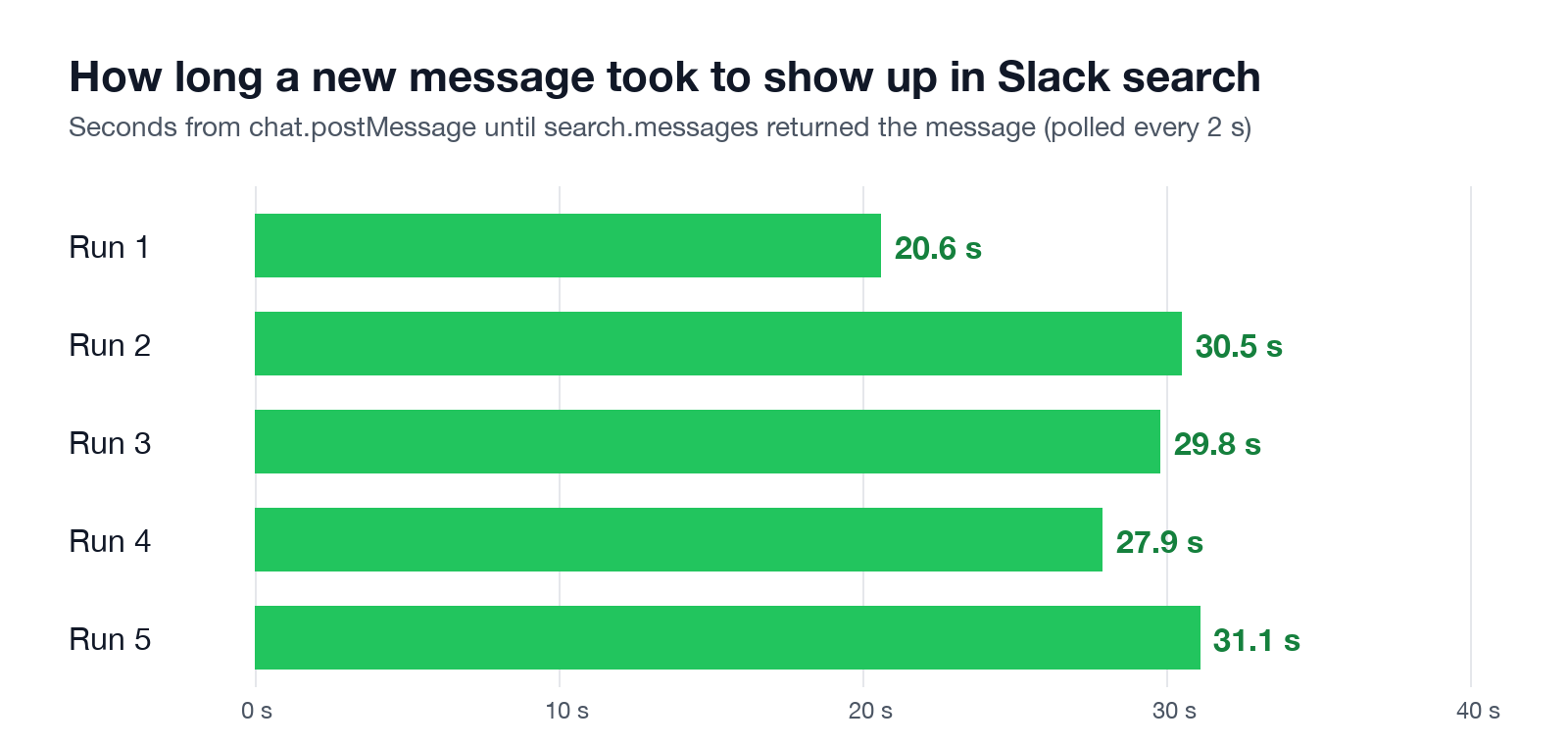
| Run | Seconds until the message was found |
|---|---|
| 1 | 20.6 |
| 2 | 30.5 |
| 3 | 29.8 |
| 4 | 27.9 |
| 5 | 31.1 |
So if you search for something you or a coworker sent a few seconds ago and get nothing, wait half a minute and search again. Scrolling the channel finds it faster.
2. A date modifier excludes the day you want
after: and before: leave out the date you type. Our test message was sent on October 27. The search zqe908c4b2 after:2026-10-27 returned nothing, and the app showed this:
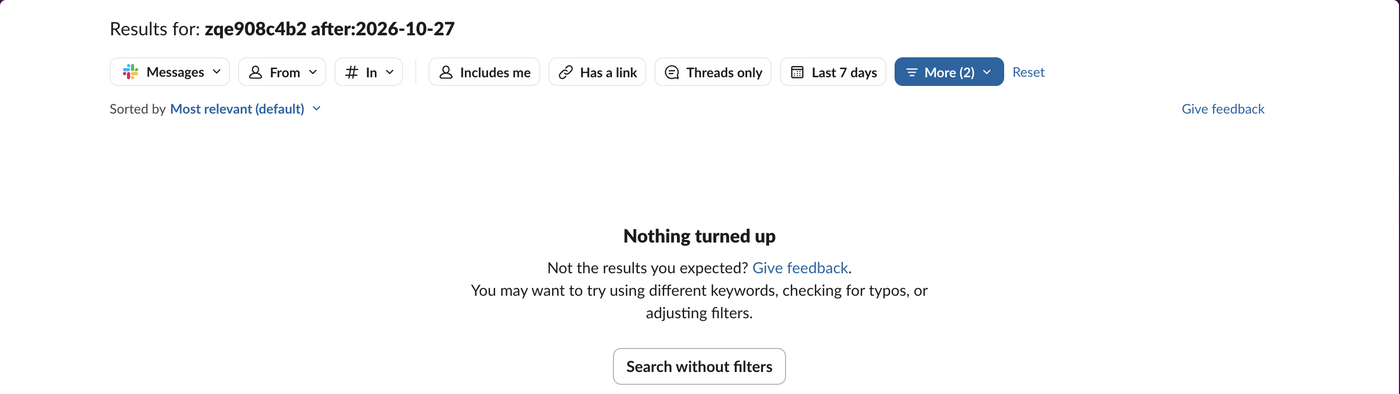
The same word with on:2026-10-27 returned the message. Use on: for a single day, or set after: to the day before. Slack search operators lists every modifier with what it returned in our earlier tests.
The Search without filters button on that page is the quickest check. If the message appears after you click it, a filter or modifier was the problem, not the index.
3. A typo in a channel or person name
A modifier with a name that does not exist does not fall back to a plain search. It returns zero results:
| Query | Results |
|---|---|
zqe908c4b2 in:#w1-1027-lab | 1 |
zqe908c4b2 in:#w1-1027-labb (one extra letter) | 0 |
zqe908c4b2 from:@sieun | 1 |
zqe908c4b2 from:@sieunn (one extra letter) | 0 |
In the app this is harder to hit, because the search box turns from:@ and in:# into chips as you type and picks a matching name. A query pasted from somewhere else, or typed through the API, gets no such help. If you search by email, a saved query or a script, check the names first.
Never appear "away" on Slack again
Cloud-based. No downloads. Works 24/7 even when your laptop is off.
4. Free plan history
On the Free plan, search and message history cover the last 90 days. Older messages are hidden, not just missing from search. Our test workspace had nothing that old to try, so this one comes from Slack's plan limits, which Slack free plan limits covers. Retention settings can also delete messages on any plan; see Slack message retention.
5. Partial words work, two-letter wildcards do not
Search matched part of a word in our test. zqe908c4 found the message containing zqe908c4b2, and zqe90* found it too. Our earlier operator test found that a two-letter wildcard such as bu* returned nothing, so give a wildcard at least three letters.
What did not block search
Leaving a public channel did not hide its messages. We posted in a public test channel, waited for the index, left the channel and searched again. The message still came back. Search covers public channels you are not in; it leaves out private channels and DMs you are not part of.
If search fails for every query, check Slack's status page before you clear caches or reinstall. When Slack failed to load during our tests, its error page pointed to the same status page.
For searching from code, the search.messages API needs a user token, as our test did. To remove old queries from the search box, see how to clear Slack search history.
FAQ
Why does Slack search show a message in the channel but not in results?
In our test the gap was 20 to 31 seconds after posting. A message older than that which still does not show up usually has a filter or modifier in the way. Click Search without filters to check.
Can my admin see what I search for in Slack?
No admin screen or export in Slack lists your search terms; Enterprise analytics only count how many searches you ran. Can Slack admins see what you search has the details.
Stop Jiggling Your Mouse.
Join hundreds of remote workers who never worry about their Slack status. Set it up once, stay green forever.
Related Articles
How to Mark a Message Urgent in Slack (There Is No Flag)
Slack has no urgent or priority flag on messages. On October 27, 2026 we checked every menu in the Free plan's message box and message menu and found none. What works instead: a DM, @here or @channel, a reminder on the message, and the reader's VIP and keyword settings.
How to Delete a Thread in Slack (Parent and Replies)
Slack has no delete-thread button. Deleting the first message leaves 'This message was deleted.' with the replies still attached; the thread only disappears once every reply is deleted too. We tested both in the app and through the API on October 27, 2026.
How to Delete Files in Slack (Deleting the Message Is Not Enough)
Delete a Slack file from Files or from the file's own menu with Delete file. In our October 27, 2026 test, Delete message on a file post removed the post but left the file on Slack's servers. We also deleted files in bulk with a short script.