
How to Keep Slack Green: What the Dot Needs From You
The green dot stays on while Slack sees input in its own window within the last 10 minutes. What turns it gray, how to keep it green by hand, and how to keep it green without being there.
The green dot on your Slack profile means one thing: Slack has seen input in its own window within the last 10 minutes. Keeping Slack green means keeping that window fed. There is no setting that pins it on.
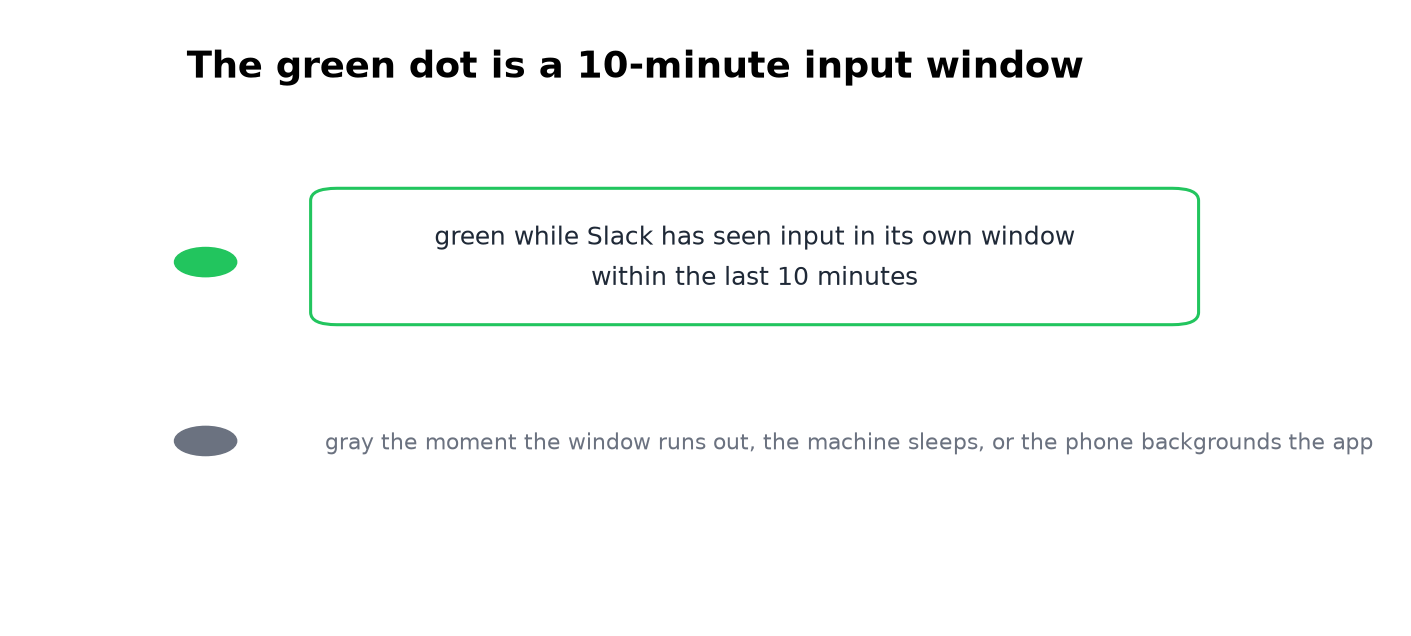
This page covers what turns the dot gray and every way to keep it green, including the one we build, Slack Green, which does it from a server.
What turns the dot gray
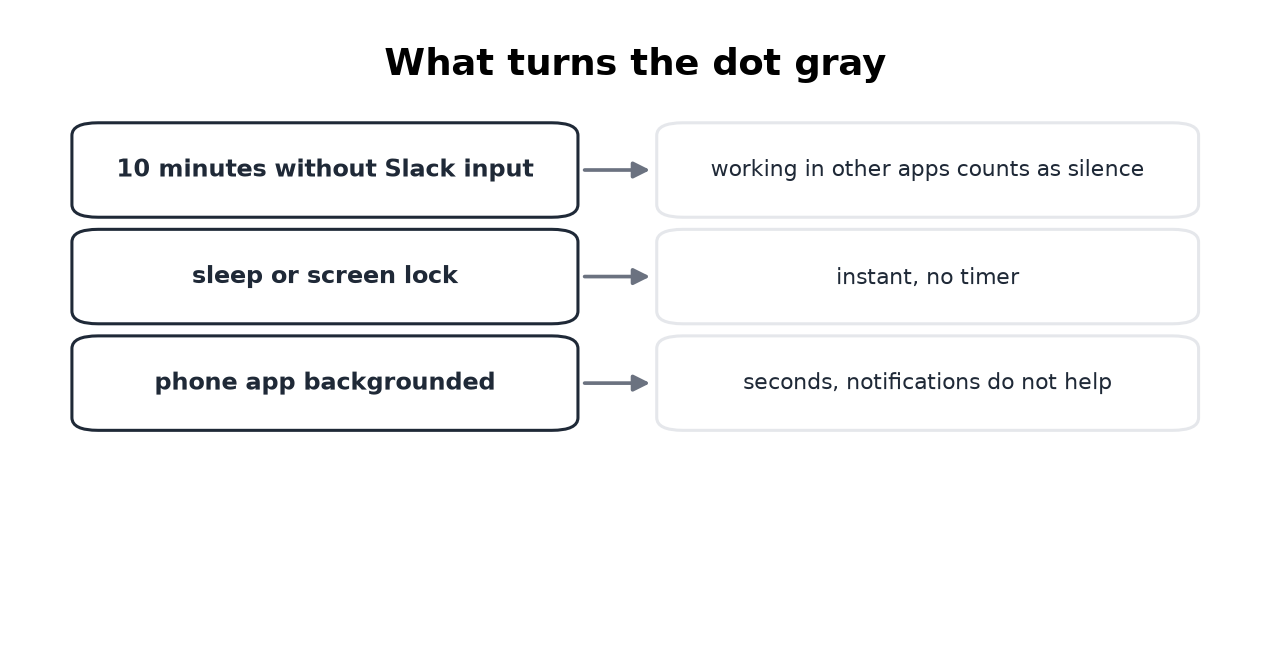
Three things, and only three:
- • Ten minutes without input in Slack. Typing in other apps is silence to Slack. It cannot see your mouse outside its own window.
- • Sleep or a locked screen. The dot goes gray almost instantly, before the timer even matters.
- • A backgrounded phone app. On mobile you are green only while Slack is on screen. Push notifications do not count.
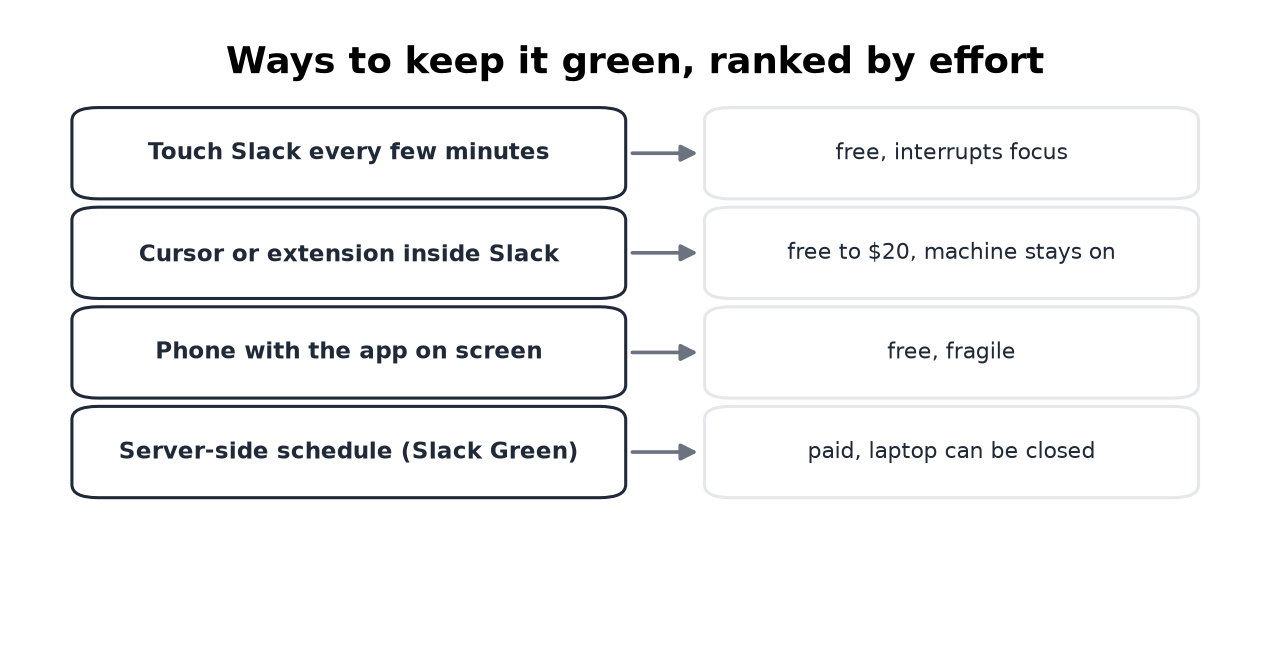
- Touch Slack between tasks. A click or a channel switch resets the 10-minute window. The catch is that the dot now schedules your attention.
- Park the cursor over Slack with a jiggler, or run an extension. Simulated input works only inside the Slack window, and only while the machine stays on and unlocked. Trade-offs in Slack Green vs mouse jigglers.
- Leave the phone on with Slack open. Works until the screen locks or
The exact numbers per device are in how long does Slack stay active. If your dot goes gray while you are clearly working, the cause-by-cause walkthrough is in Slack keeps showing away while working.
Keeping it green by hand
Free, immediate, and each with a catch:
Keeping it green without being there
Slack पर फिर कभी "away" न दिखें
क्लाउड-आधारित। कोई डाउनलोड नहीं। लैपटॉप बंद होने पर भी 24/7 काम करता है।
Everything above needs you, your machine, or your phone present and awake. The remaining option is a server that holds your own Slack session and feeds the presence window for you. That is what Slack Green does. Set a schedule and the dot is green during your working hours and gray after, with your laptop closed the whole time. Like every tool in this class, it holds a session token for you, so read the security notes before choosing any of them, ours included.
The full method-by-method comparison, including costs and failure modes, is in how to keep Slack active.
Frequently asked questions
How do I keep my Slack status green all day? Feed the 10-minute window all day: by hand, with simulated input inside the Slack window, or with a server-side schedule. Nothing in Slack settings does it.
Why does my green dot disappear while I am working? Your input is going somewhere Slack cannot see. Ten-minute flips mean the timer, instant flips mean sleep or lock, random flips mean a second device.
Does the green dot mean someone is at their desk? No. It means their Slack saw input in the last 10 minutes, from any device or tool. The dot and the status text are also separate systems.
Can I keep Slack green on a schedule? Not with Slack alone. A server-side tool does exactly that, which is the schedule setup most people want.
The short version
Green means fed within 10 minutes, gray means starved, asleep, or backgrounded. Feed it by hand if you are at the desk, from your phone if you are near one, or from a server if you want the dot to follow a schedule instead of your presence. Setup for the last one takes about two minutes.
माउस हिलाना बंद करें।
सैकड़ों रिमोट वर्कर्स अब Slack स्टेटस की चिंता नहीं करते। एक बार सेटअप करें, हमेशा के लिए हरे रहें।
Related Articles
How Slack Active Status Works: The Dot, the Text, and the Timer
Slack shows two different things people call status: a presence dot Slack sets automatically, and a status text you set yourself. How the dot decides green or gray, per device, and what you can and cannot control.
Slack Out of Office: Status, Auto-Replies, and Messages That Work
Slack has no built-in out-of-office auto-reply. What it has instead: a status with an expiry, paused notifications, and Workflow Builder. How to set each one, plus copy-paste OOO messages.
How to Stop Slack From Showing You as Away
There is no setting that turns off Slack's away flip. You stop it by removing its four triggers: the manual toggle, the 10-minute idle timer, sleep and lock, and a backgrounded phone session. Each one has a concrete fix.