
Slack Keeps Clearing My Status: Why It Happens and How to Stop It
Slack clears a status when the day is over unless you pick Don't clear. The six causes of a status that disappears, resets, or changes by itself, with the fix for each on desktop and mobile.
Slack keeps clearing your status because every status has a timer, and by default it runs out when the day is over. Slack's own blog says it: "By default your status will clear after the day is over." To stop it, open your status, set Remove status after (on mobile, Clear after) to Don't clear, and save. If the status still changes, a calendar app, a scheduled status, or Slack's automatic statuses are writing to it.
Check which thing you mean first. The emoji and text next to your name is your status. The green or grey dot is your presence, and it has different rules. If the problem is "Slack keeps setting me to away", jump to the section on the dot.
We build Slack Green, a cloud service that keeps the dot green during your working hours. The status text and the dot are separate, so this page covers the text first, then the dot.
Six reasons your Slack status clears or changes
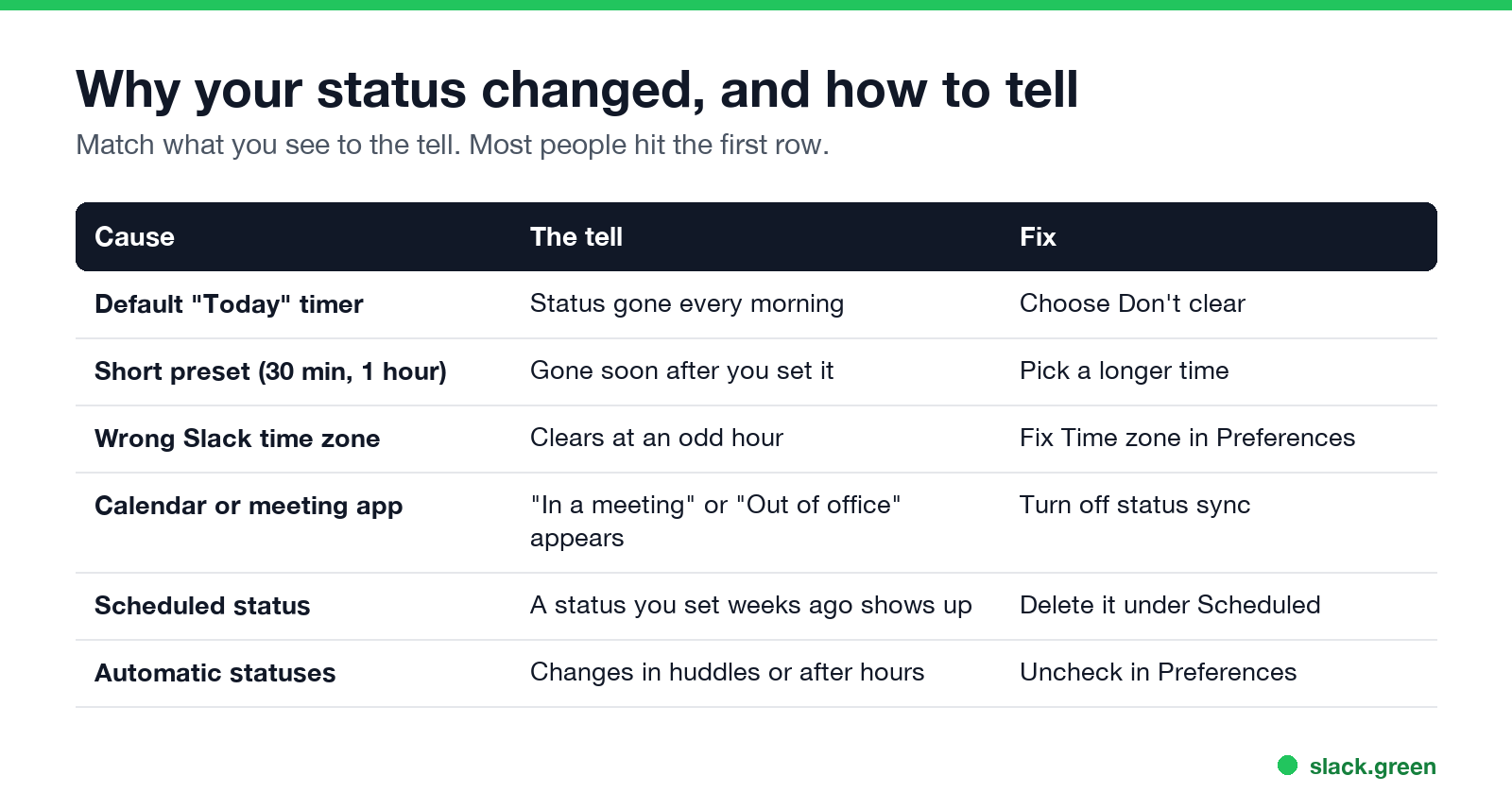
| Cause | The tell | Fix |
|---|---|---|
| Default "Today" timer | Your status is gone every morning | Choose Don't clear |
| A short preset (30 minutes, 1 hour, 4 hours) | Gone soon after you set it | Pick a longer time or Don't clear |
| Wrong time zone in Slack | Clears at an odd hour, not midnight | Fix your time zone in Preferences |
| Calendar or meeting app | "In a meeting" or "Out of office" appears and then goes | Turn off that app's status sync |
| A scheduled status | An old status turns on, then clears | Delete it under Scheduled |
| Automatic statuses | Changes when you join a huddle or after your working hours | Uncheck them in Preferences |
1. The default timer ran out
When you type a new status, Slack pre-fills a clear time. For a custom status it ends when the day is over. Slack's suggested statuses carry their own shorter presets, such as 30 minutes or an hour, and your workspace admin can change those suggestions. So "Commuting" or "In a meeting" from the suggestion list disappears on its own, which is by design.
2. Your time zone in Slack is wrong
"Today" ends at midnight in the time zone Slack has for you, not the one on your laptop clock. If you travel, or Slack still has an old time zone, your status clears in the middle of your afternoon. Open Preferences, then Language & region, and check Time zone. Turn on Set time zone automatically if you move between zones. One r/Slack reply on a thread about statuses that "keep" changing asked exactly this question, and it is a quick thing to rule out.
3. A calendar or meeting app is setting your status
The Google Calendar app for Slack sets your status to In a meeting when an accepted event has other invitees, and to Out of Office when the event title contains OOO or PTO. Slack's help center says it "won't override any status you've set yourself". It does set and remove its own meeting status, which looks like your status changing by itself. The Outlook Calendar app, the Zoom app, and scheduling tools such as Reclaim and Clockwise can also write your status. Reclaim's help center warns that two of these apps can override each other.
To stop it, open the app from Apps in Slack, go to its Home tab, then Settings, and turn off status syncing. For Google Calendar you can type /gcal settings. Keep only one app that writes your status.
4. A scheduled status turned on
Slack lets you schedule up to five statuses ahead of time. A scheduled status turns on at its start time, replaces what you had, and clears at its end time. If a status you forgot about appeared and then vanished, click your profile picture, look under Scheduled, and delete it. We cover scheduling in how to schedule a Slack status.
5. Automatic statuses
Slack can tell people you may be slow to respond when you are in a huddle, in focus mode, or after your working hours. If your status seems to change at those moments, open Preferences and look under Automatic statuses. Uncheck the ones you do not want.
6. A sync glitch between devices
In late 2023, several people on r/Slack reported a bug where a "Lunch" status kept coming back for the rest of the day after they cleared it. If you see a status return after you clear it, clear it on the desktop app, press Cmd + R or Ctrl + R to reload, and clear it on your phone too. Update Slack if it keeps happening.
How to make a Slack status stay
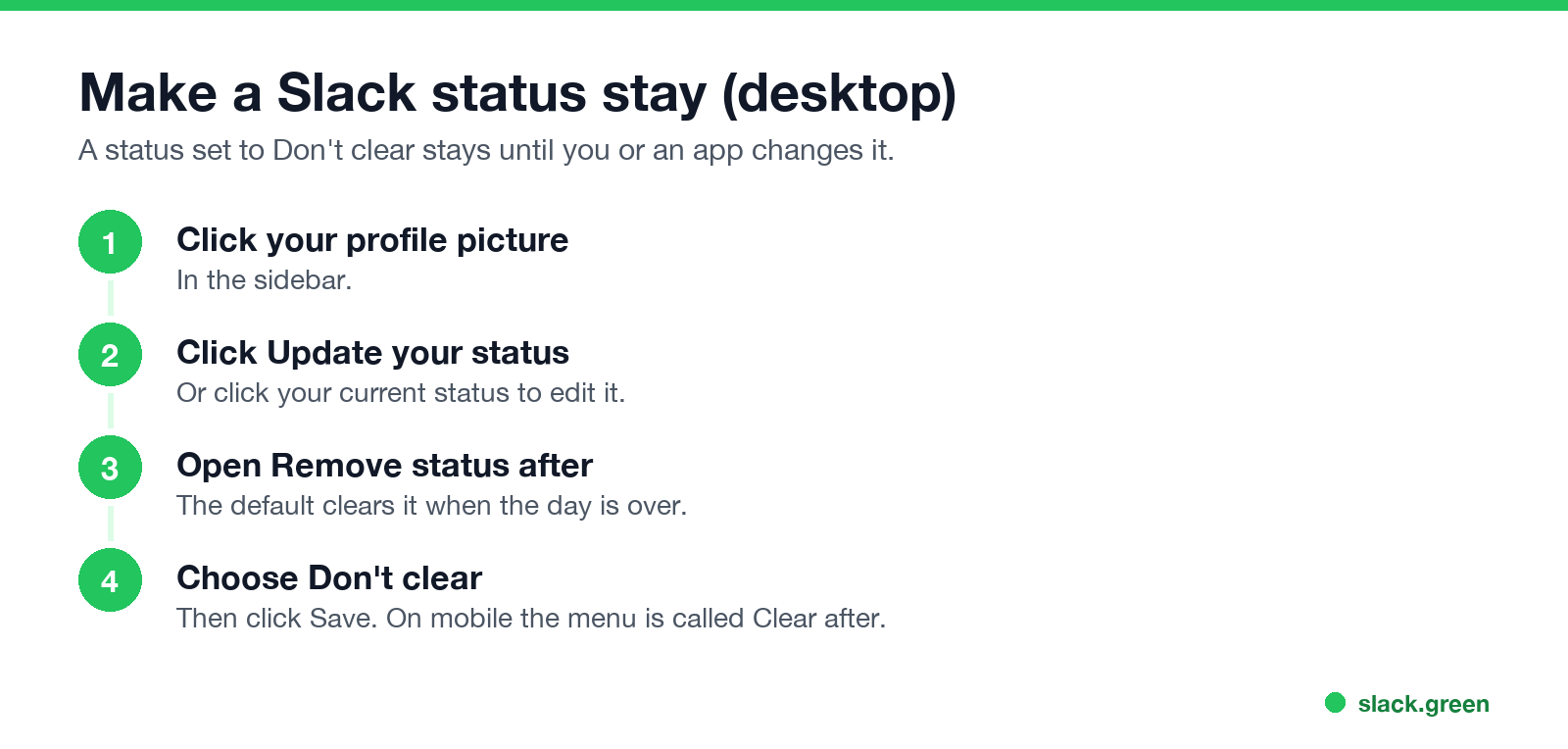
Desktop:
- Click your profile picture in the sidebar.
- Click Update your status, or click your current status to edit it.
- Open Remove status after.
- Choose Don't clear, then click Save.
- Tap your profile picture.
- Tap the status field.
- Tap Clear after and choose Don't clear.
- Tap Done.
Mobile:
A status set to Don't clear stays until you change it or an app changes it. For a vacation, choose a date and time instead, so it clears the day you come back. Our step-by-step guide on how to change your status on Slack covers the rest of the menu, and funny Slack status ideas has text worth keeping.
If the dot goes grey, not the text
Slack पर फिर कभी "away" न दिखें
क्लाउड-आधारित। कोई डाउनलोड नहीं। लैपटॉप बंद होने पर भी 24/7 काम करता है।
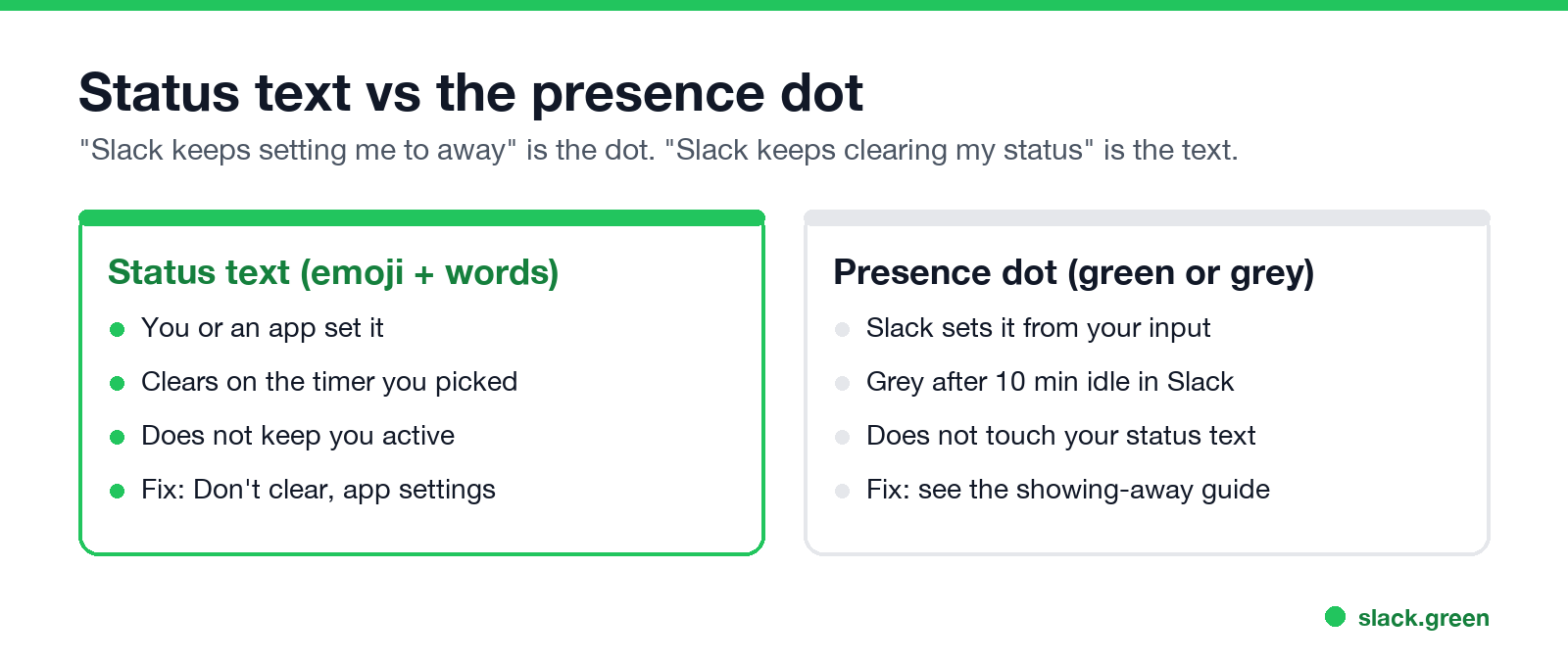
Many searches for "Slack status keeps going inactive" or "Slack keeps setting me to away" are about the dot. The dot follows different rules:
The causes and fixes for the dot are in Slack keeps showing me away while working. What the grey dot means to your coworkers is in Slack away status meaning.
Slack has no setting that keeps the dot green. Slack Green keeps your presence active from a server during the hours you set, with your laptop open or closed, and does not touch your status text. The other options are in how to keep Slack active.
FAQ
Why does Slack keep clearing my status?
Every Slack status has a clear time, and the default ends when the day is over. Set Remove status after to Don't clear. If it still changes, a calendar app, a scheduled status, or an automatic status is writing to it.
How do I make my Slack status permanent?
Choose Don't clear in Remove status after on desktop, or Clear after on mobile. The status then stays until you or an app changes it.
Why does my Slack status say "In a meeting" when I did not set it?
A calendar app such as Google Calendar or Outlook Calendar for Slack sets it from your accepted meetings. Turn off status syncing in that app's settings if you do not want it.
Why does my Slack status keep resetting to an old one?
A scheduled status may be turning on, or a sync bug is bringing back an old status. Check Scheduled under your profile, then clear the status on each device and reload Slack.
Does clearing my status make me show as away?
No. The status text and the presence dot are separate. You can have no status and a green dot, or a status and a grey dot.
Why isn't my Slack status showing when I'm in a meeting?
The Google Calendar app only sets In a meeting for events you accepted or marked Busy, with other invitees. It skips the update when two events overlap, and it will not replace a status you set yourself.
माउस हिलाना बंद करें।
सैकड़ों रिमोट वर्कर्स अब Slack स्टेटस की चिंता नहीं करते। एक बार सेटअप करें, हमेशा के लिए हरे रहें।
Related Articles
Slack Multiple Workspaces: Use, Switch and Stay Active in Each
You can sign in to several Slack workspaces in one app and switch with Ctrl+Tab or Cmd/Ctrl plus a number. Each workspace has its own account, status, presence and Do Not Disturb, so you can be active in one and away in another. How to add, switch and manage them.
Slack Lunch Status: Set It, Automate It, and Lines to Copy
To set a Slack lunch status, click your profile picture, Update your status, pick an emoji such as the fork and knife, type "Lunch, back at 1:30", and set Remove status after to when you are back. How to schedule it, the ways to automate a daily lunch status, and what happens to your green dot.
How to Keep a Mac Screen From Locking (Without Breaking IT Rules)
To stop a Mac from locking, open System Settings, Lock Screen, set the screen saver and display-off times to Never or longer, and raise Require password after screen saver begins or display is turned off. Or run caffeinate -d. What a managed Mac allows, and why Slack still shows you away.