
Slack Keeps Clearing My Status? What Each Duration Does, Measured
Slack's Duration menu defaults to Today, so a new status ends at 23:59:59. We measured every option, watched Slack clear statuses a minute early, and tested focus mode.
Free tool, runs in this tab
Keep your screen awake and see when Slack sets you away
Press Start. This tab keeps the screen on while it stays open, and shows the minute Slack, Teams and Zoom would set you away if nothing touches the keyboard or mouse.
This tab cannot move your pointer or press keys, so on its own it cannot keep Slack or Teams active. It reads the same idle time the Slack desktop app, Teams and Zoom read. To test a jiggler, start, then take your hands off for 6 minutes: if Your computer stays green, the jiggler keeps them active.
- Your computerNot measured yetPress Start and allow idle detection.
- Slack desktop app-Away after 10 min, any input.
- Microsoft Teams-Away after about 5 min, any input.
- Zoom-Away after 15 min by default, any input.
Slack keeps clearing your status because every status has a clear time, and the default is Today: the status ends at 23:59:59 that night. To keep it, open your status, set Duration to Don't clear, and save. If it still changes, a calendar app, a scheduled status or one of Slack's automatic statuses is the cause. A status does not keep your dot green, but Slack Green keeps your presence active from a server with the laptop closed and leaves your status text alone, free for 7 days with no card.
We measured each clear time on 3 October 2026 in Slack's web app, reading the stored expiry from Slack's API (users.profile.get) after every save. We also watched Slack clear a status, and tested whether focus mode overwrites one.
The emoji and text next to your name is your status. The green or grey dot is your presence, which has its own rules; if the problem is the dot, see the section on the dot.
When each Duration option clears your status
| Duration you pick | Expiry Slack stored (status saved Saturday 3 October, 4:56 PM Seoul time) |
|---|---|
| Today (the default) | Saturday 3 October, 23:59:59 |
| 4 hours | 4 hours after the save, 8:57 PM |
| This week | Friday 9 October, 23:59:59 |
| Don't clear | No expiry (status_expiration: 0) |
Two things in that table catch people out. Today is preselected every time you type a new status, so a status you never touched the menu for is gone by morning. And This week set on a Saturday ran to the end of the next Friday, not to Sunday.
The times follow the time zone in your Slack profile; ours was Seoul. If Slack has an old zone for you, Today ends at the wrong hour; check Preferences > Language & region, or see how to change your time zone in Slack.
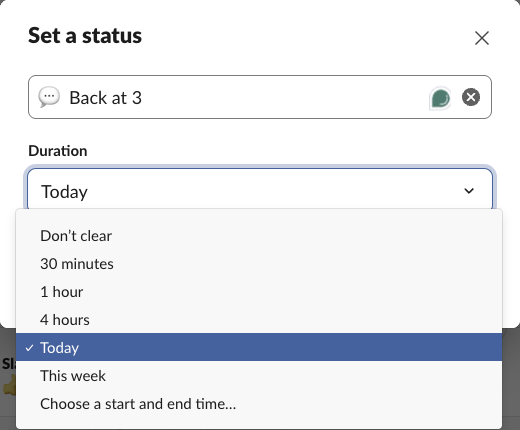
Slack's suggested statuses carry their own timers: In a meeting (1 hour), Commuting (30 minutes), Out sick (Today), Working remotely (Today). Pick one of those and it clears on that timer.
Slack clears a status about a minute early
We set statuses through the API with an expiry 75, 100 and 120 seconds away and polled every 4 seconds. Each time the status was gone before the expiry: in the two timed runs, between 51 and 56 seconds early. Our test of scheduled statuses found the same, about 60 seconds before the end time (how to schedule a Slack status). A status set "until 5:00" is therefore blank from about 4:59.
Even a status set to Don't clear does nothing for the dot, which Slack turns away 10 minutes after your last keyboard or mouse input. A server-side tool keeps your Slack dot green with no input, even with the laptop closed or the phone locked.
Six reasons your Slack status clears or changes
| Cause | The tell | Fix |
|---|---|---|
| Default "Today" | Your status is gone every morning | Choose Don't clear |
| A suggested status | Gone after 30 minutes or an hour | Change its Duration before saving |
| Wrong time zone in Slack | Clears at an odd hour | Fix the zone in Preferences |
| Calendar or meeting app | "In a meeting" appears and then goes | Turn off that app's status sync |
| A scheduled status | An old status turns on, then clears | Delete it from your scheduled statuses |
| Automatic statuses | Changes in a huddle, in focus mode or after hours | See the next section |
Calendar apps. Slack's help center says the Google Calendar app sets In a meeting for accepted events with other invitees and "won't override any status you've set yourself". It still sets and removes its own meeting status, which looks like your status changing by itself. Outlook Calendar, Zoom and scheduling tools can also write your status; keep one app that does it and turn off status sync in the others, under the app's Home tab in Slack.
Scheduled statuses. A scheduled status turns on at its start time, replaces what you had, and clears at its end. If a forgotten status appeared and vanished, look in your scheduled statuses and delete it.
Automatic statuses do not replace yours
In Preferences > Availability, Automatic statuses can show In a huddle, In focus mode or After hours. Slack's note there says: "If you already have a status set, Slack won't change it."
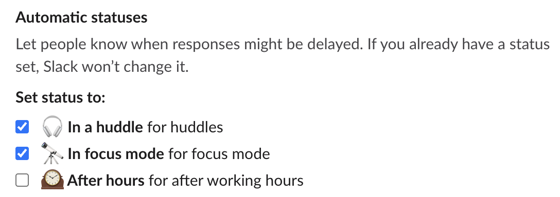
We checked it with focus mode. With no status, turning on focus mode showed "In focus mode" with a telescope next to our name, yet the API still read an empty status; Slack stores it as a separate flag (dnd_profile_status: focus_mode) and dropped it when focus mode ended. With "Writing docs" set, turning on focus mode left "Writing docs" in place, and turning it off left it there too.
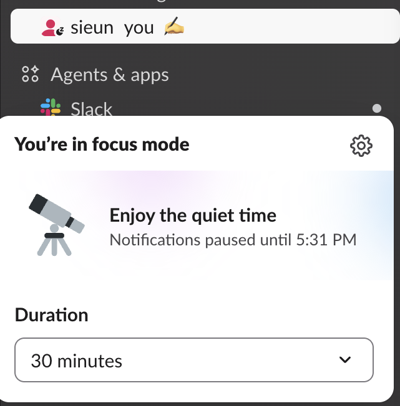
So an automatic status never deletes the status you wrote. If yours disappeared, look at its Duration, a calendar app or a scheduled status first.
How to make a Slack status stay
- Click your profile picture at the bottom left.
- Click Update your status, or click your current status to edit it.
- Open Duration and choose Don't clear.
- Click Save.
For a vacation, pick Choose a start and end time instead, so it clears the day you come back. The rest of the menu is in how to change your status on Slack.
If the dot goes grey, not the text
Many searches for "Slack status keeps going inactive" are about the dot. Don't clear has no effect on it, and a status that says "Working" does not keep you active. On desktop, the dot turns grey after about 10 minutes with no keyboard or mouse input; in the desktop app, work in other apps counts. The causes and fixes are in Slack keeps showing me away while working. If you need the dot green through your working hours, a server-side tool keeps your presence active with your laptop closed and leaves your status text alone.
Frequently asked questions
How do I make my Slack status permanent? Choose Don't clear under Duration. Slack then stores no expiry, and the status stays until you or an app changes it.
Why did my status disappear a minute before the time I set? In our tests Slack cleared statuses 51 to 56 seconds before their expiry. Set the end a minute later than you need.
Does focus mode or a huddle delete my status? No. With a status set, focus mode left it in place in our test, and Slack's setting says it won't change a status you already have.
Related Articles
Slack Showing Everyone Offline? Your App Lost Its Connection
When every coworker shows a grey dot at the same time, the problem is almost always your own Slack app, not your team. Why it happens, how to tell, and the fixes in the order to try them.
Can You See Slack Status History? No, Here Is What Exists
No. Slack shows your active or away dot and your custom status only as they are right now, and keeps no history of either that coworkers or admins can open. Admins on paid plans see a last active date and sign-in logs. How to keep your own status log with the Slack API, from today on.
Slack: Get Notified When Someone Comes Online (No Built-In Alert)
Slack has no alert for when a coworker becomes active. No preference, Workflow Builder trigger or profile button does it. You can watch their green dot, send a message they will see when they return, or run a short script that checks users.getPresence every minute and DMs you.