
Slack Showing Everyone Offline? Your App Lost Its Connection
When every coworker shows a grey dot at the same time, the problem is almost always your own Slack app, not your team. Why it happens, how to tell, and the fixes in the order to try them.
If Slack shows everyone as offline at the same time, your own Slack app has almost always lost its live connection to Slack. Your coworkers are probably still green. Press Cmd + R on a Mac or Ctrl + R on Windows and Linux to reload Slack. If the grey dots come back, go to Help, Troubleshooting, Clear Cache and Restart, then check your VPN or proxy.
A whole workspace does not go idle in the same second. When every dot is grey at once, the thing that changed is on your side of the connection.
We build Slack Green, a cloud service that keeps your Slack presence green during your working hours from our servers. We spend our days on how Slack presence moves between devices, so this guide explains what breaks and how to fix it, step by step.

Why Slack shows everyone offline at once
Presence is live data. Your coworkers' Slack apps report their activity to Slack's servers. Slack decides active or away for each person and pushes each change to your app over a WebSocket, a connection that stays open while Slack runs.
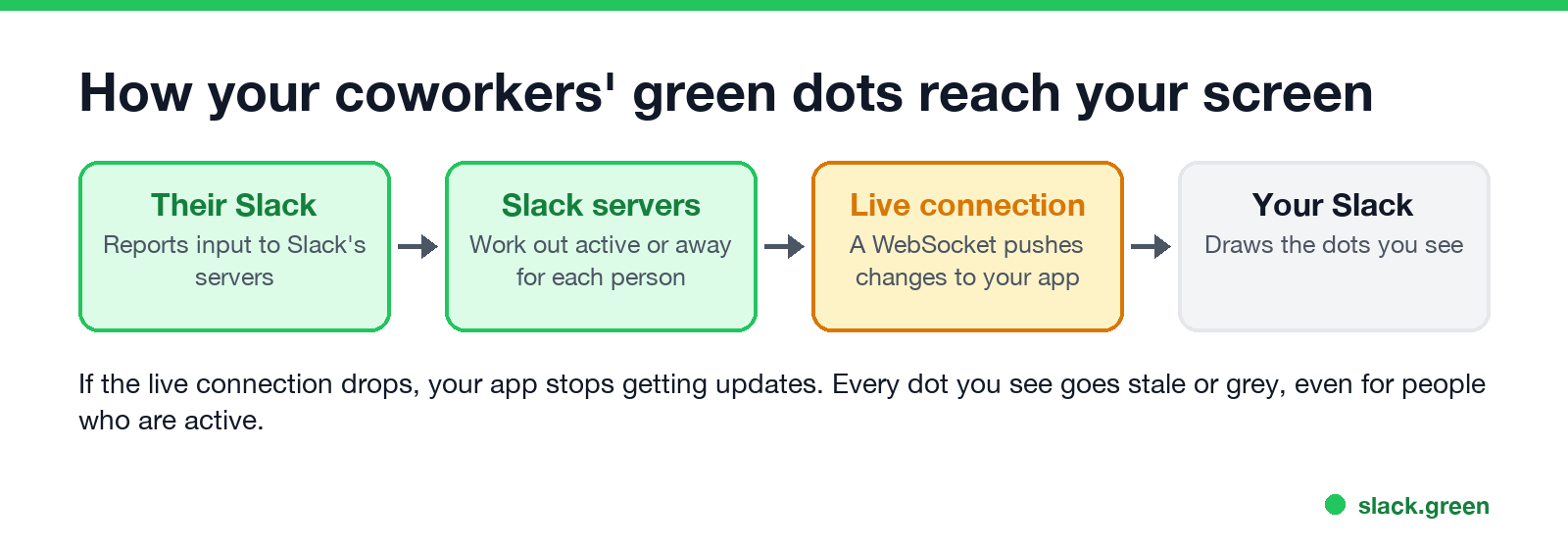
When that connection drops, your app stops getting updates. Slack's own help center says that with WebSocket trouble "you won't automatically receive any new messages", and the same connection carries presence. The dots you see go stale or grey for everyone, including people who are typing right now. Common triggers:
- • Sleep and wake. Your laptop wakes up, but the Slack app does not reconnect cleanly.
- • Network changes. You switch Wi-Fi, join or leave a VPN, or tether to a phone.
- • A proxy, firewall, or security tool that allows normal web pages but blocks WebSocket traffic.
- • A Slack app bug. In late 2023, several r/Slack users on desktop version 4.35 reported that everyone showed offline in a workspace after switching between workspaces. One user said Slack support called it a known bug with a fix in progress, and the thread later confirmed it was fixed.
- • A Slack outage. Rare, but then everyone sees everyone as grey.
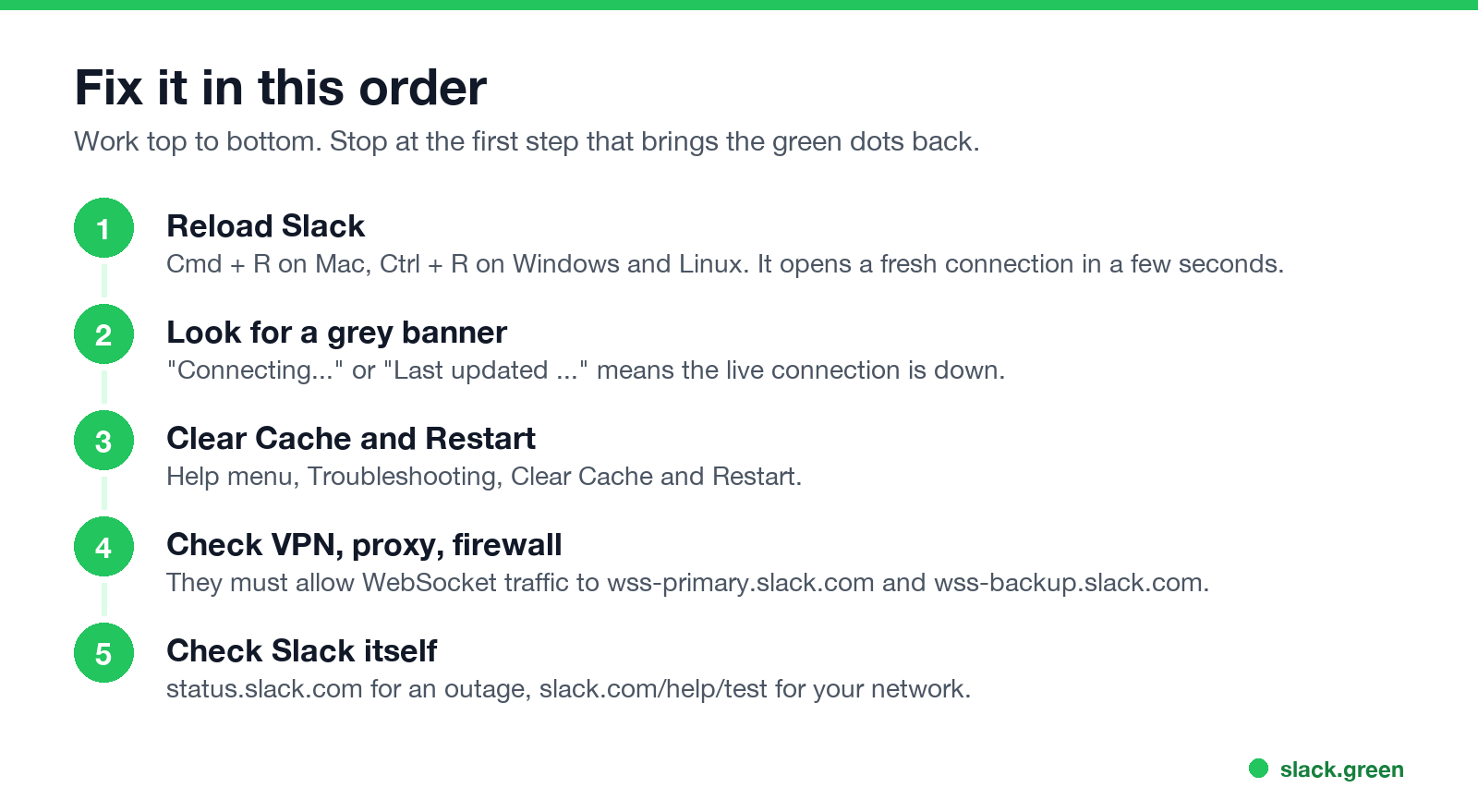
- Reload Slack. Press Cmd + R (Mac) or Ctrl + R (Windows, Linux). In a browser, reload the tab. This opens a fresh connection and fetches presence again. A user in the r/Slack thread above found that reloading fixed the workspace he was looking at.
- Look for a grey banner at the top of Slack, such as "Connecting..." or "Last updated less than a minute ago". Slack's help center lists that banner as the sign of WebSocket trouble.
- Clear the cache and restart. In the desktop app, open Help in the menu bar (the ☰ menu on Windows), choose Troubleshooting, then Clear Cache and Restart. Your messages and settings stay. Only the local copy is rebuilt.
- Check your VPN, proxy, and firewall. Turn off the VPN for a minute and reload. On a work network, ask IT to allow WebSocket connections to
wss-primary.slack.com,wss-backup.slack.com, andwss-mobile.slack.com. Slack's help center names these three domains. On Windows, one r/Slack user fixed it by turning off Use a proxy server for your LAN in Internet Options. - Check Slack itself. Open
status.slack.comfor an outage. Run the connection test atslack.com/help/testfor problems on your network. - Update or reinstall the app. If one workspace keeps going grey after you switch to it, you may be on a version with a presence bug. Install the latest version from Slack's site or your app store.
Fix it in this order
If you use the Slack web app, try an incognito window with extensions off. Slack's help center suggests this because a browser extension can block the connection.
What each symptom means
Never appear "away" on Slack again
Cloud-based. No downloads. Works 24/7 even when your laptop is off.
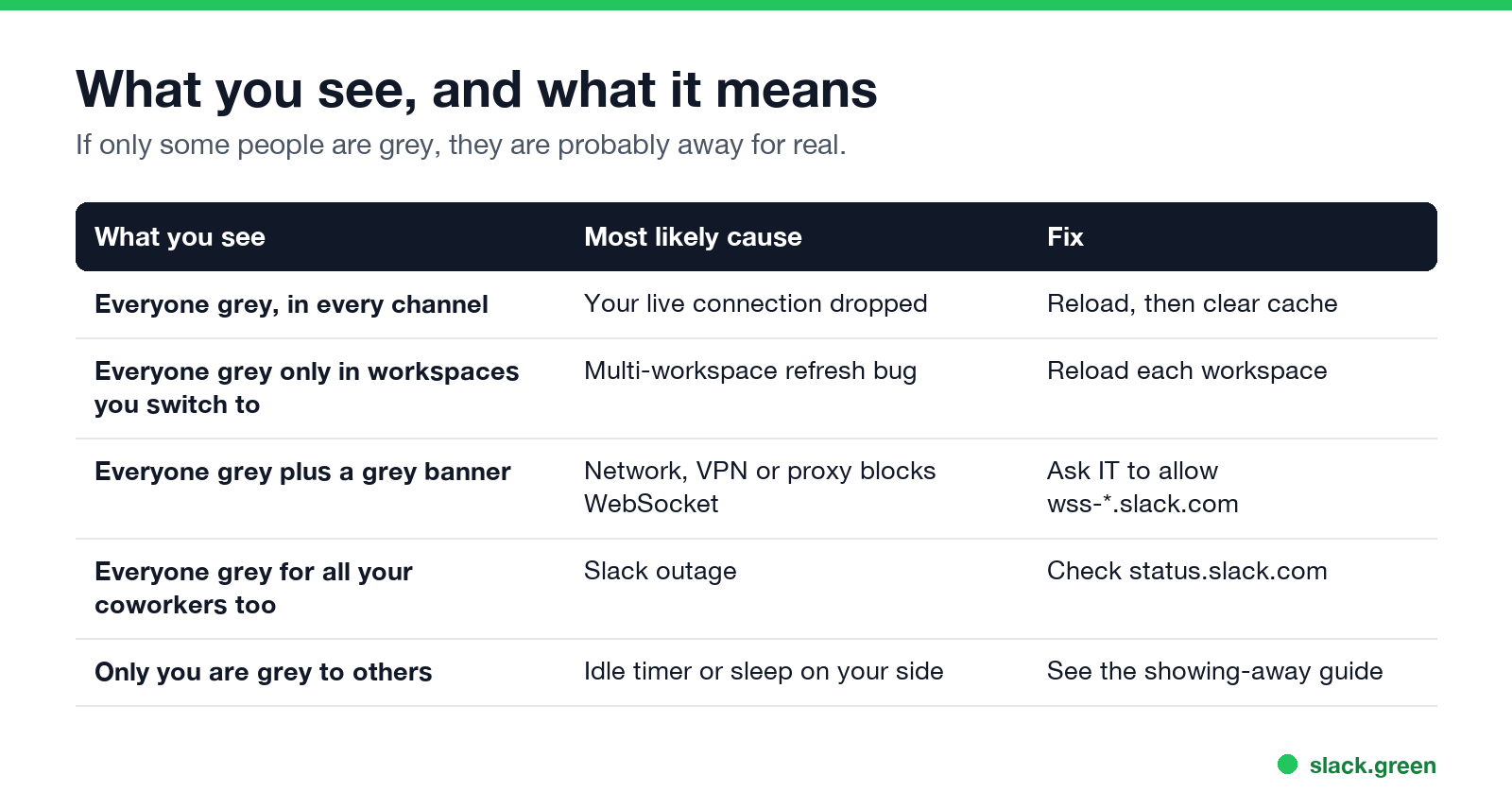
| What you see | Most likely cause | Fix |
|---|---|---|
| Everyone grey, in every channel | Your live connection dropped | Reload, then clear the cache |
| Everyone grey only in workspaces you switch to | Multi-workspace refresh bug | Reload each workspace, update the app |
| Everyone grey plus a grey banner | Network, VPN, or proxy blocks WebSocket | Ask IT to allow wss-*.slack.com |
| Your coworkers also see everyone grey | Slack outage | Wait, and check status.slack.com |
| Some people grey, some green | They are away | Nothing to fix |
Slack has no offline state separate from away. A hollow grey dot means away, and our guide to Slack away status meaning covers every icon.
When Slack shows you offline to everyone else
The same broken connection works in the other direction. If your app cannot reach Slack, it cannot report your activity, and your dot goes grey for your team while you work. Fix it with the same steps above.
If your connection is fine and you still go grey, the cause is different. Slack sets you away after 10 minutes without input inside the Slack window, when your computer sleeps, or when you leave the phone app. Those causes are in Slack keeps showing me away while working, and the rules are in how Slack decides when you are away.
A laptop that drops its VPN every hour will keep turning you grey. Slack Green keeps your session active from a server instead of from your laptop, so your dot stays green during the hours you set, even while your machine sleeps or reconnects. The other options are compared in how to keep Slack active.
On the phone
The Slack mobile app only keeps a live connection while it is on screen. When you open it, it reconnects and loads presence again, so a few seconds of grey dots right after you open it is normal. If the dots stay grey:
Your own dot on mobile turns grey as soon as you leave the app. That part is Slack's normal rule, covered in how to keep Slack active on your phone.
Some coworkers always show offline
Never appear "away" on Slack again
Cloud-based. No downloads. Works 24/7 even when your laptop is off.
If only a few people are always grey, nothing is broken. Two reasons cover most of them:
Slack also shows no "last seen" time, so a grey dot does not tell you if they left five minutes ago or last week. See does Slack show last seen.
FAQ
Why does Slack show everyone offline?
Your Slack app lost its live WebSocket connection, so it stopped getting presence updates. Reload with Cmd + R or Ctrl + R. If that does not help, use Clear Cache and Restart and check your VPN or proxy.
Does everyone else see me as offline too?
Often yes. If your app cannot reach Slack, it cannot report your activity either, and your dot goes grey for others. Reloading fixes both directions.
How do I refresh presence in Slack?
Reload the app with Cmd + R or Ctrl + R, or reload the browser tab. On mobile, close the app fully and open it again.
Is Slack down if everyone shows offline?
Usually not. Check status.slack.com. If there is no incident and your coworkers see green dots, the problem is your connection.
Why does my Slack keep going offline?
Your laptop sleeps, your network or VPN changes, or you are idle in Slack for 10 minutes. The first two drop the connection. The last one is Slack's away timer.
How can I tell if someone is deactivated on Slack?
Open their profile or your DM with them. Slack labels a deactivated account there. A grey dot alone does not mean the account is deactivated.
Stop Jiggling Your Mouse.
Join hundreds of remote workers who never worry about their Slack status. Set it up once, stay green forever.
Related Articles
Slack Status Not Updating? How to Fix a Stuck Status
A Slack status that will not update is usually a status you set yourself blocking the calendar, an app that has not synced, a status set in another workspace, automatic statuses turned off, or a stale client. How to tell which one, fix it, and tell a stuck status from a stuck dot.
Does PowerToys Awake Keep Slack or Teams Active? No, Here Is Why
PowerToys Awake keeps a Windows PC from sleeping, but it does not keep Slack or Teams active. Slack sets you away 10 minutes after your last input in its window and Teams after 5 minutes of inactivity, awake or not. How Awake works, its modes, and what does keep you green.
@here vs @channel vs @everyone in Slack: Who Gets Notified
@everyone notifies everyone in the general channel, @channel notifies every member of a channel, and @here notifies only members who are active right now. None of them work in threads or reach people with paused notifications. Which to use, and how admins restrict them.