
Mouse Jiggler for Windows: Install, Modes, and Does It Keep Slack Active
The most used mouse jiggler for Windows is the free, open-source Arkane Systems Mouse Jiggler. Install it with winget install ArkaneSystems.MouseJiggler, or unzip the mainline or portable build without admin rights. Its modes, command-line flags, and what it does for Teams and Slack.
The most used mouse jiggler for Windows is Mouse Jiggler by Arkane Systems, a free, open-source app on GitHub. Install it with winget install ArkaneSystems.MouseJiggler, or download the mainline zip (needs the .NET 10 Desktop runtime) or the portable zip (no .NET needed) from the releases page; both run without admin rights. Open it, tick Jiggling?, and it moves the pointer every 60 seconds by default, pausing whenever you move the mouse yourself. It keeps Windows from counting you idle, so the screen saver and sleep stay off and Microsoft Teams stays green. It keeps Slack green only when the pointer sits over the Slack window, because Slack counts only input inside its own window.
The project's own README is blunt about one more thing: "Mouse Jiggler is easily detectable by any decent monitoring software." If the goal is a green Slack dot on a work laptop, Slack Green does that from its own servers during the working hours you set, with nothing installed on Windows.
How to install Mouse Jiggler on Windows
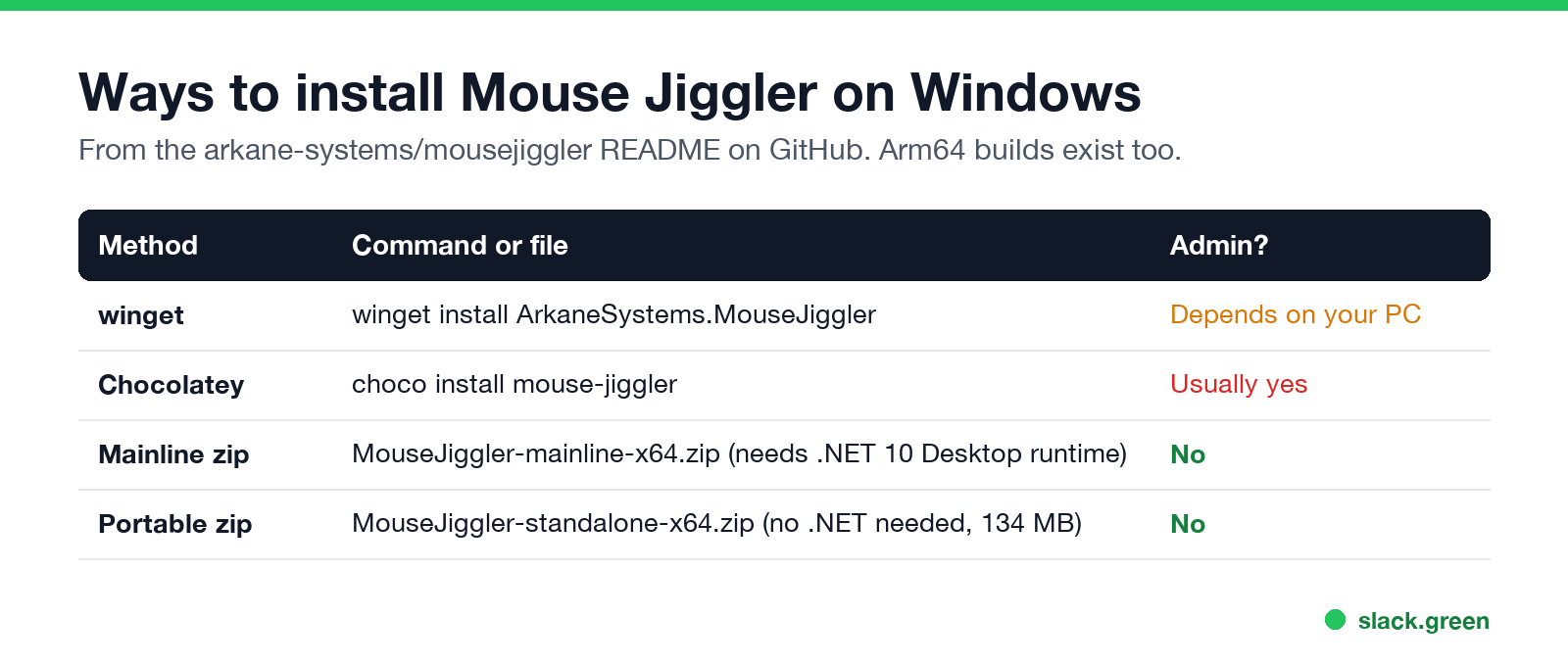
| Method | Command or file | Notes |
|---|---|---|
| winget | winget install ArkaneSystems.MouseJiggler | Easiest |
| Chocolatey | choco install mouse-jiggler | Needs Chocolatey |
| Mainline zip | MouseJiggler-mainline-x64.zip | No admin; needs .NET 10 Desktop runtime |
| Portable zip | MouseJiggler-standalone-x64.zip | No admin, no .NET; 134 MB |
The README asks you to use the portable build only if you cannot install .NET, because it is far larger. Arm64 builds are available for both.
How to use it
- Run
MouseJiggle.exe. - Tick Jiggling? to start, untick to stop.
- Tick Settings... to choose the mode, the interval, the distance, and a random timer.
- Click the down arrow to minimise it to the notification area.
Jiggling pauses when you move the mouse and resumes after one full interval without movement, so you can keep working.
Command-line flags
MouseJiggler -j -m -s 60 -o Normal| Flag | Meaning |
|---|---|
-j | Start jiggling at once |
-m | Start minimised |
-s <seconds> | Jiggle interval (default 60) |
-o <mode> | Normal, Zen, Circle or Linear |
-r | Random interval |
-d <n> | Distance multiplier |
To start it with Windows, the README points to the Startup folder or Task Scheduler; the app has no autorun option.
Mouse Jiggler modes, and what they do for Slack and Teams
Slack에서 다시는 '자리 비움'으로 표시되지 마세요
클라우드 기반. 다운로드 불필요. 노트북이 꺼져 있어도 24시간 작동.
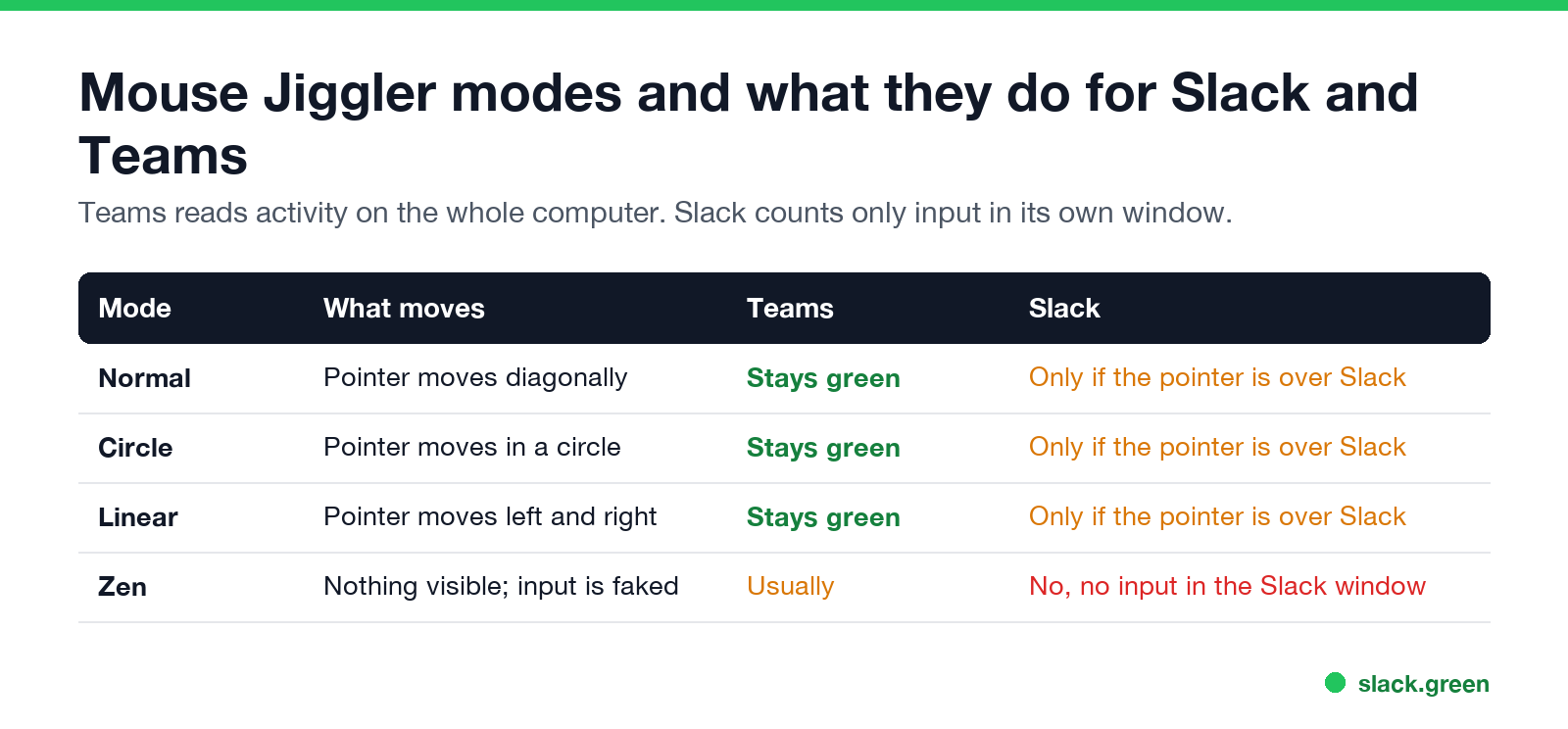
Teams reads activity on the whole computer, so any mode keeps it green; see how long before Teams shows you as Away. For Slack the details are in Slack Green vs mouse jiggler and how long does Slack stay active.
Can IT detect Mouse Jiggler?
Yes, and the author says so: the README warns it is "not a tool for sneaking past your IT department" and is easily detectable by monitoring software. A running app shows up in process lists, and software input on Windows carries an "injected" flag monitoring agents can read. How each kind of jiggler is found is in can a mouse jiggler be detected, and the policy side in is it illegal to use a mouse jiggler.
Alternatives on Windows
FAQ
Slack에서 다시는 '자리 비움'으로 표시되지 마세요
클라우드 기반. 다운로드 불필요. 노트북이 꺼져 있어도 24시간 작동.
Where do I download Mouse Jiggler for Windows?
From the arkane-systems/mousejiggler releases page on GitHub, or with winget install ArkaneSystems.MouseJiggler.
Does Mouse Jiggler need admin rights?
Not the zip builds. The mainline zip needs the .NET 10 Desktop runtime installed; the portable zip does not.
Does Mouse Jiggler keep Teams active?
Yes. Teams counts input anywhere on the computer.
Does Mouse Jiggler keep Slack active?
Only when the pointer is over the Slack window. Zen mode does not help Slack.
Is there a mouse jiggler built into Windows?
No. Windows has power settings and presentation mode, which stop sleep but create no input.
Related Articles
How to Connect Slack and Microsoft Teams: Calls, Messages and Status
Slack and Teams do not connect natively for chat. You can start Teams calls from Slack with the free Microsoft Teams Calls app, relay messages with a paid bridge such as Mio, and sync your Teams status to Slack with a short script. Every option, what it costs, and the setup steps.
Slack Active on Multiple Devices: Which One Sets Your Status?
When you use Slack on a phone and a computer at once, one active device is enough to keep you green, and a manual away on any device sets you away on all of them. The rule, common cases, and how notifications pick a device.
Slack Huddles vs Zoom: Which to Use for Team Calls
Slack huddles are quick calls inside Slack: 1:1 on the free plan, up to 50 people on paid plans, no recording. Zoom is built for scheduled, recorded and large meetings, with a free plan of 100 people for 40 minutes. Limits, cost, recording and privacy side by side.