
Can't Edit a Slack Message? The Edit Time Limit, Tested
Slack admins can cap message editing at 1 minute to 1 week, or turn it off. We set the 1-minute limit and timed when the Edit item and the API stopped working.
If Edit message is missing from the menu on your own Slack message, your workspace most likely has an edit time limit. Owners and admins pick it in the Message Editing setting: any time, never, or a window from 1 minute to 1 week after posting. On 10 October 2026 we set that window to 1 minute in our one-person test workspace on the Free plan. The Edit item was there 30 seconds after posting and gone at 67 seconds, and the API refused the edit with edit_window_closed.
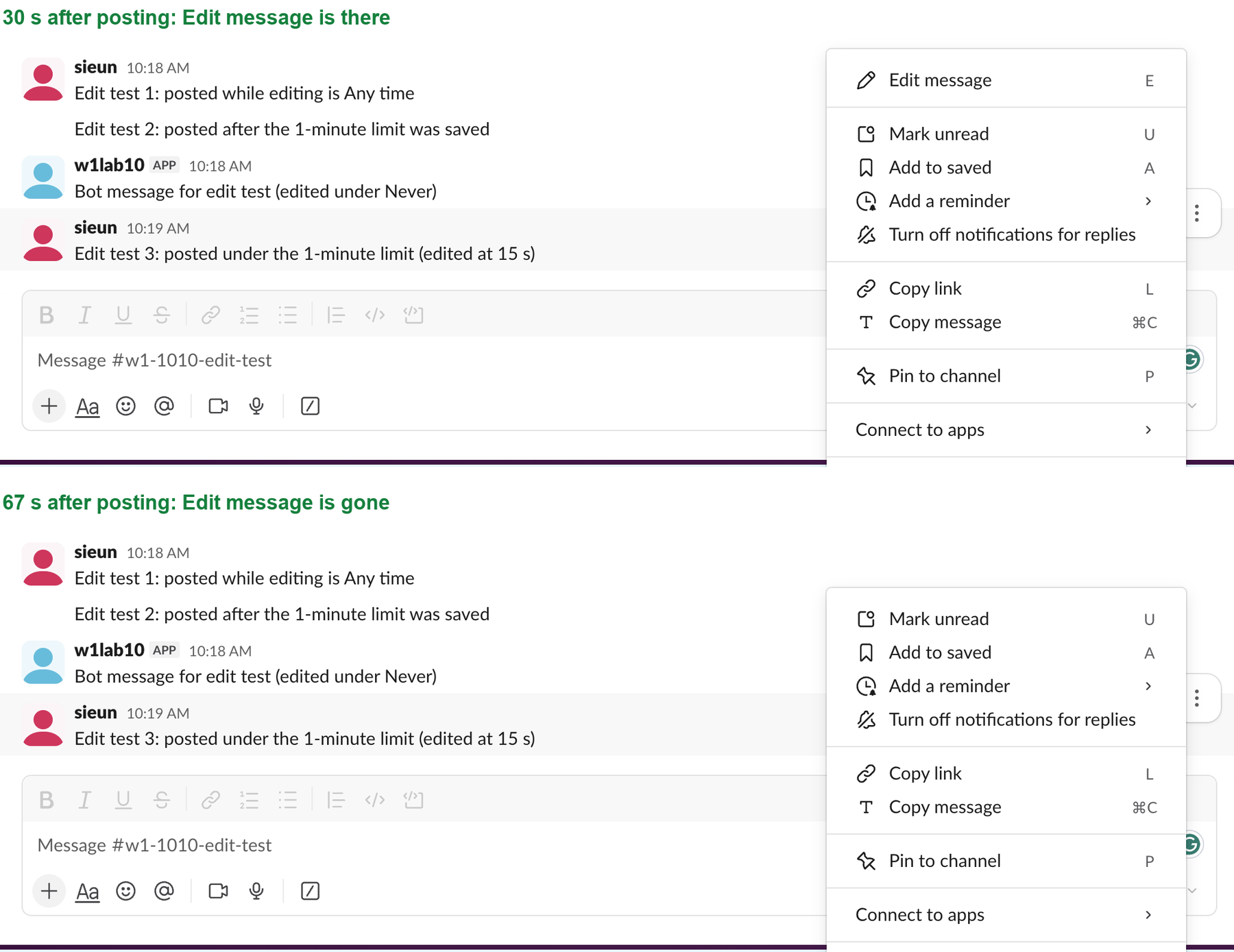
Why Edit message is missing
Slack shows Edit message only while the workspace allows it. Here is what our test showed for a message we posted ourselves:
| When | Edit message in the menu | chat.update result |
|---|---|---|
| 15 s after posting, limit 1 minute | Yes | ok: true |
| 30 s after posting | Yes | not called |
| 64 s after posting | No | edit_window_closed |
| 67 s after posting | No | not called |
| Limit set to Never, any message | No | edit_window_closed |
Delete message stayed in the menu in every case, and deleting the old message worked. The edit limit does not limit deleting.
There are other reasons the item can be missing. Slack shows Edit only on your own messages. On a message from our test app, the owner's menu had Delete message but no Edit message (see deleting someone else's Slack message). And if you can edit but people still see "(edited)", that label is how Slack marks every change (see does Slack show edited messages).
The eight Message Editing options
The setting lives in the admin pages, not in your own Preferences. It has no PRO badge, so it works on the Free plan.
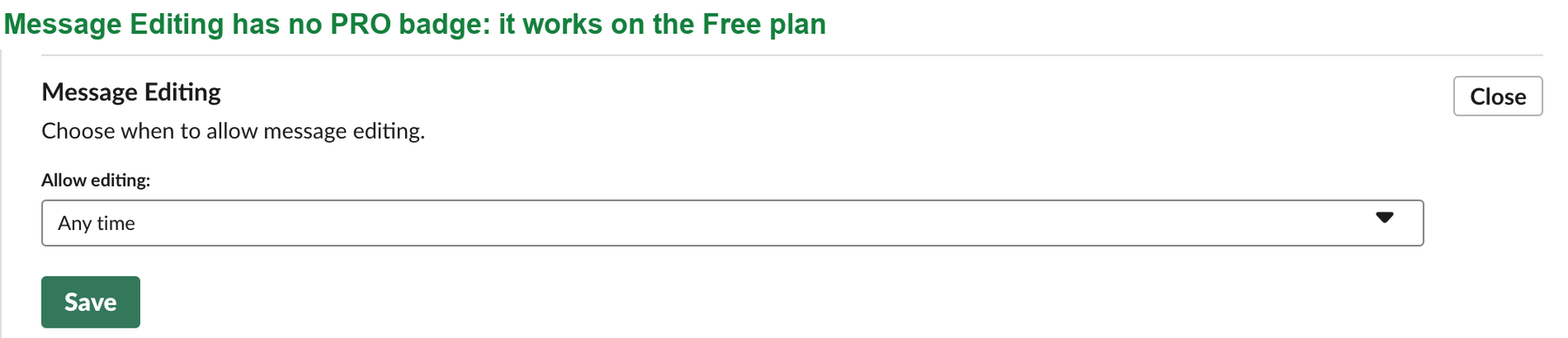
The drop-down offered these choices. The value in the right column is what the workspace stores in its msg_edit_window_mins setting:
| Choice in the drop-down | Stored value |
|---|---|
| Any time (the default) | -1 |
| Never | 0 |
| Up to 1 minute after posting | 1 |
| Up to 5 minutes after posting | 5 |
| Up to 30 minutes after posting | 30 |
| Up to 1 hour after posting | 60 |
| Up to 24 hours after posting | 1440 |
| Up to 1 week after posting | 10080 |
To change it as an owner or admin:
- Click Admin in the left rail, then Settings & permissions.
- Open the Permissions tab.
- Next to Message Editing, click Expand.
- Pick a choice under Allow editing and click Save.
The change applied at once. We saved Never and the next edit attempt failed a few seconds later.
Never appear "away" on Slack again
Cloud-based. No downloads. Works 24/7 even when your laptop is off.
The limit applies to owners, but not to apps
Our test account is the workspace's Primary Owner, and the limit still stopped it. Under Never, both an old message and a fresh one returned edit_window_closed.
A message from a Slack app was different. Our test app posted a message with its bot token and then changed it with chat.update while editing was set to Never. The edit went through and the message showed "(edited)". So an app can keep updating its own messages, such as a status post or a poll, whatever the member setting is.
The window is checked when you try to edit, not stamped on the message when you post it. A message that was a few minutes old and locked under the 1-minute rule became editable again the moment we set the workspace back to Any time.
What the API returns after the window
This is the call we ran with the test account's user token, 64 seconds after posting:
import requests

r = requests.post(
    "https://slack.com/api/chat.update",
    headers={"Authorization": "Bearer " + USER_TOKEN},
    data={"channel": "C0C877Q1666", "ts": "1791595178.609699", "text": "Edit test 3: edited after the minute"},
)
print(r.json())
{'ok': False, 'error': 'edit_window_closed'}The same call 15 seconds after posting returned ok: true. If you write a bot that edits messages for people, catch edit_window_closed and post a new message instead. The chat.update guide covers the other errors.
Questions
Is there a time limit to delete a Slack message?
Not from the Message Editing setting. In our test, Delete message stayed in the menu after the edit window closed, and chat.delete on the old message returned ok: true. Who may delete is a separate owner setting for role types.
Can I ask for the limit to be lifted for one message?
No. The setting covers the whole workspace. An admin can switch it to Any time, and your message becomes editable again right away, as our test showed.
Does the limit hide old edits?
No. It only stops new edits. Messages edited before the change keep their "(edited)" label, and your workspace's message retention policy decides how long the history stays.
Stop Jiggling Your Mouse.
Join hundreds of remote workers who never worry about their Slack status. Set it up once, stay green forever.
Related Articles
How to See All Your DMs in Slack, Including the Hidden Ones
The DMs tab lists your direct messages with people. App DMs, Slackbot and DMs with deleted accounts sit elsewhere. We compared the tab with the full list the Slack API returned.
Slack Images Not Showing? 5 Causes We Reproduced
We uploaded images to a Slack test channel and then switched each image setting off, ran /collapse, and posted from a bot that was not in the channel. Five causes, each reproduced.
How to Message Yourself on Slack (and What It Notifies)
Your own name under Direct messages opens a private DM with yourself. We sent it a note, a file, a scheduled message and a reminder, and checked which ones raised a badge.