
How to Connect Slack and Microsoft Teams: Calls, Messages and Status
Slack and Teams do not connect natively for chat. You can start Teams calls from Slack with the free Microsoft Teams Calls app, relay messages with a paid bridge such as Mio, and sync your Teams status to Slack with a short script. Every option, what it costs, and the setup steps.
Slack and Microsoft Teams have no built-in chat connection. There are four ways to connect them. The free Microsoft Teams Calls app lets you start and join Teams calls from Slack with /teams-calls. A third-party bridge such as Mio relays channel and direct messages between the two, as a paid service your IT team sets up. Channel email addresses forward single messages one way. For status, a short script can copy your Teams presence into your Slack status. If you are leaving Slack, Microsoft's Slack to Teams Migration Tool moves channels and messages across.
Status is the part most people who run both apps notice first. Teams shows you as available while you work in any app. Slack shows you as away 10 minutes after your last input in the Slack window. Slack Green keeps your Slack dot green during the working hours you set, from the cloud, so the two match.
Ways to connect Slack and Teams
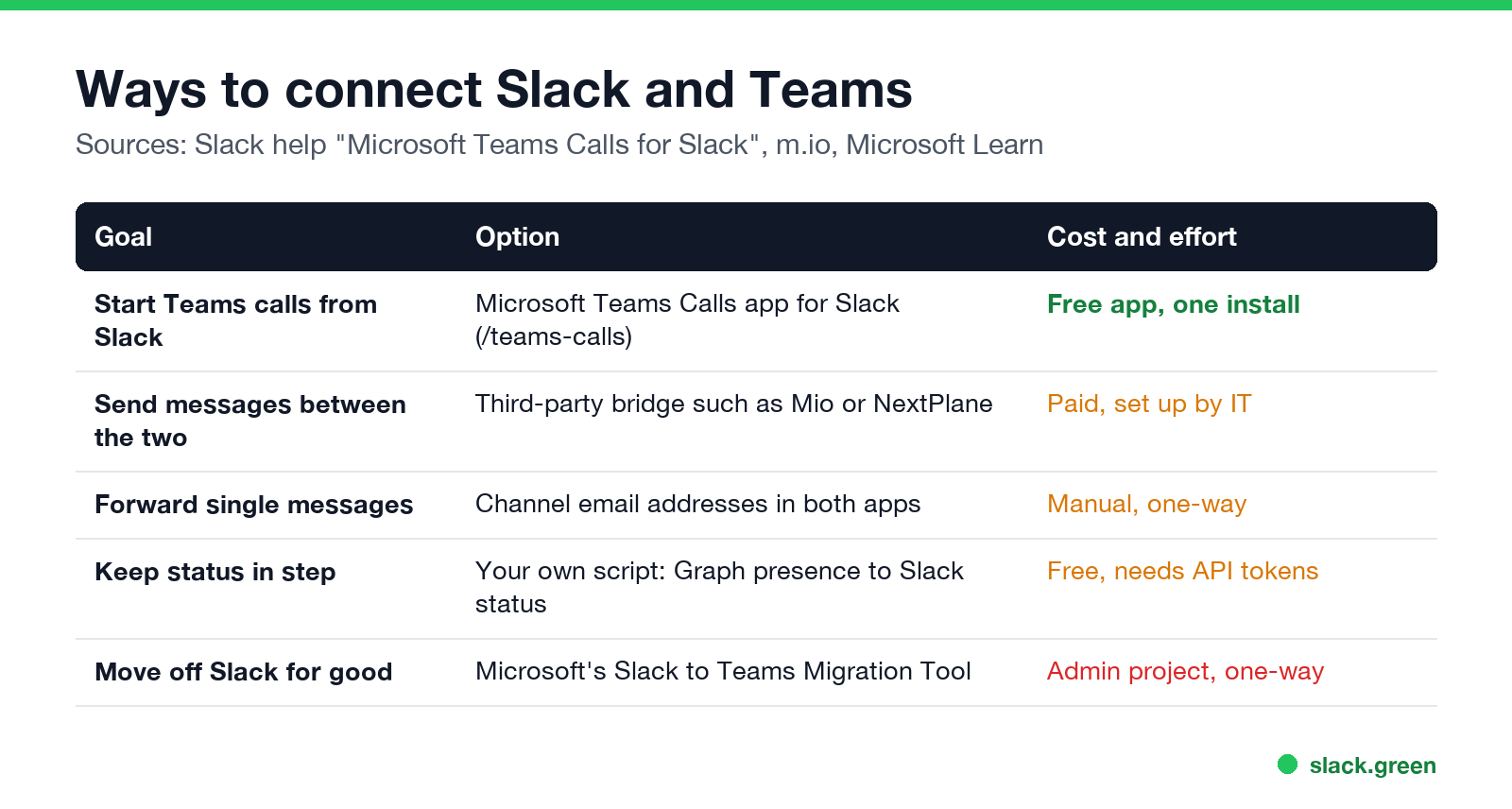
| Goal | Option | Cost and effort |
|---|---|---|
| Start or join Teams calls from Slack | Microsoft Teams Calls app for Slack | Free, one install |
| Send messages between Slack and Teams | Third-party bridge such as Mio or NextPlane | Paid, set up by IT |
| Forward a single message | Channel email addresses | Manual, one way |
| Keep status in step | A script: Microsoft Graph presence to Slack status | Free, needs API tokens |
| Move everything to Teams | Microsoft's Slack to Teams Migration Tool | Admin project, one way |
Start Microsoft Teams calls from Slack
Slack's help center documents the Microsoft Teams Calls app. It works with Office 365 work or school accounts and personal Microsoft accounts. It does not work with on-premises SharePoint or Microsoft national clouds such as Office 365 U.S. Government.
- Open the Microsoft Teams Calls page in the Slack Marketplace and click Add to Slack. Any member allowed to add apps can install it.
- Click Allow, sign in to your Microsoft account, then click Open Slack.
- In any channel or DM, send
/teams-calls. Everyone in the conversation sees a prompt to join. - Click Join, then Join now in Teams.
Add a title with /teams-calls meeting [Weekly sales review]. Disconnect with /teams-calls logout. Workspace Owners can also set Teams Calls as the default calling app. If you only need quick internal calls, a Slack huddle may be simpler; see Slack huddles vs Zoom.
Send messages between Slack and Teams
Nunca mais apareça como "ausente" no Slack
Na nuvem. Sem downloads. Funciona 24/7 mesmo com seu notebook desligado.
Neither company offers a chat bridge. Third-party services fill the gap. Mio, for example, describes itself as a notification-only integration: it listens for channel and direct messages sent to a user in Slack and relays them to the same user in Teams or Zoom Team Chat, with threads, reactions, edits and deletes. People keep using their own app. Mio says it does not store the messages it relays. NextPlane sells a similar service. Both are sold through sales teams and set up by admins on both sides.
This is the option for companies that must run both apps for a long time, for example after a merger or when a client insists on its own tool. For one external partner, Slack Connect or Teams external access is usually enough.
Email, for one-off messages: paid Slack plans can give a channel its own email address, and Teams channels can have one too. Forwarding an email into the other app's channel moves a single message across. It is one way and manual.
Sync your Teams status to Slack
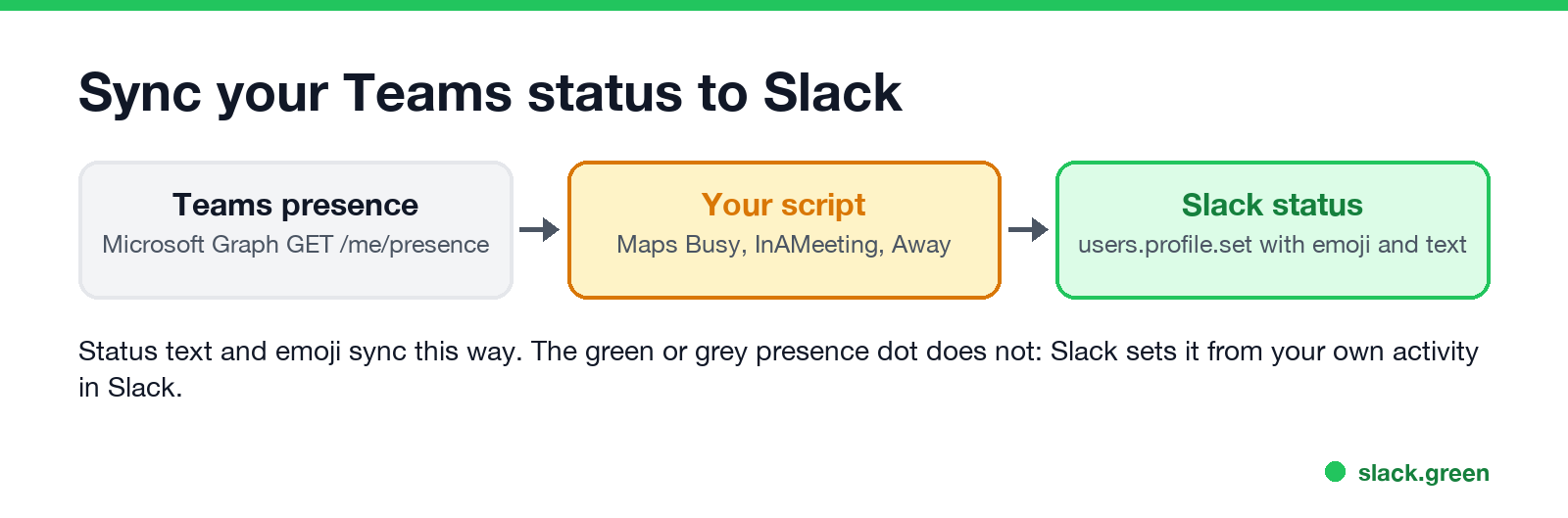
No app syncs Teams presence to Slack status out of the box. Slack's Outlook Calendar app sets a Slack status during meetings from your calendar; see sync Slack status with your calendar. For live Teams presence, a script can read Microsoft Graph and write your Slack status:
import os, time, requests

GRAPH_TOKEN = os.environ["GRAPH_TOKEN"]        # delegated token with Presence.Read
SLACK_TOKEN = os.environ["SLACK_USER_TOKEN"]   # xoxp- user token with users.profile:write

STATUS = {
    "Busy": ("In a Teams call", ":telephone_receiver:"),
    "DoNotDisturb": ("Focusing", ":no_bell:"),
    "Away": ("Away in Teams", ":clock3:"),
}

def teams_presence():
    r = requests.get("https://graph.microsoft.com/v1.0/me/presence",
                     headers={"Authorization": f"Bearer {GRAPH_TOKEN}"})
    return r.json()["availability"]

def set_slack_status(text, emoji):
    requests.post("https://slack.com/api/users.profile.set",
                  headers={"Authorization": f"Bearer {SLACK_TOKEN}"},
                  json={"profile": {"status_text": text, "status_emoji": emoji}})

last = None
while True:
    availability = teams_presence()
    if availability != last:
        text, emoji = STATUS.get(availability, ("", ""))
        set_slack_status(text, emoji)
        last = availability
    time.sleep(60)
The Graph token needs the Presence.Read permission, and the Slack token is a user token with users.profile:write. Graph access tokens expire after about an hour, so a long-running version should refresh its token. The Slack side is covered step by step in set Slack status with the API.
This syncs the status text and emoji. It does not change the green or grey presence dot. Slack sets the dot from your own activity in the Slack window; see the Slack presence API. To keep both dots green during your working hours, see keep Teams and Slack active.
Move from Slack to Teams
If the goal is to leave Slack, Microsoft Learn documents the Slack to Teams Migration Tool, which runs in the Microsoft 365 admin center. It moves public and private channels, channel messages with threads and standard reactions, file attachments, canvas and list content, and channel membership. It works from a Slack export package that a Slack admin generates and uploads to Azure Blob Storage in your own tenant. It is one way. Before you choose, compare the two apps in Slack vs Teams.
FAQ
Nunca mais apareça como "ausente" no Slack
Na nuvem. Sem downloads. Funciona 24/7 mesmo com seu notebook desligado.
Can you integrate Slack into Teams?
Not natively for chat. You can start Teams calls from Slack with the Microsoft Teams Calls app, and relay messages with a third-party bridge.
Is there a free Slack to Teams bridge?
The Teams Calls app is free but handles calls only. Message bridges such as Mio and NextPlane are paid services.
Can I sync my Teams status with Slack?
Status text and emoji, yes, with a script that reads Microsoft Graph presence and calls Slack's users.profile.set. The presence dot cannot be synced.
Why am I available in Teams but away in Slack?
Teams counts input anywhere on your computer. Slack counts only input in the Slack window, and marks you away after 10 minutes. See how long does Slack stay active.
How do I migrate Slack data to Microsoft Teams?
Use Microsoft's Slack to Teams Migration Tool in the Microsoft 365 admin center, with a Slack export package.
Pare de Mexer o Mouse.
Centenas de trabalhadores remotos não se preocupam mais com o status do Slack. Configure uma vez, fique verde para sempre.
Related Articles
Slack Lists Tutorial: Create, Organize and Share a List
Slack lists are tables of tasks inside Slack, with fields, assignees, due dates, a board view and a comment thread on every item. How to create a list from scratch or a template, set up fields, turn it into a kanban board, add messages to it, share it, and what the plan limits are.
Slack Jira Integration: Setup, /jira Commands and Notifications
Install the Jira Cloud for Slack app, type /jira connect in a channel to send a Jira space's updates there, /jira notify for personal notifications as DMs, and create work items from any message with More actions. Every /jira command, Jira automation to Slack, and fixes when previews or notifications stop.
How to Create a Slack Workspace, on Desktop or Phone
Go to slack.com/get-started, enter your email, type the confirmation code, and click Create a Workspace. It is free to start, you become the Primary Owner, and it takes about five minutes. Steps for desktop, iPhone and Android, and what to set up next.