
How to Hide Your Online Status on Webex
Webex has no Appear offline button. You can stop sharing your availability with everyone, hide it from specific people, or set Busy or Do not disturb. Where each setting is on desktop and mobile, what coworkers see, and what it costs you.
To hide your online status on Webex, click your profile picture, open Settings, General, and under Availability and status clear Show availability and statuses, then click Save. On a Mac the menu is called Preferences. On a phone, tap your profile picture, then Settings, General, and turn off Share Your Status. Nobody sees whether you are active after that, and you stop seeing anyone else's status too. To hide it only from certain people, use Settings, Privacy, Hide my availability and status from another person instead.
Webex App has no Appear offline status. The steps below cover every way to go quiet in Webex, and what your coworkers see for each one. If you also use Slack at work, the Slack side is covered in can you appear offline on Slack, and Slack Green keeps your Slack status active during the hours you set without the app running.
Four ways to go quiet in Webex
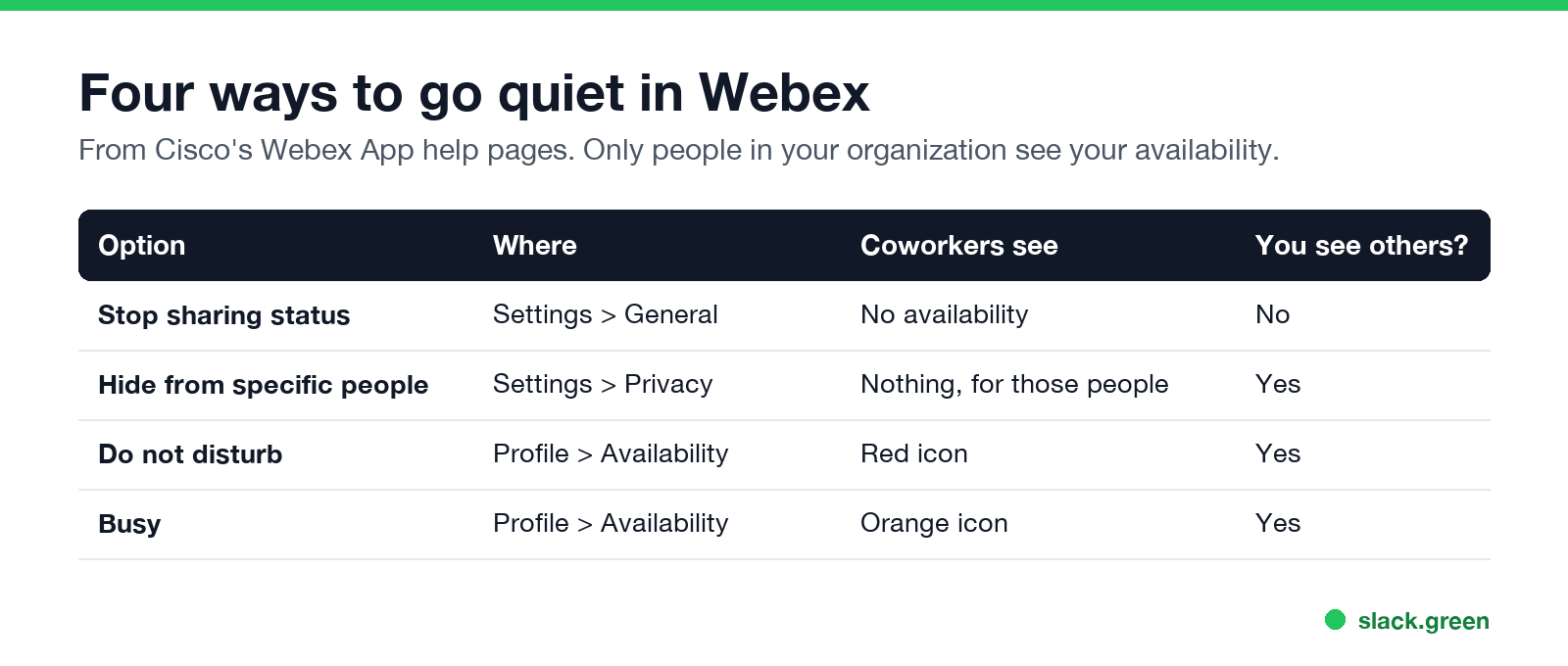
| Option | Where | What coworkers see | Your notifications | You still see others? |
|---|---|---|---|---|
| Stop sharing your status | Settings, General | No availability for you | Normal | No |
| Hide from specific people | Settings, Privacy | No availability, for those people only | Normal | Yes |
| Do not disturb | Profile picture, Availability | Red icon | Off until it ends | Yes |
| Busy | Profile picture, Availability | Orange icon | Normal | Yes |
What each icon means, from the orange busy icon to the moon for quiet hours, is in Webex status icons meaning. Only people in your own organization can see your Webex availability in the first place. Guests and people from other companies never see it, so you do not need to hide from them.
Stop sharing your status with everyone
From Cisco's help page, per device:
- Windows: click your profile picture, then Settings, General. Under Availability and status, clear Show availability and statuses, then click Save.
- Mac: click your profile picture, then Preferences, General. Clear the same box and click Save.
- iPhone and Android: tap your profile picture, then Settings, General, and turn off Share Your Status.
- Web: click your profile picture, then Settings, General. Under Status, clear Show statuses and click Save.
The cost is that this works both ways. Once you stop sharing, you also lose the availability of everyone else, so you cannot check whether a colleague is in a meeting before you call. If the check box is missing, your organization may manage the setting for everyone.
Hide your status from specific people
Never appear "away" on Slack again
Cloud-based. No downloads. Works 24/7 even when your laptop is off.
This is closest to what most people want: invisible to one manager or one busy channel, normal for everyone else.
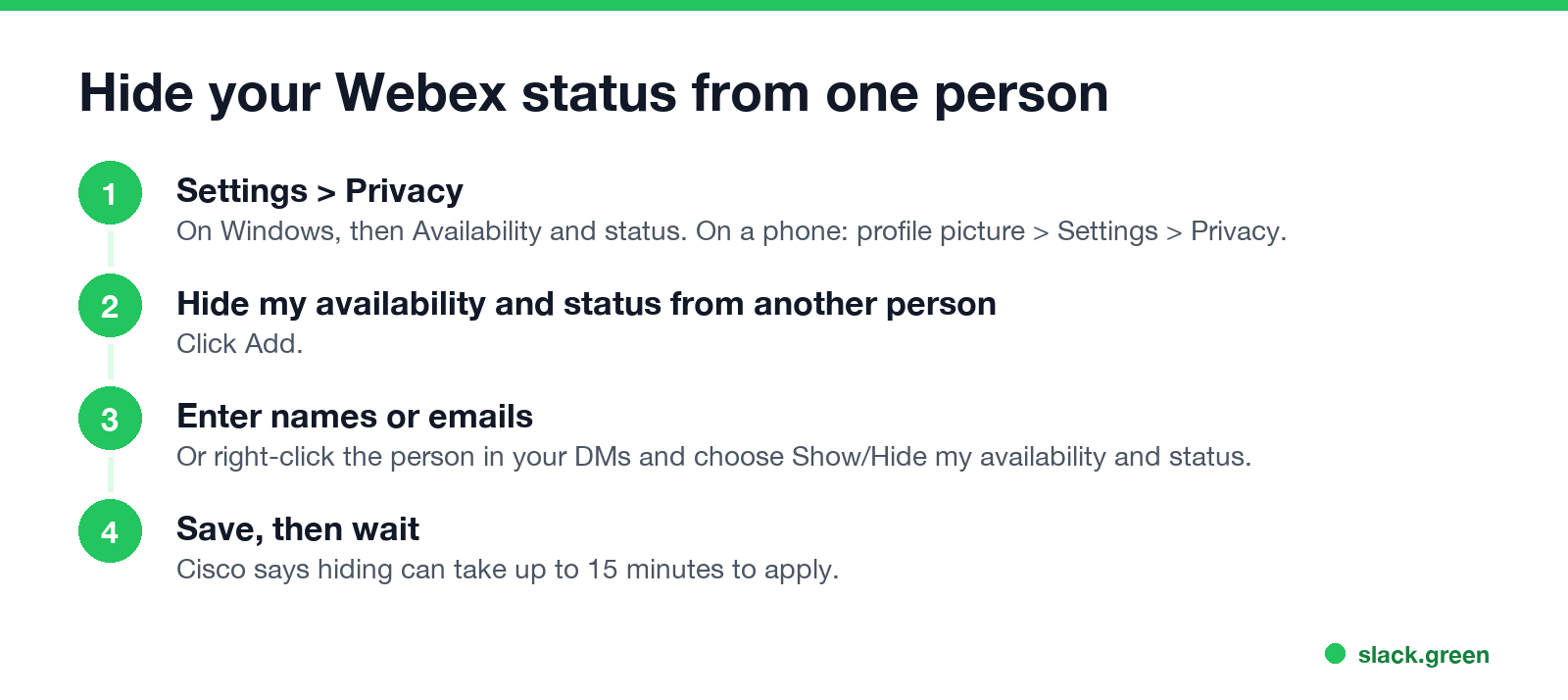
The shortcut is to right-click the person in your direct messages or contacts list and choose Show/Hide my availability and status. On a phone, long-press the person and tap Hide my availability and status, then Hide.
Cisco says it can take up to 15 minutes for the change to apply. Allow the same time when you undo it, and do not test it by asking the person thirty seconds later.
Do not disturb and Busy
These two do not hide you. They replace your green icon with a status that tells people to wait:
Set either one from your profile picture, Availability, then pick a length of time or Set a time. To end it early, open Availability and click Clear. Both tell people why you are not replying, so nobody has to guess why your status vanished.
What coworkers see when you hide your status
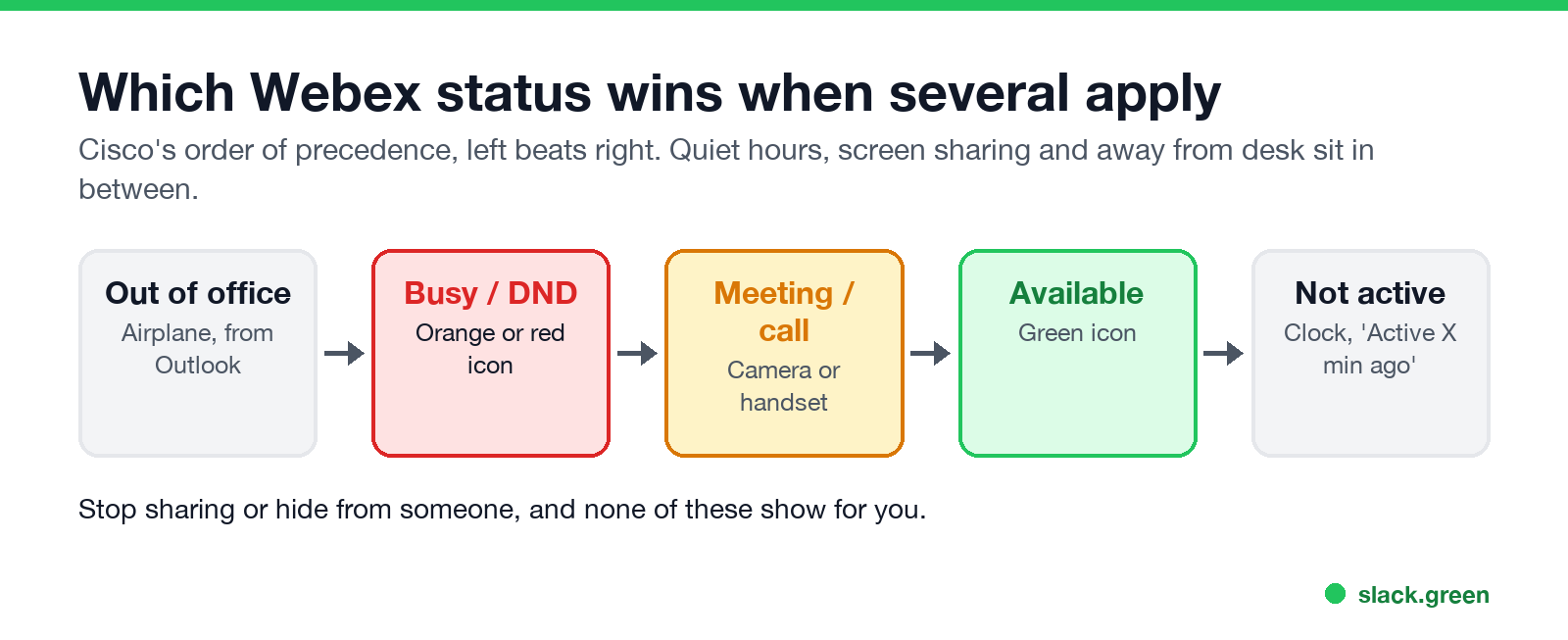
Webex shows one availability state at a time, picked in this order from Cisco's list: out of office (airplane, from your Outlook reply), away from desk (gray handset), Busy, Do not disturb, quiet hours (moon), sharing your screen, in a meeting, on a call, Available, and not active (clock with "Active X minutes ago").
When you stop sharing or hide from someone, none of these show for you. The person you hid from sees nothing where your status would be, which is itself a sign that you hid it. Your messages, reactions and replies still appear with their times, and you still show up in meeting participant lists.
Quit the app to look offline
Never appear "away" on Slack again
Cloud-based. No downloads. Works 24/7 even when your laptop is off.
The only way to look fully offline is to not be signed in. Quit Webex from the system tray on Windows or the menu bar on a Mac, and sign out on your phone. After a while your status changes to the clock icon with "Active X minutes ago". Closing the window alone often leaves Webex running in the background.
If your goal is the opposite, to stay green while you step away, see how to keep Webex status active.
Webex, Teams and Slack compared
| App | Appear offline button | Hide from one person | Guide |
|---|---|---|---|
| Webex | No | Yes, in Settings, Privacy | This page |
| Microsoft Teams | Yes, Appear offline | No | How to appear offline on Teams |
| Slack | No, set yourself away | No | Can you appear offline on Slack |
For the icons each app uses, see Microsoft Teams status icons and Zoom status icons.
FAQ
Can you appear offline on Webex? Not with a status. Stop sharing your availability, hide it from chosen people, or quit the app.
Does my manager know I hid my status? Webex does not send a notice. But your status disappears for them, which is easy to notice if they used to see it.
How do I set my Webex status back to Available? Open Availability and click Clear, turn Show availability and statuses back on, and remove the person from the hide list. Allow up to 15 minutes.
What is the Webex default status? Status sharing is on by default. You show as Available while you use your computer or the mobile app, and as "Active X minutes ago" after that.
Stop Jiggling Your Mouse.
Join hundreds of remote workers who never worry about their Slack status. Set it up once, stay green forever.
Related Articles
How to Keep Skype Status Active: Skype for Business Idle Timers
To keep your Skype for Business status active, open Options, Status, and raise both idle timers, Inactive and then Away, from 5 minutes to as much as 360 minutes each. Consumer Skype shut down on May 5, 2025 and Skype for Business Online in 2021, so for most people the real question is now Teams. What still works, status icons, Outlook, and status not updating.
Is It Legal for My Employer to Monitor Me? US, EU and UK Rules
In the US it is mostly legal for an employer to monitor company devices, accounts and premises, often without asking. The limits are state notice laws in New York, Connecticut and Delaware, consent rules for audio recording and biometrics, bans on cameras in restrooms, and your personal devices. The EU, UK and parts of Canada and Australia add notice and proportionality rules.
Can My Employer See My Personal Email on My Work Computer?
Your employer cannot sign in to your Gmail, and doing so without permission can break the Stored Communications Act. But on a work computer, screenshot and keystroke monitoring, browser history, HTTPS inspection and Outlook's local cache can all expose personal email. Work email is fully visible, deleted messages included. Case by case, with what to do.