
How to Translate Slack Messages (Free Plan Tested)
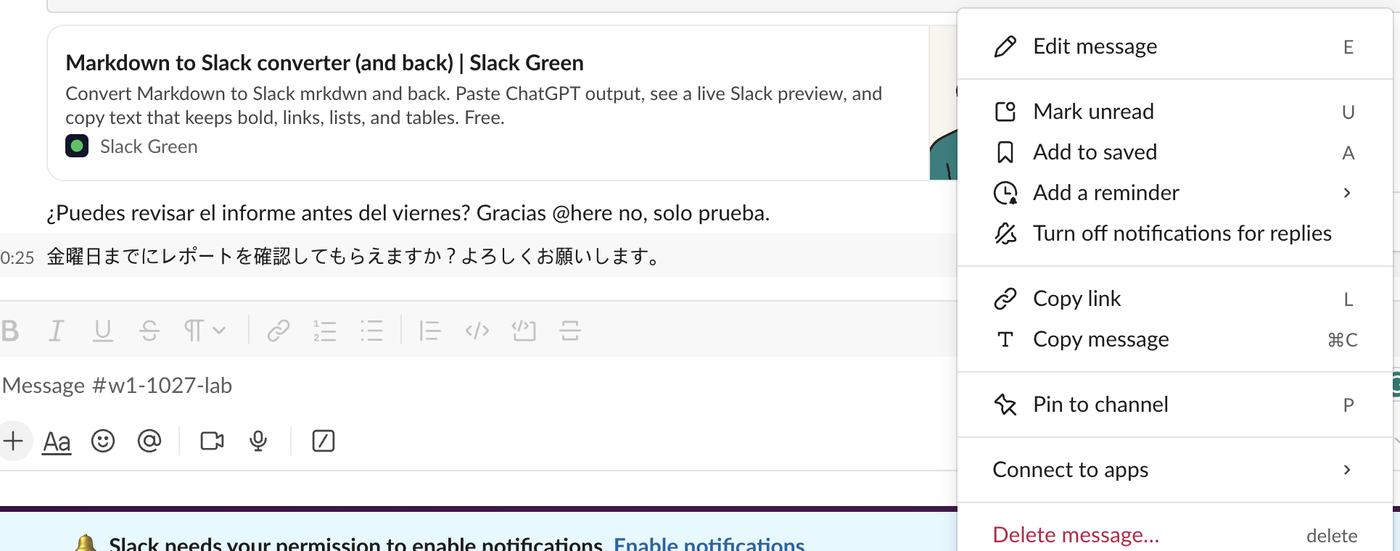
Slack's built-in Translate message is a Slack AI feature on Business+ and Enterprise+. On our Free workspace the message menu had no Translate item, but Slackbot translated a Spanish and a Japanese message when asked.
Slack can translate messages on the Business+ and Enterprise+ plans: set a translation language under Preferences > Language & region, then choose Translate message from a message's three-dot menu. On the Free plan that menu item does not exist. On October 27, 2026 we posted a Spanish and a Japanese message in our Free test workspace, looked for every built-in translation option, and found one that works on Free: asking Slackbot.
What the Free plan shows
The message menu on Free has no Translate message item. This is the full menu on our Japanese test message:
Preferences > Language & region had no Translation language setting either, only the app language, time zone, keyboard layout and spellcheck:
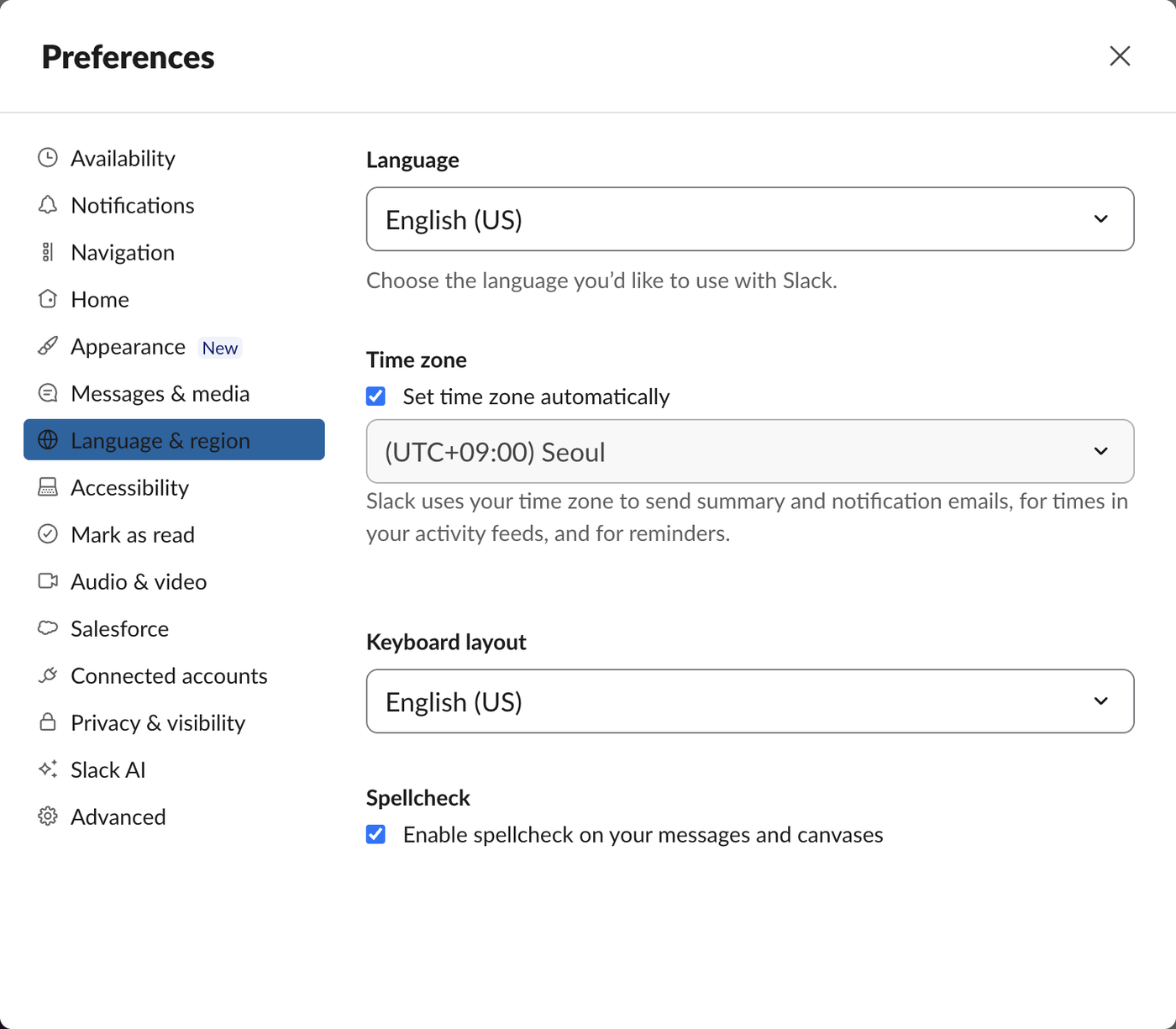
Slack's help lists Translations as a Slack AI feature on Business+ and Enterprise+ only, not Pro. On those plans the translation is shown only to you; everyone else still sees the original message.
Translate on Free: ask Slackbot
Our Free workspace had Slackbot's AI chat as a Preview. We asked it in plain English to translate the last two messages in our test channel:
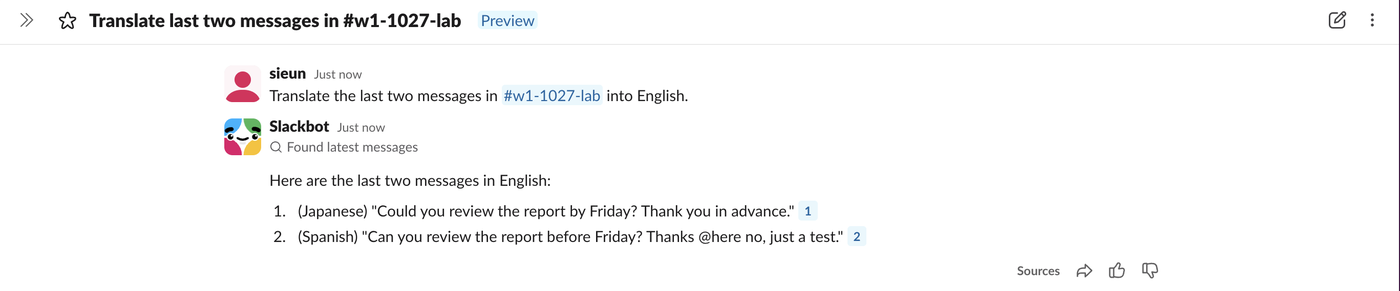
Both translations were correct, and each one linked back to the source message. The @here in the Spanish message stayed as plain text in the translation. Slack's help says Slackbot may be available to preview in a limited capacity on the Free and Pro plans, so this can change or disappear.
The steps:
- Click Slackbot at the top of the left tab rail.
- Ask, for example: "Translate the last two messages in #channel-name into English."
- To translate a message from a DM or a thread, paste the text into the question instead.
Never appear "away" on Slack again
Cloud-based. No downloads. Works 24/7 even when your laptop is off.
Other ways to translate
Marketplace apps. Three of the top Google results for this query are translation apps in the Slack Marketplace. We did not install one for this test. On a Free workspace an app uses one of the 10 app slots, see Slack free plan limits, and it needs permission to read the channels it translates.
Copy and paste. Slack's Copy message puts plain text, HTML and markdown on the clipboard, so a message pastes cleanly into any translator; copying text from Slack with formatting shows what each format keeps.
Is it worth upgrading for translation?
Translation alone is a Business+ feature, two plan steps above Free. Is Slack Pro worth it and Is Slack AI worth it compare what each plan adds. For the odd message, Slackbot on Free did the job in our test.
FAQ
Can Slack translate messages automatically?
Not with the built-in feature: on Business+ and Enterprise+ you translate one message at a time from its menu. Some Marketplace apps offer automatic translation; we did not install one to test it.
Stop Jiggling Your Mouse.
Join hundreds of remote workers who never worry about their Slack status. Set it up once, stay green forever.
Related Articles
How to Mark a Message Urgent in Slack (There Is No Flag)
Slack has no urgent or priority flag on messages. On October 27, 2026 we checked every menu in the Free plan's message box and message menu and found none. What works instead: a DM, @here or @channel, a reminder on the message, and the reader's VIP and keyword settings.
How to Delete a Thread in Slack (Parent and Replies)
Slack has no delete-thread button. Deleting the first message leaves 'This message was deleted.' with the replies still attached; the thread only disappears once every reply is deleted too. We tested both in the app and through the API on October 27, 2026.
How to Delete Files in Slack (Deleting the Message Is Not Enough)
Delete a Slack file from Files or from the file's own menu with Delete file. In our October 27, 2026 test, Delete message on a file post removed the post but left the file on Slack's servers. We also deleted files in bulk with a short script.