
Skype Status Icons Meaning: Every Color in Skype and Skype for Business
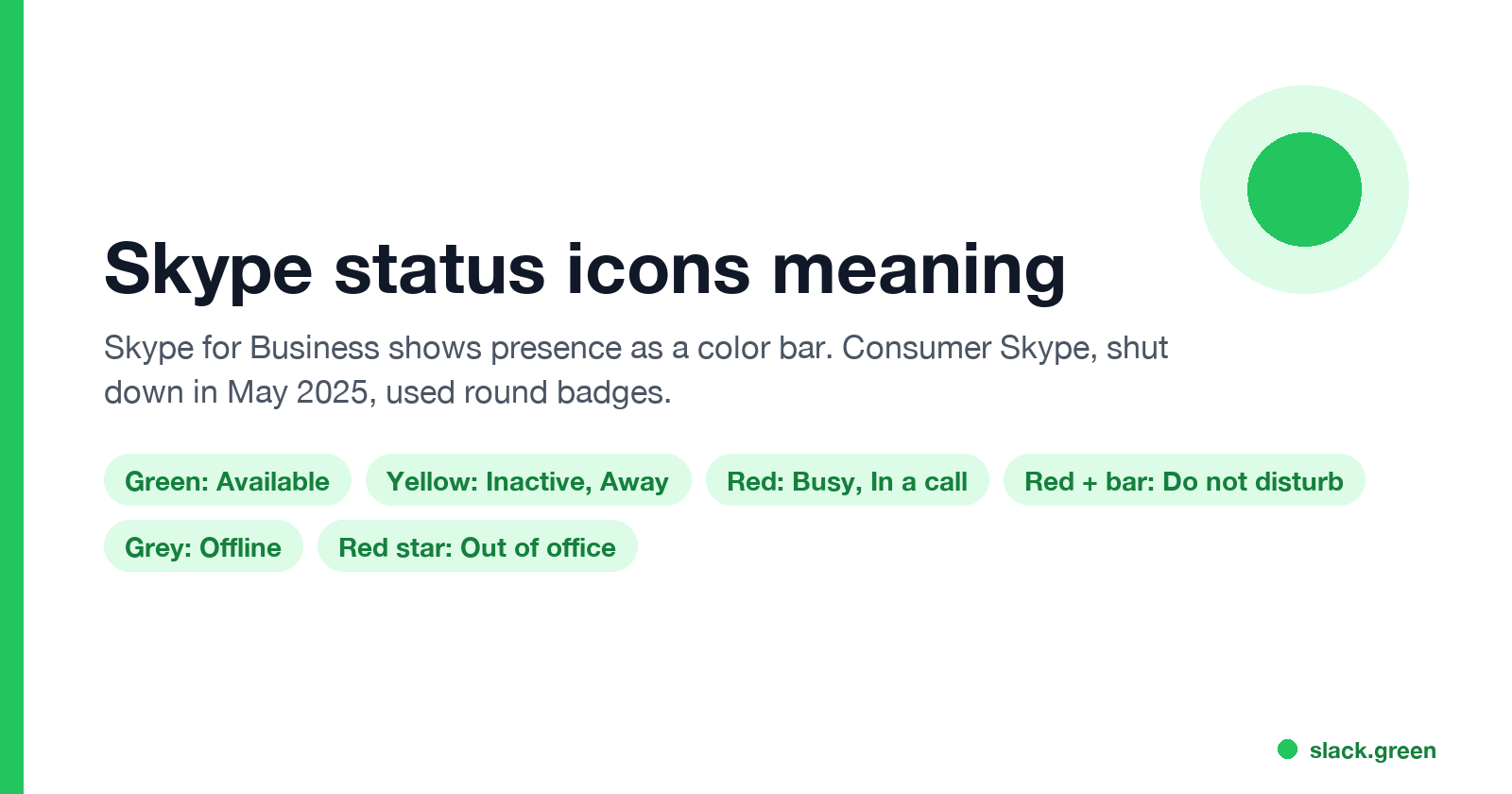
In Skype for Business, green means Available, yellow means Inactive, Away, Be right back or Off work, red means Busy, In a call or In a meeting, red with a bar means Do not disturb or Presenting, and grey means Offline or Unknown. A red star means Out of office. Consumer Skype used a green check, yellow clock, red minus and an empty circle.
In Skype for Business, the color bar next to a picture shows presence. Green means Available. Yellow means Inactive, Away, Be right back or Off work. Red means Busy, In a call, In a meeting or In a conference call. Red with a white bar means Do not disturb or Presenting. Grey means Offline or Unknown. A red star or asterisk (*) next to the status means Out of office is on. Consumer Skype, which Microsoft shut down on May 5, 2025, used round icons: a green check for Active, a yellow clock for Away, a red minus for Do not disturb and an empty circle for Invisible or Offline.
We build Slack Green, which keeps your Slack status active from our servers during the hours you set. Many companies that still run Skype for Business also use Slack, whose dot turns grey 10 minutes after your last input in the Slack window.
Skype for Business status colors, one by one
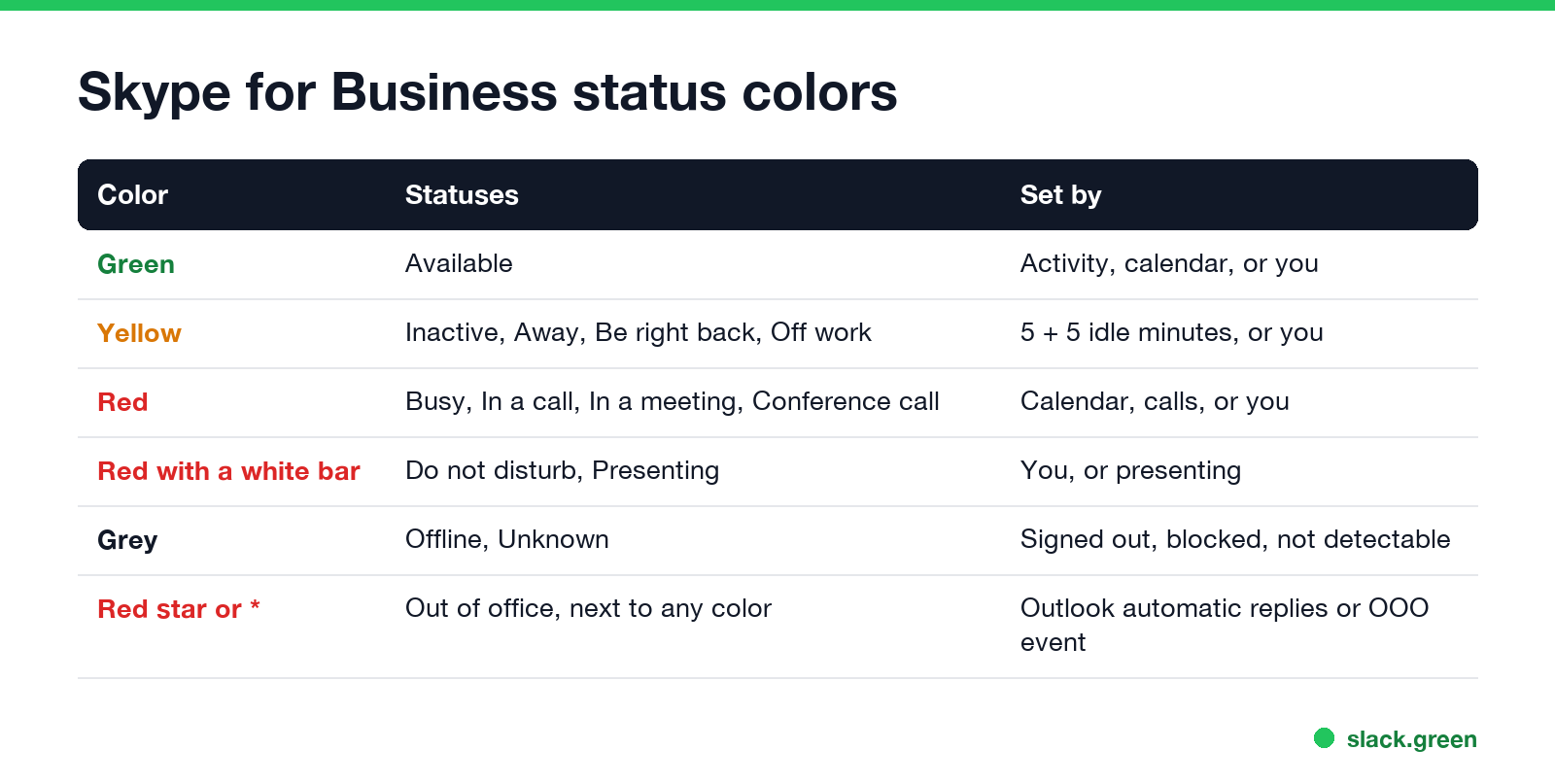
Microsoft's support page "Change your presence status in Skype for Business" lists every status. Grouped by color:
| Color | Status | How it gets set |
|---|---|---|
| Green | Available | From keyboard activity or your Outlook calendar, or by hand |
| Yellow | Inactive | Computer idle for 5 minutes, by default |
| Yellow | Away, Appear away | Inactive for 5 more minutes, or by hand |
| Yellow | Be right back, Off work | Only by hand |
| Red | Busy | From an Outlook meeting marked Busy, or by hand; a manual Busy reverts after 24 hours |
| Red | In a call, In a meeting, In a conference call | From a Skype call, your calendar, or joining a Skype meeting |
| Red with a white bar | Do not disturb | Only by hand; reverts to your calendar status after 24 hours |
| Red with a white bar | Presenting | When you present in a Skype meeting, if the option is on |
| Grey | Offline | Not signed in, or shown to people you blocked |
| Grey | Unknown | Presence cannot be detected, often for contacts on another chat app |
Microsoft notes that the statuses are preset. You cannot make your own, but you can add a personal note, which shows on your contact card.
What the yellow clock means in Skype
Yellow means the person is signed in but not at the keyboard, or told Skype so. In Skype for Business there are two automatic yellow states, one after the other:
- Inactive, after the computer has been idle for 5 minutes.
- Away, after 5 more minutes of Inactive.
Both timers can be raised to 360 minutes each in Options > Status, as covered in how to keep your Skype status active. Be right back, Off work and Appear away are also yellow, but only the person can set those. Locking the computer also turns most setups yellow right away.
In consumer Skype, the yellow clock icon meant Away. Skype set it after a few minutes without input, or you picked it from your profile menu.
What the red star or asterisk means
Never appear "away" on Slack again
Cloud-based. No downloads. Works 24/7 even when your laptop is off.
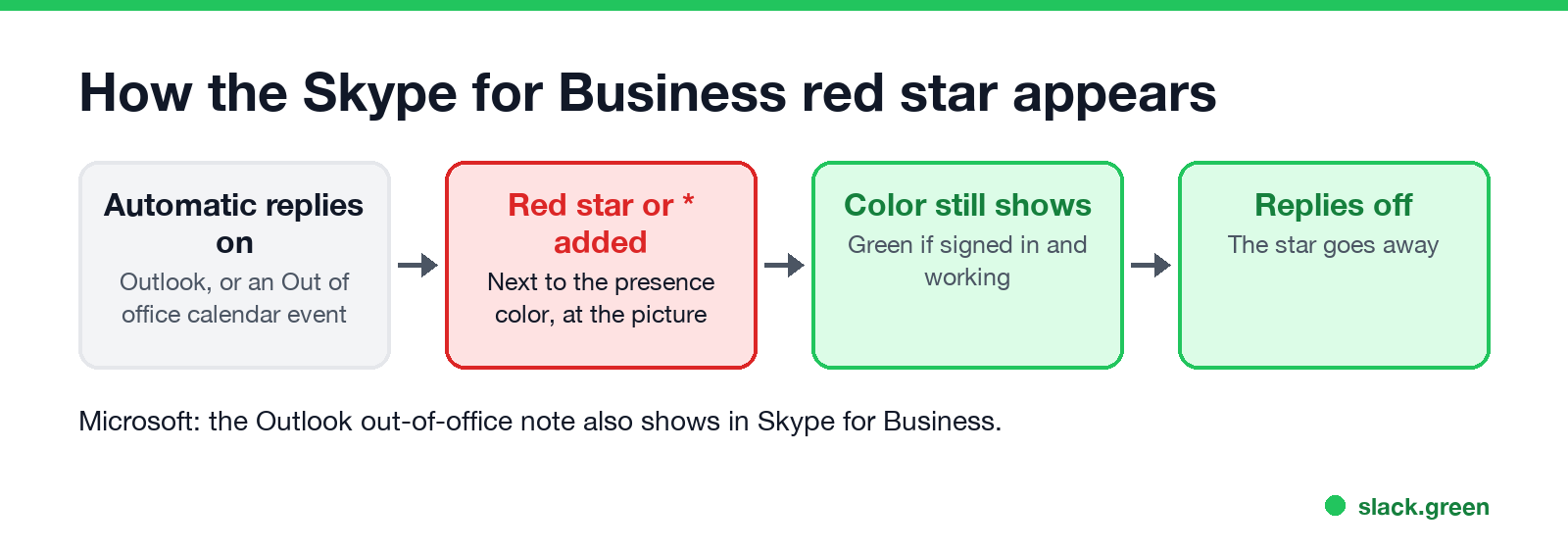
A red star or an asterisk (*) next to the presence status means Out of office. Microsoft's support page says it "appears next to your presence status at bottom of your picture display area" when you turn on automatic replies in Outlook, and the reply note you wrote shows in Skype for Business too. A calendar event marked Out of office sets it as well.
The star sits next to the normal color. So a person can be green with a red star: they turned on automatic replies but are still signed in and working, for example at a conference. Teams draws the same combination as an open icon, which is explained in white circle with a green check on Teams.
Consumer Skype status icons (before May 2025)
Consumer Skype had fewer states and used round badges on the profile picture:
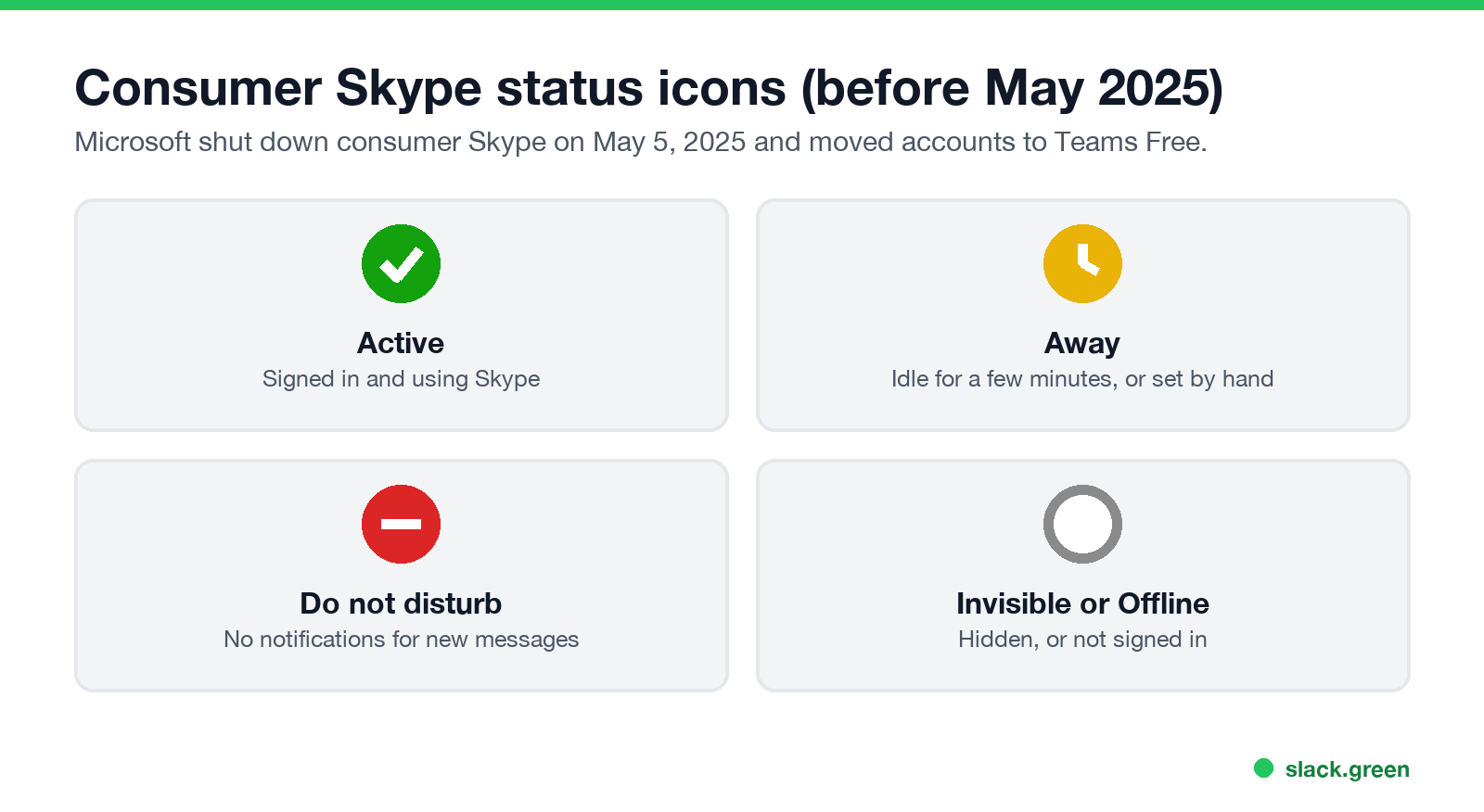
| Icon | Status | Meaning |
|---|---|---|
| Green circle with a white check | Active | Signed in and using Skype |
| Yellow circle with a clock | Away | Signed in, idle for a few minutes, or set by hand |
| Red circle with a white minus | Do not disturb | No notifications for new messages |
| Empty circle | Invisible or Offline | Hidden, or not signed in |
Microsoft retired consumer Skype on May 5, 2025 and moved accounts to Teams Free. If you open Teams Free today, it uses the Teams icons, listed in Microsoft Teams status icons meaning.
Skype vs Teams vs Slack status colors
Skype for Business counts mouse and keyboard input anywhere on the computer, so any work on the PC keeps you green. Slack counts only input inside its own window, which is why its dot goes grey while you work in Excel.
Skype status icons questions
Never appear "away" on Slack again
Cloud-based. No downloads. Works 24/7 even when your laptop is off.
What does yellow mean on Skype? Inactive or Away: the computer has been idle, or the person set Away, Be right back or Off work.
What does the red star mean in Skype for Business? Out of office. Automatic replies are on in Outlook, or the calendar shows Out of office.
What is the difference between Inactive and Away in Skype for Business? Inactive comes first, after 5 idle minutes. Away follows after 5 more. Both are yellow.
Why is someone grey in Skype for Business? They are signed out, they blocked you from their presence, or Skype cannot read their presence, which shows as Unknown.
Stop Jiggling Your Mouse.
Join hundreds of remote workers who never worry about their Slack status. Set it up once, stay green forever.
Related Articles
KeepingYouAwake vs Amphetamine: Which Mac Keep-Awake App to Use
KeepingYouAwake is a free, open-source menu bar switch that runs Apple's caffeinate for you. Amphetamine is a free App Store app with triggers, schedules and a closed-lid mode. Pick KeepingYouAwake for one click and Homebrew, Amphetamine for automation. Neither keeps Slack or Teams active.
Computer Locks After 15 Minutes? How to Tell If Group Policy Set It
A work laptop that locks after exactly 15 minutes, with screen settings greyed out, is almost always following a policy from IT: the Windows machine inactivity limit, a forced screen saver, or an Intune device lock. Security baselines and PCI DSS ask for 15 minutes. How to see which policy it is, and what you can and cannot change.
How to Keep a Citrix Session Active: Find Which Timeout Logs You Out
A Citrix session can end from four different timers: Windows locking inside the virtual desktop, the Citrix session idle timer, the Citrix Gateway session time-out, and the StoreFront web page timeout. Only input from your own device into the Citrix window resets them. How to tell which one hit you and what keeps each one quiet.