
How to Find Inactive Users in Slack (and What They Cost)
To find inactive users in Slack, a workspace owner or admin opens Admin, Workspace analytics, the Members tab, adds the Last active column and sorts oldest first. It needs a paid plan. Slack's Fair Billing Policy stops billing members after 28 days without use. How to check, export, and deactivate.
Reading on your phone?
Run the idle test on your computer
Slack sets you away on your computer, so this free test runs there. Send yourself this page and press Start at your desk.
To find inactive users in Slack, you need to be a workspace owner or admin on a paid plan. Click Admin in the sidebar, choose Workspace analytics, and open the Members tab. Use Edit columns to add Last active, then sort that column so the oldest dates come first. Slack's help center defines Last active as the date the member last read or sent a message in any channel or DM. Anyone with an old date, or no date, is inactive. If you are the member whose dot keeps going grey, Slack Green keeps it green from a server with the laptop closed, free for 7 days with no card.
You may not need to remove them for billing. Under Slack's Fair Billing Policy, a paid member who has not used Slack in over 28 days counts as inactive, and Slack credits you for the unused time automatically.
Find inactive members with member analytics
- Click Admin in the sidebar, then Workspace analytics. On Enterprise plans, analytics sit under your organization name.
- Open the Members tab.
- Click Edit columns and add Last active. Add Days active too.
- Sort by Last active, oldest first.
- Change the date range at the top to the last 30 or 90 days.
Slack's help center lists these member columns:
| Column | What it counts |
|---|---|
| Claimed date | First sign-in to the workspace |
| Days active | Days the member read or sent a message in at least one channel or DM |
| Last active | The last date the member read or sent a message |
| Last active, iOS, Android or Desktop | The same date, by device |
Reading counts. A member who reads channels every day but never posts is active. The free plan has no Members tab: in our Free workspace on 4 October 2026, Analytics offered only Overview and Channels, and the overview counted "Active people in your workspace" without names. Members cannot see these dates about each other unless an owner opens analytics to everyone; see does Slack show last seen.
Last active only shows the date of a member's last message, while the dot coworkers see turns away 10 minutes after your last keyboard or mouse input. A server-side tool keeps your Slack dot green with no input, even with the laptop closed or the phone locked.
Find inactive and deactivated accounts in Manage members
Owners and admins on any plan, Free included, can filter the member list. Click Admin, then Manage members (it opens your-workspace.slack.com/admin in a browser tab), and click Filter:
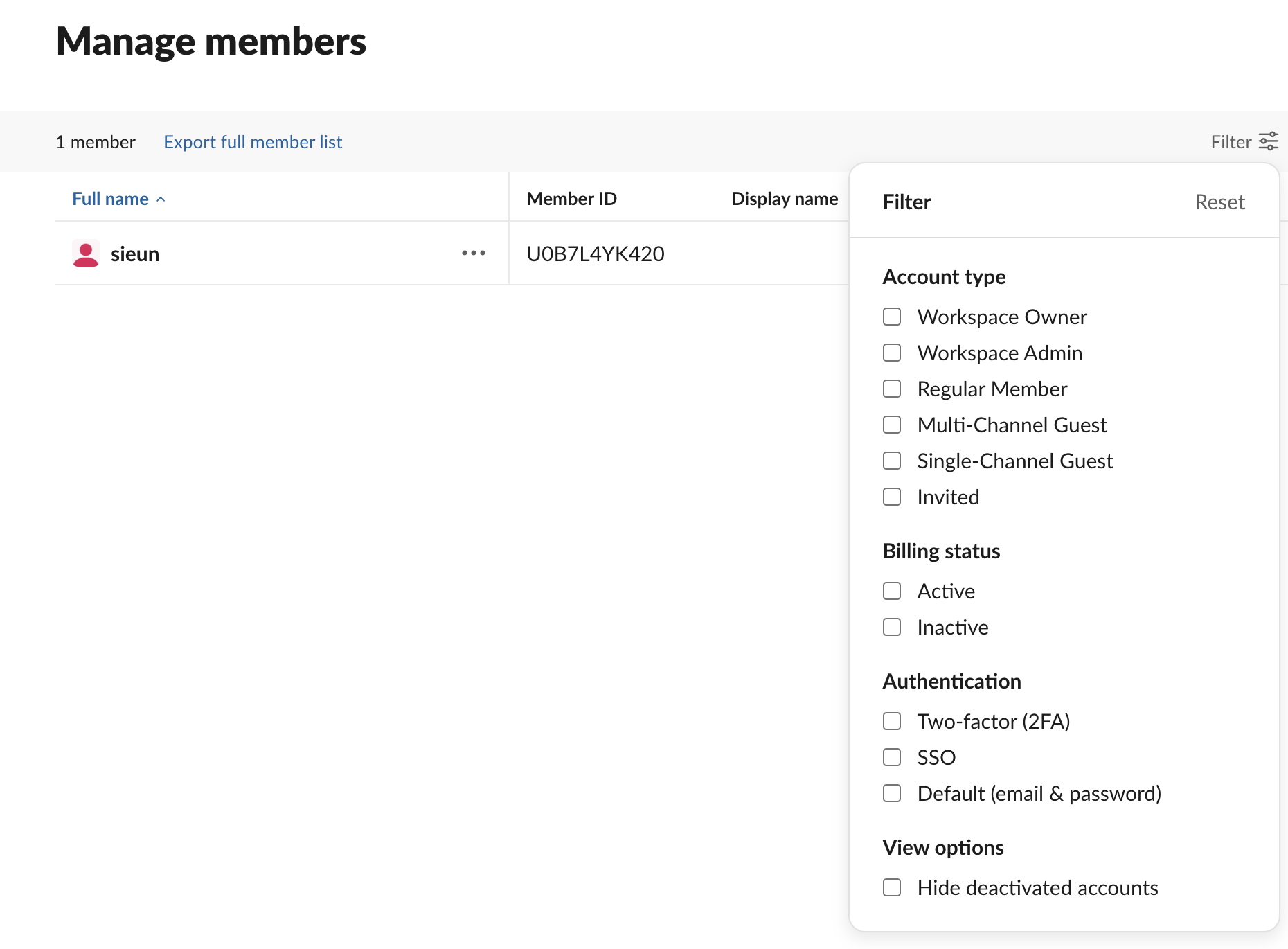
We checked this panel in our own workspace on 4 October 2026. It has:
Export full member list, next to the member count, downloads the table with these columns for the Python check below. The file covers the whole workspace with no channel column; to list one channel, see how to export Slack channel members.
Inactive members and Slack billing
Slack's Fair Billing Policy covers plans bought on the Slack website, by card or self-serve invoice. It says:
So an idle account costs money only for its first 28 days of silence. Deactivation still matters for security: an old account keeps access to channels and files until you remove it.
Deactivate inactive users
Deactivation keeps their messages and files in the workspace, and you can reactivate the account later. Guests can also be given an expiry date when you invite them, so they drop off on their own.
Find inactive users from an export
If you export the analytics Members table as a CSV (paid plans), a few lines of Python list everyone quiet for 30 days or more. Column names follow the dashboard; check the header row of your file:
import pandas as pd

df = pd.read_csv("slack_members.csv", parse_dates=["Last active"])
cutoff = pd.Timestamp.now() - pd.Timedelta(days=30)
inactive = df[df["Last active"].isna() | (df["Last active"] < cutoff)]
print(inactive[["Name", "Email", "Last active", "Days active"]].sort_values("Last active"))
Enterprise organizations can pull the same member data through Slack's analytics API instead of a manual export.
Active status vs inactive user
The green dot and member analytics measure different things. The dot is live presence: whether the app is open and in use right now. On a computer it turns away after 10 minutes without keyboard or mouse input, as covered in how does Slack decide when you're away. Last active is a date, based on reading or sending messages. A person can show away all afternoon and still be active for the day in analytics.
FAQ
How do I see inactive users in Slack? Admin, Workspace analytics, Members tab, add Last active and sort oldest first. It needs a paid plan and owner or admin rights. For billing, filter Manage members by Billing status: Inactive.
How do I see deactivated Slack accounts? Admin, Manage members. Deactivated accounts stay in the list unless you tick Hide deactivated accounts under Filter, View options.
Does Slack charge for inactive users? Not after 28 days without use. Slack credits the unused time under its Fair Billing Policy.
Does deactivating a Slack user delete their messages? No. Their messages and files stay, and the account can be reactivated.
Related Articles
Fake Slack Active Status: What Works and What Gets Noticed
Seven ways people fake an active Slack status, which ones hold up, and the thing that gives most people away. It isn't the dot.
How to Keep Slack Active All Day, Hour by Hour
A normal workday has about five moments where Slack flips you to away. Here's each one, in order, and the cheapest fix for it.
Slack Inactive vs Deactivated vs Away: What Each One Means
Away is the grey dot, inactive is a billing status after 28 days without Slack, and deactivated is an account an admin turned off. We checked where each one shows in a real workspace admin page.