
How to See All Channels in Slack, Including Ones You Have Not Joined
Directories > Channels lists every public channel in the workspace, joined or not. We checked what it shows, what the Private and Archived filters do, and whether an Owner can see a private channel they are not in.
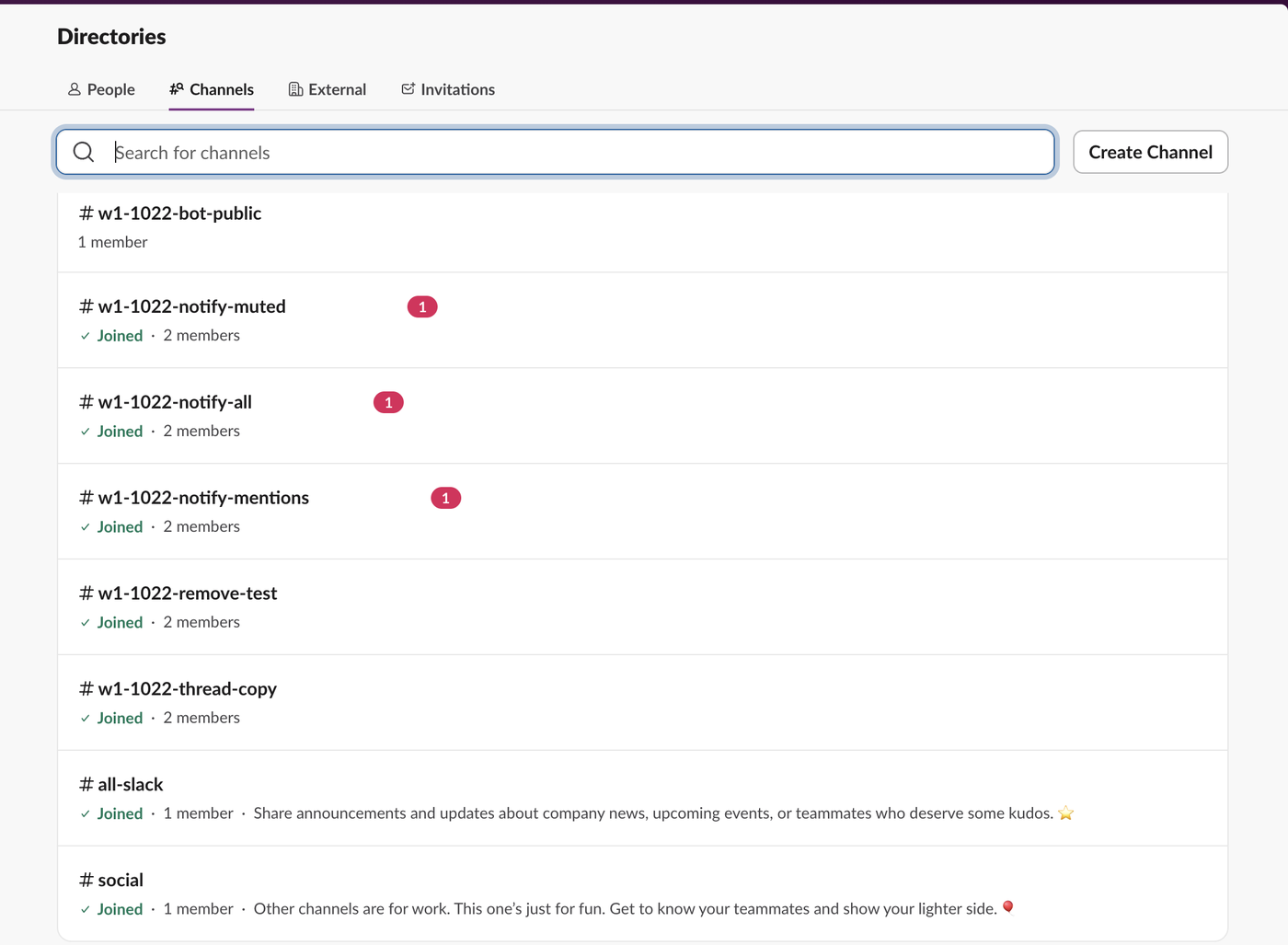
To see all channels in Slack, click Home, then Directories near the top of the sidebar, then the Channels tab. It lists every public channel in the workspace, including the ones you have not joined. Your sidebar shows only channels you are a member of, which is why it looks shorter. On 22 October 2026 we checked the list in our test workspace on the Free plan: it showed all 8 public channels, and none of the private channels we were not in, even though we were the workspace Owner.
What the channel list shows
Each row has the channel name, Joined if you are a member, the member count and the description. A channel you have not joined has no Joined label; in our list that was #w1-1022-bot-public, made by a test bot. That row also carries a Join button.
Above the list you get a search box, Search for channels, and four filters:
- • All channels is a second menu for narrowing the list; we left it as it was.
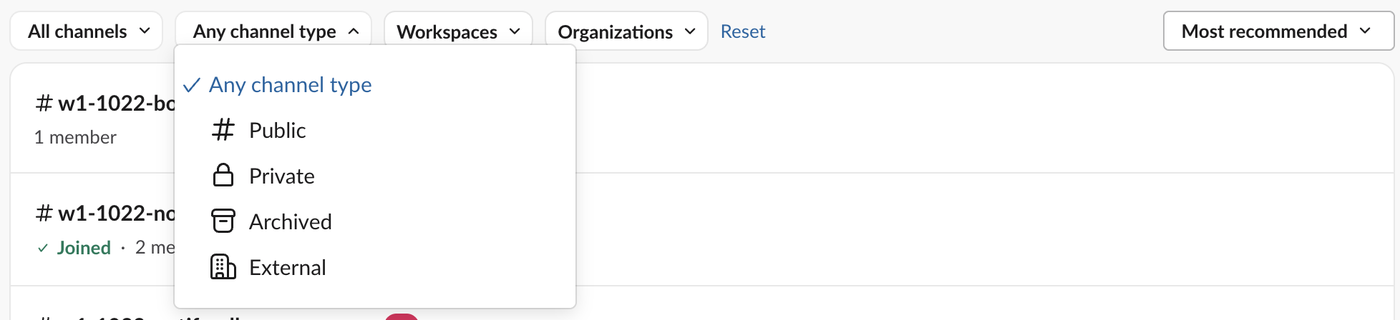
- • Any channel type picks Public, Private, Archived or External.
- • Workspaces and Organizations filter by workspace and organization; with one workspace they had nothing to narrow.
- • The sort menu switches between Most recommended and A to Z.
- • Any channel type > Private listed one channel: an old archived private channel we were already a member of. The bot's channel was not there.
- • The API agreed.
conversations.listwithtypes=private_channelreturned only that same channel, andconversations.infoon the bot's channel returnedchannel_not_found.
Archived channels
Pick Any channel type > Archived to list them. Archived channels do not show in the sidebar, so the directory is the place to find them. See archive a Slack channel for what archiving changes.
Can an Owner see private channels?
Not ones they are not in, at least on the Free plan. We had a test bot create a private channel, #w1-1022-bot-private, with only the bot inside. Then, as the workspace Owner:
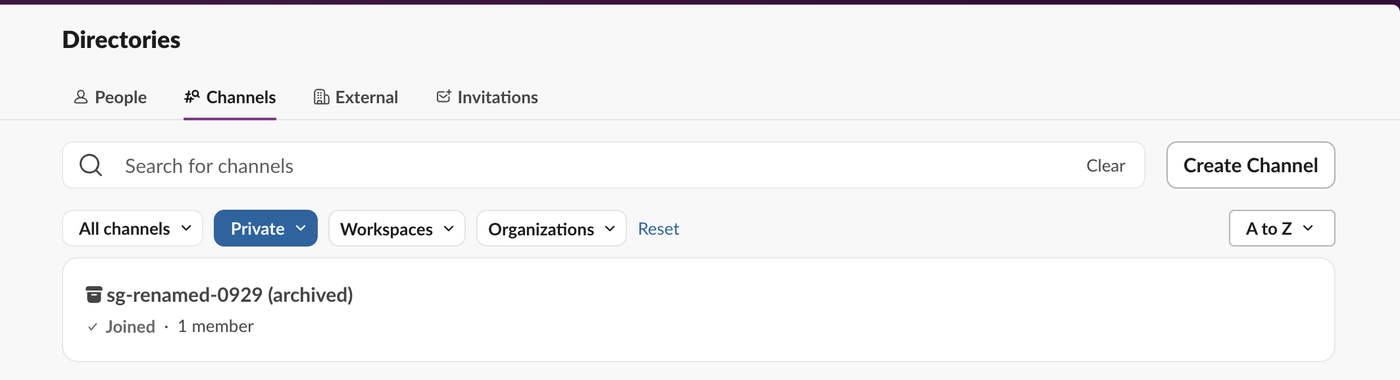
So the list of "all channels" is all public channels plus the private ones you belong to. To see a private channel, a member has to add you. For the reverse question, who can turn a private channel public, see make a private Slack channel public.
Never appear "away" on Slack again
Cloud-based. No downloads. Works 24/7 even when your laptop is off.
Read a channel before you join
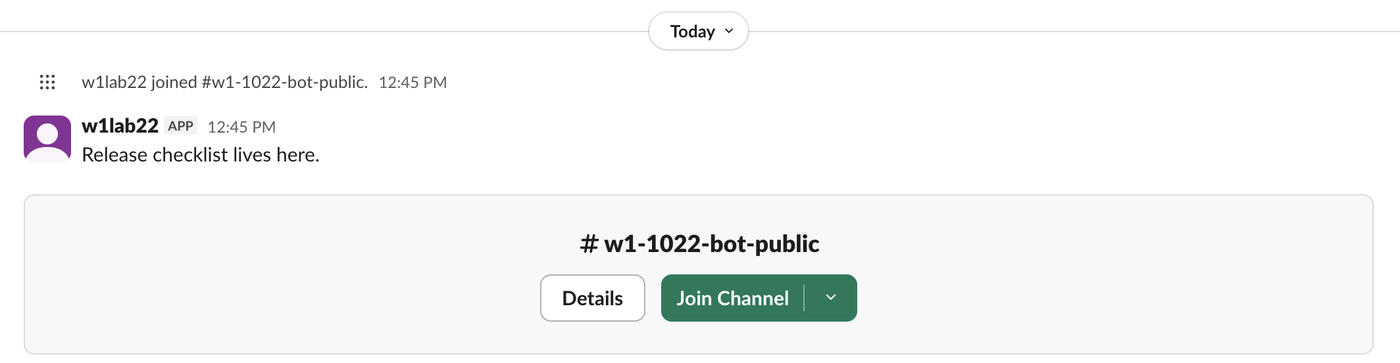
Click a public channel in the list to open it without joining. You can scroll its messages. At the bottom, in place of the message box, Slack shows Details and Join Channel.
Join a channel, and what others see
Click Join Channel. In our test Slack then posted "sieun joined #w1-1022-bot-public" in the channel and showed a welcome card with a star button and the notification setting, which was set to All new posts.
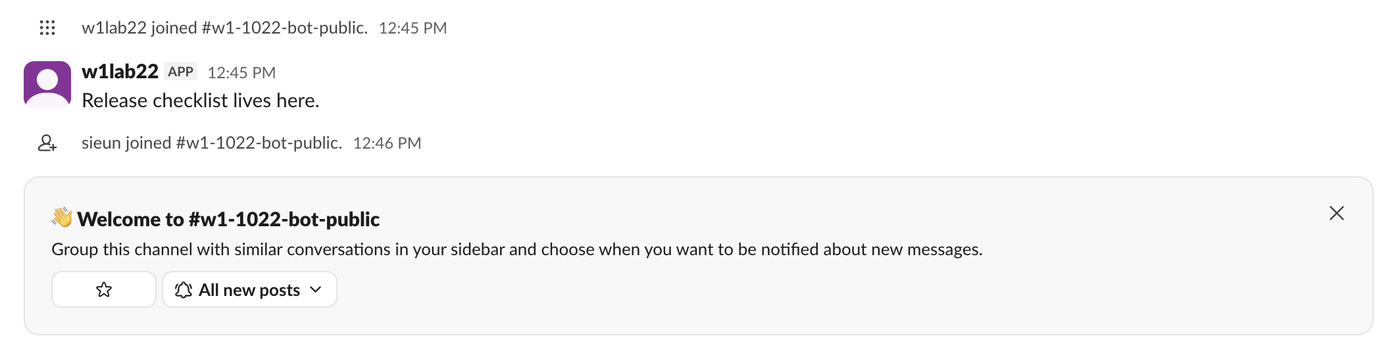
Leaving was quieter. After we left the same channel, its history held no "left" message at all; the join line stayed. Workspace admins choose whether join and leave lines appear (Admin > Settings > Channel Join & Leave Messages), so your workspace may differ. Does Slack notify when you leave a channel has more on who sees what. To leave many channels at once, see leave multiple Slack channels.
When a joined channel is missing from the sidebar
If the directory shows Joined but your sidebar does not list the channel, the sidebar is hiding it, often through a sidebar filter or a collapsed section. Slack channels disappeared from the sidebar walks through each cause.
FAQ
Is there a list of every channel for admins?
Not of private channels on Free, as our Owner test shows. With the API, conversations.list returns public channels plus the private channels the token's user or bot is in; see conversations.list.
How do I find a channel's ID?
Open the channel, click its name, and read the ID at the bottom of the details window. How to find a Slack channel ID shows the other ways.
Stop Jiggling Your Mouse.
Join hundreds of remote workers who never worry about their Slack status. Set it up once, stay green forever.
Related Articles
Slack: Download All Files From a Channel (Script and Test)
Slack has no download-all button for a channel. We uploaded 8 files, checked what the Files tab and search show, and ran a files.list script that saved all 8, after it first found only 4.
How to Remove Someone From a Slack Channel (3 Ways, Tested)
Use /remove @name in the channel, the channel details window, or conversations.kick. We tried all three, checked what the removed member could still do, and what the channel saw.
How to Remove an App From Slack, and What Stays Behind
Remove an app from one channel with /remove or channel details, or uninstall it from the workspace in Manage apps. We did both with a test app and checked its tokens, messages and files afterwards.