
Keyboard Jiggler: Free F15 Scripts for Windows, Mac and Linux
A keyboard jiggler presses an unused key such as F15 every minute so the computer never counts you as idle. You can buy a USB device or run a free script. It keeps Windows awake and Teams green, but Slack only sees keys typed into the Slack window.
A keyboard jiggler is a device or a small program that presses a key every minute or so, so your computer never counts you as idle. The screen does not lock, the computer does not sleep, and apps that read the system idle time, such as Microsoft Teams, keep you Available. Most keyboard jigglers press F15, a key that almost no keyboard has and almost no app uses, so the press does nothing you can see. You can buy one as a USB stick or run a free script, and both are below.
A keyboard jiggler does not keep Slack green on its own. The key goes to whichever window is in front, and Slack counts only input inside its own window. Slack Green keeps your Slack status active from our servers during the hours you set, with nothing running on your computer.
Keyboard jiggler vs mouse jiggler
Both do the same job with a different input. A mouse jiggler moves the pointer a pixel or two. A keyboard jiggler sends a key press. Windows, macOS and Linux reset the idle timer for either one.
Pick the keyboard version when:
- • The pointer must stay still, for example while you read a long document or watch a dashboard.
- • A mouse move would close a menu or tooltip that you need open.
- • A remote desktop or virtual machine ignores tiny mouse moves but passes key presses through. For Citrix, see how to keep a Citrix session active.
Pick the mouse version when you type in the same window the whole day. A stray key in a text field is a bigger risk than a one-pixel move. Auto clicker vs mouse jiggler covers the third kind of tool, which clicks instead of moving.
Keyboard jiggler options compared
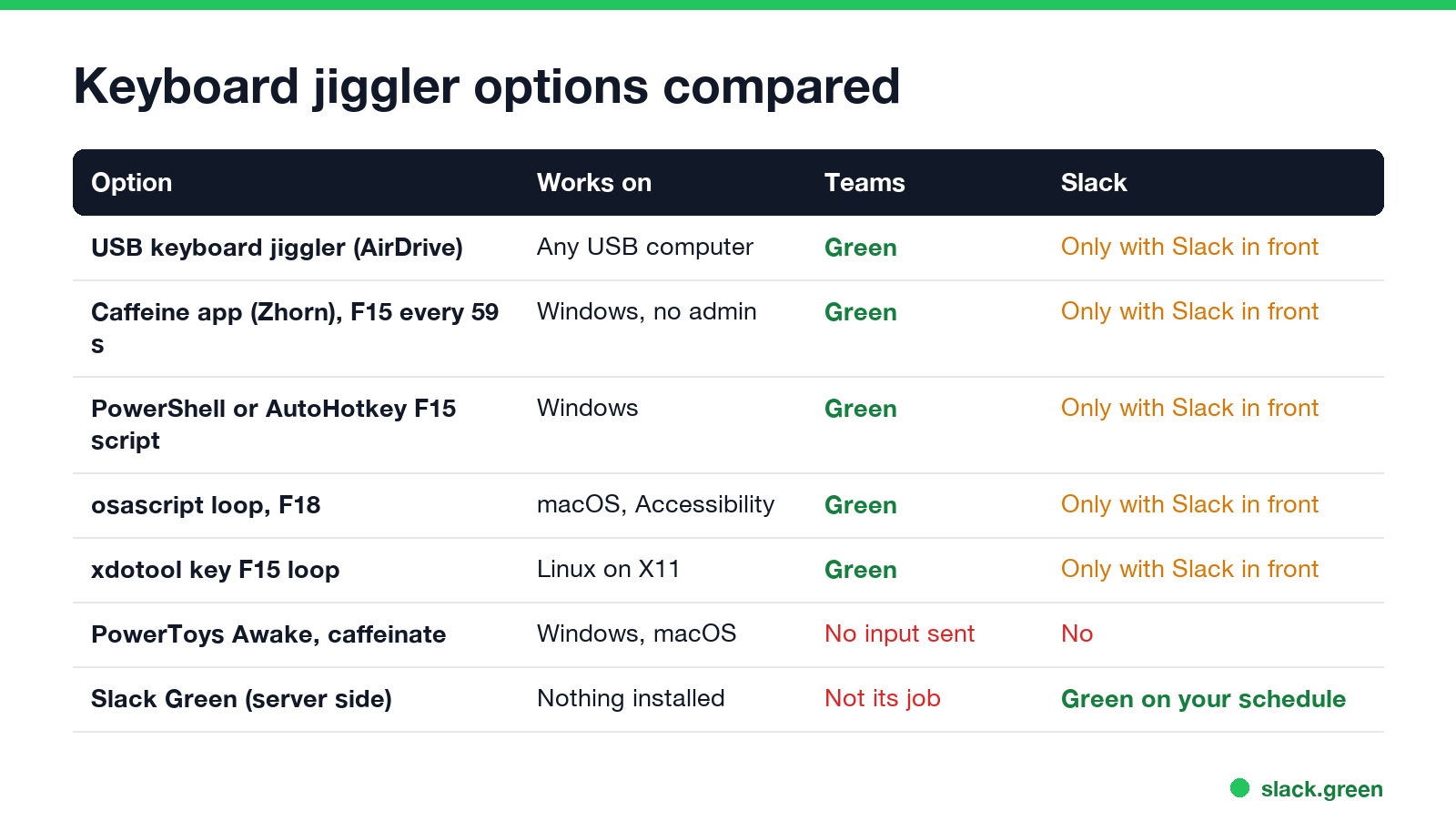
| Option | Works on | Needs install or admin | Keeps Teams green | Keeps Slack green |
|---|---|---|---|---|
| USB keyboard jiggler (AirDrive and others) | Any computer with USB | No software | Yes | Only with Slack in front |
| Caffeine app by Zhorn Software, F15 every 59 s | Windows | Portable, no admin | Yes | Only with Slack in front |
| PowerShell F15 script | Windows | Nothing | Yes | Only with Slack in front |
| AutoHotkey script | Windows | AutoHotkey | Yes | Only with Slack in front |
| osascript loop | macOS | Accessibility permission | Yes | Only with Slack in front |
| xdotool loop | Linux on X11 | xdotool package | Yes | Only with Slack in front |
PowerToys Awake, caffeinate | Windows, macOS | Varies | No, it sends no input | No |
| Slack Green | Nothing on the computer | No | No | Yes, on your schedule |
The USB kind presents itself to the computer as a keyboard. The AirDrive Keyboard and Mouse Jiggler, for example, acts as a USB mouse and a USB keyboard at the same time and has three jiggle modes. It needs no driver, which is why people use it on locked-down work laptops. The computer still lists it as a new keyboard, so IT can see it in the device list.
Free keyboard jiggler for Windows (F15 every minute)
Never appear "away" on Slack again
Cloud-based. No downloads. Works 24/7 even when your laptop is off.
Windows needs nothing extra. PowerShell can press keys through the old WScript.Shell object, which accepts function keys up to F16. Paste this into a PowerShell window and leave it open. Ctrl+C stops it.
# keyboard-jiggler.ps1: press F15 every 59 seconds, Ctrl+C to stop
$wsh = New-Object -ComObject WScript.Shell
while ($true) {
    $wsh.SendKeys('{F15}')
    Start-Sleep -Seconds 59
}
The 59-second gap matches the Caffeine app by Zhorn Software, a free portable tool that does the same thing with a tray icon. A version with a stop time for the end of the work day is in PowerShell script to keep Teams active.
If you already use AutoHotkey, this v2 script presses F15 only when you have been idle for 50 seconds, so it never fires while you type:
#Requires AutoHotkey v2.0
Persistent
SetTimer(Jiggle, 59000)

Jiggle() {
    if (A_TimeIdle > 50000)   ; ms since the last key or mouse input
        Send("{F15}")
}
A_TimeIdle counts milliseconds since the last input of any kind. Checking it first keeps the script out of your way when you come back to the keyboard.
Keyboard jiggler for Mac and Linux
On a Mac, System Events can press a key by its key code. Some Apple keyboards use F14 and F15 for screen brightness, so this loop presses F18 (key code 79) instead:
# keyboard-jiggler for macOS: press F18 every 59 seconds, Ctrl+C to stop
while true; do
  osascript -e 'tell application "System Events" to key code 79'
  sleep 59
done
The first run asks for permission. Turn on your terminal app in System Settings > Privacy & Security > Accessibility, or the loop prints an error that it is "not allowed to send keystrokes". If all you need is a Mac that stays awake, skip the key presses and run caffeinate -d; our mouse jiggler for Mac guide compares both.
On Linux with an X11 session, xdotool does the same:
# keyboard-jiggler for Linux (X11): press F15 every 59 seconds
while true; do
  xdotool key F15
  sleep 59
done
On Wayland, xdotool cannot reach the desktop. Use ydotool, as described in mouse jiggler for Linux.
Which key should a keyboard jiggler press?
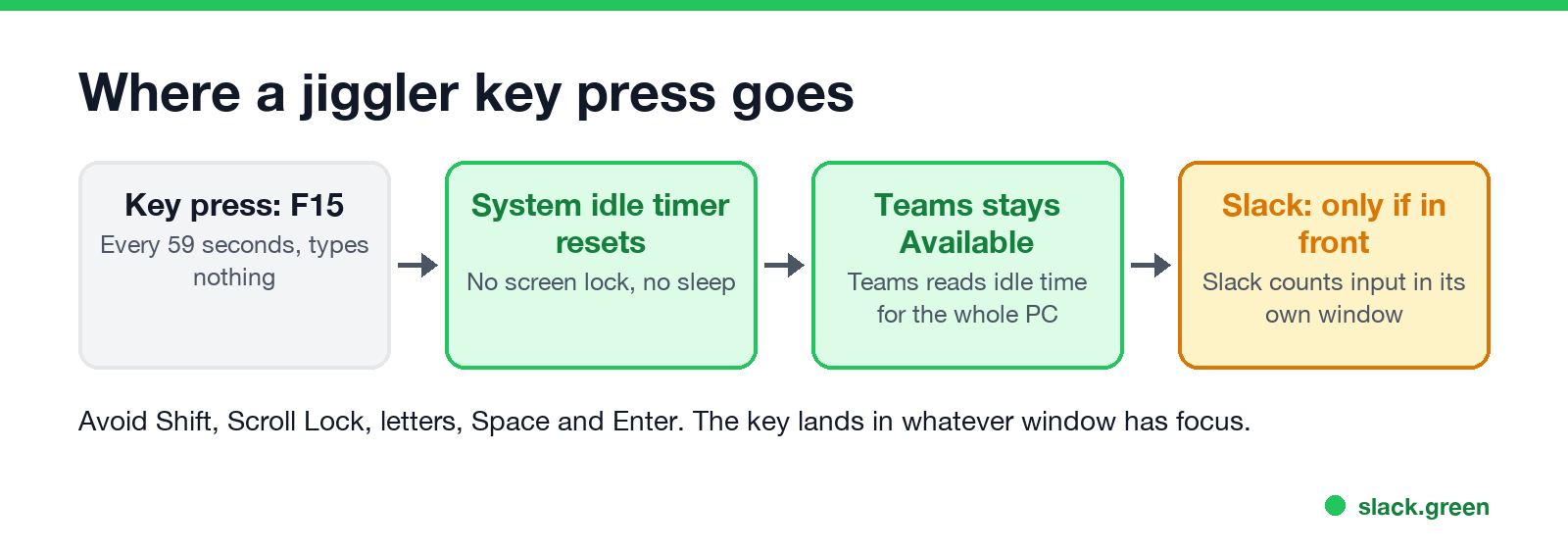
Use a key that types nothing and triggers nothing:
Some apps and remote tools do map F13 to F24, and some keyboard remapping tools use them. If a keyboard shortcut starts firing on its own, change the key.
Does a keyboard jiggler work for Teams, Slack and monitoring software?
Never appear "away" on Slack again
Cloud-based. No downloads. Works 24/7 even when your laptop is off.
Teams: yes. Teams moves you to Away after about 5 minutes without input anywhere on the computer, and a key press is input. Details in does a mouse jiggler work for Teams; the same rules apply to keys.
Slack: only while the Slack window is in front. Slack counts input inside its own window and marks you away after 10 minutes without it. An F15 press into Excel does nothing for Slack. If Slack is the app you need green, a jiggler is the wrong tool.
Monitoring software: it depends on the product. Tools such as ActivTrak and Teramind record which app is in front and how much you type. A key press every 59 seconds with no other activity forms an even pattern that a report can show, and a USB jiggler shows up as a new keyboard. What each tool records is in can ActivTrak detect a mouse jiggler and can a mouse jiggler be detected.
Keyboard jiggler questions
Is a keyboard jiggler the same as an auto key presser? Mostly. An auto key presser repeats any key you choose at a set interval. A keyboard jiggler is an auto key presser set to one harmless key and a long interval.
Can I use a keyboard jiggler without admin rights? Yes on Windows. The PowerShell script and the portable Caffeine app run as a normal user. More options are in keep a computer awake without admin rights.
Does a keyboard jiggler stop the screen from locking? Yes, if the lock is triggered by idle time. It cannot stop a lock you trigger yourself, or a lock that closing the lid starts.
Will F15 show up in my documents? No. F15 types no character. Apps that do not bind it ignore it.
Stop Jiggling Your Mouse.
Join hundreds of remote workers who never worry about their Slack status. Set it up once, stay green forever.
Related Articles
KeepingYouAwake vs Amphetamine: Which Mac Keep-Awake App to Use
KeepingYouAwake is a free, open-source menu bar switch that runs Apple's caffeinate for you. Amphetamine is a free App Store app with triggers, schedules and a closed-lid mode. Pick KeepingYouAwake for one click and Homebrew, Amphetamine for automation. Neither keeps Slack or Teams active.
Computer Locks After 15 Minutes? How to Tell If Group Policy Set It
A work laptop that locks after exactly 15 minutes, with screen settings greyed out, is almost always following a policy from IT: the Windows machine inactivity limit, a forced screen saver, or an Intune device lock. Security baselines and PCI DSS ask for 15 minutes. How to see which policy it is, and what you can and cannot change.
How to Keep a Citrix Session Active: Find Which Timeout Logs You Out
A Citrix session can end from four different timers: Windows locking inside the virtual desktop, the Citrix session idle timer, the Citrix Gateway session time-out, and the StoreFront web page timeout. Only input from your own device into the Citrix window resets them. How to tell which one hit you and what keeps each one quiet.