
What Does Last Seen Mean on Teams? The Away and Offline Timestamp
Last seen on Microsoft Teams is the time Teams last saw you active. It appears next to Away or Offline in a chat header or profile card, never while you are Available, and any device resets it, including a quick look at Teams on your phone. There is no setting to turn it off. What moves the time, why it looks wrong, and what admins see instead.
Last seen on Microsoft Teams is the time Teams last saw you active. Coworkers see it next to your status, for example "Away, Last seen 12m ago", when you are Away or Offline. It does not show while you are Available. The time comes from whichever of your devices was active most recently, so opening Teams on your phone for a second resets it. Teams has no user setting that hides it.
Last seen is a timestamp, not a status. It tells people how long ago your presence left Available. It does not tell them whether you read their message or what you were doing. Slack has no Last seen line at all: it shows a green or grey dot, and the dot turns grey after 10 minutes without input in the Slack window. Slack Green keeps that Slack dot green during the working hours you set, from the cloud. For the Slack side of this question, see does Slack show last seen.
Where Teams shows Last seen, and when
Coworkers see the Last seen time in two places:
- • In the header of a one-to-one chat, under your name, next to your status.
- • On your profile card, when they hover over or select your picture.
- On a computer, you become Away when you are inactive "for a few minutes" or when the computer is locked. In practice that is about 5 minutes, as measured in how long before Teams shows you as Away.
- You become Offline when the computer goes to sleep.
- On a phone, you become Away whenever the Teams app is in the background, and Offline after 24 hours of inactivity.
- If you are signed in on more than one device, "the device where they were active most recently determines their presence".
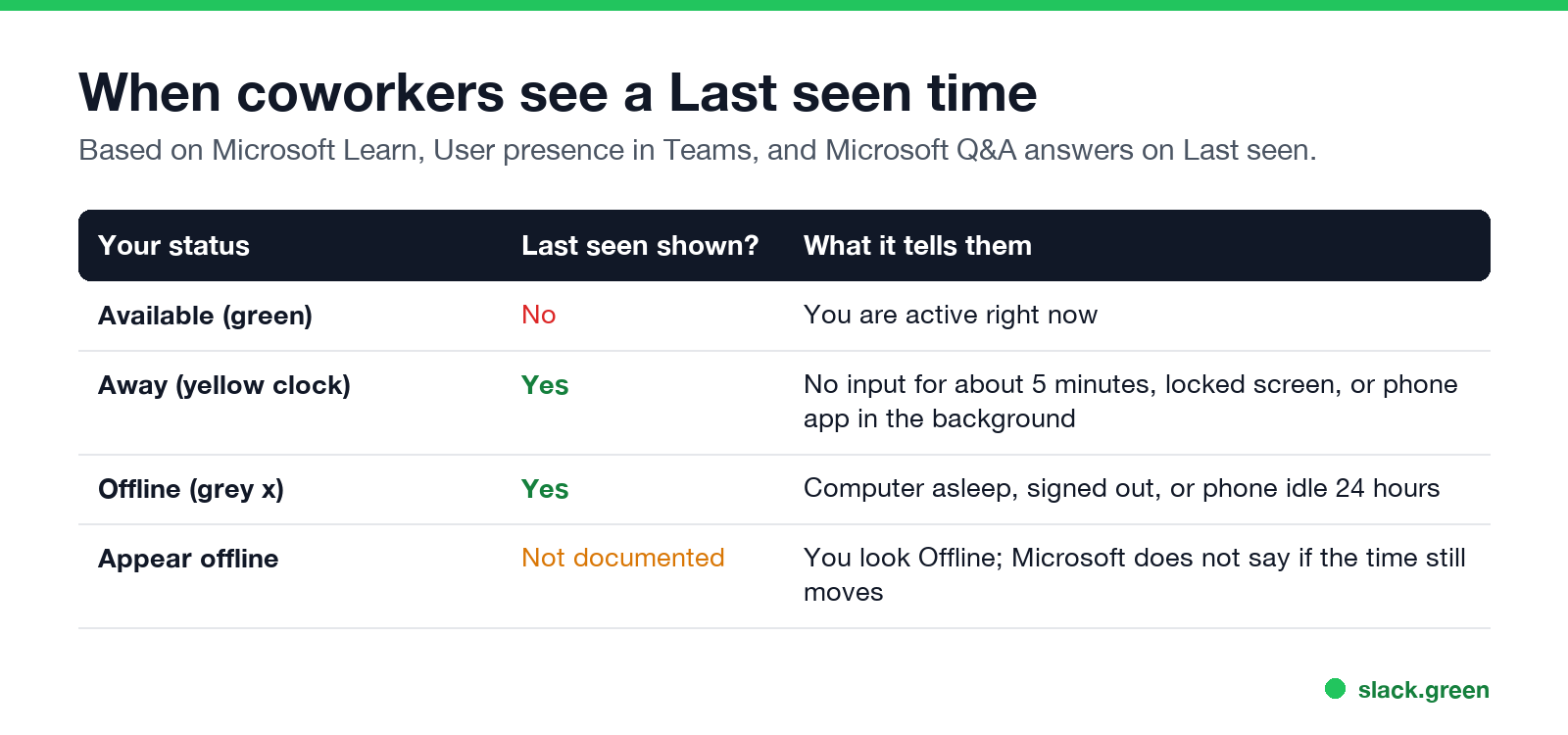
It appears only when your presence is Away or Offline. A Microsoft support answer on Microsoft Q&A puts it this way: Last seen is displayed "when the user has not been using his account and the presence status change from available to away or offline".
| Your status | Last seen shown? | What it tells coworkers |
|---|---|---|
| Available | No | You are active now |
| Away | Yes | No input for about 5 minutes, a locked screen, or the phone app in the background |
| Offline | Yes | Computer asleep, signed out, or phone idle for 24 hours |
| Appear offline | Not documented | You look Offline; Microsoft does not say whether the time still moves |
The icons themselves (yellow clock for Away, grey x for Offline) are covered in Microsoft Teams status icons meaning. The grey x on its own is covered in what the grey x means on Teams.
How Teams sets the Last seen time
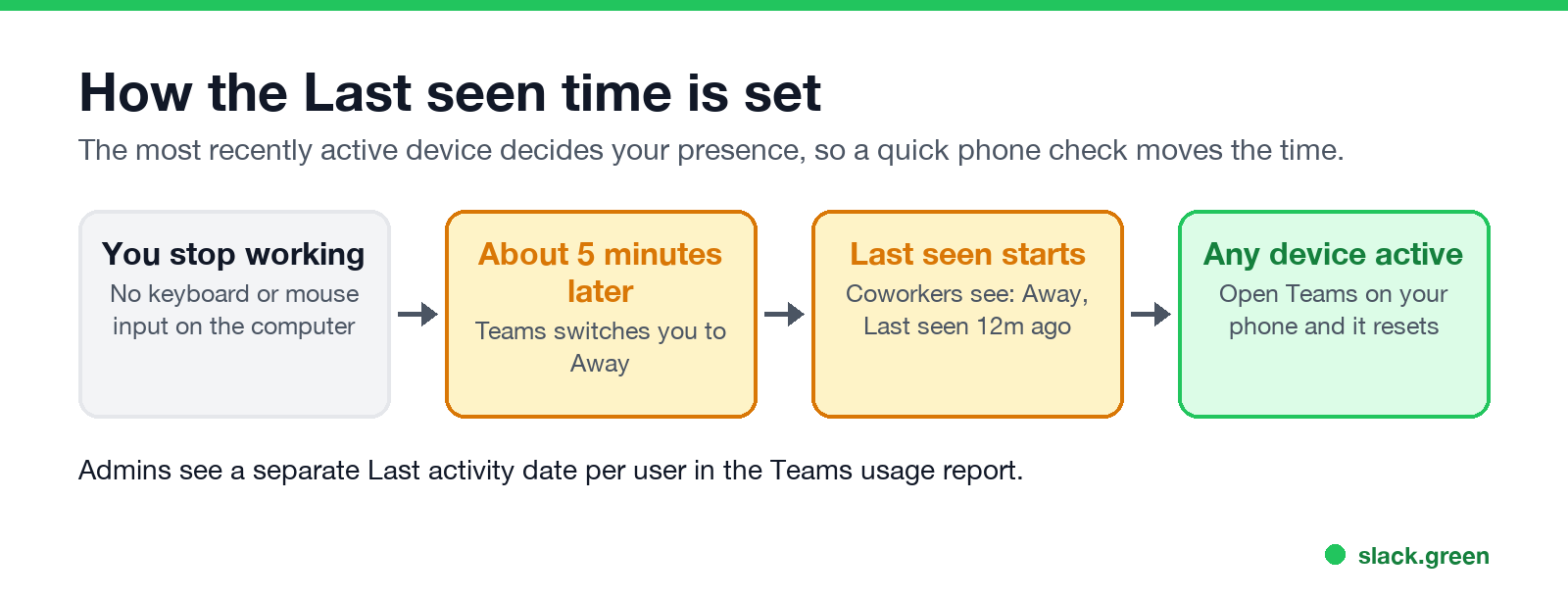
Last seen follows the same presence rules as the colored dot. Microsoft Learn, in User presence in Teams, describes them:
Teams reads input anywhere on the computer, not only inside the Teams window. Typing in Word or a browser keeps you Available. So "Last seen 40m ago" on a computer usually means 40 minutes with no keyboard or mouse input at all, a locked screen, or a closed lid.
Last seen vs Offline
Never appear "away" on Slack again
Cloud-based. No downloads. Works 24/7 even when your laptop is off.
These two are not alternatives. Last seen is the time; Away or Offline is the state it sits next to.
Why Teams Last seen looks wrong
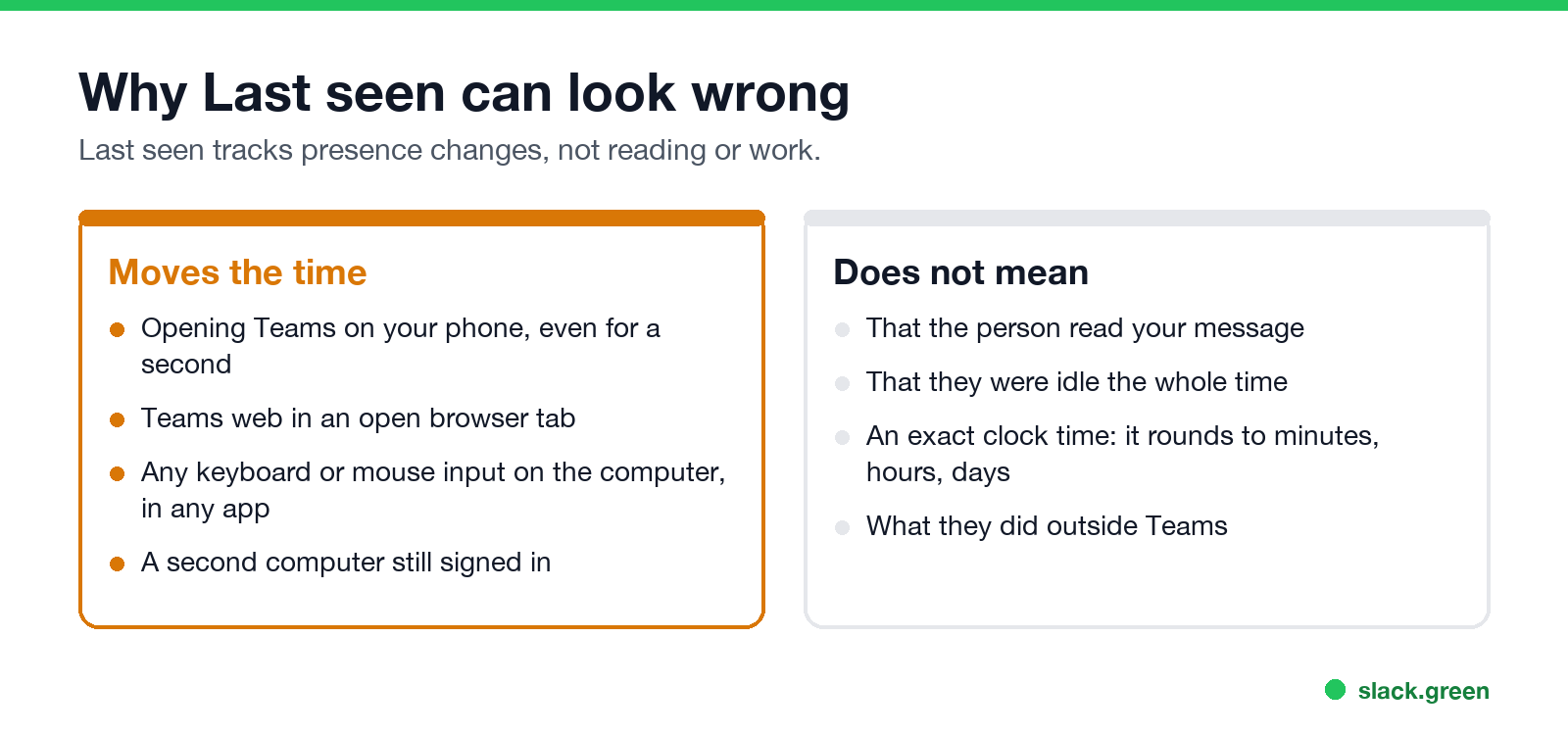
"Teams last seen not accurate" is one of the most searched variants. The time is usually right about presence and wrong about what people assume it means. The common causes:
Can you turn off or hide Last seen on Teams?
No. Teams has no privacy setting for Last seen, for users or for admins. The options that change what people see:
What does not work: closing the Teams window on a computer (Teams keeps running in the tray) or muting notifications. For keeping the status green while you work in other apps, see how to keep your Teams status available.
Can you see when someone was last active on Teams?
Never appear "away" on Slack again
Cloud-based. No downloads. Works 24/7 even when your laptop is off.
Yes, when they are Away or Offline: open a chat with them, or hover over their picture, and read the Last seen line. You cannot see a history, only the most recent time.
Admins have a different view. The Teams user activity report in the Microsoft 365 admin center lists a Last activity date for each user, plus counts of chats, calls and meetings over 7 to 180 days. It is a date, not a live timestamp, and it is built for licence and adoption reports. What else an admin can pull is in does Microsoft Teams track your activity.
Quick answers
Does Last seen mean they saw my message? No. It is the time their presence left Available. Read receipts are a separate eye icon on the message.
Why does it say Last seen a few minutes ago when they are on leave? Their phone opened Teams, or a background refresh ran on it. The phone counts as a device.
Does Last seen show while someone is in a meeting? Meeting and call statuses come from the calendar and the call itself, so the line people usually see then is In a meeting or In a call.
Is Last seen the same on the Teams mobile app? Yes. The chat header on mobile shows the same status and time.
Stop Jiggling Your Mouse.
Join hundreds of remote workers who never worry about their Slack status. Set it up once, stay green forever.
Related Articles
Can My Employer See My Browsing If I Use a VPN? It Depends Whose
A personal VPN hides the sites you visit from the office network, but not from monitoring software, a managed browser or IT on a work laptop. The company VPN shows your employer every site it carries. What each setup hides.
Teams Status on Multiple Devices: The Last Device You Used Wins
Signed in to Teams on a computer and a phone? Your status comes from the device you used most recently. That is why a quick look at your phone can turn you Away, and why a phone in your pocket shows Away instead of Offline at night.
Zoom Do Not Disturb: How to Turn It On, Schedule It, and What It Blocks
To turn on Do not disturb in Zoom, click your profile picture, point at your status and choose Do not disturb, then a time from 20 minutes to 24 hours, or Custom for a daily schedule. It blocks pop-up notifications for Zoom Team Chat and Zoom Phone calls. Busy, by contrast, mutes nothing. How the two differ, and how to keep a Zoom meeting free of pop-ups.