
DIY Mouse Jiggler: 5 Builds, From a Script to a $5 USB Board
Make your own mouse jiggler with a 6-line Python script, an AutoHotkey or PowerShell loop, an Arduino Pro Micro or Raspberry Pi Pico that plugs in as a USB mouse, or a watch under an optical mouse. Code for each, what it costs, and what IT can see.
The simplest DIY mouse jiggler is a 6-line Python script that moves the pointer 1 pixel and back every 60 seconds. If you want hardware instead, a $5 board with native USB, such as an Arduino Pro Micro or a Raspberry Pi Pico, can plug in as a mouse and do the same with no software on the computer. Both reset the idle timer, so the screen stays on and apps that read system idle stay active. Below is working code for five builds, what each costs, and what each one looks like to IT.
A jiggler does not keep Slack green by itself. Slack counts only input inside its own window, so the nudge helps only while the pointer is over Slack. Slack Green keeps your Slack status active from our servers during the hours you set, with nothing to build or plug in.
Which DIY mouse jiggler to build
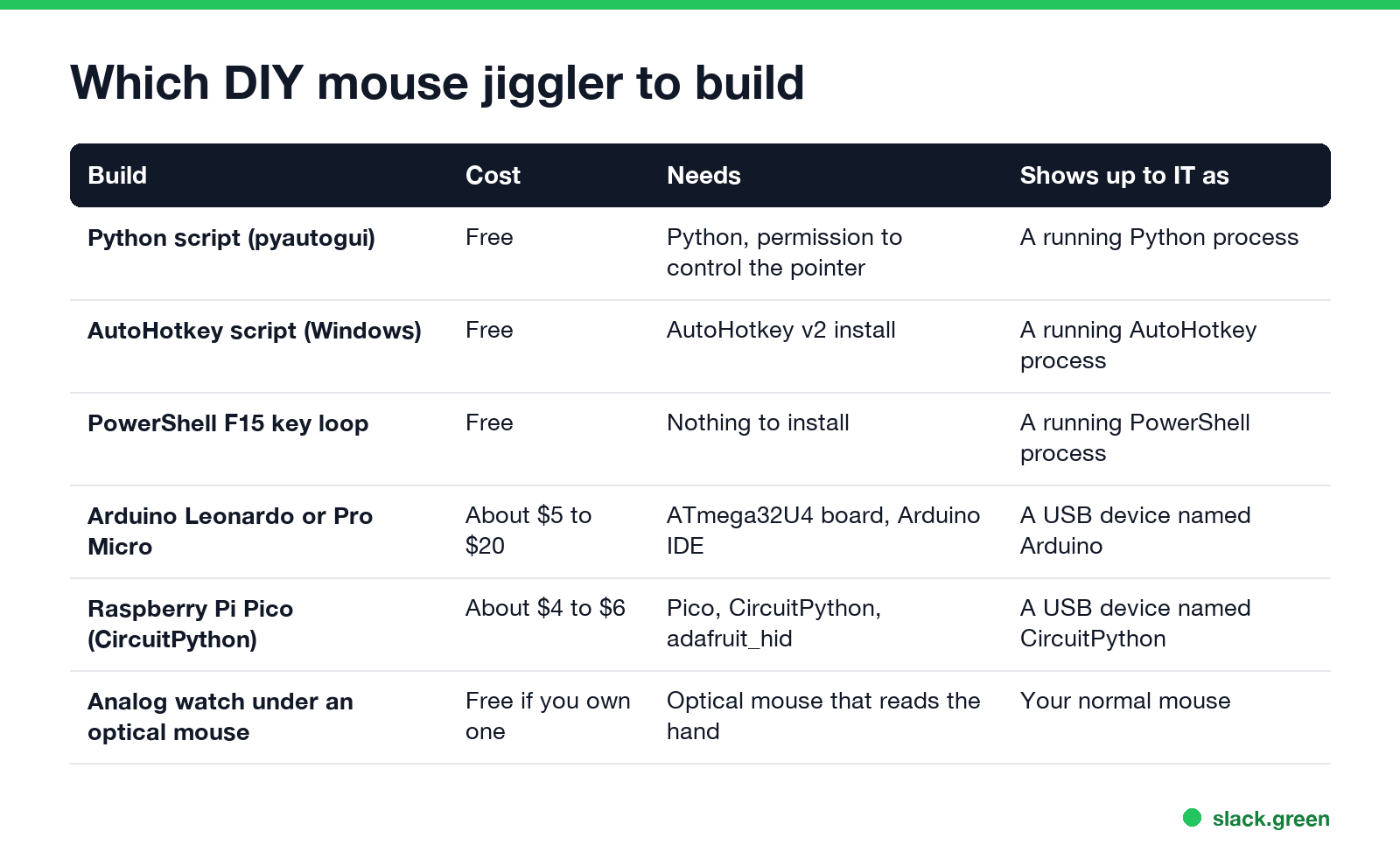
| Build | Cost | Needs | Shows up to IT as |
|---|---|---|---|
| Python script (pyautogui) | Free | Python, permission to control the pointer | A running Python process |
| AutoHotkey script (Windows) | Free | AutoHotkey v2 | A running AutoHotkey process |
| PowerShell F15 loop (Windows) | Free | Nothing to install | A running PowerShell process |
| Arduino Leonardo or Pro Micro | About $5 to $20 | ATmega32U4 board, Arduino IDE | A USB device named Arduino Leonardo |
| Raspberry Pi Pico | About $4 to $6 | CircuitPython and the adafruit_hid library | A USB device named CircuitPython |
| Analog watch under an optical mouse | Free if you own one | An optical mouse that reads the moving hand | Your normal mouse |
Software builds are free and take two minutes, but a monitoring tool can list the process. Hardware builds need no software on the work computer, but the board reports its own name when you plug it in. More on that in can a mouse jiggler be detected.
Python mouse jiggler script
This works on Windows, macOS and Linux on X11. Install the library with pip install pyautogui, save the script as jiggle.py, and run python jiggle.py. Stop it with Ctrl+C.
# jiggle.py: move the pointer 1 px right and back every 60 seconds
import time
import pyautogui

while True:
    pyautogui.moveRel(1, 0, duration=0.1)
    pyautogui.moveRel(-1, 0, duration=0.1)
    time.sleep(60)
We ran the move on macOS 26: the pointer went from x=1138 to 1139 and back to 1138. On a Mac the first run asks you to allow Terminal (or your editor) under System Settings > Privacy & Security > Accessibility. pyautogui has a fail-safe: slam the pointer into a screen corner and the script stops with an error.
On Wayland, which Ubuntu and Fedora use by default, pyautogui cannot move the pointer. Use the ydotool loop in mouse jiggler for Linux instead. A version that only runs during work hours is in script to keep Slack active.
AutoHotkey and PowerShell jigglers for Windows
Never appear "away" on Slack again
Cloud-based. No downloads. Works 24/7 even when your laptop is off.
With AutoHotkey v2 installed, save this as jiggle.ahk and double-click it. It shows a green H icon in the tray; right-click it and pick Exit to stop.
#Requires AutoHotkey v2.0
Persistent
SetTimer Jiggle, 60000

Jiggle() {
    MouseMove 1, 0, 0, "R"
    MouseMove -1, 0, 0, "R"
}
If you cannot install anything, PowerShell can press the F15 key every 60 seconds. F15 exists in Windows but is missing from almost every keyboard, so it does not type into your apps. It is a key press, not a mouse move, and it resets the idle timer the same way.
# press F15 every 60 seconds; stop with Ctrl+C
$shell = New-Object -ComObject WScript.Shell
while ($true) {
    $shell.SendKeys('{F15}')
    Start-Sleep -Seconds 60
}
Other PowerShell ways to block sleep, including one that uses no fake input at all, are in keep your computer awake with PowerShell.
Arduino mouse jiggler (Leonardo or Pro Micro)
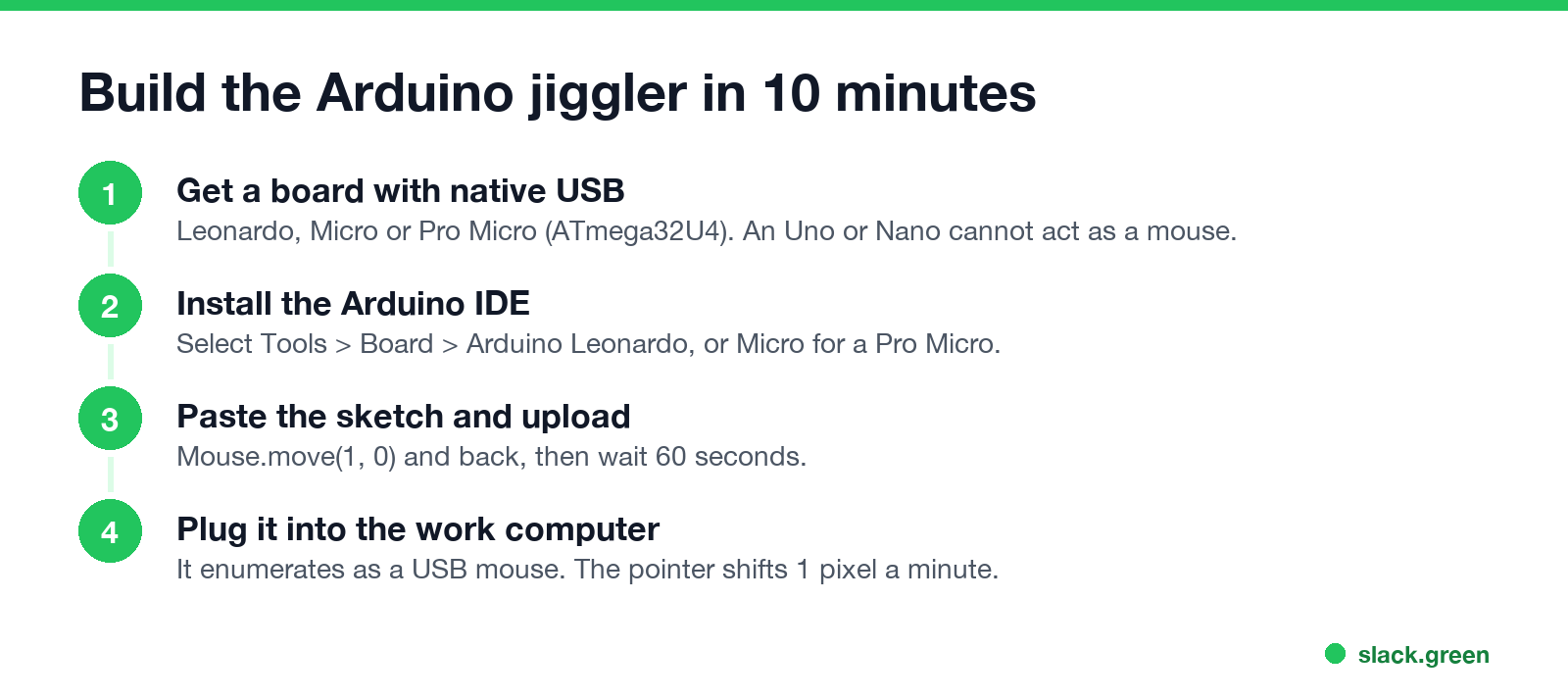
You need a board with the ATmega32U4 chip, which has native USB: the Arduino Leonardo, the Arduino Micro, or a Pro Micro clone. An Uno or a Nano cannot act as a USB mouse. In the Arduino IDE, select Tools > Board > Arduino Leonardo, paste the sketch, and upload.
// USB mouse jiggler: 1 px right and back every 60 seconds
#include <Mouse.h>

void setup() {
  Mouse.begin();
}

void loop() {
  Mouse.move(1, 0, 0);
  delay(50);
  Mouse.move(-1, 0, 0);
  delay(60000);
}
Plug the board into the work computer and it enumerates as a USB mouse, no driver needed. Unplug it to stop. Keep a way to reflash it: a sketch that sends mouse input nonstop can make the IDE hard to use, and the 60-second delay leaves room for that. Instructables guides use a Digispark ATtiny85 with the DigiMouse library for the same job, at a lower price and with more setup.
Raspberry Pi Pico jiggler (CircuitPython)
- Hold BOOTSEL while you plug in the Pico, and copy the CircuitPython
.uf2for the Pico onto the RPI-RP2 drive. - From the Adafruit CircuitPython library bundle, copy the
adafruit_hidfolder intolib/on the CIRCUITPY drive. - Save this as
code.pyon CIRCUITPY. It starts every time the Pico gets power.
# code.py: USB mouse jiggler for a Raspberry Pi Pico
import time
import usb_hid
from adafruit_hid.mouse import Mouse

mouse = Mouse(usb_hid.devices)
while True:
    mouse.move(x=1)
    time.sleep(0.05)
    mouse.move(x=-1)
    time.sleep(60)
The Pico also mounts a CIRCUITPY drive on the computer, which a data loss prevention tool may block or log. The hardware options you can buy ready-made are in the best mouse jiggler by type.
No-code: a watch under an optical mouse
Never appear "away" on Slack again
Cloud-based. No downloads. Works 24/7 even when your laptop is off.
Put an analog watch with a sweeping second hand face up, and set an optical mouse on top of it. Some optical sensors read the moving hand as movement and nudge the pointer. It depends on the mouse: many sensors see nothing through the glass, and the pointer can drift. A spare mouse on a slowly turning fan or a desk toy works on the same idea. None of these need code, and to the computer it is your own mouse.
What a DIY jiggler does not do
FAQ
Can I make a mouse jiggler at home? Yes. A 6-line Python script works on any computer, and an Arduino Pro Micro or Raspberry Pi Pico makes a plug-in USB version for about $5.
Can an Arduino Uno be a mouse jiggler? Not with the Mouse library. The Uno has no native USB. Use a Leonardo, Micro or Pro Micro.
Does a DIY mouse jiggler keep Slack green? Only while the pointer is over the Slack window. Slack counts input inside its own window.
Is a hardware jiggler undetectable? No. The board reports its USB name when you plug it in, and the regular movement pattern is visible to activity tools.
How do I stop the Python jiggler? Press Ctrl+C in the terminal, or move the pointer into a screen corner to trigger pyautogui's fail-safe.
Stop Jiggling Your Mouse.
Join hundreds of remote workers who never worry about their Slack status. Set it up once, stay green forever.
Related Articles
KeepingYouAwake vs Amphetamine: Which Mac Keep-Awake App to Use
KeepingYouAwake is a free, open-source menu bar switch that runs Apple's caffeinate for you. Amphetamine is a free App Store app with triggers, schedules and a closed-lid mode. Pick KeepingYouAwake for one click and Homebrew, Amphetamine for automation. Neither keeps Slack or Teams active.
Computer Locks After 15 Minutes? How to Tell If Group Policy Set It
A work laptop that locks after exactly 15 minutes, with screen settings greyed out, is almost always following a policy from IT: the Windows machine inactivity limit, a forced screen saver, or an Intune device lock. Security baselines and PCI DSS ask for 15 minutes. How to see which policy it is, and what you can and cannot change.
How to Keep a Citrix Session Active: Find Which Timeout Logs You Out
A Citrix session can end from four different timers: Windows locking inside the virtual desktop, the Citrix session idle timer, the Citrix Gateway session time-out, and the StoreFront web page timeout. Only input from your own device into the Citrix window resets them. How to tell which one hit you and what keeps each one quiet.