
How to Check if Your Work Mac Is Being Monitored
Six read-only checks on a work Mac, no admin password needed: MDM enrollment, the Privacy & Security lists, permissions IT pre-approved, background items, running agents and the browser. Plus a script that runs them all and what counts as normal.
To check if your work Mac is being monitored, open System Settings > Privacy & Security and read three lists: Screen & System Audio Recording, Input Monitoring and Accessibility. A tool that watches your screen or your typing must appear in one of them, by name. Then open Terminal and run profiles status -type enrollment: MDM enrollment: Yes means your company manages the Mac and can install software on it without asking. The six checks below take about 10 minutes, change nothing and need no admin password.
Monitoring tools track activity; chat apps show presence. Slack shows you away after 10 minutes with no input in the Slack window, on a monitored Mac or not. Slack Green keeps your Slack status green from a server, so nothing runs on the work Mac.
Six checks on a work Mac
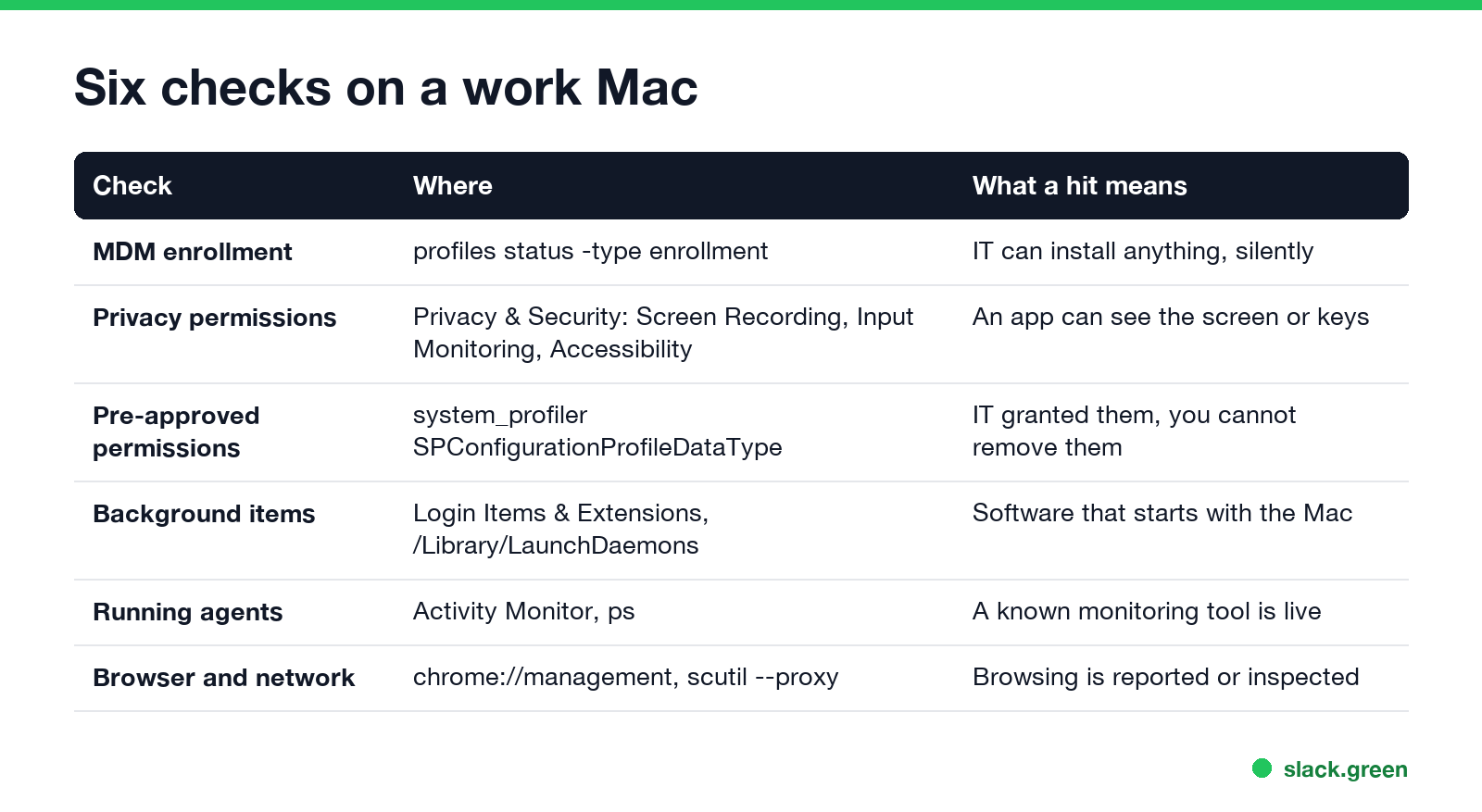
| Check | Where | What a hit means |
|---|---|---|
| 1. MDM enrollment | profiles status -type enrollment | IT can push any app or setting |
| 2. Privacy permissions | Privacy & Security lists | An app can see the screen or the keys |
| 3. Pre-approved permissions | system_profiler SPConfigurationProfileDataType | IT granted them, you cannot remove them |
| 4. Background items | Login Items & Extensions | Software that starts with the Mac |
| 5. Running agents | Activity Monitor | A known monitoring tool is running |
| 6. Browser and network | chrome://management, scutil --proxy | Browsing is reported or inspected |
The general version for Windows and Mac, with the network checks in full, is in how to tell if you are being monitored at work.
Check 1: is the Mac enrolled in MDM?
profiles status -type enrollmentEnrolled via DEP: Yes means the Mac was set up for your company before it reached you (Apple Business Manager). MDM enrollment: Yes means a management server such as Jamf, Kandji or Intune controls it. You can also look in System Settings > General > Device Management. Enrollment does not watch you by itself. It is the channel IT uses to install software, including a monitoring agent, with no prompt on your side.
Check 2: which apps can see your screen and keys
In System Settings > Privacy & Security, open each list:
- • Screen & System Audio Recording: apps that can capture the screen. Zoom, Teams and Slack belong here for screen sharing. An app you do not recognize does not.
- • Input Monitoring: apps that can read the keyboard and mouse. This is what a keystroke logger needs.
- • Accessibility: apps that can read and control other apps' windows.
macOS 15 and later also ask you again from time to time whether an app may keep recording the screen, unless IT turned that prompt off. When an app records the screen, a recording icon appears in the menu bar. If you see it with no call or screen share running, find out which app holds it.
Check 3: permissions IT approved for you
A company can pre-approve screen recording and input monitoring through a configuration profile, so the app never asks. These grants appear in the lists from Check 2, sometimes with the switch greyed out. To see them in Terminal:
# lists privacy payloads in installed profiles: ScreenCapture, ListenEvent (input), PostEvent, Accessibility
system_profiler SPConfigurationProfileDataType | grep -iE 'ScreenCapture|ListenEvent|PostEvent|Accessibility' | sort -u
No output means no profile grants those rights. A line with ScreenCapture or ListenEvent means some app has the right by company policy. The profile names are in System Settings > General > Device Management.
Check 4: background items and extensions
Open System Settings > General > Login Items & Extensions. The Allow in the Background list shows every app that runs helpers while you work, and Extensions shows network and endpoint security extensions. Monitoring agents also install launch daemons, which you can list:
# everything that starts with the Mac and is not from Apple
ls /Library/LaunchDaemons /Library/LaunchAgents ~/Library/LaunchAgents | grep -v '^com\.apple'
systemextensionsctl list
Check 5: known monitoring agents
Open Activity Monitor, choose All Processes, and search for the common names: ActivTrak, Teramind, Hubstaff, Time Doctor, Insightful, Veriato, Controlio, InterGuard, DeskTime. Some agents run under a neutral name, so compare with what you found in Checks 2 and 4. How ActivTrak and similar tools record work is in what is bossware, and which of them log keystrokes is in can my employer see my keystrokes.
Check 6: the browser and the network
Type chrome://management in Chrome or edge://management in Edge. "Your browser is managed by your organization" means policy controls it, and the page lists reporting settings and forced extensions. In Terminal, scutil --proxy shows whether traffic goes through a company proxy. What that exposes is in can my employer see my browsing history.
A script that runs the checks at once
Save this as check-mac-monitoring.sh and run zsh check-mac-monitoring.sh. It only reads, and needs no admin password:
#!/bin/zsh
# check-mac-monitoring.sh - read-only checks, no admin password needed
names='activtrak|teramind|hubstaff|timedoctor|insightful|veriato|controlio|interguard|kickidler|currentware|desktime|workpuls'

echo "== MDM enrollment"
profiles status -type enrollment

echo "== Privacy permissions granted by a profile (screen, input, accessibility)"
system_profiler SPConfigurationProfileDataType 2>/dev/null |
  grep -iE 'ScreenCapture|ListenEvent|PostEvent|Accessibility' | sort -u

echo "== Launch daemons and agents not from Apple"
ls /Library/LaunchDaemons /Library/LaunchAgents ~/Library/LaunchAgents 2>/dev/null | grep -v '^com\.apple'

echo "== System extensions"
systemextensionsctl list | grep -E '^\s*\*'

echo "== Known monitoring agents running"
ps -axo comm | grep -iE "$names" || echo "none found"
We ran it on a personal Mac on macOS 26. It printed MDM enrollment: No, no privacy payloads, a list of third-party launch daemons (Docker, a fan control app, banking security modules), one network extension (Tailscale) and none found. On a company Mac, expect more lines; the next section says which ones are normal.
What is normal on a work Mac
Never appear "away" on Slack again
Cloud-based. No downloads. Works 24/7 even when your laptop is off.
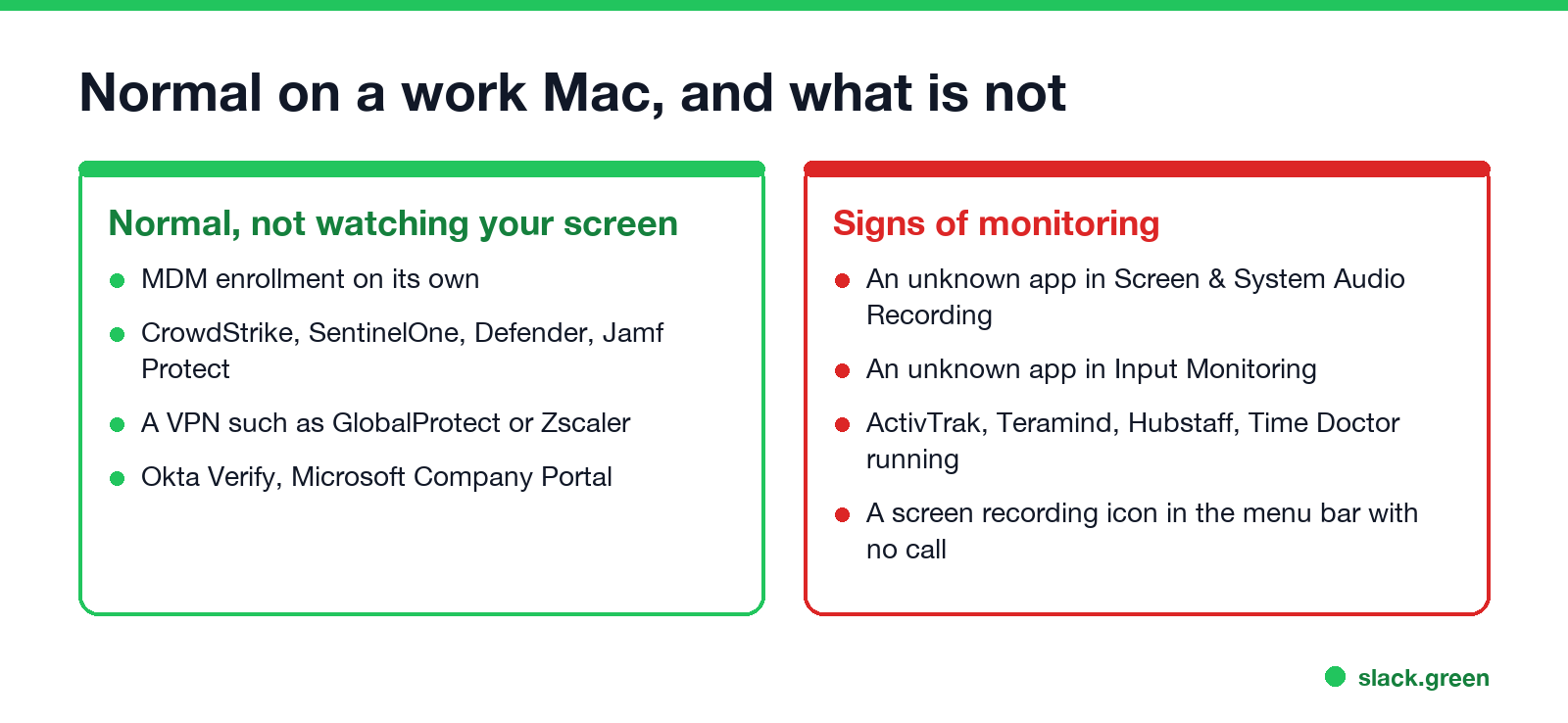
Most work Macs show MDM enrollment, a security tool such as CrowdStrike Falcon, SentinelOne, Microsoft Defender or Jamf Protect, a VPN client, and Okta Verify or Company Portal. Security tools can log processes, files and network connections for threat detection. They do not take screenshots or report your working hours to a manager.
The signs of activity monitoring are narrower: an app you cannot name in Screen & System Audio Recording or Input Monitoring, a profile that grants ScreenCapture or ListenEvent, or a known monitoring agent in Activity Monitor. A camera light with no call running is its own case, covered in can my employer see me through my laptop camera.
What the checks cannot see
Some records need no software on the Mac. Your company still sees your sign-ins to Microsoft 365, Google Workspace, Okta and Slack, VPN connect times, and messages in company tools. Sign-in and unlock times are logged by macOS itself; see can my employer see when I log into my computer. If you find monitoring, read your company's IT policy before you remove anything: uninstalling a managed agent is visible to IT, and on an MDM Mac it usually comes back.
FAQ
How can I tell if my work Mac is being monitored? Check Privacy & Security for unknown apps in Screen Recording and Input Monitoring, and run profiles status -type enrollment in Terminal.
Can my employer see my screen on a Mac? Only through an app with screen recording rights. It appears in Screen & System Audio Recording, even when IT approved it.
Does MDM mean my Mac is being monitored? Not by itself. MDM manages settings and apps. It lets IT install a monitoring tool without asking you.
Can I see if IT approved screen recording for an app? Yes. Run system_profiler SPConfigurationProfileDataType and look for ScreenCapture in the output.
Is my personal Mac being monitored if I use Slack on it? No. Slack does not monitor the computer. It shows your active or away status from input in the Slack window only.
Stop Jiggling Your Mouse.
Join hundreds of remote workers who never worry about their Slack status. Set it up once, stay green forever.
Related Articles
Can My Employer See When I Log Into My Computer?
On a work computer, yes. Windows and macOS record every sign-in, sign-out, lock and unlock, and a managed laptop can pass those records to IT along with app sign-ins, VPN times and monitoring data. What each record holds, who reads it, and how to see your own.
How to Stop the Screen Turning Off During a Presentation
PowerPoint and Keynote hold the screen on in slide show mode. A PDF, a browser deck or a window shared in Teams or Zoom does not, so the screen dims mid-talk. How to keep it on for the length of the talk on Windows and Mac, without changing your settings for good.
How to Keep Your Computer Awake While Downloading
A download stops when the computer sleeps, not when the screen turns off. Block sleep for the length of the download on Windows or Mac, let the display go dark, and the file finishes. Settings, commands and a script that stops by itself.