
Slack Channel Topic vs Description: Where Each Shows, and the 250-Character Limit
The topic sits in the channel header; the description shows in the channel intro and the channel browser. We set both in the Slack UI and with conversations.setTopic and setPurpose and measured the limits.
A Slack channel topic is a short line about what the channel is doing right now. It shows in the channel header, next to the channel name, on every screen of the channel. The description says what the channel is for. It shows in the intro at the top of the channel and in the channel list under Directories > Channels, which is where people decide whether to join. Both take up to 250 characters. On 7 October 2026 we set both in a free-plan test workspace, first in Slack web and then through the API with conversations.setTopic and conversations.setPurpose, and recorded where each one appeared and what happened at the limit.
Topic vs description at a glance
| Topic | Description | |
|---|---|---|
| Shown in | Channel header, next to the name; channel details | Channel intro at the top of the history; channel details; Directories > Channels list |
| Slack's own hint | "Let people know what #channel is focused on right now (ex. a project milestone). Topics are always visible in the header." | "Let people know what this channel is for." |
| Limit in the UI | 250 characters, with a red counter and an error message | 250 characters, with a red counter and no message |
| Limit in the API | 250 characters, too_long above that | 250 characters, too_long above that |
| API method | conversations.setTopic | conversations.setPurpose |
| API field | channel.topic.value | channel.purpose.value |
| System message | "set the channel topic: ..." (channel_topic) | "set the channel description: ..." (channel_purpose) |
| Bold, links, emoji | Rendered in the header | Stored the same way |
The description is called purpose everywhere in the API. The Slack web app shows that too: the Edit button next to Description in the channel details has the accessible label "Add channel purpose". If you are reading old Slack docs or Stack Overflow answers that talk about a channel purpose, they mean the description.
Pick the field by how long the text stays true. A launch date, an on-call name or a link to this week's doc goes in the topic, where people see it every time they open the channel. What the channel is for, and who should join, goes in the description, because that is the text people read in the channel list before they join.
Where each one shows in Slack
We set both fields in one channel and opened each place Slack draws channel info.
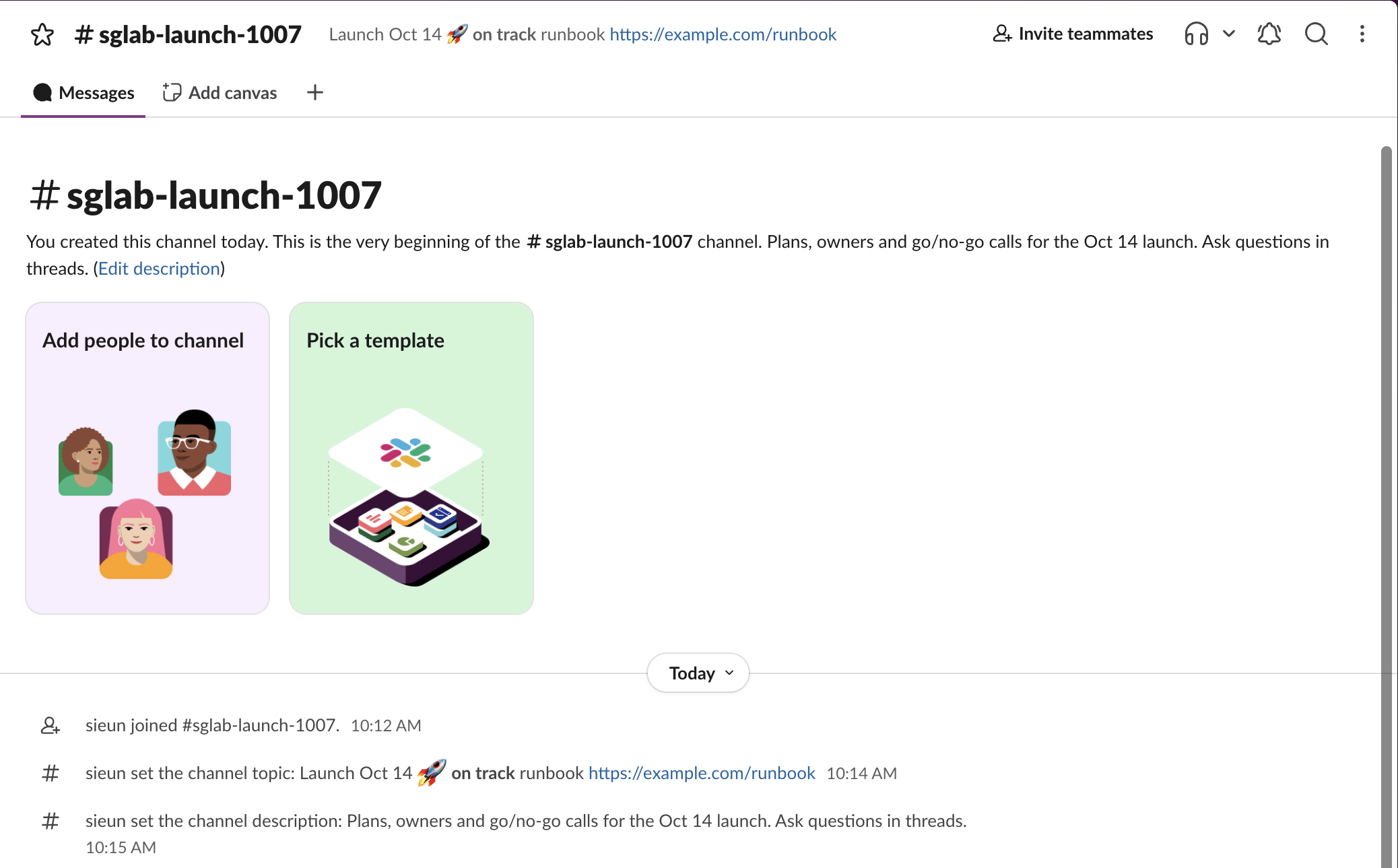
- • Channel header. Only the topic. The text sat to the right of the channel name, in grey, with the emoji drawn and the link clickable. A channel with no topic shows nothing there.
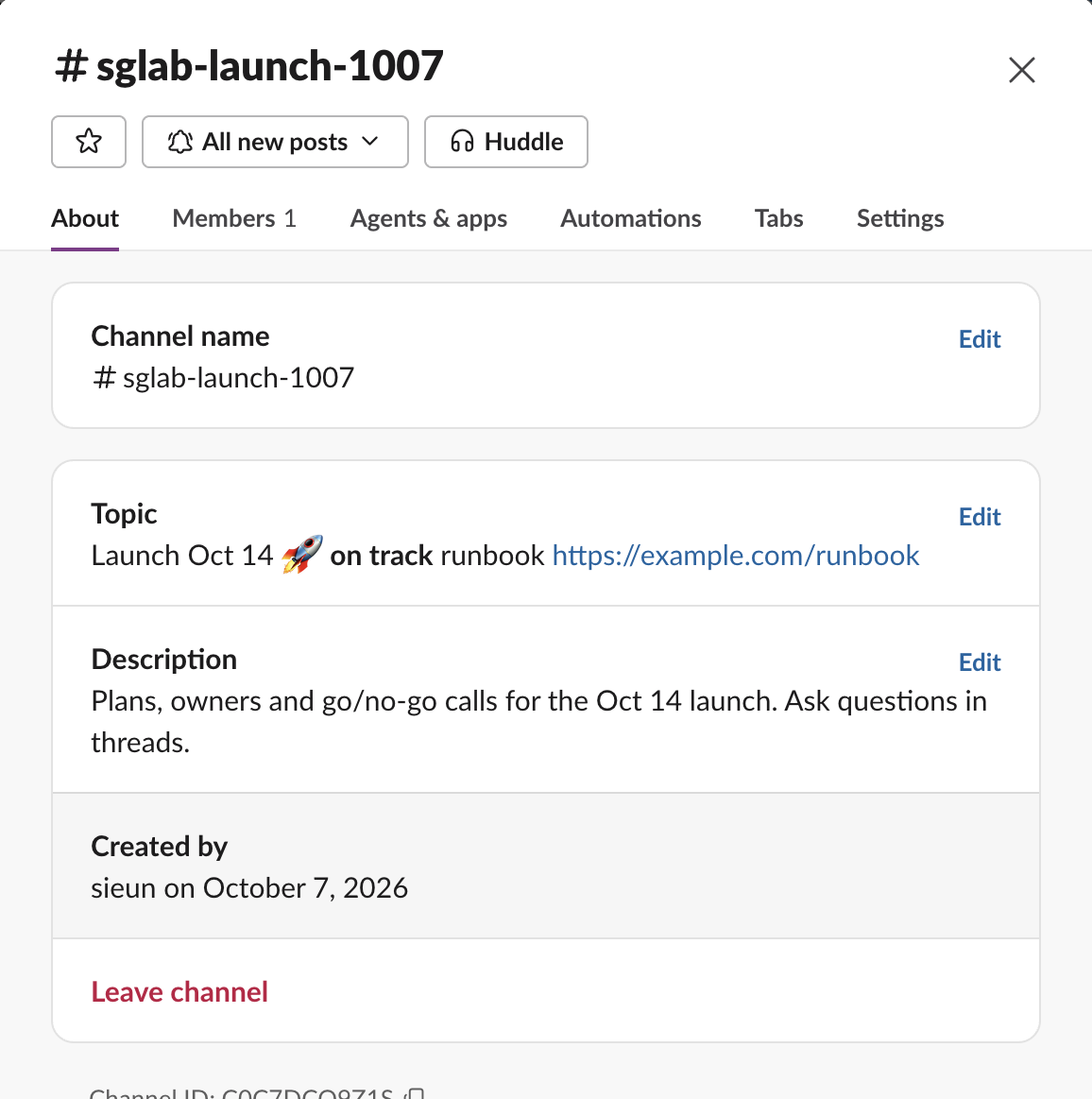
- • Channel details (click the channel name). Both, under Topic and Description, each with its own Edit button.
- • Channel intro. Only the description. Slack appends it to "This is the very beginning of the #channel channel" and adds an "Edit description" link. Before a description is set, the intro shows an "Add channel description" card instead.
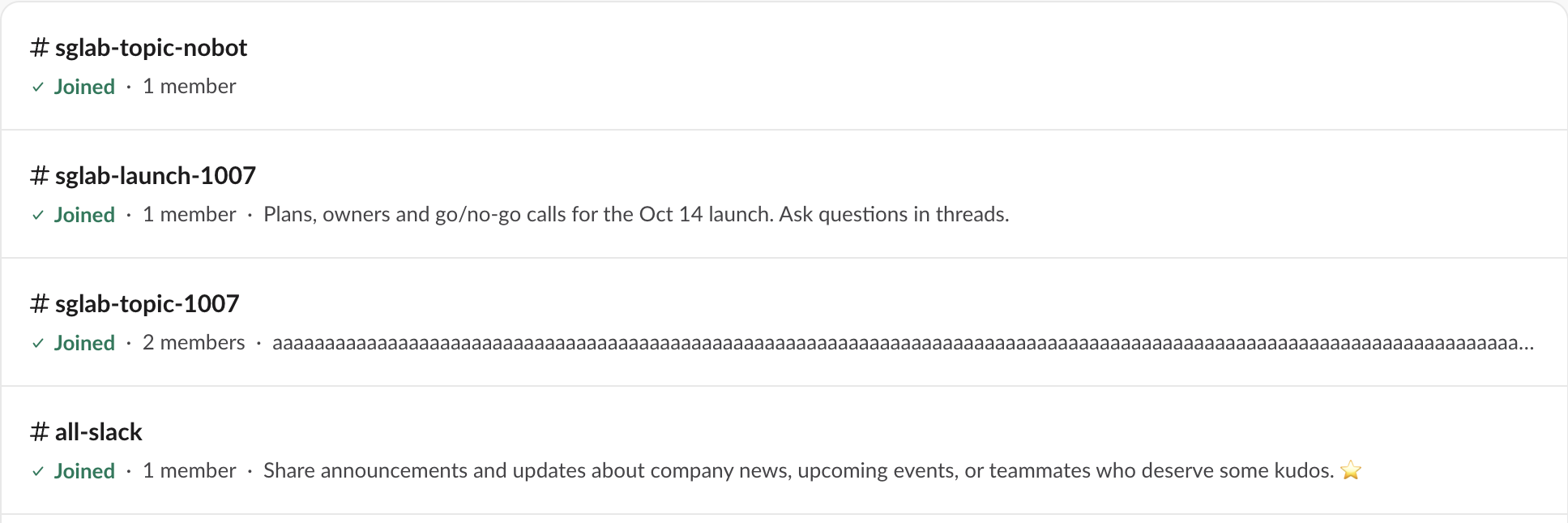
- • Directories > Channels. Only the description, after the member count. The topic does not appear in the list.
Each change also posts a system message in the channel, visible to every member: "set the channel topic: ..." with the full new text, or "set the channel description: ...". Clearing the topic posted "cleared channel topic". Setting the same topic twice in a row posted two messages, so a script that sets the topic on a schedule adds a line to the channel every time it runs, changed or not.
Never appear "away" on Slack again
Cloud-based. No downloads. Works 24/7 even when your laptop is off.
The 250-character limit
Both fields stop at 250 characters, in the UI and in the API. The UI behaves differently for each one.
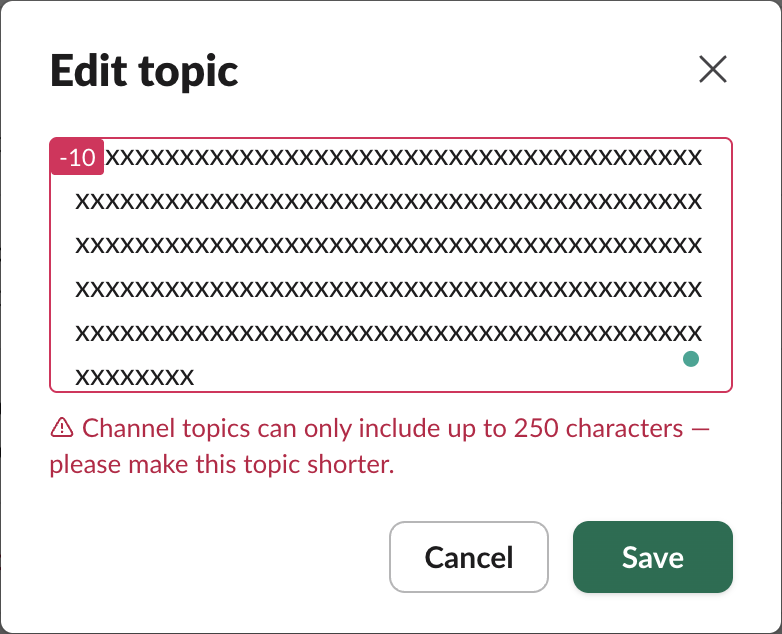
In the topic dialog we typed 260 characters. A red -10 counter appeared, and clicking Save showed "Channel topics can only include up to 250 characters — please make this topic shorter." In the description dialog the same 260 characters showed the same -10 counter, but clicking Save did nothing at all: no message, and the dialog stayed open. If Save seems broken in the description box, look for the red counter in its top-left corner.
Through the API, 250 characters returned ok: true and 251 returned {"ok": false, "error": "too_long"} for both methods. The API counts characters as you send them, so 250 accented letters (é) or 250 Korean syllables were accepted and stored whole. Two kinds of character grow after Slack accepts them:
| What we sent (250 characters) | Result | What Slack stored |
|---|---|---|
a x 250 | ok | all 250 |
é x 250 | ok | all 250 |
가 x 250 | ok | all 250 |
😀 x 250 | ok | :grinning: x 25, then :g... (255 characters) |
& x 250 | ok | & x 50, then &a... (255 characters) |
< x 60 | ok | < x 60 (240 characters) |
Slack stores emoji as :name: codes and escapes &, < and >, then keeps at most 255 stored characters. When the stored form is longer, it cuts it to 252 characters and adds .... So a topic of 250 emoji is accepted without an error but keeps only 25 of them. Fifty-one & signs fit exactly (255 stored characters); 250 of them got cut to 50. A topic full of emoji or ampersands is shorter than it looks, and the API will not tell you.
Setting the topic and description with the API
This is the script we ran against the test channel. It reads the bot token from an environment variable:
import os, requests

token = os.environ["SLACK_BOT_TOKEN"]  # xoxb- token with channels:manage
channel = os.environ["CHANNEL_ID"]

def call(method, **fields):
    r = requests.post(
        f"https://slack.com/api/{method}",
        headers={"Authorization": f"Bearer {token}"},
        data={"channel": channel, **fields},
        timeout=30,
    )
    body = r.json()
    ch = body.get("channel", {})
    print(method, body["ok"], body.get("error"),
          ch.get("topic", {}).get("value"), "|", ch.get("purpose", {}).get("value"))

call("conversations.setTopic", topic="Launch Oct 14 :rocket: on track")
call("conversations.setPurpose", purpose="Plans and go/no-go calls for the Oct 14 launch.")
call("conversations.setTopic", topic="x" * 251)
Output:
conversations.setTopic True None Launch Oct 14 :rocket: on track | Plans and go/no-go calls for the Oct 14 launch.
conversations.setPurpose True None Launch Oct 14 :rocket: on track | Plans and go/no-go calls for the Oct 14 launch.
conversations.setTopic False too_long None | None
Both methods return the whole channel object, so you can read the new value back from the reply without a second call. The scopes we used: channels:manage on the bot token for public channels and groups:write for private ones; a user token with channels:write also worked. Other replies we got:
| Situation | Reply |
|---|---|
| Bot is not a member of the channel | not_in_channel |
| Channel ID does not exist | channel_not_found |
topic left out | invalid_arguments, with [ERROR] missing required field: topic |
| Empty string as the topic | ok, and the channel shows "cleared channel topic" |
Private channel the bot created, groups:write | ok |
For not_in_channel, add the bot to the channel first; the not_in_channel guide covers conversations.join and inviting the bot. To get the channel ID for the call, see how to find a Slack channel ID.
Formatting works in both fields. We sent *bold*, <https://example.com|Example>, :tada: and a bare URL. Slack stored the bare URL wrapped as <https://slack.com> and kept the rest as sent, and the header drew bold text, the emoji and a clickable link. A newline was stored in the topic as \n. If you build topic text in code, our Slack message formatter shows how the same markup renders.
FAQ
Why is my channel description cut off? The channel list under Directories > Channels shows one line per channel. A long description ends with an ellipsis there; the full text is in the channel details and the channel intro. Put the important words first.
Does a description stay the same when the channel is renamed?
Yes. We renamed the test channel with conversations.rename and the reply still held the same topic and description. The channel ID also stays the same after a rename, so a script that sets the topic by ID keeps working.
Stop Jiggling Your Mouse.
Join hundreds of remote workers who never worry about their Slack status. Set it up once, stay green forever.
Related Articles
Slack Workspace Icon: Size, Crop and Transparency, Tested on a Real Workspace
We uploaded six workspace icons to a test Slack workspace: 100 px, 1024 px, a wide image, a transparent PNG and two oversize files. What Slack accepted, what it stored, and how to remove an icon.
How to Change Your Slack Workspace Name: Where It Is, the 50-Character Limit, and What Updates
We renamed a free-plan Slack workspace and watched what changed: the sidebar, the search box and the default icon updated in an open tab within seconds, and the URL stayed the same.
Slack Calls API: calls.add, the Call Block and calls.end, Tested
The Slack Calls API shows a call from your own video or phone service as a card in Slack. We ran calls.add, the call block, participants and calls.end in a test workspace and list every response and error.