
Slack Offline Mode: What Works Without Internet
Slack has a limited offline mode on desktop: the app opens, you can read conversations you opened before, and your read markers sync when you reconnect. You cannot send, search or get new messages, and you show as away. What works, how to prepare, and how to look offline while online.
Slack's offline mode is limited. Without internet, the Slack desktop app still opens, you can read conversations you opened before, and you can mark messages as read; Slack syncs those unread markers when you reconnect. You cannot receive new messages, send messages, search, or join huddles and calls. To everyone else you show as away, because Slack sees no connected session. Messages you scheduled while online still go out on time, since Slack's servers send them.
If you came here looking for a way to appear offline while you are connected, that is a different setting: click your profile picture and choose Set yourself as away. The steps for every device are in how to appear offline on Slack. And if you want the opposite, to keep showing active while your laptop is closed or offline, Slack Green keeps your presence active from its own servers during the working hours you set.
What works in Slack without internet
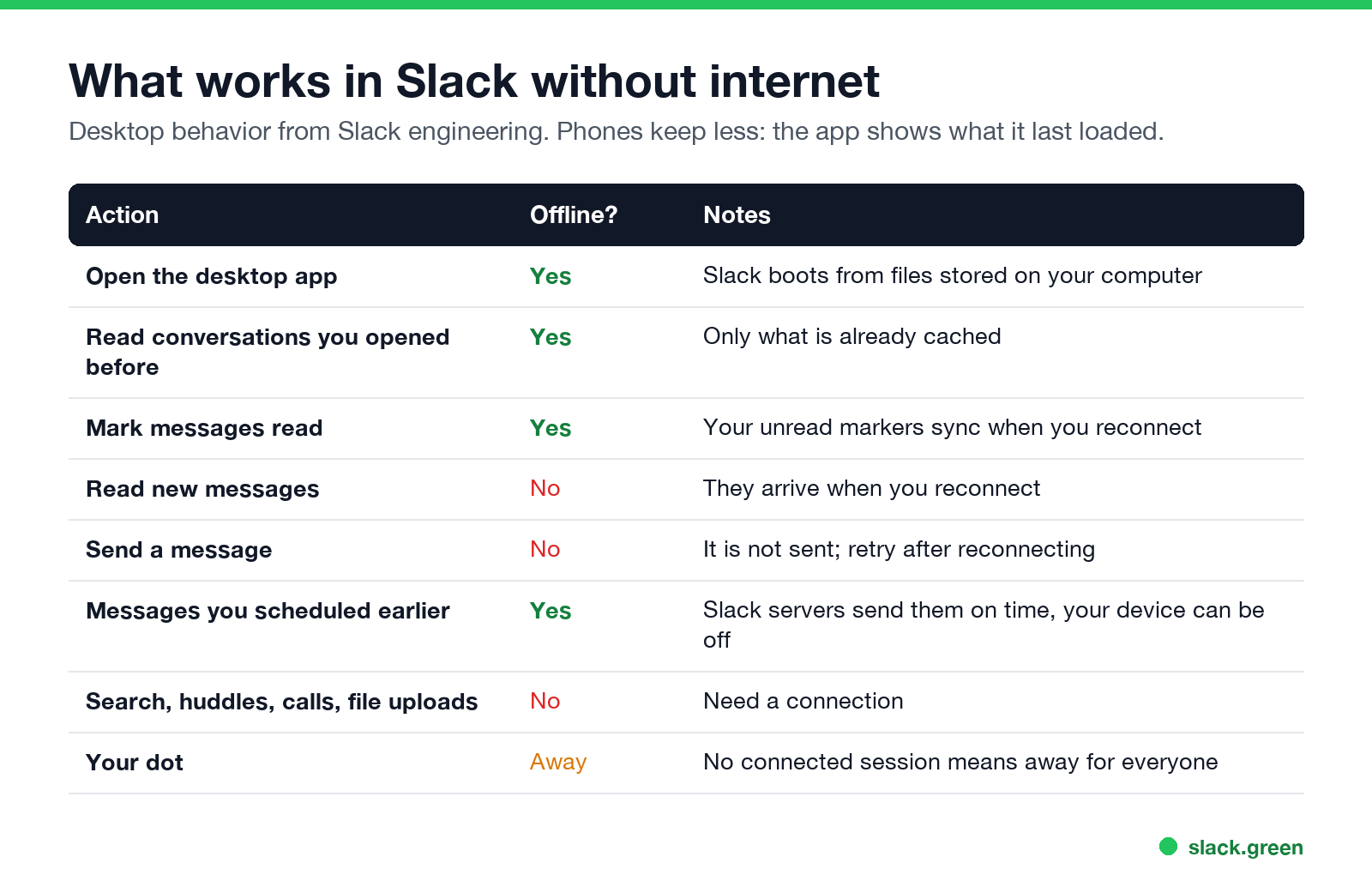
Slack's engineering team described the desktop offline support when they rebuilt the client around a service worker: you can boot, read messages from conversations you have previously read, and set your unread marker to be synced once you are back online.
| Action | Works offline? |
|---|---|
| Open the desktop app | Yes, from files stored on your computer |
| Read conversations you opened before | Yes, what is already cached |
| Mark as read | Yes, synced when you reconnect |
| New messages | No, they arrive when you reconnect |
| Send a message | No. It does not go through; retry once you are back |
| Messages scheduled earlier | Yes, Slack's servers send them |
| Search, huddles, calls, uploads | No |
| Your presence | Away for everyone |
Does Slack work offline on iPhone and Android?
Only for what is on screen already. The mobile app shows the conversations it last loaded. It does not send, fetch new messages or search until the phone is back online, and anything you try to send waits with an error until you retry.
Presence on a phone is stricter than offline mode: you show as away as soon as the app leaves the screen, connected or not. Details in keep Slack active on your phone.
How to prepare Slack for a flight or no signal
Never appear "away" on Slack again
Cloud-based. No downloads. Works 24/7 even when your laptop is off.
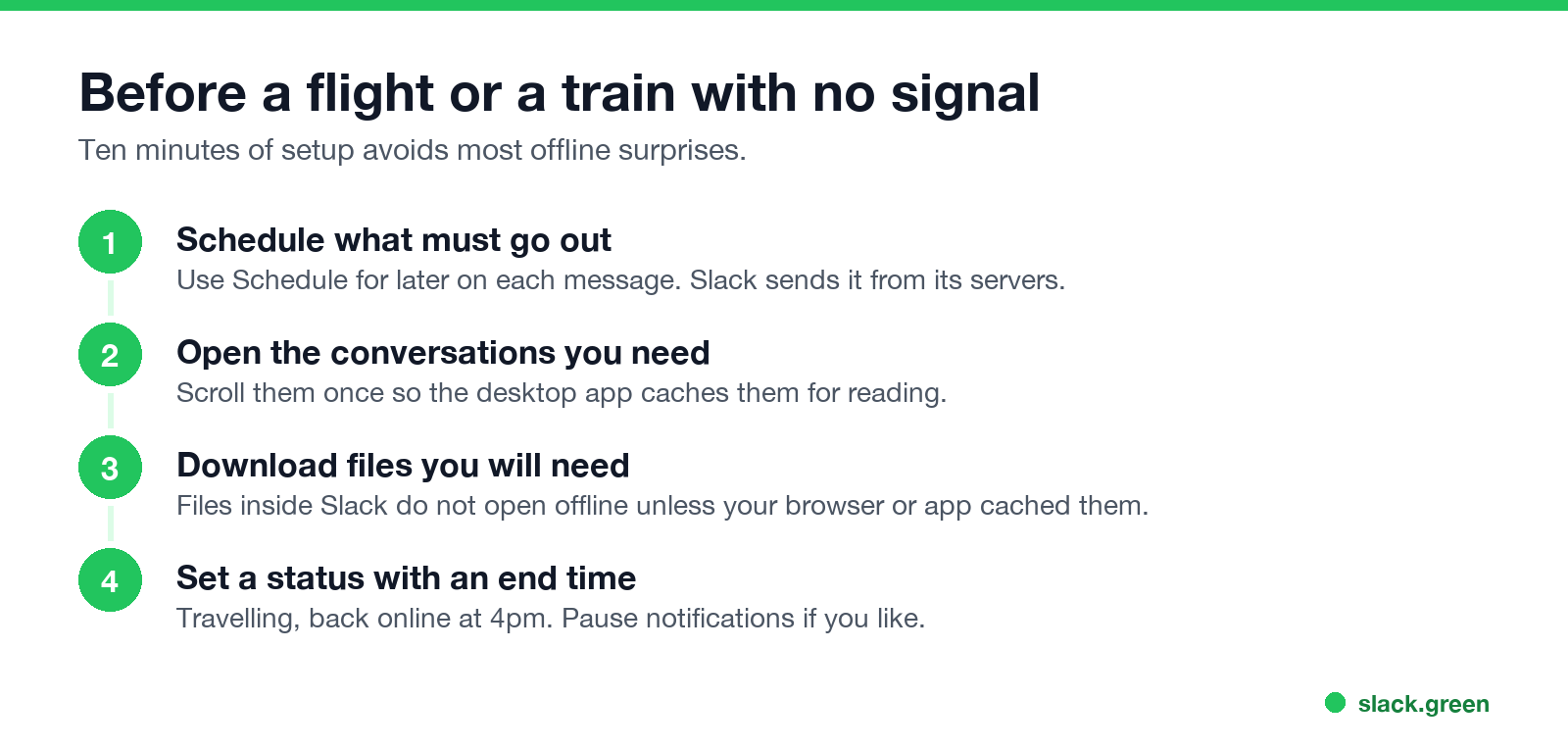
- Schedule what must go out. Click the arrow next to Send and choose a time. Slack sends it from its servers, with your laptop closed and your phone in airplane mode. More in how to delay and schedule Slack messages. If you only need a nudge for yourself later, use /remind.
- Open the conversations you will need. Scroll through them once so the desktop app has them cached.
- Download files. Files shared in Slack need a connection unless they were already cached.
- Set a status with an end time. "Flying, online again at 4pm" answers questions before they come. Pause notifications for the same period if you like; see Slack Do Not Disturb.
- Check slack-status.com for an incident.
- Restart Slack or reload the browser tab.
- Turn your VPN off and on, or try another network. Strict proxies and firewalls block the live connection Slack uses.
- Sign out and back in if the problem stays. If Slack keeps asking you to sign in instead, see Slack keeps logging me out. If Slack connects but channels are missing from the sidebar, see Slack channels disappeared from the sidebar.
Slack offline status: what others see
Slack has no separate offline status. When your device is offline, when Slack is closed, and when you are idle, coworkers see the same hollow away dot. They cannot tell which one it is. What that dot means to them is in Slack away status meaning, and every other icon is in Slack status icons meaning.
When you reconnect, you show as active again after your first input in Slack. The timing rules are in how long does Slack stay active.
Slack says offline but your internet works
If Slack shows "trying to connect" or everyone looks offline while other sites load, the problem is the connection between Slack and its servers:
The full checklist is in Slack showing everyone offline.
How to stay active when you go offline
Never appear "away" on Slack again
Cloud-based. No downloads. Works 24/7 even when your laptop is off.
Because an offline device reports nothing, you go away the moment your laptop loses its connection or closes. If your team reads the dot, that can look like you left early. Slack Green keeps your Slack session active from a server during your working hours, so your dot follows your schedule, online or not. Other options are compared in how to keep Slack active.
FAQ
Does Slack work offline?
Partly. The desktop app opens and shows conversations you already read. Sending, search, calls and new messages need a connection.
Can I send Slack messages offline?
No. A message you send without a connection does not go through. Schedule messages before you go offline instead; Slack's servers send them on time.
What can you do in Slack offline mode?
Open the desktop app, read cached conversations, and mark messages as read. Your read markers sync when you reconnect.
Does Slack show me as offline when I lose internet?
You show as away, the same hollow dot as when you are idle. Slack has no separate offline dot.
How do I show as offline on Slack while connected?
Click your profile picture and choose Set yourself as away. See how to appear offline on Slack.
Stop Jiggling Your Mouse.
Join hundreds of remote workers who never worry about their Slack status. Set it up once, stay green forever.
Related Articles
How to Keep Your Outlook Status Green (It Comes From Teams)
Your Outlook status shows your Microsoft Teams presence, so to keep Outlook green you keep Teams Available: Teams signed in and running, input on the computer, no lock or sleep, and no leftover status. What sets you Away, and what you can change.
Slack Multiple Workspaces: Use, Switch and Stay Active in Each
You can sign in to several Slack workspaces in one app and switch with Ctrl+Tab or Cmd/Ctrl plus a number. Each workspace has its own account, status, presence and Do Not Disturb, so you can be active in one and away in another. How to add, switch and manage them.
How to Keep a Mac Screen From Locking (Without Breaking IT Rules)
To stop a Mac from locking, open System Settings, Lock Screen, set the screen saver and display-off times to Never or longer, and raise Require password after screen saver begins or display is turned off. Or run caffeinate -d. What a managed Mac allows, and why Slack still shows you away.