
Slack PDF Preview: What Opens and What Does Not (Tested)
Slack shows page 1 of a PDF in the channel and opens the whole file in its own viewer. We uploaded a 1-page PDF, a 40-page PDF, a password-protected PDF and an HTML file on 20 November 2026 and recorded what each preview showed, how fast it came up, and what files.info returned.
Slack previews a PDF on its own: the message shows page 1 of the file, and a click opens it in Slack's PDF viewer with every page and a strip of page thumbnails. When the preview is missing, the file is the usual cause. In our test on 20 November 2026, a password-protected PDF got no preview in the channel and only a gray screen in the viewer, with no error message. A normal 40-page PDF previewed fine. We also uploaded an HTML file, and Slack rendered it as a web page, scripts included. All four uploads were made by a regular member of a Free workspace in the Slack web app and deleted afterwards.
| File | In the channel | When clicked | files.info |
|---|---|---|---|
| 1-page PDF, 69 KB | Card with page 1 as a preview | Slack's PDF viewer | thumb_pdf 909 x 1286 |
| 40-page PDF, 2.7 MB | Card with page 1 as a preview | Viewer with all 40 pages and a page strip | thumb_pdf 909 x 1286 |
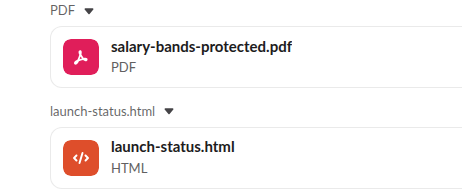
| Password-protected PDF, 69 KB | Plain card, no preview | Gray screen with a broken-image icon, no message | No thumb_pdf |
| HTML file, 0.6 KB | Plain card | The page itself, rendered, with its JavaScript run | mode: snippet, mimetype: text/plain |
A normal PDF: preview in the channel, viewer on click
Both plain PDFs got a preview the moment they were posted. Slack draws page 1 into the card, at the top of a frame that cuts off the rest of the page:
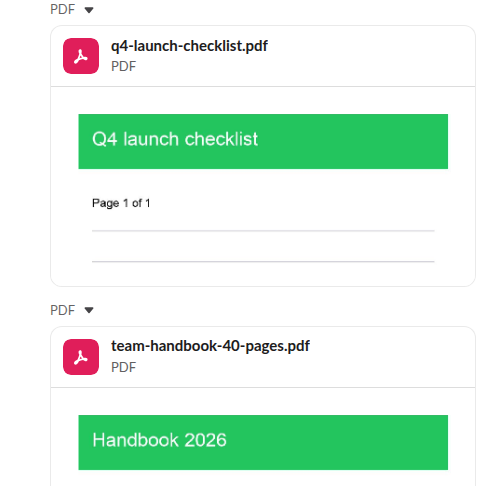
A click on the 40-page file opened the viewer over the channel. Page 1 was on screen in the first screenshot we took, 8 seconds after the click, with page thumbnails down the left side. When we jumped to the end, page 40 was drawn 3.4 seconds later, so Slack loads pages as you reach them instead of all at once.
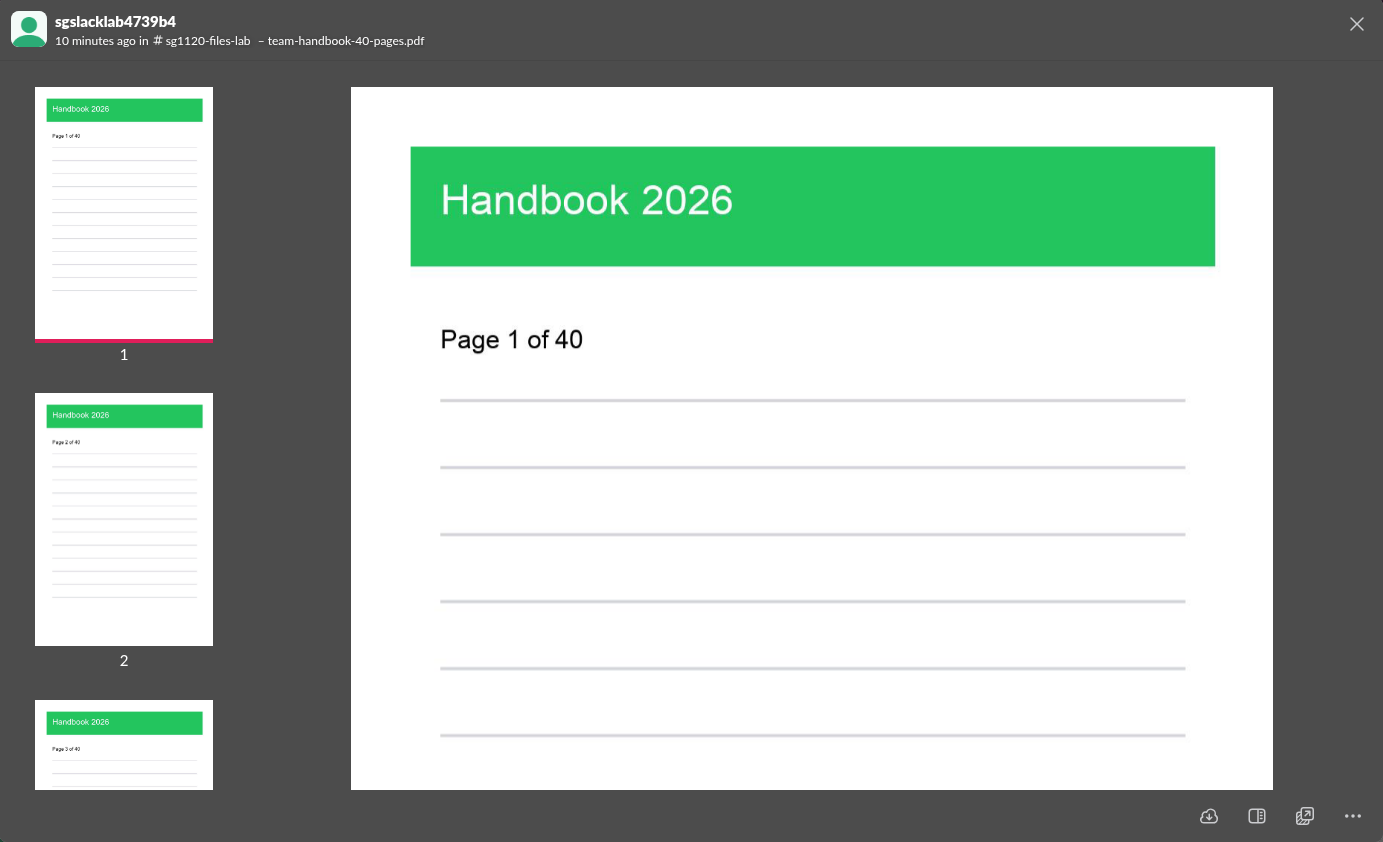
The viewer is a separate page, app.slack.com/pdf-viewer, loaded in a frame. The buttons at the bottom right download the file, open the side panel, open the file in a new window, and show more actions.
The preview needs nothing from you. The files.info answer for the 40-page file had a thumb_pdf image of page 1, which is what the card shows:
{
  "name": "team-handbook-40-pages.pdf",
  "mimetype": "application/pdf",
  "filetype": "pdf",
  "pretty_type": "PDF",
  "size": 2738509,
  "thumb_pdf_w": 909,
  "thumb_pdf_h": 1286,
  "thumb_pdf": "https://files.slack.com/files-tmb/T.../team-handbook-40-pages_thumb_pdf.png"
}
Slack PDF preview not working: password-protected files
The password-protected copy of the 1-page PDF was posted as a plain red PDF card with no page image:
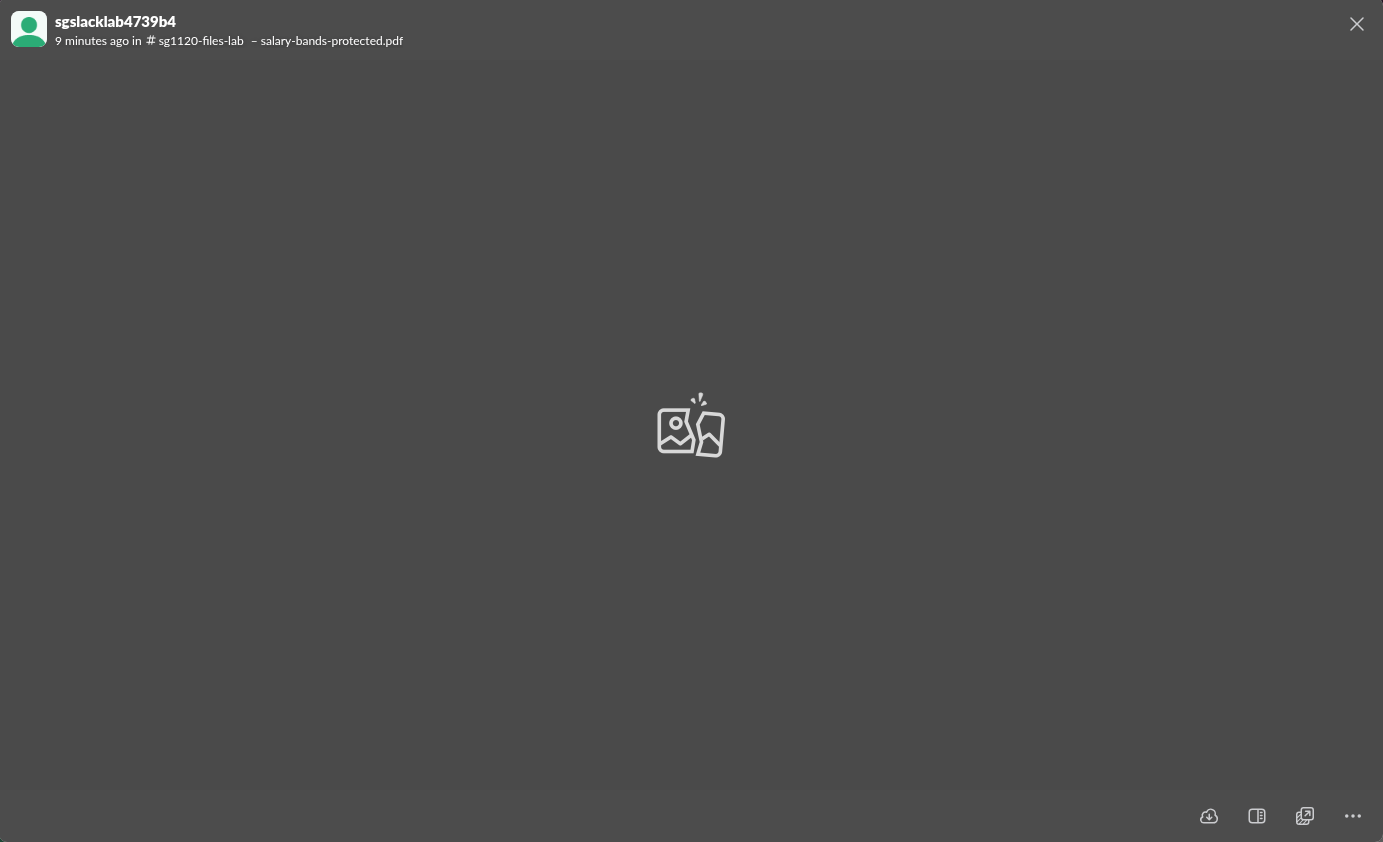
Clicking it opened the viewer, which stayed gray with a broken-image icon in the middle. Slack showed no "password required" message and no field to type the password in. The download button still worked, so open such a file in a desktop PDF reader:
files.info gives the same answer without opening anything: the protected file had no thumb_pdf field at all, while both normal PDFs had one. A script can use that to spot PDFs Slack could not read:
{
  "name": "salary-bands-protected.pdf",
  "mimetype": "application/pdf",
  "filetype": "pdf",
  "pretty_type": "PDF",
  "size": 69210
}
Never appear "away" on Slack again
Cloud-based. No downloads. Works 24/7 even when your laptop is off.
Open an HTML file in Slack
Slack did not show our .html file as code. In the channel it was a plain card with an HTML icon. Clicking it opened the page itself, with our CSS applied and the line our inline JavaScript added:
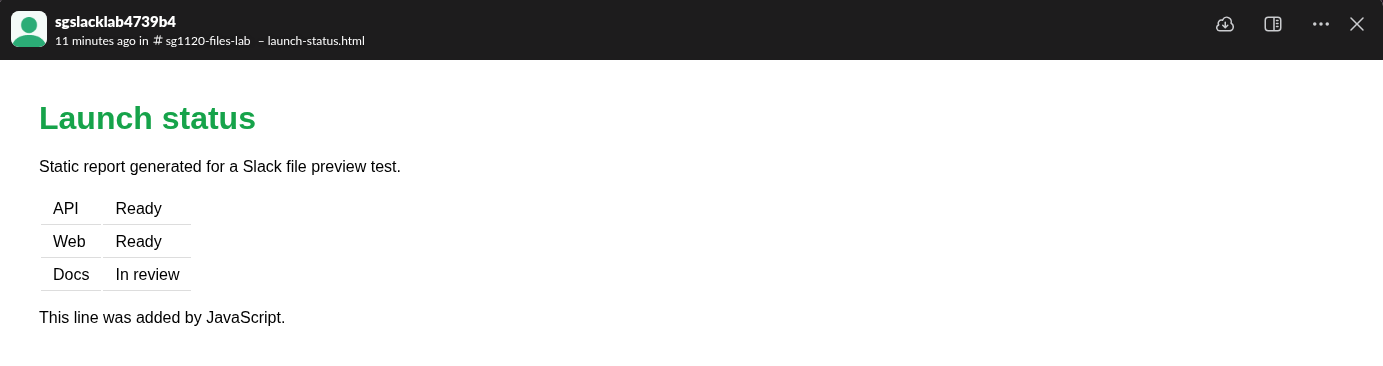
The page ran in a frame from a separate domain made from the file ID, f0ckhkem6f3.slack-mcps.com, with sandbox="allow-scripts allow-same-origin". The frame's content policy listed the outside sources a page may load: scripts and styles from unpkg, jsDelivr, cdnjs, the Tailwind CDN and Google Fonts, and images only from Slack's own image domains. So a self-contained report or chart opens fine, while a page that loads images or data from your own server may come up half empty.
The API still treats the file as text. files.info called it a snippet with a plain-text MIME type and a preview of the first lines of the source:
{
  "name": "launch-status.html",
  "mimetype": "text/plain",
  "filetype": "html",
  "pretty_type": "HTML",
  "mode": "snippet",
  "editable": true,
  "lines": 8,
  "lines_more": 3,
  "preview_is_truncated": false,
  "preview": "<!doctype html>\n<html><head><meta charset=\"utf-8\"><title>Lau..."
}
To share HTML as code for people to read, paste it in a code block instead; our guide to Slack code blocks shows how. To find a shared file again later, see where Slack files are stored.
FAQ
Why is there no preview for my PDF in Slack? In our test, a password-protected PDF got no preview and a blank viewer, with no error. A normal PDF of 40 pages and 2.7 MB previewed fine. Remove the password, or ask people to download the file.
Can Slack open an HTML file? Yes. In our test Slack rendered the HTML page in its viewer and ran its inline JavaScript, inside a sandboxed frame that allows outside scripts only from a few public CDNs.
Stop Jiggling Your Mouse.
Join hundreds of remote workers who never worry about their Slack status. Set it up once, stay green forever.
Related Articles
Slack Audio Files: Which Formats Play and Get Transcripts
Slack plays MP3, M4A and WAV uploads in the message with a transcript button. We uploaded five audio formats and a spoken note on 20 November 2026: OGG and FLAC got no player, and the spoken MP3 got a transcript on the Free plan.
Upload SVG to Slack: What Works and What Fails (Tested)
Slack accepts an SVG file but shows it as a plain file card with no preview. We uploaded, pasted and tried one as a custom emoji and a profile photo on 20 November 2026, then converted it to PNG, which worked everywhere.
How to Change Your Display Name in Slack (Tested)
Change your Slack display name under Profile > Edit. We tested where it shows, which names Slack refuses, and why a change may not stick.