
Upload SVG to Slack: What Works and What Fails (Tested)
Slack accepts an SVG file but shows it as a plain file card with no preview. We uploaded, pasted and tried one as a custom emoji and a profile photo on 20 November 2026, then converted it to PNG, which worked everywhere.
You can upload an SVG to Slack, but only as a file: Slack shows it as a gray file card with the word SVG and no picture of the image. In our test on 20 November 2026, the same SVG was refused as a custom emoji ("Please make sure your file is a GIF, JPEG, PNG, or WEBP") and as a profile photo (bad_image). Converting it to a 128 x 128 PNG fixed both. We ran every step as a regular member of a Free workspace, with a 274-byte SVG of a green check mark, and deleted the files and the emoji afterwards.
| What we tried | Result |
|---|---|
| Upload the SVG as a file | Accepted; file card with no preview |
| Paste the SVG into the message box | Accepted; same file card |
| Click the card | No viewer opened |
| Add it as a custom emoji (dialog) | "Please make sure your file is a GIF, JPEG, PNG, or WEBP." |
Add it as a custom emoji (emoji.add) | error_bad_format |
Set it as profile photo (users.setPhoto) | bad_image |
| The same image as a 128 x 128 PNG | Worked as emoji and as profile photo |
Upload an SVG as a file
The upload itself works. Slack stored the file and posted it in the channel as a card with a file icon, the name and the type, and no image preview. Clicking the card opened no viewer in our browser, while a PDF and an HTML file in the same channel opened in Slack's viewer.

files.info explains the missing preview. Slack identified the type correctly but made no thumbnail at all. A PDF uploaded in the same test got a thumb_pdf field; our SVG got no thumb_ field of any kind:
{
  "id": "F0CKADXB345",
  "name": "green-check.svg",
  "mimetype": "image/svg+xml",
  "filetype": "svg",
  "pretty_type": "SVG",
  "size": 274,
  "mode": "hosted",
  "media_display_type": "unknown",
  "has_rich_preview": false
}
The 274-byte SVG had media_display_type: "unknown", the same value Slack gave a FLAC file it could not play. So there is no setting to turn on: Slack does not draw SVG images in messages. If people need to see the image, post a PNG next to the SVG. Our page on where Slack files are stored shows how to find such files again later.
Paste an SVG into the message box
Pasting an SVG file into the message box attached it the same way. The composer showed the file card, not a thumbnail:

After we sent it, the message's files[0] had filetype: "svg" and mimetype: "image/svg+xml", exactly like the upload.
SVG as a custom emoji: refused
In Add emoji, the dialog's own preview drew our SVG correctly on both the light and the dark square, because the browser can render SVG. Slack refused it only when we clicked Save:
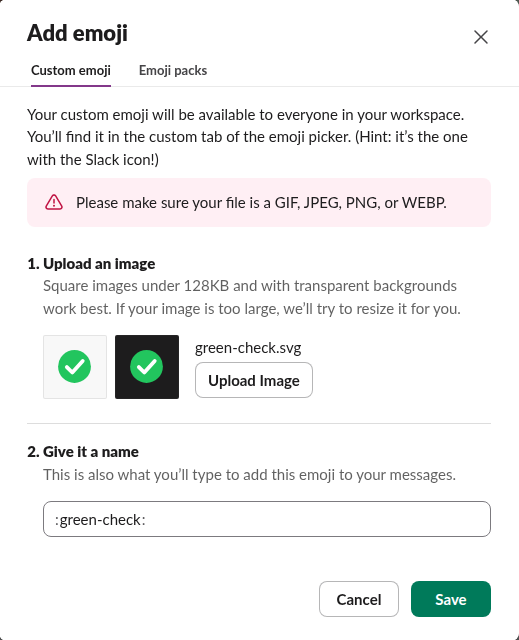
The emoji.add call that the dialog makes returned the same refusal as an error code:
{"ok": false, "error": "error_bad_format"}Never appear "away" on Slack again
Cloud-based. No downloads. Works 24/7 even when your laptop is off.
SVG as a profile photo: refused
users.setPhoto with the SVG returned {"ok": false, "error": "bad_image"}. The same image as a PNG returned ok: true and became the profile photo; we removed it again with users.deletePhoto. The profile picture rules, and what Slack shows when there is no photo, are in our page on the Slack default profile picture.
Convert the SVG to PNG first
We used rsvg-convert from librsvg, which draws the SVG at the size you ask for instead of scaling a small bitmap up:
rsvg-convert -w 128 -h 128 green-check.svg -o green-check.png
file green-check.png
green-check.png: PNG image data, 128 x 128, 8-bit/color RGBA, non-interlacedThe PNG was 4,078 bytes with a transparent background. Slack accepted it as :sg1120-green-check: on the first try and drew it in a message, as the screenshot above shows. 128 x 128 is the size Slack shrinks every custom emoji to, so rendering at that size keeps the lines sharp; the other emoji rules are in how to add custom emoji to Slack. Our Slack emoji resizer takes PNG, JPG, GIF and WebP, not SVG, so convert first if you want to resize or crop the result there.
FAQ
Why does my SVG show as a file instead of an image in Slack?
Slack makes no thumbnail for SVG files. files.info for our upload had no thumb_ fields and media_display_type: "unknown", so Slack shows a file card. Post a PNG if people need to see the image.
Can I use an SVG as a Slack emoji? No. The Add emoji dialog accepts GIF, JPEG, PNG and WebP. Convert the SVG to a 128 x 128 PNG first.
Stop Jiggling Your Mouse.
Join hundreds of remote workers who never worry about their Slack status. Set it up once, stay green forever.
Related Articles
Slack Audio Files: Which Formats Play and Get Transcripts
Slack plays MP3, M4A and WAV uploads in the message with a transcript button. We uploaded five audio formats and a spoken note on 20 November 2026: OGG and FLAC got no player, and the spoken MP3 got a transcript on the Free plan.
Slack PDF Preview: What Opens and What Does Not (Tested)
Slack shows page 1 of a PDF in the channel and opens the whole file in its own viewer. We uploaded a 1-page PDF, a 40-page PDF, a password-protected PDF and an HTML file on 20 November 2026 and recorded what each preview showed, how fast it came up, and what files.info returned.
How to Change Your Display Name in Slack (Tested)
Change your Slack display name under Profile > Edit. We tested where it shows, which names Slack refuses, and why a change may not stick.