
Slack Revoke Token: What auth.revoke Breaks, Tested After a Fake Leak
We revoked a user token and a bot token with auth.revoke, then every token at once with the Revoke Tokens button, and logged each response, each event and what kept working. Then we reinstalled and checked the new tokens.
To revoke a Slack token, call auth.revoke with that token, or open your app's OAuth & Permissions page and click Revoke Tokens to kill every bot and user token the app has. Neither gives you a replacement. You get a new token by installing the app again. On 2 October 2026 we did all of this to a test app in our own workspace, as if its tokens had leaked, and logged every response. A revoked user token answered token_revoked, a revoked bot token answered account_inactive, and revoking the bot token uninstalled the app.
Revoke one token with auth.revoke
auth.revoke takes no token argument. It revokes the token you call it with, so you need the leaked token itself. This is the script we ran with slack_sdk 3.x. TOKEN_VAR names the environment variable that holds the token:
import os
from slack_sdk import WebClient
from slack_sdk.errors import SlackApiError

client = WebClient(token=os.environ[os.environ.get("TOKEN_VAR", "SLACK_BOT_TOKEN")])

def call(label, method, **kw):
    try:
        r = getattr(client, method)(**kw).data
        print(f"{label:28} ok   " + ", ".join(f"{k}={r[k]}" for k in ("user", "revoked") if k in r))
    except SlackApiError as e:
        print(f"{label:28} {e.response['error']}")

call("auth.test", "auth_test")
call("auth.revoke test=true", "auth_revoke", test=True)
call("auth.test", "auth_test")
call("auth.revoke", "auth_revoke")
call("auth.test after revoke", "auth_test")
call("chat.postMessage", "chat_postMessage", channel=os.environ["CHANNEL_ID"], text="still here?")
call("auth.revoke again", "auth_revoke")
With the user token (xoxp-):
auth.test                    ok   user=sieun
auth.revoke test=true        ok   revoked=False
auth.test                    ok   user=sieun
auth.revoke                  ok   revoked=True
auth.test after revoke       token_revoked
chat.postMessage             token_revoked
auth.revoke again            token_revoked
With the bot token (xoxb-):
auth.test                    ok   user=sglabw2
auth.revoke test=true        ok   revoked=False
auth.test                    ok   user=sglabw2
auth.revoke                  ok   revoked=True
auth.test after revoke       account_inactive
chat.postMessage             account_inactive
auth.revoke again            account_inactive
test=true only checks the call: it returned revoked=False and the token kept working. Without it, the token died at once. The error differs by token type, so code that watches for a dead token should treat token_revoked, account_inactive and invalid_auth the same way. A made-up token returned invalid_auth, and a call with no token returned not_authed.
What broke and what kept working
| After we revoked | Result |
|---|---|
| The user token | token_revoked on every call. The bot token still worked. |
| The person's own Slack session | Still signed in. Revoking an app's user token does not sign the person out. |
| The bot token | account_inactive on every call, and the app was uninstalled from the workspace |
| The bot's channel membership | Gone. conversations.members listed only the person. |
| Messages the bot had posted | Still in the channel |
The app-level token (xapp-) | Still valid. apps.connections.open returned ok, and our Socket Mode listener stayed connected. |
The last row matters after a leak. An app-level token is a separate token on the app's Basic Information page, with its own Revoke button. Revoking OAuth tokens does not touch it.
The events your app gets
Our Socket Mode listener was subscribed to tokens_revoked and app_uninstalled. Revoking the user token sent this envelope (the deprecated verification token is redacted):
{
  "token": "<redacted>",
  "team_id": "T0B7JBCDKC1",
  "api_app_id": "A0C71JYC6U8",
  "event": {
    "type": "tokens_revoked",
    "tokens": {"oauth": ["U0B7L4YK420"], "bot": []},
    "event_ts": "1790925080.122762"
  },
  "type": "event_callback",
  "event_id": "Ev0C674TBXPC",
  "event_time": 1790925080
}
oauth lists the user IDs whose user tokens died; bot lists bot user IDs. Revoking the bot token 9 seconds later sent tokens_revoked with "bot": ["U0C5RSHVBQF"], then app_uninstalled. Use these to delete stored tokens for that workspace. They arrive on the app-level connection, which is why the listener still received them.
Never appear "away" on Slack again
Cloud-based. No downloads. Works 24/7 even when your laptop is off.
Revoke every token at once
When you do not know which tokens leaked, or you no longer have the leaked token, use the app settings. On api.slack.com/apps, open the app, then OAuth & Permissions, and scroll to the bottom:
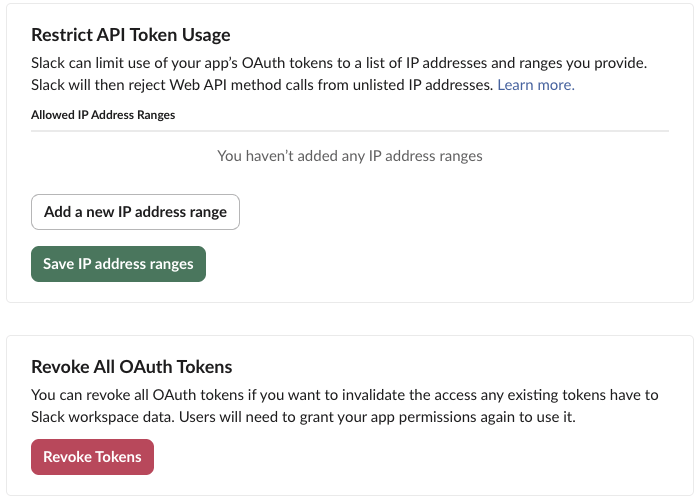
The button asks for confirmation and warns that it can take a moment:
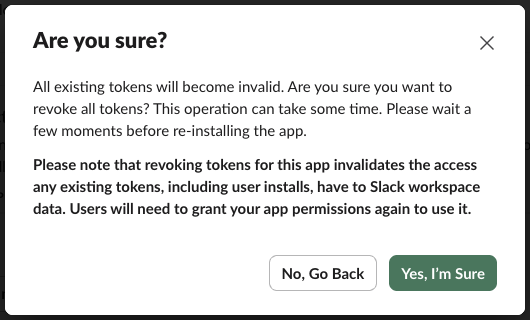
We clicked Yes at 16:12:36 KST. One second later both tokens still returned ok. Six seconds after the click the listener received app_uninstalled and a tokens_revoked event for the bot and for the user. At the next check, 12 seconds after the click, the bot token returned account_inactive and the user token token_revoked. The app-level token still worked. So wait about a minute before you reinstall, as the dialog says.
The card above it, Restrict API Token Usage, takes a list of IP ranges; the card says Slack then rejects Web API calls from other addresses. We did not test that list, but for a server app with fixed IPs it limits what a leaked token can do.
Get a new token
After a revoke, the app's OAuth Tokens section shows Install to Slack again, with no token:
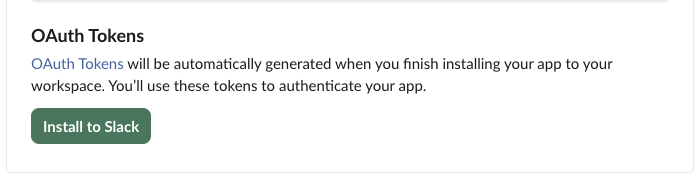
We reinstalled through the same OAuth flow. Both new tokens were different strings from the revoked ones, and the bot kept its user ID (U0C5RSHVBQF). The bot was not back in its channels, so conversations.join or an invite is needed again. A plain reinstall without a revoke gives the same token back: when we reinstalled earlier the same day only to add a scope, oauth.v2.access returned the identical bot token. Reinstalling alone does not fix a leak.
The order that worked for us after a leak:
- Revoke:
auth.revokewith the leaked token, or Revoke Tokens if you are unsure which ones leaked. - Revoke the app-level token on Basic Information if it was in the same file or repo.
- Reinstall, store the new token in your secret store, and redeploy.
- Rejoin channels or re-invite the bot.
Our bot token guide explains what each prefix (xoxb-, xoxp-, xapp-) can do, which tells you how much a leaked one exposed. If you want tokens that expire on their own, see token rotation.
FAQ
Does auth.revoke need a scope? No. Both our tokens could revoke themselves without any extra scope.
Can I revoke someone else's token? Not with auth.revoke, which only revokes the calling token. As the app's owner, Revoke Tokens covers every token of your app.
Does revoking delete the app's messages? No. The bot's earlier message stayed in the channel after its token was revoked and the app was uninstalled.
Stop Jiggling Your Mouse.
Join hundreds of remote workers who never worry about their Slack status. Set it up once, stay green forever.
Related Articles
assistant.threads.setStatus vs agents.sessions.setStatus: Both Tested in Slack
We called assistant.threads.setStatus and agents.sessions.setStatus on a test app before and after turning on the agent feature, clicked the stop button, and timed how long the status line stays. Every response, the stop event, and what Slack showed.
Slack Slash Command Payload: Every Field, Responses, and response_url Limits
We caught the payload a slash command sends, answered it as ephemeral, in_channel, plain text and empty, posted to its response_url until it failed, and typed the command inside a thread. Every result is from a test app on 2 October 2026.
Slackbot MCP Client: We Connected a 17-Line MCP Server and Slackbot Called It
We wrote a one-tool MCP server, added it to a Slack app with the mcp_servers manifest field, switched it on in Slackbot and asked for the time. Every request Slackbot sent to the server, the permission prompt, and what Slackbot said when the server was down.