
Slack Green Dot With a Z: What It Means and How to Remove It
The Z on a Slack dot means notifications are paused. We tested every state in the Slack web app on 30 September 2026, with screenshots of all four dots and what Resume notifications, /dnd off and focus mode really do.
A Z on a Slack dot means that person's notifications are paused. A green dot with a Z means they are active in Slack right now, but they get no banners, sounds or push alerts. Slack's own label for it is "Active, notifications snoozed". The Z has nothing to do with sleep or being away.
You can message someone with a green Z as normal. The message arrives at once and waits in their unreads. If the Z is on your own dot and you never paused anything, a notification schedule usually turned it on.
We put one Slack account through every state on 30 September 2026 in the Slack web app, and tested each way to remove the Z. The screenshots below are from that test.
The four dots, with Slack's own labels
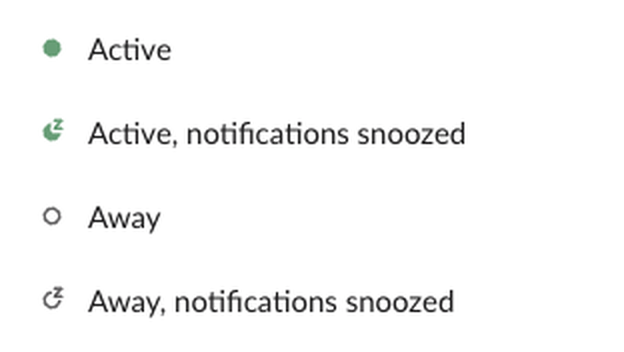
The dot shows two separate things. The fill is presence: filled green is active, hollow is away. Slack sets presence from your activity, and you turn away after 10 minutes with no input in Slack on desktop. The Z is notifications: it appears whenever they are paused.
| What you see | Slack's label | Will they get an alert for your DM? |
|---|---|---|
| Filled green dot | Active | Yes |
| Green dot with a Z | Active, notifications snoozed | No, not until the pause ends |
| Hollow dot | Away | Yes, but they are not in Slack |
| Hollow dot with a Z | Away, notifications snoozed | No, and they are not in Slack |
Because the two signals are separate, the Z sits on either dot. In our test, Set yourself as away changed the dot from green to hollow and kept the Z. Resume notifications removed the Z and left the dot hollow. A hollow dot with a Z is how most people look outside their working hours. For the hollow dot on its own, see what away means on Slack, and for every other icon next to a name, the Slack status icons guide.
Why the Z turns on by itself
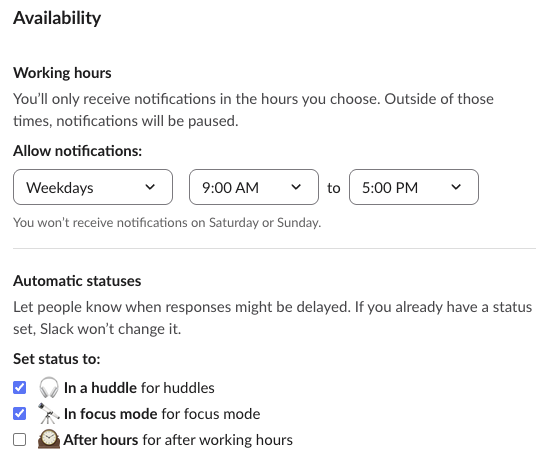
- • Your notification schedule. Slack pauses notifications outside your working hours. The setting is in Preferences, then Availability, under Allow notifications. Our test account allows notifications on weekdays from 9:00 AM to 5:00 PM, and its dot showed the Z all evening without a click.
- • Your admin's default schedule. Owners and admins can set a default schedule for the workspace. If you never set your own, you get theirs.
- • A
/dndcommand. We typed/dnd for 2 hoursin a message box. Slack replied "All set. I've turned on Do Not Disturb for 2 hours." and the Z appeared. - • A status with the pause box ticked. A status saved with Pause notifications until status is cleared keeps the Z until the status clears; our sick day status test shows the exact timing.
- • Focus mode. The focus mode button at the bottom of the sidebar pauses notifications with no end time. It also turns the sidebar grey and, if In focus mode is ticked under Automatic statuses, adds an "In focus mode" line to your profile.
- • Resume skips the rest of that night's schedule. After we clicked Resume notifications at 21:55, Slack listed the next pause as starting at 17:00 the next day. Notifications stayed on overnight.
- •
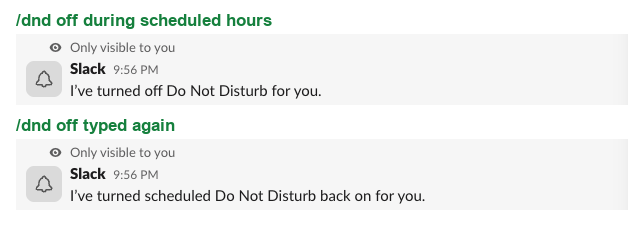
/dnd offworks as a switch. Typed once during scheduled hours, it ended the pause. Typed again, it turned the scheduled pause back on. We saw the same reply two times out of two.

How to remove the Z from your Slack dot
On desktop, click your profile photo, hover over Notifications and click Resume notifications. The menu shows when the pause would have ended.
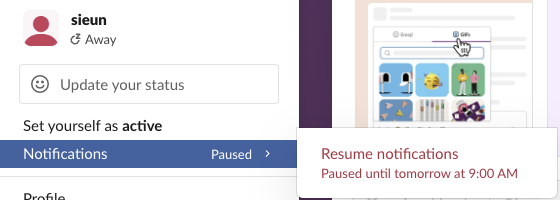
Two things we saw when we did it during scheduled hours:
If the Z comes back at the same time every day, your notification schedule is the cause. Open Preferences, then Availability, and widen the hours under Allow notifications.
 To end focus mode, click the same button at the bottom of the sidebar; in our test the schedule was back as before once we left focus mode.
Never appear "away" on Slack again
Cloud-based. No downloads. Works 24/7 even when your laptop is off.
What teammates see when you have the Z
According to Slack's help center, someone who opens a DM with you while your notifications are paused is told so, and can choose to notify you anyway for an urgent message. Nothing sent during a pause is lost; it waits in your unreads. To let certain people through a pause, add them to your VIP list in notification preferences. The pause options and their limits are in the Slack Do Not Disturb guide.
Does the Z change your active status?
No. Pausing notifications never changes your presence, and presence never pauses notifications. Our dot stayed green with the Z on until we set ourselves as away. If you want to look offline, the Z is the wrong tool: use Set yourself as away, as how to appear offline on Slack explains.
The reverse is also true. Resuming notifications does not stop the 10-minute idle timer, covered in why Slack goes idle so quickly. If you need to look reachable in the evening without keeping Slack open, Slack Green keeps your presence active on its side until your schedule ends, with no desktop app or mouse jiggler.
FAQ
Is someone with a green Z ignoring me?
You cannot tell. The green dot means they are using Slack. The Z means alerts are off, often from a schedule they set weeks ago.
Why does my Z show on my phone while I am working?
Your phone uses the same notification schedule, so the Z appears when your allowed hours end, even while you reply. Widen the schedule to remove it.
Stop Jiggling Your Mouse.
Join hundreds of remote workers who never worry about their Slack status. Set it up once, stay green forever.
Related Articles
How to Use Slack Block Kit Builder: Templates, Preview, Payload
Slack's Block Kit Builder at app.slack.com/block-kit-builder lets you pick a template, add blocks, preview the message on Desktop or Mobile, and copy the JSON payload for a webhook or chat.postMessage. A walk through the current builder, a working deploy message, and the steps to send it.
Wireless Mouse With a Jiggler: How the Built-in Mode Works
A wireless mouse with a jiggler is a normal mouse with a jiggle mode in its firmware: hold the DPI button for about 3 seconds and the cursor moves on its own. Two models in the top results, how they compare with a USB dongle and a mechanical mover, and what they do for Teams and Slack.
Does Discord Notify When You Change Your Status?
Switching between Online, Idle and Do Not Disturb sends no notification. But friends on the Discord mobile app can get a push when you come online, set a new custom status, or start a game, and you cannot stop Discord from sending it. They can turn it off on their side; you can go Invisible.