
SlackのZは通知の一時停止:緑の点にZが付く理由と消し方
Slackの点に付くZは、通知が一時停止中という意味です。2026年9月30日にSlackのWebアプリですべての状態を試し、4つの点のスクリーンショットと、通知を再開、/dnd off、集中モードで実際に何が起きるかをまとめました。
Slackの点に付くZは、その人の通知が一時停止中という意味です。Zの付いた緑の点は、今Slackでアクティブだけれど、バナーも音もスマホへのプッシュ通知も届かない状態です。Slackの表示では「Active, notifications snoozed」(アクティブ、通知を一時停止中)です。Zは眠っていることや離席中とは関係ありません。
緑のZの人にも、ふつうにメッセージを送れます。メッセージはすぐ届き、相手の未読に残ります。自分の点にZが付いていて、何も止めた覚えがないなら、たいていは通知のスケジュールが原因です。
2026年9月30日に、1つのSlackアカウントをSlackのWebアプリですべての状態にして、Zを消す方法を1つずつ試しました。下のスクリーンショットはそのときのものです。画面は英語表示です。
4つの点と、Slack自身の表示
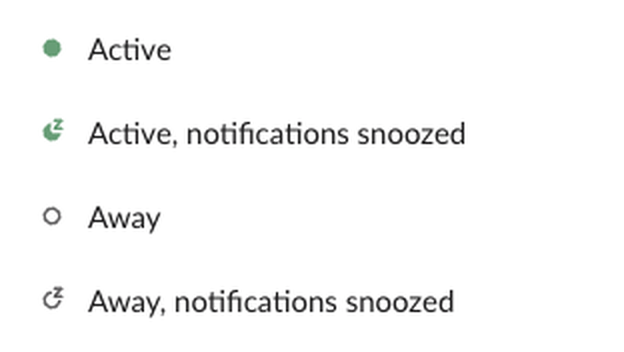
点は2つの別々のことを示しています。塗りは在席状況で、塗りつぶした緑はアクティブ、中が空いた点は離席中です。在席状況はSlackが操作から決めていて、デスクトップではSlackで10分間入力がないと離席中になります。Zは通知のほうで、通知が止まっているあいだずっと付きます。
| 見えるもの | Slackの表示 | あなたのDMで相手に通知は届く? |
|---|---|---|
| 塗りつぶした緑の点 | Active(アクティブ) | 届く |
| Z付きの緑の点 | Active, notifications snoozed(アクティブ、通知を一時停止中) | 一時停止が終わるまで届かない |
| 中が空いた点 | Away(離席中) | 届くが、本人はSlackにいない |
| Z付きの中が空いた点 | Away, notifications snoozed(離席中、通知を一時停止中) | 届かず、本人もSlackにいない |
2つは別の仕組みなので、Zはどちらの点にも付きます。テストでは、Set yourself as away(自分を離席中に設定)で点が緑から中空きに変わり、Zは残りました。Resume notifications(通知を再開)ではZが消え、点は中空きのままでした。勤務時間外の多くの人は、Z付きの中が空いた点に見えています。中が空いた点だけの意味はSlackの離席中の意味、名前の横に出るほかのアイコンはSlackのステータスアイコンの意味にあります。
Zが勝手に付く理由
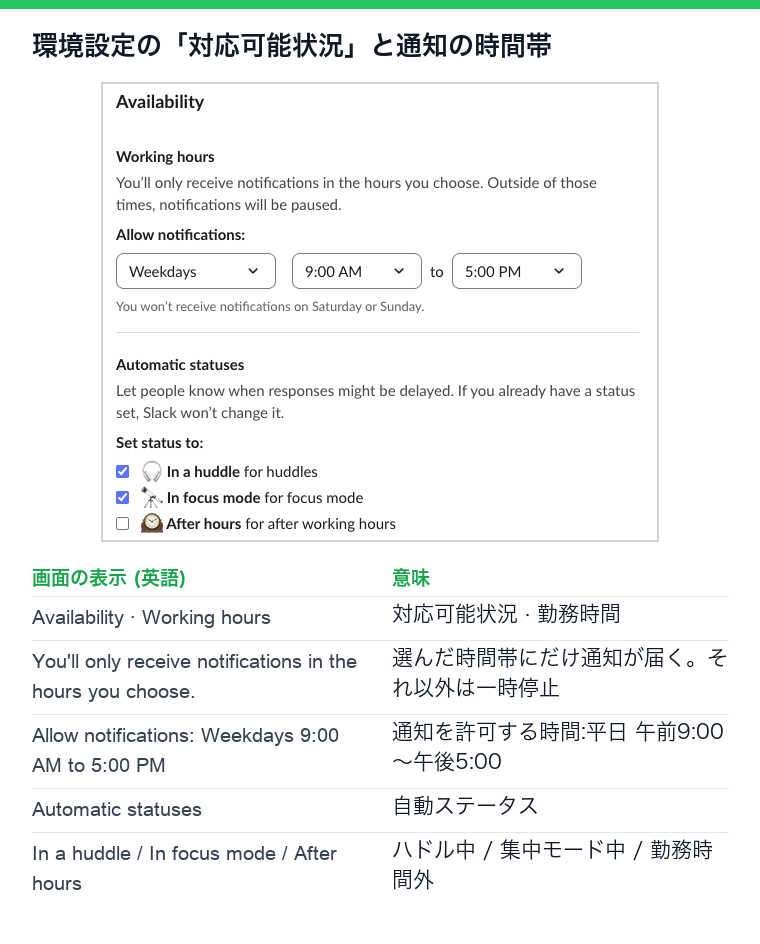
- • 自分の通知スケジュール。 Slackは勤務時間外に通知を止めます。設定は Preferences(環境設定)の Availability(対応可能状況)にある Allow notifications(通知を許可する時間)です。テストのアカウントは平日の午前9時から午後5時まで通知を許可していて、夜のあいだは何もクリックしなくても点にZが付いていました。
- • 管理者が決めた既定のスケジュール。 オーナーと管理者はワークスペースの既定のスケジュールを決められます。自分で設定したことがなければ、その時間が使われます。
- •
/dndコマンド。 メッセージ欄に/dnd for 2 hoursと打つと、Slackが「All set. I've turned on Do Not Disturb for 2 hours.」(2時間おやすみモードをオンにしました)と返し、Zが付きました。 - • 通知停止にチェックを入れたステータス。 Pause notifications until status is cleared(ステータスが消えるまで通知を一時停止)付きで保存したステータスは、消えるまでZを付けたままにします。
- • 集中モード。 サイドバーの下にある集中モードのボタンは、終わりの時刻なしで通知を止めます。サイドバーが灰色になり、Availabilityの自動ステータスで In focus mode にチェックがあれば、プロフィールに「In focus mode」(集中モード中)の行も付きます。
- • 再開すると、その夜のスケジュールは残りがなくなります。 21時55分に Resume notifications をクリックすると、Slackは次の一時停止を翌日の17時からと表示しました。その夜はずっと通知がオンのままでした。
- •
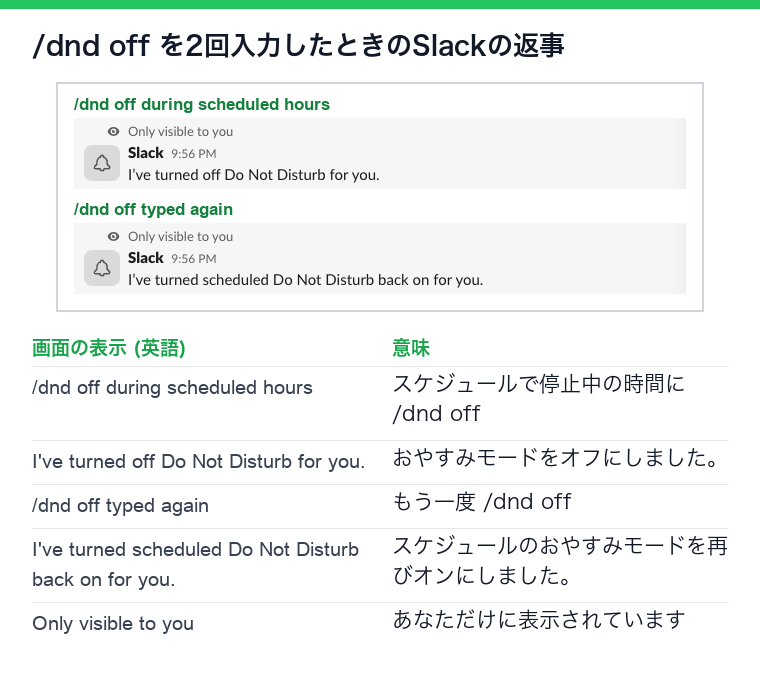
/dnd offは切り替えスイッチとして動きます。 スケジュールの時間帯に1回打つと一時停止が終わり、もう1回打つとスケジュールの一時停止が戻りました。2回試して2回とも同じ返事でした。
SlackのZを消す方法
デスクトップでは、プロフィール写真をクリックし、Notifications(通知)にカーソルを合わせて Resume notifications(通知を再開)をクリックします。メニューには、一時停止がいつ終わる予定だったかも出ています。
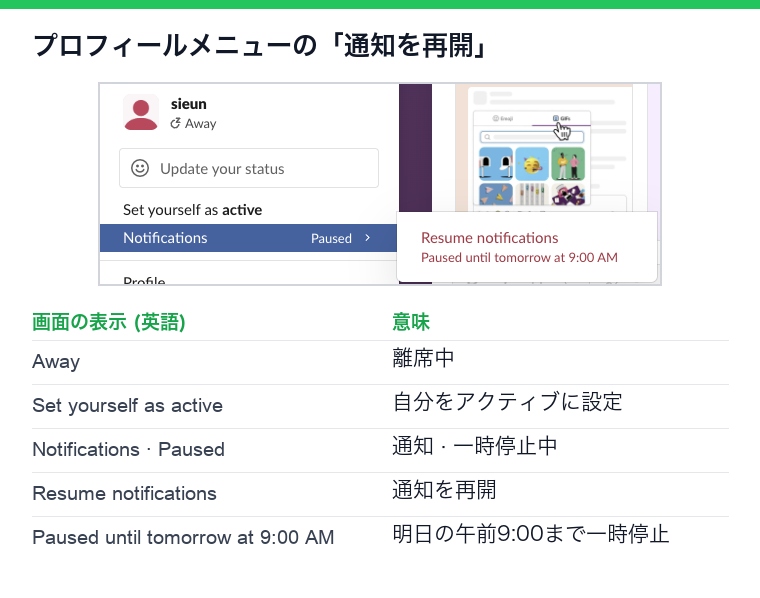
スケジュールで止まっている時間帯に試して、わかったことが2つあります。
毎日同じ時刻にZが戻ってくるなら、原因は通知のスケジュールです。Preferences、Availability の順に開いて、Allow notifications の時間を広げます。
集中モードを終えるには、サイドバーの下の同じボタンをもう一度クリックします。テストでは、集中モードを抜けるとスケジュールは元どおりでした。
Zが付いているとき、チームの人には何が見えるか
Slackのヘルプセンターによると、通知が一時停止中の人とのDMを開くと、そのことが表示され、急ぎのメッセージなら通知することもできます。一時停止中に送られたものは消えず、未読に残ります。特定の人の通知だけ一時停止中も届けたいなら、通知の設定でVIPリストに入れます。一時停止の選択肢と制限はSlackのおやすみモードの使い方にあります。
Zはアクティブの表示を変えるか
変えません。通知を止めても在席状況は変わらず、在席状況が通知を止めることもありません。テストでは、自分を離席中に設定するまで、点はZ付きの緑のままでした。オフラインに見せたいならZは向いていません。Set yourself as away を使います。手順はSlackでオフラインに見せる方法にあります。
逆も同じです。通知を再開しても、10分で離席中になるタイマーは止まりません。このタイマーについてはSlackがすぐ離席中になる理由で説明しています。
よくある質問
緑のZの人は無視しているのですか?
わかりません。緑の点はSlackを使っているという意味で、Zは通知がオフという意味です。何週間も前に設定したスケジュールのままのこともよくあります。
仕事中なのにスマホでZが出るのはなぜですか?
スマホも同じ通知スケジュールを使っています。許可した時間が終わると、返信している最中でもZが付きます。消すにはスケジュールの時間を広げます。
Related Articles
Slackで送信せずに改行する方法
Slackのメッセージで送信せずに改行するにはShift+Enterを押します。Enterで改行したいなら、環境設定の詳細設定で、メッセージを書くときのEnterキーを「改行する」に変え、Cmd+EnterかCtrl+Enterで送信します。スマホ、リスト、コードブロック、APIでの改行もまとめました。
Slackのメッセージの文字数制限:上限40,000、推奨4,000
Slackのメッセージのtextの上限は40,000字で、開発者向けドキュメントは4,000字未満を勧めています。APIで試すと、長い文は切られず4,000字ずつのメッセージに分けて投稿されました。Block Kitのセクションは3,000字、ヘッダーは150字まで。長いメッセージで起きること、ほかの文字数の制限、長い投稿の分け方をまとめました。
Slack Scheduled Message Didn't Send? 5 Cases We Tested
We scheduled five messages for 4:40 PM on 1 October 2026, then archived, left and deleted their channels and deleted a thread parent before the send time. Two sent, three never did, and Slack gave no notice about the three.