
Discord AFK Timeout: How the Inactive Channel Works and How to Turn It Off
Discord's AFK timeout is a server setting. If a server has an Inactive (AFK) channel, members who stay inactive in voice for 1, 5, 15 or 30 minutes or 1 hour get moved there and muted. Server admins can change the timeout or turn it off; members cannot.
Discord's AFK timeout is a per-server setting. If a server owner has picked an Inactive Channel, Discord moves anyone who stays inactive in a voice channel for the Inactive Timeout into that channel, where they are muted. The timeout can be 1, 5, 15 or 30 minutes, or 1 hour, and nothing longer. Only people with the Manage Server permission can change it or turn it off, by setting the Inactive Channel to "No Inactive Channel". As a member you cannot turn it off; you can only stay active, or use a server without an AFK channel.
The AFK timeout is separate from your Idle status, the yellow moon. That one is personal and follows your keyboard and mouse, as covered in what does idle mean on Discord. We build Slack Green, which keeps your Slack status active during your working hours from our servers, so we track how chat apps decide you are away.
How the Discord AFK channel works
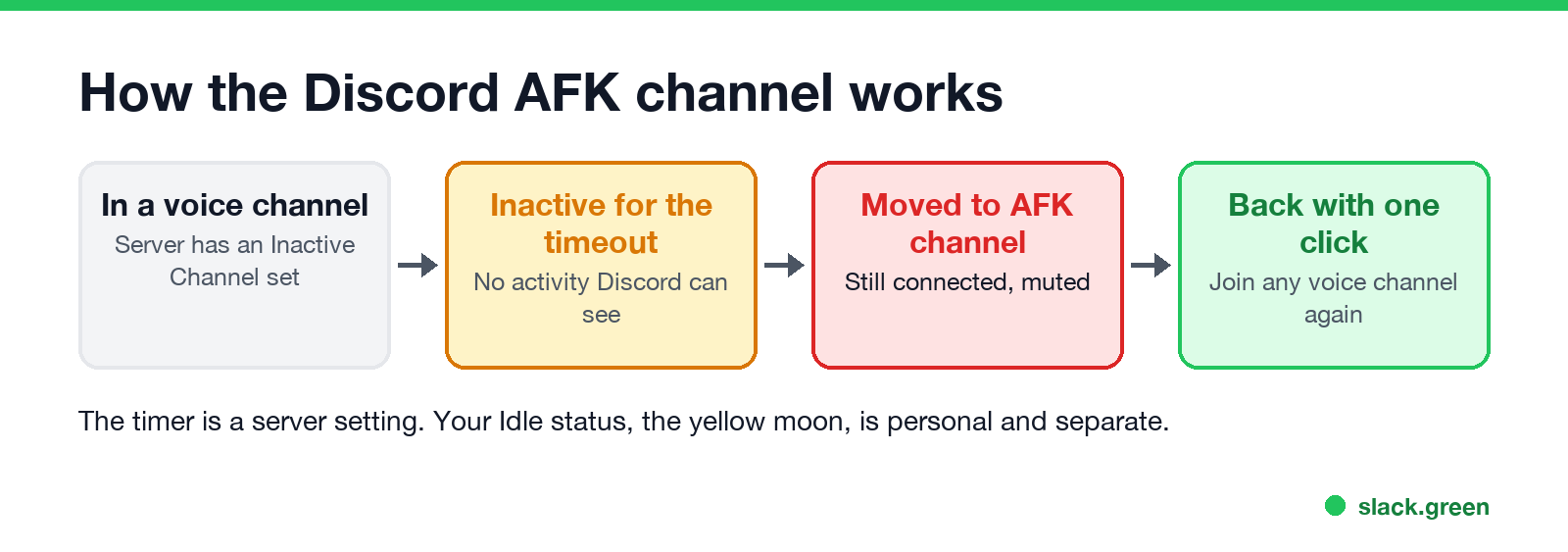
- You sit in a voice channel on a server that has an Inactive Channel set.
- Discord sees no activity from you for the length of the Inactive Timeout.
- Discord moves you into the Inactive Channel. You stay connected to voice, but you cannot speak there.
- When you come back, click any voice channel to rejoin it.
Discord does not publish exactly what counts as inactive. In practice it follows the same idea as your Idle status: input on the computer. A member on Discord's own feedback forum asked for the timer to be based on silence instead, because one user "never gets the inactive icon somehow" and "can stay in a channel forever." So a person who keeps using the computer while silent in voice usually stays put, and a person who walks away gets moved.
The AFK channel exists partly for cost. A reply on Discord's feedback forum explained that someone idling in voice still receives the stream, and that bandwidth costs Discord money. Moving idle members into a muted channel saves it.
Discord AFK timeout options
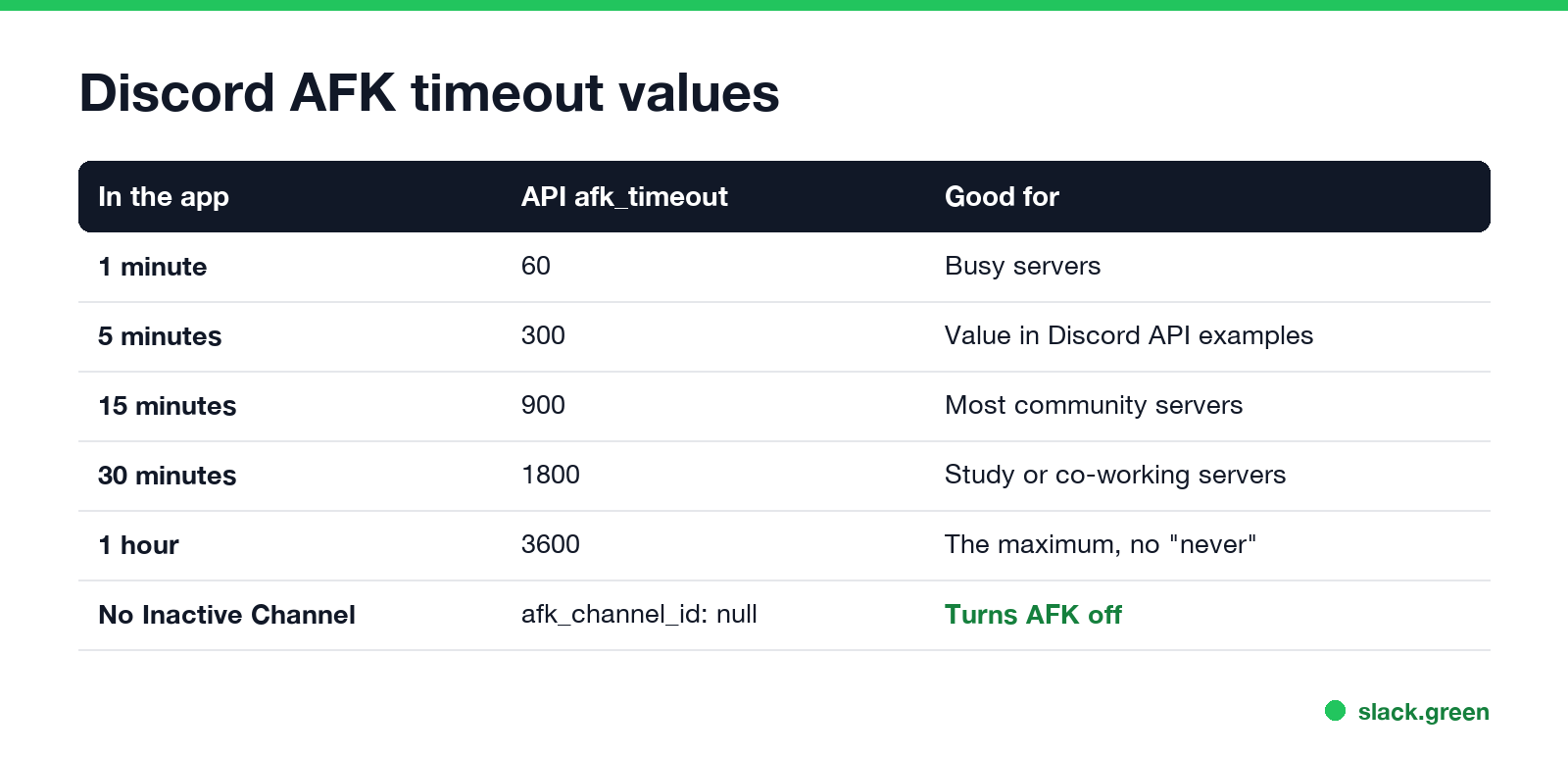
| Setting in the app | API value (afk_timeout, seconds) | Good for |
|---|---|---|
| 1 minute | 60 | Busy servers that want voice channels clear |
| 5 minutes | 300 | The value in Discord's own API examples |
| 15 minutes | 900 | Most community servers |
| 30 minutes | 1800 | Study or co-working servers |
| 1 hour | 3600 | The maximum; there is no "never" |
Discord's developer documentation lists those five values as the only ones allowed. To never move anyone, remove the Inactive Channel instead of looking for a longer timeout.
How to turn off or change AFK on Discord (server admins)
Never appear "away" on Slack again
Cloud-based. No downloads. Works 24/7 even when your laptop is off.
You need the Manage Server permission.
Bots can do the same through the API. With discord.py, for a bot that has Manage Server:
# set the AFK channel and a 30-minute timeout
await guild.edit(afk_channel=afk_voice_channel, afk_timeout=1800)

# turn AFK off
await guild.edit(afk_channel=None)
The timeout must be one of 60, 300, 900, 1800 or 3600. Other values are rejected.
How to stay AFK on Discord without getting moved
If you are a member and the server has an AFK channel, you have three honest options:
Muting or deafening yourself does not count as activity. It changes what others hear, not whether Discord sees you as active. And moving back into the voice channel after you are moved is always allowed; the AFK channel is not a penalty.
If you want to look away from the keyboard without looking gone, set your status by hand. Idle, Do Not Disturb and Invisible are covered in Discord status icons meaning.
AFK, Idle and Invisible on Discord
| AFK channel | Idle (yellow moon) | Invisible | |
|---|---|---|---|
| Set by | Server rule | Discord, from your inactivity, or you | You |
| Applies to | Voice channels on that server | Your status everywhere | Your status everywhere |
| Effect | Moved and muted | Moon icon, messages still arrive | You look offline |
| Turn off | Admin removes the Inactive Channel | Use Discord, or set another status | Pick another status |
Idle turns on after about 10 minutes without keyboard or mouse input on a computer. The full rules, and how to keep Discord from going idle, are in what does idle mean on Discord. How Discord's appear-offline options differ is in Discord invisible vs offline.
Discord AFK questions
Never appear "away" on Slack again
Cloud-based. No downloads. Works 24/7 even when your laptop is off.
What is the AFK timeout on Discord? How long a member can stay inactive in voice before Discord moves them to the server's Inactive Channel: 1, 5, 15 or 30 minutes, or 1 hour.
How do I turn off AFK on Discord? If you run the server, set Inactive Channel to No Inactive Channel in Server Settings. As a member you cannot.
Can you set the Discord AFK timeout longer than 1 hour? No. One hour is the maximum. Remove the Inactive Channel to stop moving people at all.
Why can't I talk in the AFK channel? Discord mutes everyone in the Inactive Channel. Join another voice channel to speak again.
Stop Jiggling Your Mouse.
Join hundreds of remote workers who never worry about their Slack status. Set it up once, stay green forever.
Related Articles
KeepingYouAwake vs Amphetamine: Which Mac Keep-Awake App to Use
KeepingYouAwake is a free, open-source menu bar switch that runs Apple's caffeinate for you. Amphetamine is a free App Store app with triggers, schedules and a closed-lid mode. Pick KeepingYouAwake for one click and Homebrew, Amphetamine for automation. Neither keeps Slack or Teams active.
Computer Locks After 15 Minutes? How to Tell If Group Policy Set It
A work laptop that locks after exactly 15 minutes, with screen settings greyed out, is almost always following a policy from IT: the Windows machine inactivity limit, a forced screen saver, or an Intune device lock. Security baselines and PCI DSS ask for 15 minutes. How to see which policy it is, and what you can and cannot change.
How to Keep a Citrix Session Active: Find Which Timeout Logs You Out
A Citrix session can end from four different timers: Windows locking inside the virtual desktop, the Citrix session idle timer, the Citrix Gateway session time-out, and the StoreFront web page timeout. Only input from your own device into the Citrix window resets them. How to tell which one hit you and what keeps each one quiet.