
Slack Sidebar Sections: Create, Sort, Share and Fix Them
Slack sidebar sections are custom groups of channels, DMs and apps in your sidebar. Only you see them, and they need a paid plan. How to create one on desktop and mobile, move many channels at once, sort and filter each section, share a section with your team, and get disappeared sections back.
Slack sidebar sections are custom groups for your channels, DMs and apps, such as "My team", "Clients" or "Read later". To create one on desktop, open the Home tab, hover over Channels, click the three dots, choose Channel section, name it and click Create, then drag conversations into it. Sections are private: only you see them, and your coworkers' sidebars do not change. Custom sections need a paid plan; on the free plan the sidebar has Channels, Direct messages and Starred. To give the same section to a team, use Share section.
A tidy sidebar makes you faster in Slack. It does not change your presence: Slack still turns your dot grey 10 minutes after your last input in its window. Slack Green keeps it green during the working hours you set, from the cloud.

How to create sections in Slack
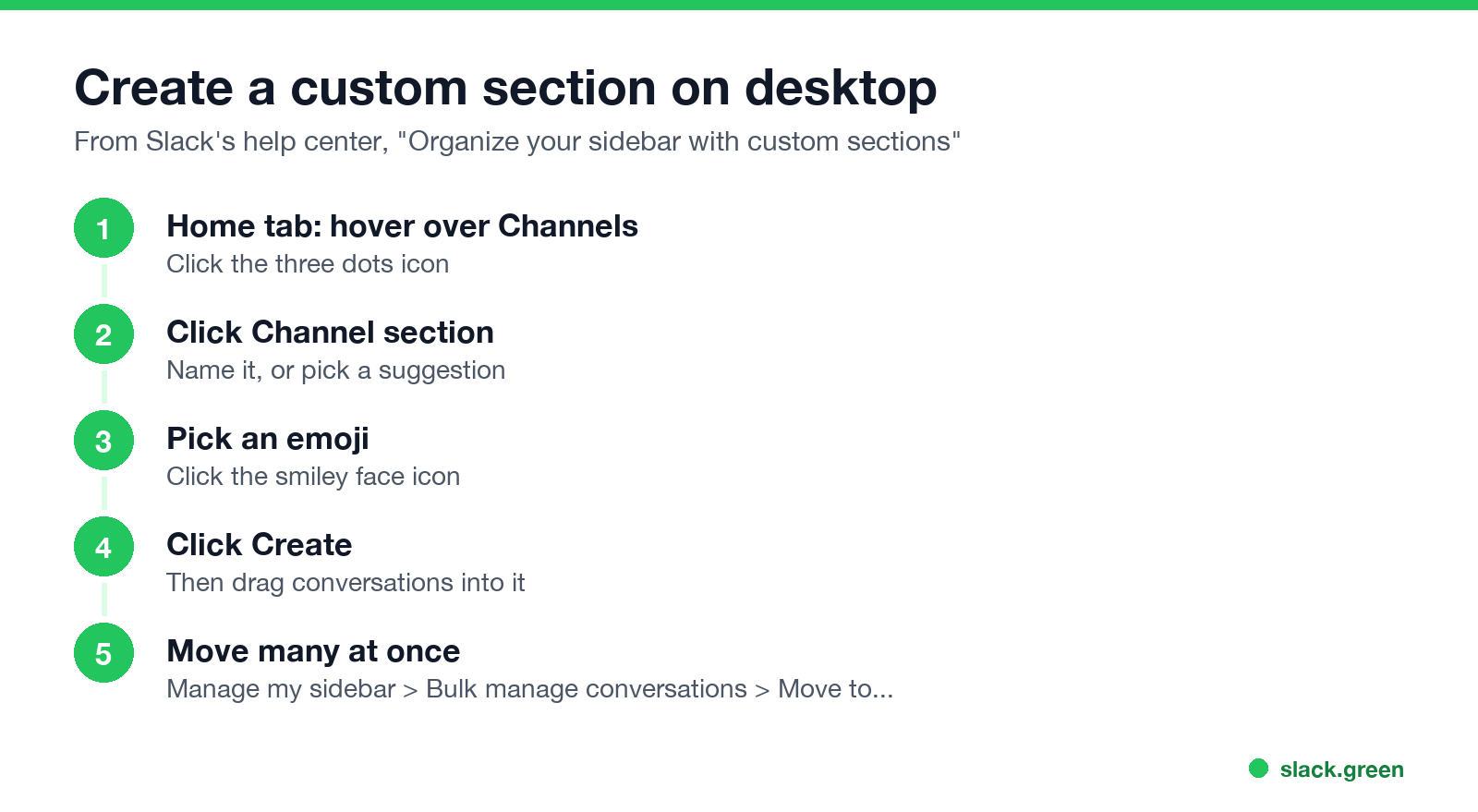
Desktop
- On the Home tab, hover over the Channels section in your sidebar.
- Click the three dots icon and choose Channel section.
- Enter a name, or pick one of Slack's suggestions.
- Click the smiley face icon to give the section an emoji.
- Click Create.
- Open a channel or DM and tap its name in the header.
- Tap Star if you have no sections yet, or Move if you do.
- Tap New Section, name it, pick an emoji, and tap Create.
- At the top of the Home tab on desktop, click the Manage my sidebar icon.
- Click Bulk manage conversations.
- Tick the conversations you want to move and click Move to....
- Pick a section, or Create new section, then click the checkmark when you are done.
Drag any channel or DM into the section. Or open a conversation, click the star icon (or the section's emoji) at the top, and pick a section.
Mobile
Move many channels into a section at once
Choosing the section the conversations are already in removes them from it. Removed conversations go back to Channels or Direct messages.
Are Slack sections private?
Slack पर फिर कभी "away" न दिखें
क्लाउड-आधारित। कोई डाउनलोड नहीं। लैपटॉप बंद होने पर भी 24/7 काम करता है।
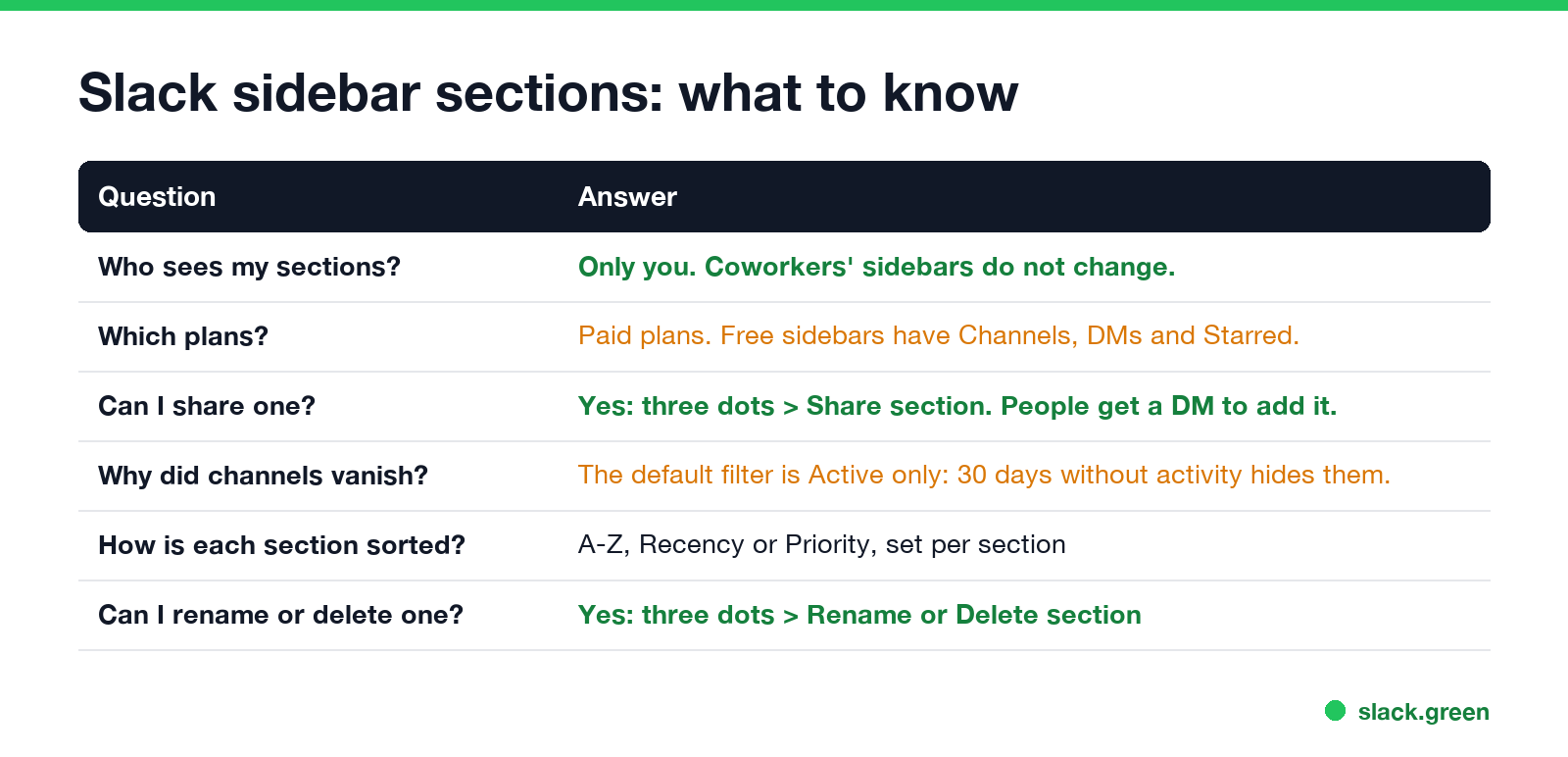
Yes. Slack's help center says custom sections are visible only to you and do not affect what your coworkers see. Naming a section "Ignore" or "Boss" is safe. The channels inside it are not private, though; a section only changes where a channel sits in your own sidebar.
Slack sidebar sections for everyone: share a section
To set up the same sections for new teammates, share one:
People can change a shared section afterwards like any other section. If you can create and edit user groups, you can also attach one section to a user group: in Directories, User Groups, turn on Add group channels as a section in Home, and everyone in the group gets the group's channels as a section. One section per user group. User groups themselves are explained in Slack user groups.
Sort, filter, rename and delete sections
Each custom section has its own settings in its three dots menu:
To find a channel hidden by a filter, hover over the section name and click the search icon. For the overall sidebar filter, see the next section.
Slack sections disappeared
Slack पर फिर कभी "away" न दिखें
क्लाउड-आधारित। कोई डाउनलोड नहीं। लैपटॉप बंद होने पर भी 24/7 काम करता है।
FAQ
How do I create a section in the Slack sidebar?
Home tab, hover over Channels, three dots, Channel section, name it, Create.
Can other people see my Slack sidebar sections?
No. Only you see your custom sections, unless you share one.
Are custom sections free in Slack?
No. Custom sections are a paid-plan feature. Free workspaces use Channels, Direct messages and Starred.
How do I reorder Slack sections on mobile?
You can move a conversation between sections from its header with Move. Slack's help center does not describe a way to reorder the sections themselves on mobile.
How do I share Slack sidebar sections with my team?
Three dots on the section, Share section, choose people, Share.
More ways to speed up Slack are in Slack tips and tricks.
माउस हिलाना बंद करें।
सैकड़ों रिमोट वर्कर्स अब Slack स्टेटस की चिंता नहीं करते। एक बार सेटअप करें, हमेशा के लिए हरे रहें।
Related Articles
Slack Lists Tutorial: Create, Organize and Share a List
Slack lists are tables of tasks inside Slack, with fields, assignees, due dates, a board view and a comment thread on every item. How to create a list from scratch or a template, set up fields, turn it into a kanban board, add messages to it, share it, and what the plan limits are.
Slack Jira Integration: Setup, /jira Commands and Notifications
Install the Jira Cloud for Slack app, type /jira connect in a channel to send a Jira space's updates there, /jira notify for personal notifications as DMs, and create work items from any message with More actions. Every /jira command, Jira automation to Slack, and fixes when previews or notifications stop.
How to Create a Slack Workspace, on Desktop or Phone
Go to slack.com/get-started, enter your email, type the confirmation code, and click Create a Workspace. It is free to start, you become the Primary Owner, and it takes about five minutes. Steps for desktop, iPhone and Android, and what to set up next.